WhatsApp Web Login: Step-by-Step Sign-In Guide
WhatsApp Web login steps for web.whatsapp.com: scan the QR code or use your phone number and 8-character code, plus passkey, logout rules and fixes.
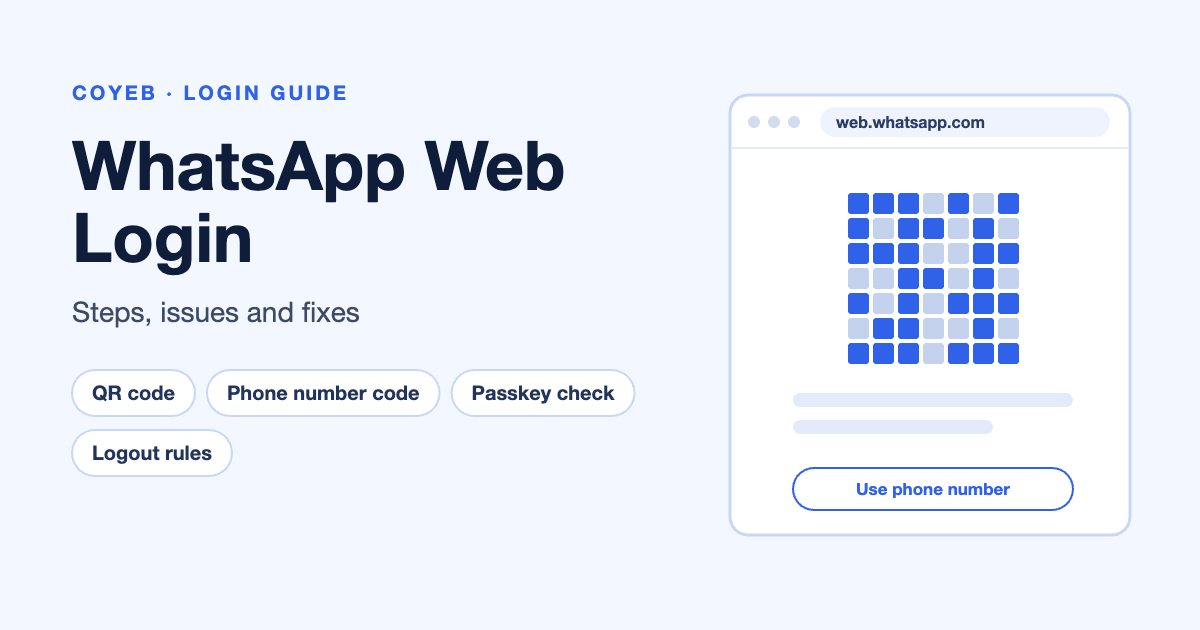
Quick answer: The only official WhatsApp Web login address is web.whatsapp.com. Open it on your computer, then link it to WhatsApp on your phone: scan the QR code, or click Log in with phone number and type the eight-character code into your phone. The login screen asks for a QR scan or your phone number, not a password. You can link up to four devices, and your phone does not need to stay online after linking.
Last verified: 13 November 2026
Official WhatsApp Web link: https://web.whatsapp.com/
coyeb.com is not affiliated with WhatsApp or Meta. We suggest never sharing your eight-character linking code or a QR code screenshot with anyone.
What you need before you start
- A working WhatsApp account on your phone. WhatsApp says you still need your primary phone to register your account and to link new devices.
- A computer browser. WhatsApp’s help centre lists the latest versions of Chrome, Firefox, Microsoft Edge, Opera and Safari. WhatsApp Web won’t work with some older browsers, including Internet Explorer.
How to log in to WhatsApp Web with the QR code
When you open web.whatsapp.com, the screen is titled Scan to log in and shows a QR code with three numbered steps. You can follow those steps with your phone’s camera, or scan from inside the WhatsApp app.
Option A: use your phone’s camera (the steps shown on the screen)
- Go to web.whatsapp.com on your computer.
- Scan the QR code with your phone’s camera.
- Tap the link to open WhatsApp.
- Scan the QR code again to link to your account.
Option B: scan from inside WhatsApp on Android
- Open WhatsApp on your Android phone.
- Tap the three-dot menu, then Linked devices > Link a device.
- If asked, unlock with your fingerprint, face or phone PIN.
- Point your phone at the QR code on the computer screen.
Option B: scan from inside WhatsApp on iPhone
- Open WhatsApp on your iPhone.
- Tap WhatsApp Settings or your profile picture, then Linked devices > Link device.
- If asked, use Face ID, Touch ID or your phone PIN.
- Point your iPhone at the QR code on the computer screen.
Before you scan, you can tick Stay logged in on this browser on the login screen if this is your own computer. We suggest leaving it unticked on a shared or office computer.
How to log in with your phone number (no QR code)
You may find this useful if your phone camera is broken or the QR code won’t scan. WhatsApp says this option works on WhatsApp Web and WhatsApp for Windows.
- On web.whatsapp.com, click Log in with phone number (or Link with phone number instead.).
- On the Enter phone number screen, select your country (for example, India +91) and type your WhatsApp number. Click Next.
- An eight-character code appears on your computer.
- On your phone, tap the Enter code to link new device notification from WhatsApp. Check the device name and location it shows, then tap Confirm.
- Type the eight-character code into your phone.
Alternatively, on Android, open WhatsApp and tap the three-dot menu > Linked devices > Link a device > Link with phone number instead, then type the code. To go back to the QR code, click Log in with QR code.
This code is not an SMS OTP. You type the code shown on your computer into your phone, not the other way round.
Passkey check on WhatsApp Web
As an extra security step, WhatsApp may ask you to use a passkey when you link WhatsApp Web. A passkey uses your phone’s fingerprint, face or screen lock instead of a password.
- You may be asked to create a passkey if you don’t have one.
- In your browser, click Continue and follow the prompts. You may need to scan an extra QR code if the passkey isn’t already synced to your device.
- Passkey linking works on iPhone with iOS 16 or later, Android 9 or later with Google Play Services, and Chrome 109+, Safari 16+, Microsoft Edge 109+ or Firefox 122+.
- JavaScript and WebAuthn must be on in your browser. WhatsApp notes that some corporate browsers may block WebAuthn by default, and that incognito or private mode may get in the way.
First time using WhatsApp Web?
The login screen has no username or password field. If you don’t have WhatsApp yet, the login page has a Get started link under “Don’t have a WhatsApp account?”. You first create the account on your phone, then link the computer using the steps above.
Do you need to keep your phone on?
No. WhatsApp says up to four linked devices can work without your primary phone staying connected. Two time limits do apply:
| Rule | What WhatsApp says |
|---|---|
| Open WhatsApp on your phone regularly | You need to log in to WhatsApp on your primary phone every 14 days to keep linked devices connected. |
| Use the computer regularly | WhatsApp automatically disconnects linked devices after 30 days of inactivity. |
| Device limit | Up to four linked devices at a time (computers, tablets, watches and more). |
So if WhatsApp Web logged you out on its own, check whether your phone was unused for 14 days or the computer was unused for 30 days, then link again.
WhatsApp Web login not working?
| What you see | What it means | Fix |
|---|---|---|
| A yellow icon with Computer not connected | Your computer may not have an active internet connection (WhatsApp help centre). | Check your internet. Then refresh the page, clear your browser cache and cookies, or log out of WhatsApp Web and log back in. |
| WhatsApp Web loads at the office or college but won’t connect | WhatsApp says office or campus Wi-Fi can cause connection issues. | Try a different Wi-Fi network or a phone hotspot. Network admins can allow traffic to “web.whatsapp.com” and “.whatsapp.net”. |
| Page won’t open in an old browser | Some older browsers are not supported, including Internet Explorer. | Use the latest Chrome, Firefox, Edge, Opera or Safari. |
| Passkey step fails | Possible causes: an unsupported browser, WebAuthn blocked, or private mode. | Update WhatsApp on both devices, use a supported browser outside incognito mode, and turn on Bluetooth on both devices. On Chrome with Android, sign in to the same Google Account on both. On Mac with iPhone, use the same Apple account. |
| You already have four devices linked | The limit is four linked devices. | On your phone, open Linked devices, tap an old device and tap Log out, then link again. |
| Logged out without doing anything | The 14-day phone rule or the 30-day inactivity rule (see above). | Open WhatsApp on your phone, then link the computer again. |
The first three fixes and the passkey steps come from WhatsApp’s help centre. You can also try restarting the computer: WhatsApp suggests turning the device off, waiting 30 seconds and turning it back on.
Using WhatsApp Web on a phone or tablet
WhatsApp Web is made for computer browsers. To use the same account on another phone or a tablet, WhatsApp supports those as linked devices too: its list includes Android and iPhone companion phones, Android tablets and iPad. Install the official WhatsApp app from your device’s app store and follow its linking steps. WhatsApp also offers apps for Windows and Mac. The web.whatsapp.com page on a Mac shows a Download WhatsApp for Mac prompt.
After you log in: 3 useful things
1. Check which devices are linked
- On your phone, open WhatsApp and go to Linked devices.
- Review the list. If you see a device you don’t recognise, tap it and tap Log out.
2. Log out of WhatsApp Web
- On the computer, go to WhatsApp Settings > Log out > Log out.
- Or log out from your phone: Linked devices > tap the device > Log out.
3. Make calls and organise chats
WhatsApp says WhatsApp Web lets you call your contacts over your internet connection, organise chats in folders and pin frequent chats. A few features still don’t work on linked devices, including viewing a live location, creating or viewing broadcast lists, and WhatsApp Flows with businesses.
Stay safe
- The only official address is web.whatsapp.com. WhatsApp says WhatsApp Web and linked devices only work through its official apps, web.whatsapp.com and the WhatsApp Business Platform.
- Don’t use unofficial WhatsApp apps or websites. WhatsApp warns that your account may be temporarily or permanently banned if you link to one, even if you linked in the past.
- If WhatsApp detects an unrecognised device, it asks you to confirm. Tap Don’t link if you didn’t start the login yourself.
- We suggest never sending your eight-character code or a photo of your QR code to anyone.
- Some search results for “WhatsApp Web login” are spam pages on unrelated websites that promise downloads or bonuses. Skip them and type web.whatsapp.com yourself.
Help and support
WhatsApp’s official help pages are at faq.whatsapp.com. Start with How to link a device, How to link a device with phone number and How to fix connection issues. We did not find a WhatsApp phone helpline on these pages (checked November 2026). Phone numbers posted as “WhatsApp customer care” on other websites may not belong to WhatsApp.
More login guides on coyeb: Flipkart Seller login and TRACES login.
FAQ
Can I log in to WhatsApp Web with my phone number instead of a QR code?
Yes. Click Log in with phone number, enter your number and click Next. Then type the eight-character code shown on your computer into WhatsApp on your phone.
Is there a WhatsApp Web login with OTP?
Not an SMS OTP. The phone-number method shows an eight-character code on your computer, and you enter it in WhatsApp on your phone to confirm the link.
Can I use WhatsApp Web without my phone being online?
Yes, after linking. WhatsApp says up to four linked devices can work without keeping your primary phone connected. You must still open WhatsApp on your phone at least every 14 days.
Why does WhatsApp Web keep logging me out?
Linked devices are disconnected after 30 days of inactivity, and they stop working if you haven’t logged in on your primary phone for 14 days. Clearing your browser’s cookies may also sign you out (a general browser behaviour, not a WhatsApp rule). On a personal computer, you can tick Stay logged in on this browser.
Does WhatsApp Web work in Chrome? Do I need to download an APK?
Yes, it works in the latest Chrome, Firefox, Microsoft Edge, Opera and Safari, with nothing to install. We suggest avoiding any “WhatsApp Web APK” offered on other websites. On phones and tablets, use the official WhatsApp app from your app store. On a PC or Mac, you can also use WhatsApp’s own desktop app.
How many devices can I link to WhatsApp Web?
Up to four linked devices at a time, plus your primary phone.