Kerala PSC Thulasi Login: Password Reset and Account Lock
PSC Thulasi login steps for thulasi.psc.kerala.gov.in: User ID, password and Access Code, forgot password, 3-try account lock and Help Desk numbers.
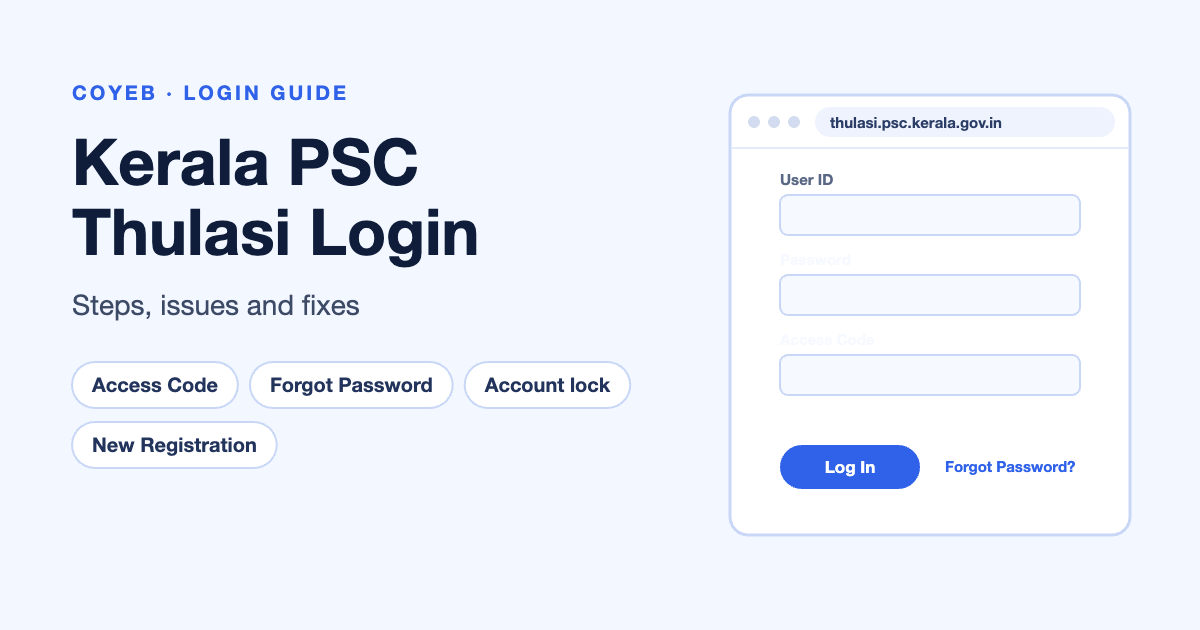
Quick answer: The official Kerala PSC Thulasi login page is thulasi.psc.kerala.gov.in/thulasi/. Under Registered User Login, enter your User ID, Password and the Access Code (Case sensitive) shown in the image, then click Log In. Forgot your password? Click Forgot Password? and enter your User ID and date of birth. Forgot your User ID? There is no link for it: call the PSC Help Desk.
Last verified: 13 November 2026
Official Thulasi login link: https://thulasi.psc.kerala.gov.in/thulasi/
coyeb.com is not affiliated with the Kerala Public Service Commission. Never share your Thulasi password or OTP with anyone.
How to log in to PSC Thulasi
- Open thulasi.psc.kerala.gov.in/thulasi/. The page says it is best viewed in Mozilla Firefox or Google Chrome.
- Find the Registered User Login box.
- Type your User ID (the one you got when you registered).
- Type your Password.
- Type the characters from the image into Access Code (Case sensitive). Capital and small letters must match.
- Click Log In.
Some guides call the image code a “captcha”. On the Thulasi page the field is labelled Access Code (Case sensitive).
Important: 3 wrong tries locks your account
Kerala PSC’s Password Management Policy (linked on the login page) says the account is locked after three consecutive failed login attempts. To unlock it, you must reset your password using the OTP-authenticated Forgot Password feature. So if you are not sure of your password, we suggest using Forgot Password before your third try.
Forgot password?
- On the login page, click Forgot Password?
- A box opens with the message “Please enter your User ID and Date of Birth (DD/MM/YYYY) as registered in your profile at Kerala PSC”.
- Enter your User ID and Date of Birth (DD/MM/YYYY), then click Proceed.
- Kerala PSC’s password policy describes this reset as OTP-authenticated. We did not see the screens after Proceed, because they need a real candidate account.
Kerala PSC’s FAQ confirms you keep the same User ID after a reset: “You can reset your password and reuse the same User ID.”
Rules for your new password
Kerala PSC’s Password Management Policy sets these rules:
- At least 8 characters.
- At least one uppercase letter, one lowercase letter, one numeral and one special character (for example !, @, #, $, %, &, *).
- Not the same as any of your last 5 passwords.
- Change it at least every 6 months.
- Avoid common words, names, dictionary terms or easy sequences.
Forgot your User ID?
The Thulasi login page has no “Forgot User ID” link. Kerala PSC’s FAQ says to “Make a telephonic call to the Help Desk number provided in the main page and give your details as asked by the person attending your call.” The Help Desk numbers are listed below.
New user? Register once with New Registration
Kerala PSC’s FAQ says candidates applying for any post notified from 2012 onwards should register first. The registration is done only once, and you then log in with your User ID and password to apply for posts, download hall tickets and view results.
- On the login page, click Sign Up next to New Registration.
- Fill in the form: name (initials at the end), date of birth (you must be 18 years or above), gender, father’s and mother’s name, religion, caste and sub caste, ID proof and ID proof details. The Aadhaar number box says “if available”.
- Enter your e-mail ID and mobile number. Each has a Send OTP button.
Keep these ready before you start, as listed on the Thulasi page:
| Item | Kerala PSC requirement |
|---|---|
| Photograph | JPG, maximum 30 Kb, 150 W x 200 H px. Your name and the date the photo was taken must be written (in two lines) in black text on a white strip at the bottom. |
| Signature | Scanned on good white paper with blue or black ink. JPG, maximum 30 Kb, 150 W x 100 H px. |
| ID card | Any one, such as Electoral ID, PAN Card, PEN Card or Aadhaar. |
The ID proof list on the form also includes passport, driving licence, bank account number and several others. The login page also has a Resize Photograph/Signature link.
PSC Thulasi login not working?
| Problem | Likely reason | What you can try |
|---|---|---|
| Login fails after 3 tries | Kerala PSC locks the account after three consecutive failed attempts. | Reset your password with Forgot Password? (OTP-authenticated, per the policy). |
| Access Code not accepted | The code is case sensitive. | Type capital and small letters exactly as shown. You can try the refresh icon next to the image for a new code. |
| Forgot User ID | There is no online recovery link. | Call the Help Desk during working hours. |
| Page looks broken | The site says it is best viewed in Firefox or Chrome. | Open it in the latest Chrome or Firefox. |
| Photo or signature rejected at registration | Size, pixels or file type do not match. | Use JPG of at most 30 Kb at 150×200 px (photo) or 150×100 px (signature), with name and date on the photo. |
The reasons in every row and the fixes in rows 1, 3 and 5 come from Kerala PSC pages. Trying the refresh icon and using the latest browser are our general suggestions, not steps published by Kerala PSC. We did not find any official list of Thulasi error messages.
After you log in: what you can do
Kerala PSC’s FAQ lists the main reasons to log in:
- Apply for a post notified by Kerala PSC.
- Download your hall ticket for an exam.
- View examination results.
Before applying, the login page’s Frequently Asked Questions also cover how to add a missing university or subject to your qualifications and how to check that your application was submitted.
Stay safe
- The official login is on thulasi.psc.kerala.gov.in. The login page footer links to www.keralapsc.gov.in. Check the address bar before you type your password.
- Kerala PSC’s policy says passwords must not be written down or shared, and users must log out when not in use. We suggest taking extra care on a shared or cyber-café computer.
- Some websites list helpline numbers or SMS codes for Thulasi that we could not find on Kerala PSC’s own pages. Use the Help Desk numbers shown on the official login page.
Kerala PSC Help Desk
These numbers are shown on the Thulasi login page under Help Desk (Working Hours only) (checked November 2026):
- 0471-2546400
- 0471-2546401
- 0471-2447201
- 0471-2444428
- 0471-2444438
More government portal guides on coyeb: TRACES login.
FAQ
What is the official PSC Thulasi login link?
thulasi.psc.kerala.gov.in/thulasi/. The login box there is titled Registered User Login and asks for User ID, Password and Access Code (Case sensitive).
How do I reset my Kerala PSC Thulasi password?
Click Forgot Password? on the login page, enter your User ID and Date of Birth (DD/MM/YYYY) and click Proceed. Kerala PSC’s policy says the reset is OTP-authenticated. You keep the same User ID.
I forgot my Thulasi User ID. What should I do?
There is no Forgot User ID link. Kerala PSC’s FAQ says to phone the Help Desk number on the main page and give the details they ask for.
Why is my Thulasi account locked?
Kerala PSC locks the account after three consecutive failed login attempts. Reset the password with the OTP-authenticated Forgot Password feature to use it again.
Do I need to register again for every Kerala PSC post?
No. Kerala PSC’s FAQ says you register only once and use the same User ID to apply for any post.
Is Aadhaar compulsory for PSC Thulasi registration?
On the New Registration form we checked, the field reads “Aadhaar Number, if available”, and Aadhaar is one of many accepted ID proofs. We suggest checking the notification for the post you apply for in case it sets its own requirements.