Candle Login: Canara Bank CanDLE Employee Portal
Candle login guide for Canara Bank staff: the official address, Employee Id and captcha steps, first-time access, forgot password, OTP trouble and helpline.
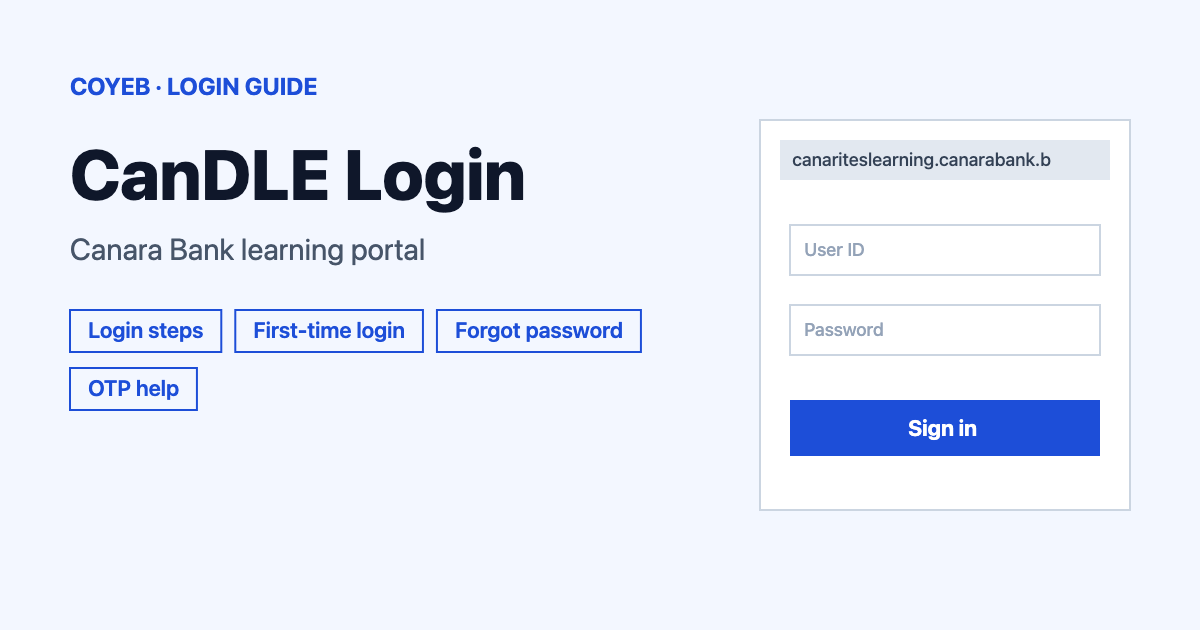
Candle login is for Canara Bank staff. Open canariteslearning.canarabank.bank.in/login, type your Employee Id and Password, enter the Captcha shown and press LOGIN. First time here? Use Forgot password to set a password instead of signing up. Problems are covered below.
Last verified: 18 November 2026
Official CanDLE login page: https://canariteslearning.canarabank.bank.in/login (checked November 2026)
coyeb.com is not affiliated with Canara Bank. Never share your password or OTP with anyone.
CanDLE is the Virtual Learning & eLibrary portal that Canara Bank runs for its people. The bank’s own pages also call it the Canarites Learning Portal. It has nothing to do with candles. The portal is meant for active bank employees only.
Candle login steps
The login page opens with the heading “WELCOME TO CANDLE”. Your username is your Employee ID. People who teach for the bank from outside use their Instructor ID instead.
- Go to canariteslearning.canarabank.bank.in/login.
- Type your number in the Employee Id field.
- Type your password in the Password field.
- Read the code shown and type it into the Captcha field.
- Press LOGIN.
The login page also tells you that course content can be read at any time. It adds that mandatory e-learning course assessments are strictly limited to a maximum of two per month.
First-time Candle login
There is no sign-up form to fill in. The home page says people logging in to CanDLE for the first time should use the Forgot password option instead of signing up. Registration works with a valid Employee Id or Instructor Id provided by the bank.
- On the login page press Forgot password?
- Enter your Employee Id and the mobile number registered for you.
- Press SEND OTP and follow the instructions the portal shows next.
Those later screens need a real account, so only the first one is described here.
Forgot password for Candle login
The Forgot password? link on the login page opens a page called “Forgot Password”. It has two fields: Employee Id (“Type your Employee Id”) and Mobile Number (“Type your registerd mobile number”; the spelling is the portal’s own). Fill both and press SEND OTP.
The portal’s FAQ describes this step as entering a valid Employee Id only. The live form also asks for the mobile number, so keep that number ready.
If the OTP does not arrive, the home page gives three checks:
- Check whether the mobile number saved in CanDLE matches the one in HRMS.
- If it is wrong, update it in HRMS and email elearning@canarabank.com.
- If the number is correct but the OTP still does not come, email sms.support@canarabank.com.
Candle login on mobile
The FAQ says the portal can be used on mobile devices, tablets and laptops. There is no software to download for the website, so a browser is enough. Staff who take assessments in the Canarites App and run into trouble are told on the home page to open CanDLE in Chrome at canariteslearning.canarabank.bank.in instead.
Candle login not working
No official error messages are published for this login, so the table below lists what you may see and general suggestions. The OTP and Chrome rows come from the bank’s own home page.
| What you see | What it may mean | Fix |
|---|---|---|
| Login is refused | Employee Id or password typed wrongly | Re-type both slowly. If you are unsure of the password use Forgot password? |
| Captcha rejected | Code typed incorrectly | Read the code again and type it exactly as shown. Reload the page for a fresh one if needed. |
| No OTP after SEND OTP | Mobile number in CanDLE may differ from HRMS | Follow the three official checks in the forgot password section above. |
| Assessment problem in the Canarites App | App trouble | Open CanDLE in Chrome through the official address instead (stated on the home page). |
| Cannot start another mandatory assessment | The limit is two per month | Wait for the next month. The login page states this cap. |
After Candle login
Courses. Use the Courses icon to open your e-learning content.
Assessments. An assessment is a simulated question paper with MCQs. Remember the two-per-month limit for mandatory ones.
Library. The Library icon opens the Canara Digital Library.
Circulars can be searched by year, category or keyword. Certificates and a feedback icon are also in the portal. To change your details, open the Profile option after you log in. The FAQ advises logging out when you finish your session.
Stay safe
The only address in this guide is canariteslearning.canarabank.bank.in. Check it in the address bar before typing your password. The bank’s pages do not publish a list of fake sites. Never give your password or OTP to anyone who asks for it by phone or message.
Looking for another workplace portal? See our NetSuite login guide.
Candle login helpline
The login page says to contact the bank in case of any difficulty in registration on 0820-2571351 or 0820-2571352 (checked November 2026). No hours are stated there. For other help the FAQ points to the Canarites Learning Portal Support page, which sits behind the login.