CalPERS Login: myCalPERS Member Account Access
CalPERS login at my.calpers.ca.gov: sign in to myCalPERS with your username, password and verification code. Register, reset a password or get help. Nov 2026.
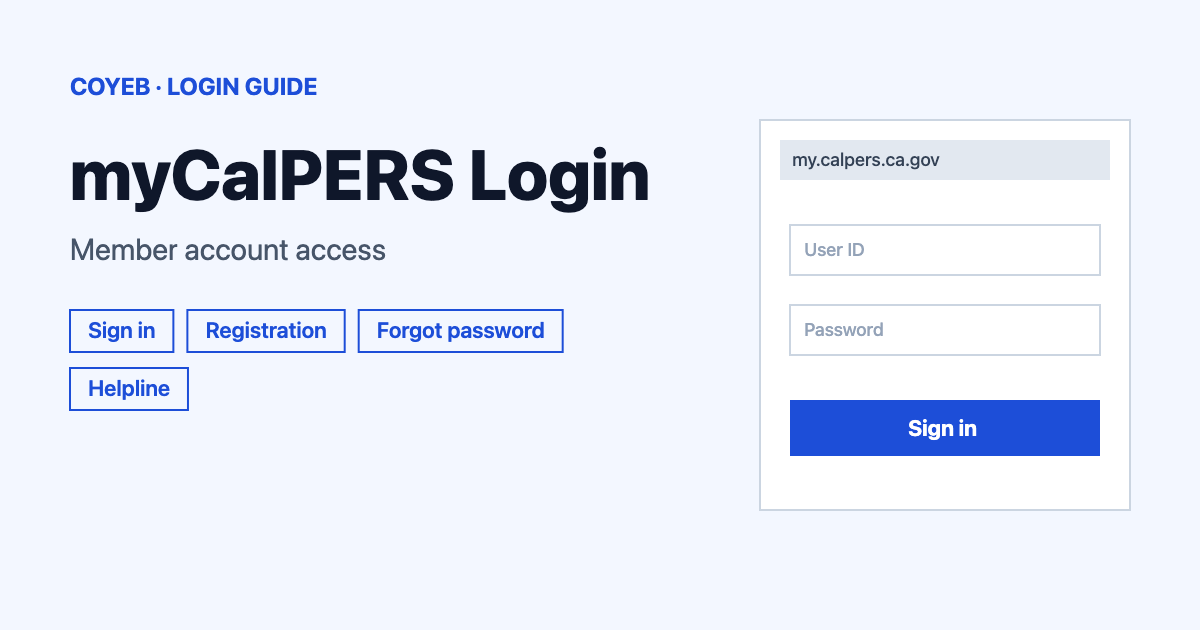
The CalPERS login is the myCalPERS sign-in at my.calpers.ca.gov. Enter your Username and Password and select Log In. Then choose a verification method and select Continue. Type the verification code you receive and select Continue. You can also reach the page from the Log in to myCalPERS link on calpers.ca.gov.
Last verified: 18 November 2026
Official CalPERS login address
The sign-in page for myCalPERS is my.calpers.ca.gov (checked November 2026). The CalPERS home page also carries a Log in to myCalPERS link in its header, so typing the main site address and using that link gets you to the same place. This guide follows how the official CalPERS pages describe the sign-in screens. Wording on the screen itself can change over time.
coyeb.com is not affiliated with CalPERS. Never share your password or OTP with anyone.
How to complete the CalPERS login
CalPERS describes the sign-in in two parts. First your username and password. Then a second check with a verification code.
- Open my.calpers.ca.gov or select Log in to myCalPERS on the CalPERS home page.
- On the myCalPERS login page, enter your Username and Password and select Log In.
- Choose a verification method and select Continue. CalPERS says a code can arrive by text message, phone call or email.
- Enter your verification code and select Continue.
CalPERS also mentions an authenticator app as a more secure option than a code by text or email. To turn it on after you are logged in, open the My Account dropdown and select Security Settings. Scroll to the Authenticator App card and select Enable an Authenticator App. In CalPERS’ notice about the myCalPERS improvements, people who already used an authenticator app were asked to enable it again the first time they logged in after the update.
First-time registration
If you have no myCalPERS account yet, CalPERS’ help page on using myCalPERS tells you to select Member Registration. The registration runs in five steps that are shown at the top of the page: Security Agreement, Identify Yourself, Contact Information, Username & Password and Registration Complete.
- Security Agreement. Read the terms and select Accept the CalPERS Security Agreement Terms and Conditions. The page also offers a Decline button and a Return to the Login Page link. The agreement page shows “Last Revised: April 2026” and states that CalPERS employees will never ask you for your password.
- Identify Yourself. You give your first and last name.
- Contact Information. An email address is required. Mobile and home phone numbers are optional.
- Username & Password. Create the username and password you will use at the login page.
- Registration Complete. This is the final step of the registration.
The official help page names only the first and last name for the identity step. Enter only what the real CalPERS registration page asks for.
Forgot username or password
CalPERS documents both recovery paths on the same help page.
Forgot username
- On the login page select Forgot your Username?
- Identify yourself by filling in the required fields.
- CalPERS emails your username to you.
Forgot password
- Select Forgot your password?
- Enter your email and your username.
- Choose a verification method and enter the code you receive.
- Create a new password.
When you pick a new password, CalPERS’ cybersecurity advice is to use a mix of letters, numbers and symbols where the system allows them. It suggests aiming for at least 16 characters and never reusing a password from another account.
You may also hear about a CalPERS ID. It is a unique 10-digit number that can replace a Social Security number for CalPERS business. It stays the same through retirement or a move to a new employer. After you log in, you can find it through the Your Account tile and Find Your CalPERS ID. It also appears on your Annual Member Statement. Without access to your account you can call the number in the helpline section below.
CalPERS login on a phone
The official pages read for this guide do not point to a myCalPERS app. The simplest route is the browser on your phone: open my.calpers.ca.gov and sign in with the same username and password. This is a suggestion and not an official instruction. The verification code can arrive by text message or phone call as well as email, which suits a phone well.
CalPERS login not working
CalPERS does not publish exact error messages on its help pages. The first column below describes what you are likely to see. The fixes are general suggestions apart from the lockout rule and the recovery paths above, which come from CalPERS.
| What you see | What it means | Fix |
|---|---|---|
| No verification code arrives | The code goes to the method you chose: text message, phone call or email. | Try again and choose a different verification method. Check that the email address and phone number on your account are still correct (suggestion). |
| You do not remember your username | The username is needed at the first login screen. | Select Forgot your Username? and CalPERS emails it to you. |
| Your password is not accepted | The password may be mistyped or may have been changed. | Select Forgot your password? and follow the verification steps. |
| Your account is locked | CalPERS locks an account after too many failed attempts to validate your identity. | Call 888 CalPERS to have it unlocked. |
| You do not know your CalPERS ID | The 10-digit ID can stand in for your Social Security number in CalPERS business. | Check your Annual Member Statement or call CalPERS. |
Members of the Judges’ Retirement Systems (JRS) should know that not all self-service features in myCalPERS are available to them. The JRS phone line is (916) 795-3688.
After you log in
Ask a question in the Message Center
- Log in to myCalPERS.
- Open the secure Message Center.
- Send your question about your own account there.
Book an appointment
- Log in and open the Education tab.
- Select Appointments.
- Follow the steps to book a time.
Find your CalPERS ID
- Log in and go to the Your Account tile.
- Select Find Your CalPERS ID.
Retirees can also use myCalPERS to modify payment methods, update contact information, change tax withholding and view tax and benefit statements. Any question about what to do with a benefit decision belongs with CalPERS staff and not with this page.
Stay safe with myCalPERS
Check that the address belongs to CalPERS before you type a password. The official site is calpers.ca.gov and the login is at my.calpers.ca.gov. CalPERS asks visitors to always verify they are on its official websites. No fake CalPERS sites have been named on the official pages read for this guide.
- CalPERS employees will never ask you for your password.
- If an email arrives that you did not expect, do not follow its links or open its attachments. CalPERS says to simply delete it.
- If you think your account may be compromised, call 888 CalPERS or send a secure message through myCalPERS.
CalPERS helpline
Customer Contact Center: 888 CalPERS (888-225-7377). TTY: (877) 249-7442. Hours are Monday to Friday from 8:00 a.m. to 5:00 p.m. and the line is closed on state holidays (checked November 2026). Details are on the CalPERS contact page.
More sign-in help on coyeb: KeyBank Login for online banking and NetSuite Login for business accounts.