GCPay Login: Construction Payment Portal
GCPay login steps for gcpay.com/login.do: the Email or Username box, the NEXT button, a password reset link valid 30 minutes and how to register.
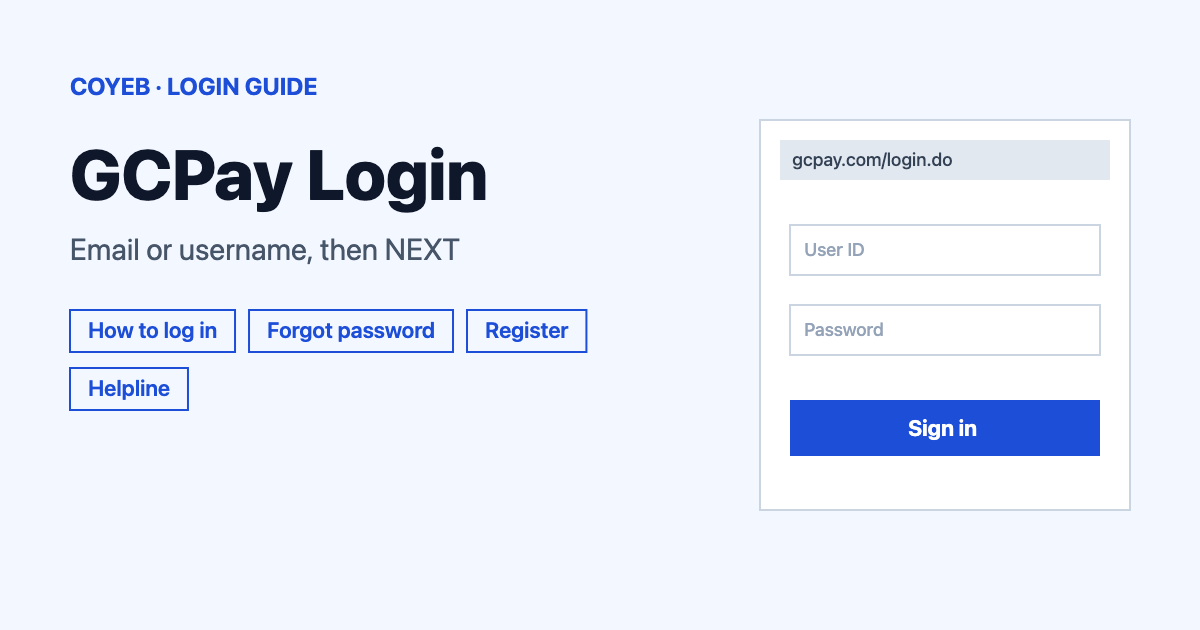
For the GCPay login, open gcpay.com/login.do, type your email or username in the Email or Username field and click NEXT. Then enter your password in the field labelled Enter your password. If you forgot it, use the forgot link on the same page to get a reset email with a link that works for 30 minutes.
Last verified: 18 November 2026
Official GCPay login page: https://gcpay.com/login.do (address checked November 2026)
Official support page: ww3.gcpay.com/support
coyeb.com is not affiliated with GCPay. Never share your password or OTP with anyone.
How to complete the GCPay login
The login page is headed LOGIN TO GCPAY and says “Please enter your username and password to login.” Only one kind of login is shown on the page, so there is no user type to pick before you start.
- Open https://gcpay.com/login.do in your browser.
- Type your email address or your username in the Email or Username box.
- Click the NEXT button. The first screen has no “Sign in” button, so NEXT is the one to press.
- Enter your password in the field labelled Enter your password when the form asks for it.
- Tick Remember Me only if the device is yours. On a shared or office computer it is safer to leave it unticked.
The support page also has a “Current GCPay User?” block with the line “Please login to your account.” The Login button in that block and the “GCPay Login” link in the menu both lead to the same address above.
First-time access: Get Started and register
If you do not have an account yet, use the link under the form that reads New to GCPay? Get Started. It opens the registration page at gcpay.com/get-started.do, headed REGISTER. The support page also links to it through “Register” in the menu and the “Get Registered” button.
The form asks for these details:
- First Name
- Last Name
- Phone
- Job Title
- Password
- Re-Type Password
The password has to follow four rules shown on the page: one upper and one lower case letter, at least one number, at least 10 characters and both password boxes must match. Under the form you will see the line “I agree to the GCPay Terms and Conditions and acknowledge Autodesk Privacy Statement.” There is also an optional marketing opt-in that says you can unsubscribe at any time. Click NEXT to continue.
Forgot your login or password
Under the form on the login page is the link Forgot your login or password? Click Here. Clicking it opens a panel called Reset your GCPay password.
- Click the forgot link on https://gcpay.com/login.do.
- In the Email address or username field enter the one you use for GCPay.
- Click Reset.
- Open the email GCPay sends you. The panel says it contains a link to reset your password and that the link will be valid for 30 minutes.
If 30 minutes pass before you use the link, go back to the panel and ask for a new one. If you are not sure which email address you registered with, try the ones you use for work and call the support number below if none of them works.
GCPay login on a phone
The login is a normal web page and every Login button on the support page points to the same web address. On a phone you can open https://gcpay.com/login.do in the mobile browser and follow the same steps as above. Type the address yourself instead of tapping a link in a message so you land on the right page. If the password field is hard to fill in, check that the keyboard has not added a space after your email address.
GCPay login not working
The table below describes what you might see and general suggestions to try. These are suggestions and not official GCPay instructions.
| What you see | What it may mean | What to try |
|---|---|---|
| A page that does not say LOGIN TO GCPAY | You may not be on the official page | Close it and type https://gcpay.com/login.do into the address bar |
| Nothing happens or you cannot continue after typing your details | The Email or Username box may hold a typo or a trailing space | Retype it slowly and click NEXT again |
| Your password is not accepted | The password may be wrong or may have been changed | Use the forgot link and the Reset button to set a new one |
| The reset link does not open or no longer works | The panel says the link is valid for 30 minutes | Request a new reset email and use it straight away |
| You never get the reset email | It may have gone to another folder or to a different address than the one you expected | Check spam and other folders first and then try your other email addresses or your username |
If none of this helps, the support team is reachable by phone as shown in the helpline section.
Stay safe when you sign in
The official login address checked in November 2026 is gcpay.com/login.do. The support page sits on ww3.gcpay.com. Check the address bar before you type anything. Other sites with similar names are not this portal. As a general habit, do not enter your password after clicking a link in an unexpected email. Open the address yourself instead. If a message looks suspicious, you can call the support number below to ask about it.
GCPay helpline
The support page at ww3.gcpay.com/support, headed “Get the Support you need to get paid faster”, lists the phone number 877-447-2584, option 1 as the way to get the fastest response (checked November 2026). The page does not list opening hours.
Related login guides
Looking for other business sign-ins? See the guides for NetSuite login and KeyBank login.