LISA Portal Login for Allied Universal Employees
Sign in to the Allied Universal LISA Portal at lisa.aus.com: employee and manager login, registration, password reset and what to do when sign-in fails.
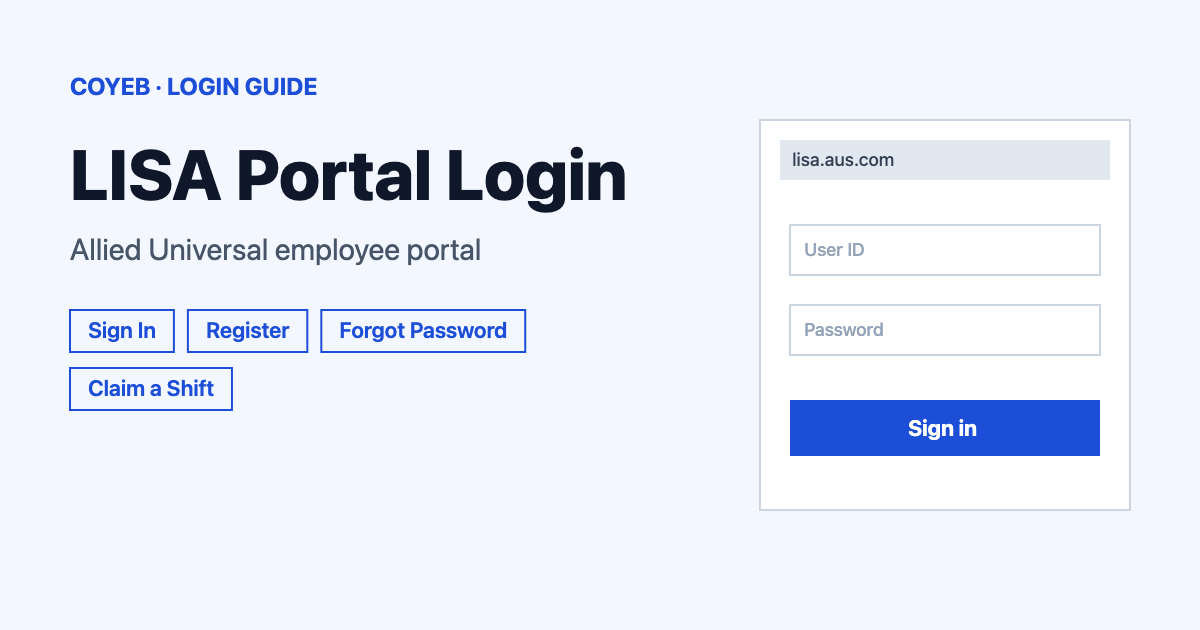
The LISA Portal for Allied Universal employees opens at lisa.aus.com. Enter your Email and Password, then select Sign In. Managers use the Microsoft button with their @aus.com email instead. If you forgot your password, select Forgot Password and enter your last name, birthday, last 6 digits of your Social Security number and email.
Last verified: 18 November 2026
Official LISA Portal link
The official address is lisa.aus.com. The page title reads “Allied Universal | LISA Portal” and the page says it is for Allied Universal employee use only. Checked November 2026.
coyeb.com is not affiliated with Allied Universal. Never share your password or OTP with anyone.
A few other systems use a similar name. This guide is only about the Allied Universal one.
What the LISA Portal is used for
The login page greets you with “Welcome to the LISA Portal, let’s get started!” and the page description lists LISA as “Live Interactive Support AI”. The privacy policy says the portal exists so that Allied Universal personnel can access communication tools. Allied Universal’s own pages link LISA to shift offers and job-related questions, which the sections below explain.
How to log in to the LISA Portal
There are two routes on the same page. Pick the one that matches your role.
Security professionals and other staff with a password
- Open lisa.aus.com in your browser. Type the address yourself instead of using a link from a message.
- Type your Email.
- Type your Password.
- Select Sign In.
Managers
- On the same page the form is followed by the word “OR”.
- Select Managers: Login using your @aus.com email.
- A Microsoft “Sign in” page with Allied Universal branding opens. Enter your @aus.com email there and select Next.
If you cannot get into that Microsoft page, the link Can’t access your account? sits under the email field.
First-time LISA Portal registration
New users start from the link Need an account? Register Here (SP Only) on the login page. The privacy policy explains that for some accounts the company sets up the portal credentials with you offline and for others you can set up access yourself online. If your manager has not told you which applies to you, ask before you register.
The registration page is headed “LISA Portal Registration” and has two parts.
- Verification Information: Last Name, Birthday and Social Security (Last 6).
- Account Information: Email, Password, Re-Type Password and Mobile Phone Number.
- Choose whether to tick Receive Automated Message Notifications. The privacy policy says texts are sent only with express consent and that you can reply “stop” to opt out.
- Select REGISTER. Use CANCEL if you want to leave the page.
The password rule shown on the page asks for 8-32 characters with at least one lowercase letter and one uppercase letter plus one number and one special character. The privacy policy (last updated October 11, 2024) says date of birth and social security number are collected for portal access, so only enter them on lisa.aus.com.
Forgot your LISA Portal password
The reset page is lisa.aus.com/forgot-password. It says “Enter the following information and we will send you a code that will allow you to change your password.”
- On the login page select Forgot Password.
- Fill in Last Name, Birthday, Social Security (Last 6) and Email.
- Select SUBMIT.
- Use the code you receive to choose a new password. Select Back to Login if you remember it after all.
Managers who use the Microsoft route can try the “Can’t access your account?” link on that Microsoft page.
LISA Portal login on a phone and the Mercury app
The login page is a normal website, so it opens in a phone browser the same way as on a computer. The official Allied Universal pages describe LISA on the web at lisa.aus.com. They do not describe a separate app called LISA.
What they do describe is the Mercury app. The Earn More page says “Use the Mercury app on your job site phone, or download Mercury Personal Edition to your own device.” Mercury Personal Edition is on the App Store and Google Play. The Google Play listing says the app covers viewing shifts and clocking in or out with geolocation as well as tasks and accepting shift offers. It also covers secure messages and updating contact info. That listing does not say the app signs you in to lisa.aus.com, so keep using the website address for the LISA Portal.
LISA Portal login not working
Allied Universal does not publish a list of LISA error messages. The table below describes what people commonly run into and the fixes are general suggestions you can try.
| What you see | What it may mean | Fix to try |
|---|---|---|
| Sign In does not accept your Email and Password | A typo in the email or password | Retype both slowly. Then use Forgot Password to set a new one. |
| You have no account yet | The portal needs registration first | Use Register Here (SP Only) or ask your manager how your access is set up. |
| The registration password is refused | The password does not meet the rule on the page | Use 8-32 characters with a lowercase letter and an uppercase letter plus a number and a special character. |
| The reset page does not move forward | One of the four details differs from what the company has on file | Check Last Name and Birthday and Social Security (Last 6) and Email again. If it still fails then ask your manager or site supervisor. |
| You are a manager and the password form fails | Managers use a separate route | Select Managers: Login using your @aus.com email and sign in through Microsoft. |
| Your eHub employee number does not work | eHub is a different login | Use your Email on lisa.aus.com. The eHub User ID is an employee number and only belongs to ehub.aus.com. |
If the problem stays, your manager is the first person to ask. The Google Play listing for Mercury says employees can contact their manager directly for shift, task or general support.
After you log in to the LISA Portal
Claim a shift
The Allied Universal Earn More page describes Claim a Shift this way: “pick up extra hours that fit your life and get paid more for stepping up.” It also lists My Shift Offers. Check My Shift Offers for anything that fits your schedule.
Get shift offers by text
The same page says you can adjust your profile to opt in to get shift offers from LISA via text message. You reply to a LISA text to claim a shift and you can customize how often LISA texts you. Check that the mobile number on your profile is yours.
Ask job-related questions
The Google Play listing for Mercury describes LISA as the channel for job-related questions. For anything about a shift or a task you can also speak to your manager directly.
Stay safe on the LISA Portal
- The only address covered here is lisa.aus.com. Check the address bar before you type anything.
- The page says it is for authorized use by Allied Universal employees only. Unauthorized access can lead to action under 18 U.S.C. § 1030.
- Never share your password. The reset asks for the last 6 digits of your Social Security number so only enter it on the real address.
- For privacy questions the privacy policy lists privacy@aus.com.
LISA Portal help and contact
No official LISA helpline was found on the Allied Universal pages. These are the contacts that exist (checked November 2026).
- Your manager or site supervisor for access and shift questions.
- mercury-pe-app@aus.com for the Mercury Personal Edition app only.
- privacy@aus.com for privacy requests.
- The main line (866) 703-7666 is the general company line. The Allied Universal contact page does not list it as an employee help desk.
For another work portal with separate roles, see the NetSuite login guide.