PlayMetrics Login: Club and Parent Access
PlayMetrics login at app.playmetrics.com/login for parents, coaches and admins. Invite rule, password reset, app sign-in and Network Error fixes.
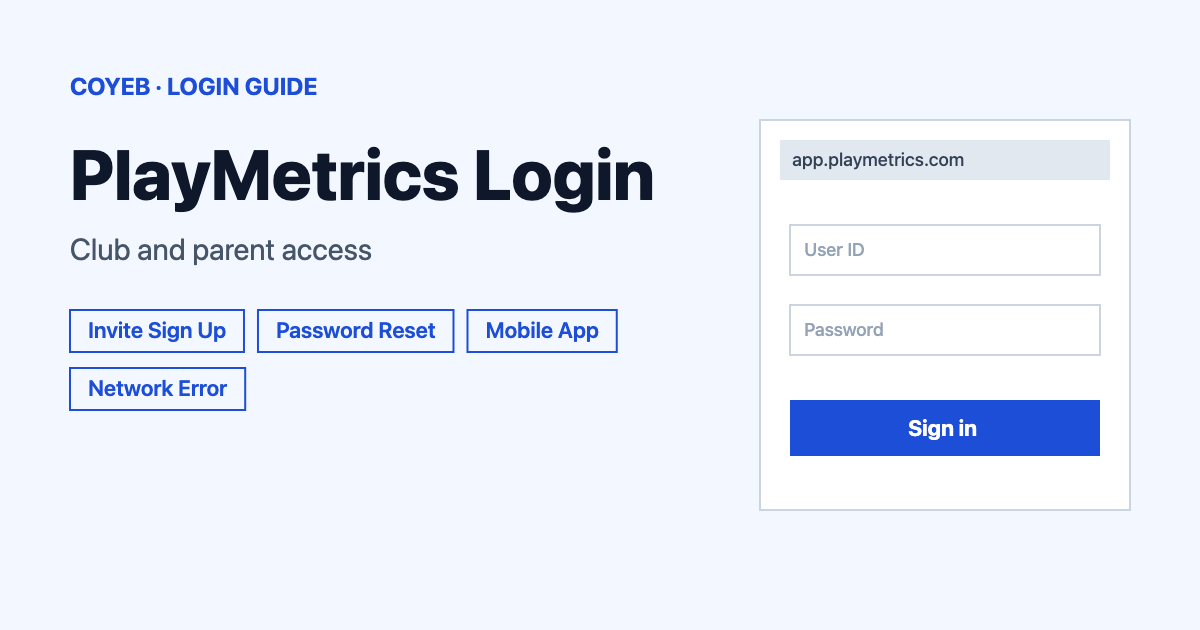
The PlayMetrics login page is app.playmetrics.com/login. Enter the email your club has on file and your password in the Email and Password fields then click Login. New users cannot sign up on their own because the club must invite them first. If you forgot your password use the Forgot your password? link.
Last verified: 18 November 2026
Official PlayMetrics login link
The official sign-in address is app.playmetrics.com/login (checked November 2026). The page is headed “Login to your PlayMetrics account.” and works for every type of user.
coyeb.com is not affiliated with PlayMetrics. Never share your password or OTP with anyone.
How to use the PlayMetrics login page
PlayMetrics has one login page for everyone. Parents and players use the same screen as coaches, directors, team managers and administrators. The role only shows up after you sign in.
- Open app.playmetrics.com/login in your browser.
- Type your account email in the Email field.
- Type your password in the Password field.
- Click Login.
Where you land depends on your role. A parent or player arrives on the Home Screen. A coach arrives on the Calendar. A director arrives on the Dashboard.
Under the form you will also see two links: Forgot your password? and Looking for your account? The second one is for people who have never signed in before.
First-time access: you need an invite
PlayMetrics does not let people create an account from nowhere. The official page says “To register on PlayMetrics, you need to be invited by your Organization.” Parents, players, coaches, directors, team managers and administrators all need a user account.
To check whether your club has already sent an invite:
- Click Looking for your account? on the login page.
- Enter your email or your mobile number.
- Click Search. Use the same details your club has on file.
If you have an account already, the same page has an Already have a PlayMetrics account? Login link that takes you back.
Sign up from the invite email
The invite email has the subject “Sign Up For [Type of Account] Access to [Club Name]”. Click Sign Up in the email and enter your email. Create a password and click Create Account. This sign-up page is different from the login page. Use it once and after that sign in at the login address above.
Sign up from a club registration link
Some clubs share a registration link instead. Open it and enter your email and a password. Click Create Account. PlayMetrics then sends an email titled “Verify Your PlayMetrics Account”. Click Confirm Email and fill in your contact details to finish the Parent or Guardian account. Add each child and review the programs for each player.
No invite email arrived
The Help Center lists four usual reasons. The email may be in your spam folder. The club may have a different or wrong email for you. The club may not have added you as a user yet (ask the Club Administrator). Or you may already have an account and only need to log in.
If you still cannot register you can write to support@playmetrics.com with the club name and your name. Add the player’s name and the email you gave the club. Also include which email app you use and a short description of the problem along with your phone number.
PlayMetrics login password reset
On a computer you can reset your password by email or by text message.
- Click Forgot your password? under the login box.
- Choose Email and type the email on your account. The reset form shows the label Email Address.
- Click Send Reset Link and open the email.
- Follow the link and set a new password. Back to Login returns you to the sign-in screen.
To use SMS instead, choose SMS and enter the mobile number on the account. Click Send Reset Code. A 6-digit code is sent by text if that number is linked to an account.
The email link works for 1 hour and the SMS code works for 15 minutes. After that you repeat the steps to get a new one.
If you no longer have access to the email on your account the Help Center tells you to contact your club administrator.
PlayMetrics login on the mobile app
The PlayMetrics app is free. The login page links to the PlayMetrics app on the Apple App Store and to the PlayMetrics app on Google Play. Sign in with the same email and password you use on the website.
To reset a password inside the app:
- Tap Forgot your password below the login box.
- Enter your email and tap Reset Password.
- Open the email and tap the Reset Password button.
- Enter and confirm the new password then tap Reset Password.
- When the app refreshes confirm your email and enter the new password. Tap Login.
You can also sign in from a phone browser such as Safari or Chrome. If the app misbehaves, this can be a useful way to check that your password is right.
PlayMetrics login not working
Start with the fixes the Help Center gives when the app keeps sending you back to the login screen after a reset. Force-close the app and open it again. Restart your phone. Update the app fully and if that does not help delete it and install it again. Try the login in a web browser. Try another network or mobile data because work or school Wi-Fi can block the app. Check parental controls on the device too.
| Error message | What it means | Fix |
|---|---|---|
| Network Error | The network you are on is blocking access to the app. Workplace Wi-Fi is the common cause. | Switch to another Wi-Fi network or use mobile data. Force-close the app and open it again. If it continues email support@playmetrics.com with your device type. |
| Invalid User | PlayMetrics names this as an example of a login message in its app troubleshooting page but gives no meaning for it. | Suggestion: check the spelling of your email and make sure it is the address your club used for the invite. You can also use Looking for your account? to see if an invite exists. |
| You’ve missed the net. | Another message PlayMetrics names as an example without explaining it. | Suggestion: go through the app steps above and try the web login. |
PlayMetrics gives fixes only for Network Error. The suggestions for the other two messages are general ideas. If nothing works email support@playmetrics.com with your device type and OS version (for example iOS 14.2 or Android OS 11) plus the exact error text. A screenshot or screen recording helps.
Two accounts under different emails
Some families end up with more than one account. The Help Center explains that you pick one primary email and add it as an additional contact on the other account. Then you transfer account ownership to the primary email. After that both players show under the primary email.
If you have different roles on different emails keep the email tied to your non-Player Contact role. Add it as an additional contact on the Player Contact account. The account owner has to add you if you do not own it. Once that is done you can switch roles while logged in.
What to do after you log in
Register a player for a program
- Add each child to your account.
- Review the programs offered for each player.
The Help Center also has articles on adding a player and adding additional family contacts. Questions about a player’s team or program go to the club itself.
Use the app for events and alerts
Install Google Maps or Waze if you want to open an event location from the app. If push notifications are missing check your device notification settings and your PlayMetrics communication preferences.
Ask the club or ask PlayMetrics
Team and program questions belong with the club. Website or app problems go to PlayMetrics support through the Help Center, where you can submit a request.
Stay safe when you sign in
Check that the address bar shows app.playmetrics.com before you type your password. PlayMetrics lists clubs, leagues, tournaments, state associations and governing bodies on its login page footer. Club invite links are for signing up and are not the login page. If an email asks for your password in an unexpected way, it is safer not to click it. Go to the login address directly instead.
PlayMetrics support contact
PlayMetrics shows no support phone number on its login page. Support is by email at support@playmetrics.com or through a support ticket in the Help Center (checked November 2026).
For other portals see the coyeb guides for Healow login and NetSuite login.