ResearchGate Login: Sign In, Institutional Email and Fixes
ResearchGate login guide: sign in with your email or institutional email, enter the 6-digit code, sign up, reset a password and fix common problems.
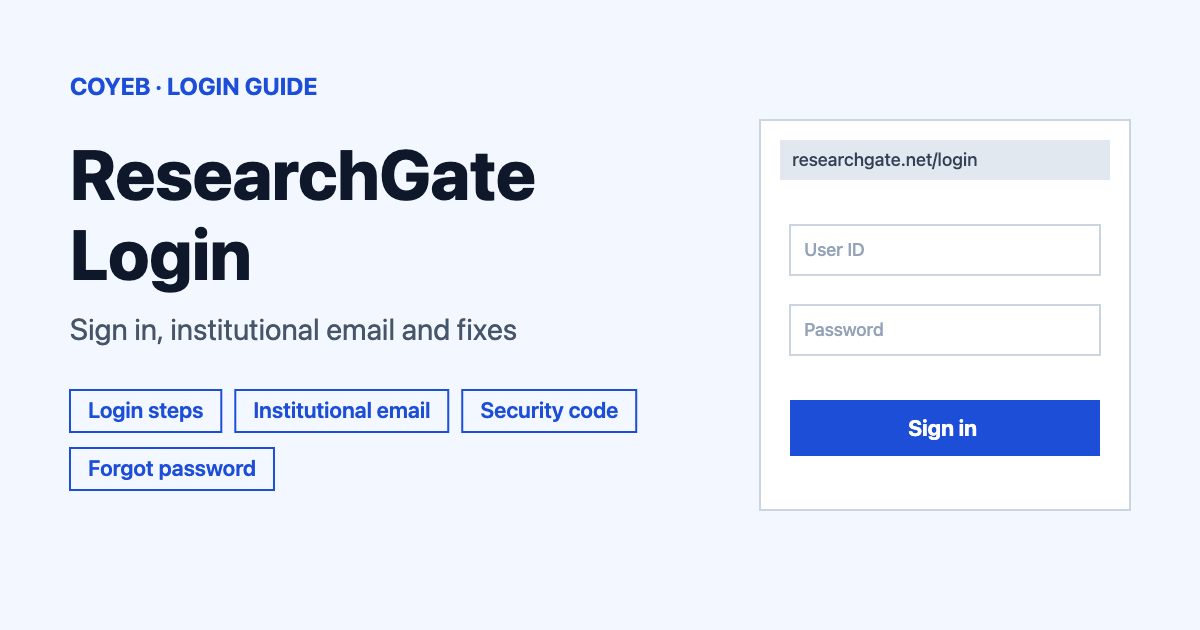
For the researchgate login, open researchgate.net/login, type your email in Email and your password in Password, then click Log in. The catch: on a new device ResearchGate emails a 6-digit security code. It only goes to a confirmed email address that you can open.
Last verified: 18 November 2026
Official login page: https://www.researchgate.net/login
coyeb.com is not affiliated with ResearchGate. Never share your password or OTP with anyone.
What you will see on the ResearchGate login page
The page is called “Login to ResearchGate” and needs JavaScript switched on in your browser. It shows:
- An Email field and a Password field.
- A Keep me logged in box.
- The Log in button.
- Continue with Google as another way to sign in.
- The Forgot password? link and the Sign up link beside “No account?”
ResearchGate login steps
- Open researchgate.net/login.
- Type your email address in the Email field. This can be your primary email or any additional email you added.
- Type your password in the Password field.
- Tick Keep me logged in only if the device is yours.
- Click Log in.
If you prefer, click Continue with Google instead of typing an email and password.
New device security code
When ResearchGate sees a login from a new device, it emails you a 6-digit security code. Enter the code to finish the login. The code goes to the confirmed address you used for that login, either your primary email or an additional one.
Codes are sent only to confirmed addresses, so a newly added email must have its confirmation link clicked first. If you cannot open any confirmed address, you cannot log in from a new device.
ResearchGate also sends an email alert when a login comes from a device you have not used before. You can turn these alerts off with the Email login alerts box in your Security Settings.
Logging in with an institutional email
You can log in with any email address on your account, so a university or work address works once it is added and confirmed. To add one:
- Log in with your current login email.
- Click your profile image at the top right of any page and select Settings, then Account.
- Under Email address, click Add additional email.
- Type the new email address and your password, then click Add.
- Open the confirmation email sent to that address and click the link in it.
To make it your main address, click Set as primary next to it after it is confirmed. Temporary email addresses are not supported. If you see “Please enter a permanent email address.” use a permanent university or personal address instead.
ResearchGate sign up and first login
ResearchGate is the professional network for scientists and researchers. It asks you to sign up with an institutional email address so it can verify your involvement in current research. You can change your email address after signing up.
- Go to researchgate.net and click Join for free (or click Sign up on the login page).
- Under “What type of researcher are you?” choose Academic or student, Corporate, government, or NGO, Medical or Not a researcher.
- Enter your name and your institutional email address, then choose a password.
- Click the link in the activation email to finish creating your account.
No activation email after 24 hours: check your spam folder and all other email folders, add ResearchGate to your address book and ask your email administrator to allow @researchgate.net and @researchgatemail.net. Then request another confirmation email. It should arrive within 5 minutes and only the latest link works. If the link does not open, your email app may be blocking it. Allow links from the sender or forward the email to another account you own and click it there.
Wrong email at sign up: sign up again with the correct address. ResearchGate cannot change the email used at the first sign up. Clearing your browser cookies first may help.
No institutional email: ResearchGate strongly prefers one. In rare cases it considers account requests from people actively working in a specialized research field, sent through the contact form with proof of affiliation, recent research and a student or academic ID. A request is not a guarantee of an account.
Forgot password
- On the login page click Forgot password?
- On the “Forgotten password?” page type your primary or additional email in Your login email address and click Continue.
- Follow the steps on the next screen. ResearchGate emails you a password reset link.
- Click the link in the email within 30 minutes. After that it expires and you must ask for a new one.
The reset email can take some time to arrive. ResearchGate sends reset links only to confirmed email addresses on your account.
Already logged in? Click your profile image, select Settings, then Account. Scroll to Password and click Change password. Type your current password, then the new password twice. Click Save new password. This logs you out on all other devices. If you forgot the current password, click Forgot password? on that screen.
Password reset email not received
If nothing arrives within 24 hours:
- Check your junk or spam folder.
- Add ResearchGate to your address book.
- Click Forgot password? on the login page and request the reset again.
- Ask your email administrator to allow emails from @researchgate.net.
No access to your email address
ResearchGate cannot send security codes or reset links to an address that is not confirmed on your account. It also cannot change the email linked to an account. If you cannot open any of your confirmed addresses and you forgot your password or are logging in from a new device, you cannot get into that account.
In that case ResearchGate suggests signing up again with an active email address. After that, use the merge request on the Duplicate profiles page: log in to the account you want to keep, open the profile of the other account, click the three-dot button, select Report duplicate profile, enter the email address of each account and click Submit merge request. ResearchGate reviews the request and emails you when the merge is complete. All publications with their citations and reads move to the kept account. Followers, followings, questions and messages do not move. A merge cannot be undone.
Login on mobile
Open researchgate.net/login in your phone browser and use the same email and password steps. Android users can also install the app from Google Play. The login page also links to the iOS app. In the app you can read research, check stats and send messages, but you cannot add publications or edit your profile.
ResearchGate login not working
Only two error messages are quoted by ResearchGate. The other rows are general suggestions.
| What you see | What it means | Fix |
|---|---|---|
| Oops! We couldn’t find that token in our database. | You clicked an old confirmation link. | Use the link in the latest email because all earlier links stop working. Check spam and filters. |
| Please enter a permanent email address. | The address you tried to add is temporary. | Add a permanent university or personal address. |
| Error when asking for a password reset | The account may not be activated or the registration expired. | Find the activation email and click the link in it. |
| No security code on a new device | The email may be unconfirmed or you cannot open it. | Confirm the address first. Without any confirmed address you can reach, you cannot log in from a new device. |
| Error when merging two accounts | An email address you entered is not linked to the account. | Check the email of each account. If you cannot remember one, contact ResearchGate. |
After you log in
Click your profile image at the top right of any page and select Settings. From there you can manage your password and email address or delete your account. In Security Settings you can see every device that has logged in, with the time and approximate location. To log out another device, click its session and select Log out. If you do not recognize a login, reset your password straight away.
Stay safe
Check that the address bar shows researchgate.net before typing your password. Never share your password or a security code with anyone. ResearchGate says it never shares your email address with outside parties.
ResearchGate contact and help
- Help Center: help.researchgate.net (checked November 2026)
- Contact form: contact.researchgate.net (checked November 2026). Log in first for quicker help. Replies may be delayed.