Spectrum Sign In: Pay Bill and Manage Your Account
Spectrum sign in step by step: log in at spectrum.net, reset a forgotten username or password, find your security code, pay your bill and get help.
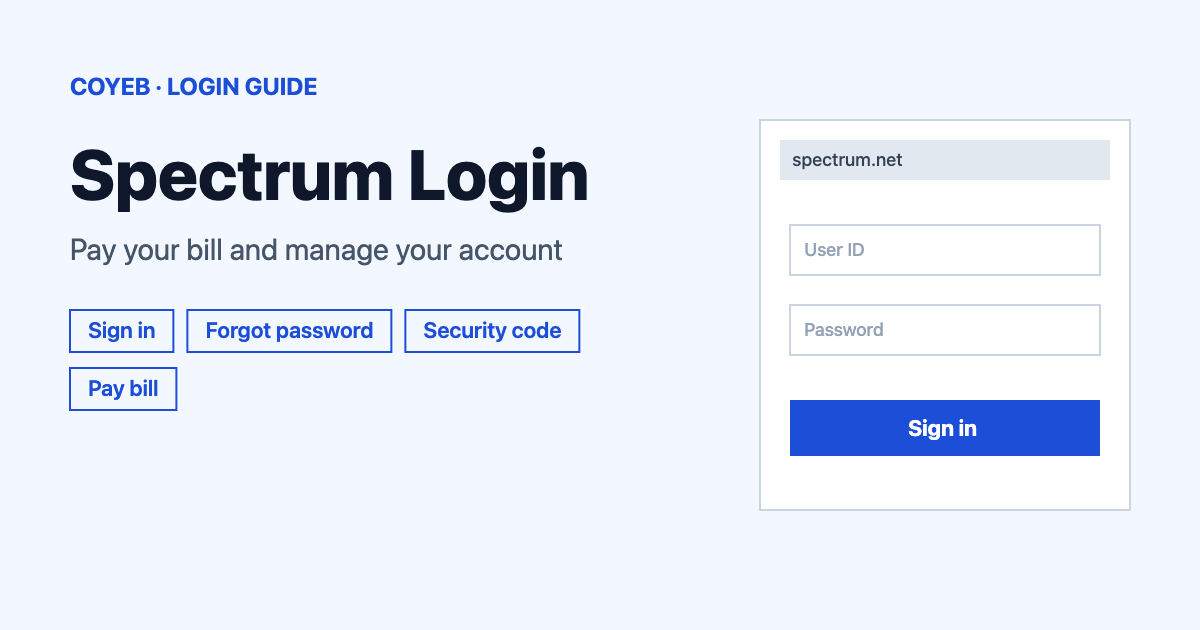
For Spectrum sign in, go to spectrum.net and select Sign In. On the “Sign in to get started” page, enter your Username and Password, then select Sign in. Your security code is not needed here. It is only for password recovery and support calls. New here? Select Create a Username.
Last verified: 18 November 2026
Official address: https://www.spectrum.net/ (checked November 2026). coyeb.com is not affiliated with Spectrum or Charter Communications. Never share your password or OTP with anyone.
How to use Spectrum sign in on spectrum.net
This guide is for a home (residential) Spectrum account. Spectrum Business has its own link at the bottom of the spectrum.net home page, so use that one if your account is for a business.
- Open spectrum.net in your browser.
- Select the Sign In button. You land on a page called “Sign in to get started”.
- Type your Username.
- Type your Password.
- Select Sign in.
You need to be signed in to see your bill, because the bill lives inside your account. If you use a Spectrum email address, type your full username. Only the primary account holder can sign in to see Spectrum Mobile account information.
What you will see on the Spectrum sign-in page
- Username and Password boxes
- A Sign in button
- A Create username button for new users
- Forgot username? and Forgot password? links
First time on Spectrum sign in: create a username
Online sign-up is open to Spectrum customers. You can start on spectrum.net or in the My Spectrum App. Have your phone number, email address or account number ready.
- Select Create a Username on the spectrum.net home page or Create username on the sign-in page.
- Verify your account with your phone number, email or account number.
- Create your password and confirm your contact email.
- Use uppercase and lowercase letters, numbers and special characters in your password. Avoid names, birthdays and common words.
- A username cannot be changed later. To get a different one, create a new profile or contact Spectrum.
- Allow at least 72 hours before you use any TV channel apps.
- The first username is the Primary user with full privileges. An account can have up to five usernames in total (the Primary plus four more).
- You can use a personal email address. If you do, you cannot use Spectrum Email or change your username to a Spectrum email address later.
Forgot your Spectrum username
- On the sign-in page, select Forgot username?. A page called “Confirm Your Account” opens. It says “For the best experience, continue from your home network.”
- Pick one way to confirm your account and fill it in:
- Username & ZIP Code
- Phone Number
- Email Address
- Account Info (Account Number and Security code or PIN)
- Confirm you are not a robot and select Next. Cancel takes you back.
- Choose to get a verification code by text message, email or automated call.
- Enter the six-digit code. Your username then shows on the screen.
Forgot your Spectrum password
Select Forgot password? on the sign-in page and follow the same “Confirm Your Account” steps and verification code as above. What happens next depends on how you confirmed your account:
- With Username & ZIP Code, you go straight to the password reset.
- With any other option, your username shows first. Then you can reset your password.
After a reset, sign in again on every place you use Spectrum: Spectrum email, the My Spectrum App, the Spectrum TV app and the TV channel apps.
Change your Spectrum password when you know it
- Sign in to your account.
- Select More, then Settings.
- Select the Sign in & Security tab and verify your identity.
- Select Password, enter and confirm the new password and select Save.
Find your Spectrum account number and security code
- Account number: sign in, select Billing and scroll to Statements. The number is listed under each service you have.
- Security code: sign in as the primary user, select More, then Settings, then Sign In & Security and scroll down. It is a four-digit code assigned within 24 hours of creating your account.
- Spectrum asks for the security code when you call support and when you recover a password on Spectrum.net. It is not needed to sign in.
- To change it, sign in as the primary user and open the same Sign in & Security page. Select the arrow, enter a new four-digit code and select Save. Contact Spectrum if you cannot reach or change the code.
Add another person to your Spectrum account
Sign in as the Primary user. Select More, then Settings and the People sub-tab. Select Add Person, fill in the required fields and choose a role. Then select Add.
Spectrum sign in on your phone
The same page works in a mobile browser: open spectrum.net and tap Sign In. You can also use the My Spectrum App for iPhone and iPad or Android. Sign in with your Spectrum username and password. The app needs iOS 16.7 or Android 11 or newer.
Spectrum sign in not working
Spectrum says to clear your cache and try again if you cannot sign in. These are the messages Spectrum itself shows:
| Error message | What it means | Fix |
|---|---|---|
| “We’re sorry, cookies are disabled in this browser. To view this site, please enable cookies.” | Your browser is blocking cookies. | Turn cookies on in your browser settings and reload spectrum.net. |
| “We’re sorry, javascript is disabled in this browser. To view this site, please enable javascript.” | JavaScript is switched off. | Turn JavaScript on and reload the page. |
| “We’re sorry, we couldn’t find this page.” | The web address is old or has a typo. | Go to spectrum.net and select Sign In from there. |
If the password is the problem, use Forgot password? as shown above.
Pay your bill and manage your account after you sign in
View your bill
- Sign in to your account.
- On the Account Summary page, select the Billing tab.
- Under Statements, open the statement for each of your lines of service.
- Select Print at the bottom of the statement if you need a copy.
Your current bill and due date are in the Billing section. After you pay, the balance updates in real time.
Pay your bill
To pay online you need a checking or savings account, a debit card or a credit card. Sign in as the Primary or Admin user.
- Select Billing.
- Select Make a Payment.
- Adjust the Payment Amount, Payment Date and Payment Method if needed.
- Select Make Payment.
A notice with the payment amount and status then appears in the Billing section. If a payment fails, Spectrum says to try a different payment method, either online or at a local Spectrum store.
Other ways to pay:
- By phone: call 833-267-6094 for the automated service. A $5.00 processing fee applies if you pay with the help of an agent.
- Through your bank: add Spectrum as a payee. The payment address is on your billing statement. Spectrum charges no fee for this.
- In a Spectrum store: no processing fee. Stores take cards, cash, personal checks and cashier’s checks.
- By mail: include the payment slip and write your account number on the check or money order. Do not send cash.
Check payments and update how you pay
In the Billing tab, select Activity to see past payments and transactions. Select Payment Methods to update your preferences. If something on your bill looks wrong, Spectrum asks you to tell them within 60 days of your billing date.
Stay safe when you sign in
- Type spectrum.net yourself instead of trusting a link in a text or email. The real sign-in page is on id.spectrum.net, which is part of Spectrum.
- Share account details only with Spectrum or an authorized user on your account.
- Spectrum says it will never ask for payment in exchange for a discount.
- Use a password that you do not use anywhere else.
- Keep your account number and security code private.
Spectrum helpline
- Chat: available 24/7 on the Spectrum contact page (checked November 2026)
- Phone: (833) 267-6094 for TV, Internet and Home Phone (checked November 2026)
- Spectrum Mobile: (833) 224-6603 (checked November 2026)
- In person: visit a Spectrum store and talk to a Store Specialist (checked November 2026)