Tenda Login (192.168.0.1): Router Admin and WiFi Password
Tenda login guide: open tendawifi.com or 192.168.0.1, sign in to your router admin page, fix a page that won't load and change your WiFi password.
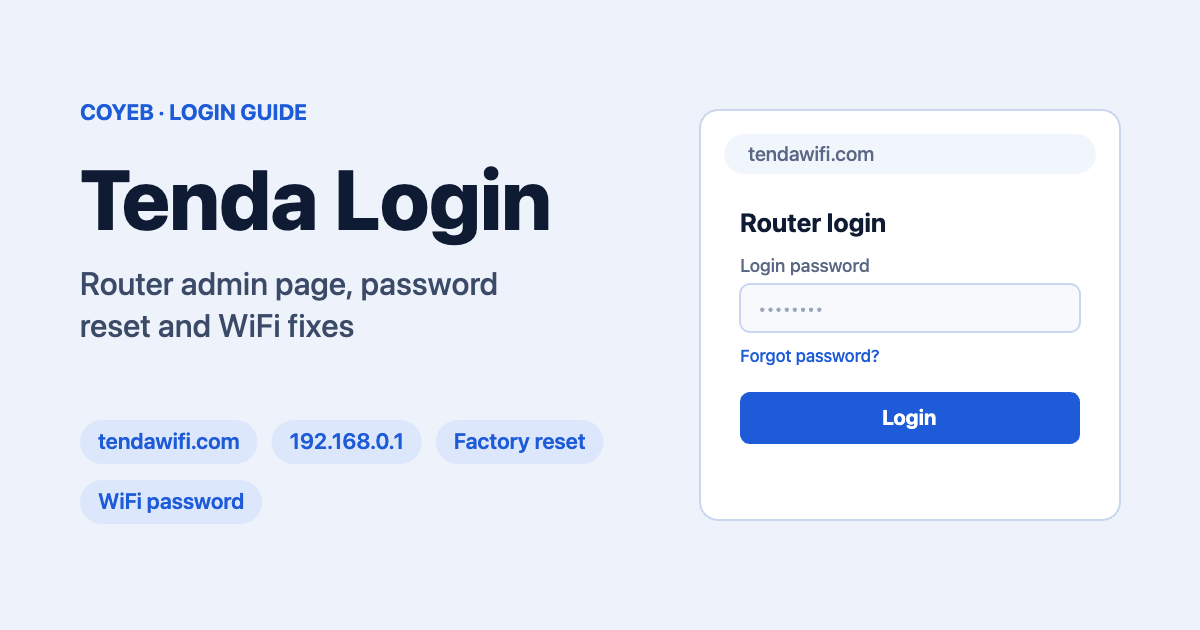
Quick answer: To open the Tenda login page, connect your phone or computer to your Tenda router (Wi-Fi or a LAN cable), open a browser and go to http://tendawifi.com or 192.168.0.1. If you set a router login password before, a login window opens: type that password and log in. Some Tenda routers use 192.168.1.1 instead, and Tenda extenders use re.tenda.cn.
Last verified: 14 November 2026 (on Tenda’s official help pages at tendacn.com).
Official Tenda login help: How to log into the management page (tendacn.com)
coyeb.com is not affiliated with Tenda. Never share your router password or Wi-Fi password with anyone who calls or messages you asking for it.
Tenda login address: tendawifi.com, 192.168.0.1 or 192.168.1.1
Tenda routers have a built-in settings page. Tenda calls it the “management page” or “web UI”. You reach it from a browser, not from the internet. The addresses Tenda’s own help pages give are:
| Device | Login address | Source |
|---|---|---|
| Tenda Wi-Fi router (most models) | http://tendawifi.com or 192.168.0.1 | Tenda “How to Log into the Management Page/Web UI”, updated 2026-07-23 |
| Tenda router, other default | http://192.168.1.1 | Tenda “How to find your router’s IP address” |
| Tenda range extender | re.tenda.cn | Tenda extender login password page |
Tenda also says the default IP address or domain name is printed on the label on the bottom of the product. If you are not sure which address your model uses, check that label first.
Important: Tenda’s help page states that “tendawifi.com is an internal only management utility”. In practice, that means you open it from a device connected to your Tenda router, not over mobile data or another network.
How to log in to your Tenda router (step by step)
- Power on the router. Plug in the power adapter and wait about 1 minute while the router starts up (Tenda’s own advice).
- Connect your device to the router. Tenda gives two options: connect a computer to the router’s LAN port with an Ethernet cable (Tenda calls this the more reliable way), or join the router’s Wi-Fi.
- Open the login page. Open any browser and type http://tendawifi.com or 192.168.0.1 in the address bar (not the Google search box), then press Enter.
- Enter your login password. If you set a router login password before, the login window pops up by itself. Type the password and log in.
- You are in. The management page shows your device information and the settings you can change.
Tenda notes that the page opens even when the router has no internet connection, as long as your device is connected to the router. That makes it useful for first setup and for fixing a broken connection.
Tenda default password: is it admin?
Only on older models. Tenda’s reset FAQ says the default login username and password “both are admin for older routers (all lower case)”. The same note says newer routers no longer use this. Tenda’s FAQ does not list a default password for newer routers. If you set one during setup, use that, and check the label on the bottom of the router.
Some third-party guides list “admin / admin” for every Tenda router, but Tenda says this applies only to older models. If admin does not work, do not keep guessing. Use the Forgot password? link described below.
Also keep the two passwords apart:
- Router login password opens the Tenda management page.
- Wi-Fi password is what phones and laptops type to join your Wi-Fi network.
Forgot your Tenda login password?
- Open tendawifi.com or 192.168.0.1 as above.
- On the login window, click Forgot password? (Tenda places it next to the login window).
- Follow the on-screen instructions to verify or reset your password.
If that does not work, the last option is a factory reset (next section). A reset deletes your settings, so try the steps above first.
How to reset a Tenda router to factory settings
Tenda’s reset FAQ gives two methods.
Method 1, reset button:
- Keep the router switched on.
- Find the reset button on the back. Depending on the model it is marked RST or WPS/RESET.
- Press and hold it until the light changes. Tenda’s FAQ gives about 8 to 10 seconds in one place, and “at least 10 seconds” for models with a shared WPS/RST button, where the SYS light changes from a slow flash to a quick flash. We suggest holding it for a little over 10 seconds, which fits both instructions.
- Release the button and wait for the router to restart with factory settings.
On models with a combined WPS/RST button, a short press of under 5 seconds starts WPS instead of a reset.
Method 2, from the web page (if you can still log in): go to More > System Settings > Backup & Restore > Reset, click Reset and wait for the router to restart.
Tenda warns that a factory reset erases all custom settings. You will need to set up your internet connection, Wi-Fi name and passwords again (or load a backup file if you saved one).
How to change your Tenda WiFi name and password
The menu names depend on your model and firmware. Tenda’s own help pages show these paths:
| Where | Menu path (as Tenda shows it) |
|---|---|
| Tenda 4G routers (e.g. 4G03 Pro, 4G05), web page | Settings > WiFi settings > WiFi Name&Password |
| Tenda Mesh systems, in the Tenda WiFi app | Settings > Wi-Fi Settings, then edit Wi-Fi name and Wi-Fi Password, tap Save, then Confirm |
| Older Tenda routers, web page | Advanced Settings > Wireless Settings > Wireless Basic Settings (for the name, shown as SSID) and Wireless Security (for the password, shown as Key, Pass Phrase or Security Key) |
On the older-firmware page, Tenda also advises turning off WPS before setting a password and using WPA2-PSK with AES security.
After you save a new Wi-Fi name or password, devices on Wi-Fi will usually disconnect. Reconnect them using the new details.
Tenda login on mobile
In a mobile browser: join your Tenda Wi-Fi, then open Chrome or Safari and type tendawifi.com or 192.168.0.1. If the page will not load, you can try switching off mobile data.
With the Tenda WiFi app: Tenda’s help pages refer to the “Tenda Wifi App” (also written Tenda WiFi). You register an account in the app with a phone number or email, then log in to manage the router. Download it only from your phone’s official app store, published by Tenda.
Tenda login page not opening? Fixes from Tenda
| What you see | Likely reason | What to do |
|---|---|---|
| Blank page, no response, or an error page on tendawifi.com | Your device may not be connected to the Tenda router | Join the router’s Wi-Fi or plug into a LAN port, then try again |
| An error page even though you are connected | Your browser has saved (cached) the public internet address of tendawifi.com | Clear the browser cache and cookies, or try another browser or device |
| “Your connection is not private” | The page is loading over HTTPS | See Tenda’s separate help page on logging in when HTTPS is enabled |
| tendawifi.com still fails | Name not resolving to the router | Type the gateway IP instead, often 192.168.0.1 or 192.168.1.1 (yours may differ) |
| Neither IP works | Your router uses a different IP | Find the gateway IP on your device (steps below) |
| Page fails with a VPN or a second connection on | Traffic goes through the other connection | Turn off the VPN and other connections, keep only the link to the Tenda router |
| Nothing helps | Router, firewall or security app is blocking access | Restart the router, modem and your device; temporarily turn off firewall or antivirus; factory reset as the last step |
The fixes come from Tenda’s FAQ “Why Do I Fail to Access tendawifi.com?” (updated 2026-04-16). The “likely reason” column is our summary. Tenda adds that if even a factory reset does not help, you should contact Tenda support.
How to find your Tenda router’s IP address
- Windows: open View network status and tasks, open your connection’s details and read the IPv4 Default Gateway.
- Mac: Apple menu > System Preferences (System Settings on newer macOS) > Network, open your connection’s TCP/IP details and read the Router address.
- iPhone: Settings > Wi-Fi (WLAN), tap your network and read the Router address.
- Android: Settings > Wi-Fi (WLAN), tap the details icon of your network and read the Gateway.
Type that address in the browser bar to open the Tenda login page.
After you log in: three common tasks
- Change the Wi-Fi password so neighbours cannot use your connection (see the table above for your model’s menu).
- Set or change the router login password, so only you can open the management page. On Tenda extenders Tenda shows this under More > System Settings > Login Password (Old Password, New Password, Save).
- Save a backup before big changes. The reset FAQ notes you can load a backed-up configuration file after a reset; Tenda’s reset FAQ shows Backup & Restore under More > System Settings.
Stay safe
- The Tenda login page lives on your own router. The only addresses to use are the ones Tenda publishes: tendawifi.com, 192.168.0.1, 192.168.1.1 (or the address on your router’s label), and re.tenda.cn for extenders.
- Your router login page never needs your bank details, phone OTP or email password. If a page asks for them, close it.
- Do not let a stranger “fix” your router remotely, and do not share your login password over phone or chat.
- Download the Tenda app only from the official app store listing published by Tenda.
Tenda help and support
Tenda’s official help center is tendacn.com (Tenda Global). Its FAQ pages show a “Need help? Chat with us” option. We did not find a Tenda helpline number for Bangladesh or India on the pages we checked (November 2026), so be careful with phone numbers posted on third-party pages: they may not belong to Tenda.
Looking for other sign-in guides? See our WhatsApp Web login guide.
FAQ
What is the Tenda router login address?
Tenda’s help pages give http://tendawifi.com or 192.168.0.1. Some Tenda routers use 192.168.1.1, and the default address is printed on the label under the router. Tenda extenders use re.tenda.cn.
What is the default Tenda login password?
On older Tenda routers the username and password are both “admin” (lower case), according to Tenda’s reset FAQ. Tenda says newer routers no longer use this. Use the password you set during setup, or check the router label.
How do I change my Tenda WiFi name and password?
Log in at tendawifi.com, then open the Wi-Fi settings. On Tenda 4G routers the option is WiFi settings > WiFi Name&Password; in the Tenda WiFi app for Mesh systems it is Settings > Wi-Fi Settings. Save, then reconnect your devices.
Why is tendawifi.com not opening?
Common causes are that your device is not connected to the Tenda router, or your browser has cached the public address of tendawifi.com. Connect to the router, clear the browser cache or try another browser, or type 192.168.0.1 directly.
Can I log in to Tenda without internet?
Yes. Tenda says you can enter the management page whether or not the router has internet, as long as your device is connected to the router.
How do I reset my Tenda router if I forgot the password?
First try the Forgot password? link on the login window. If that fails, hold the RST button for about 8 to 10 seconds (at least 10 seconds on models with a WPS/RESET button, until the SYS light flashes quickly), then set the router up again.