Toyota Financial Services Login: Pay and Manage Your Account
Toyota Financial Services login steps for toyotafinancial.com: sign in, create an account, reset a username or password, unlock it and pay your bill.
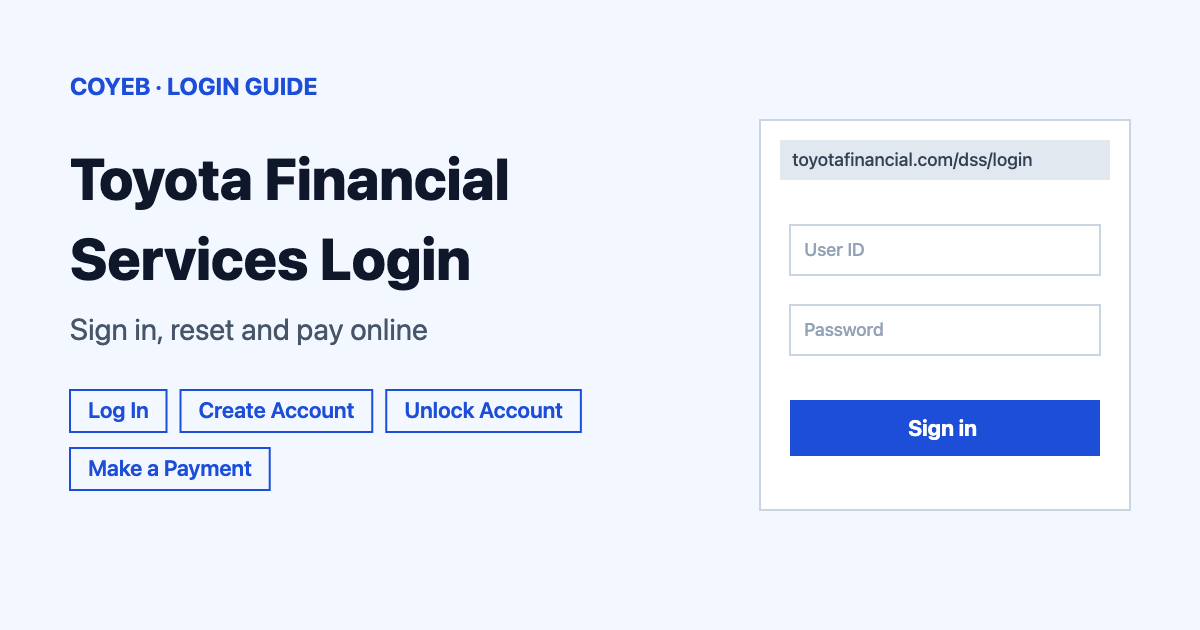
For a Toyota Financial Services login, open toyotafinancial.com/dss/login, type your Username and Password and select Log In. New customers pick Create Account and need an Account Number or VIN plus the last 4 of SSN / Tax ID. Lost details can be recovered from the same screen.
Last verified: 18 November 2026
Official login address (checked November 2026): https://www.toyotafinancial.com/dss/login
coyeb.com is not affiliated with Toyota Financial Services. Never share your password or OTP with anyone.
This guide covers the US site for Toyota Financial Services customers. Toyota Financial Services is a service mark used by Toyota Motor Credit Corporation (TMCC). The login page shows a single sign-in form with no user-type selector, so every US retail loan or lease customer uses the same screen.
How to complete your Toyota Financial Services login
- Go to toyotafinancial.com/dss/login. The page greets you with “Welcome!”.
- Type your username in the Username box. Usernames are case-sensitive.
- Type your password in the Password box. Passwords are case-sensitive too.
- Tick Remember Me only on a device that is yours.
- Select Log In.
- If a verification code is requested, enter it. The code works once and is sent by email or to your phone.
One thing that catches people out: email addresses are no longer accepted as usernames. If your old sign-in was your email, the official help says to log in on a desktop or laptop with your current username and then prompts you to update it to meet the new requirements.
Sessions are short. As a security measure you are logged out after 5 minutes. A “Your Session Is Expiring Soon!” box offers Stay Logged In or Log Out.
Create your online account for the first time
Select Create Account under “Don’t have an account?” on the login page. The registration has 3 steps and starts with “First, let’s find your account.”
- Enter your Account Number or your VIN. If you cannot find the number, use “Can’t find your Account Number?” or “Where to find your Account Number”.
- Enter the Last 4 of SSN / Tax ID.
- Select Continue and follow the remaining steps on screen.
If the site asks for more information, check that everything is typed correctly. With a billing statement in hand, enter the details exactly as they appear on it. Still stuck? Contact Customer Service using the numbers further down.
Seeing a message that your email address is already in use means that address was registered before by you or by another customer. Email is the main contact for account issues and all Pay Online correspondence goes to the Account Management email you choose, so it has to be valid and unique.
Forgot username or password
Forgot username
- Select Forgot Username? on the login page.
- Answer “What is your Email?” and select Continue.
- If the email does not work, choose Forgot Email? Try An Alternate Method. The “Let’s make sure it’s really you” screen asks for your Account Number and the Last 4 of SSN / Tax ID.
When nothing matches you see “No Username Found”. The button Register A New Profile then takes you to registration.
Forgot password
- Select Forgot Password? on the login page.
- Enter your username when asked “What is your username?”. If you do not remember it, use Forgot Username? or Try An Alternate Method.
- An authentication code is sent to the email or phone number linked to your account. Enter it and then create a new password.
If the password is rejected even though it looks right, make sure CAPS LOCK is off and that no blank spaces were typed before or after it.
Forgot the answer to your security question? The official help says to click the Forgot Answer link below the Answer field to reset it.
Already logged in and just want a new password? Click the pencil icon next to the “password” field.
Locked out of your account
After too many wrong tries the site shows “Account Locked” or “LOGIN FAILED”. Select Unlock Account and keep your Account Number and the last 4 digits of your SSN / Tax ID ready, because those are the details it asks for.
Toyota Financial Services login on mobile
The official app is called myTFS (listed on Google Play as “Toyota Financial Services” by Toyota Motor Credit Corporation). Get it only from the official store pages:
- iPhone: myTFS on the App Store
- Android: myTFS on Google Play
Per the Google Play listing (checked November 2026) the app supports recurring payments (weekly, biweekly or monthly), a Quick View of several accounts, a Snapshot of your balance and lease or loan details and a Swipe to Pay option. You can also skip the app and sign in through your phone browser at the same login address.
Login not working
| Error message | What it means | Fix |
|---|---|---|
| “Account Locked: You have reached the maximum number of attempts to authenticate” | Too many failed attempts to authenticate. | Select Unlock Account and enter your Account Number and last 4 of SSN / Tax ID. |
| “LOGIN FAILED: You have reached the maximum number of attempts to Log In.” | Too many wrong sign-in attempts. | Select Unlock Account. |
| “Something Went Wrong! Looks like there’s an error on our end. We apologize for any inconvenience. Please Try Again” | The problem is on the site side. | Select Go Back and try again a little later. |
| “No Username Found” | Username recovery did not find a profile for the details entered. | Check the details or select Register A New Profile. |
| Password is rejected | Passwords are case-sensitive and stray spaces can make them fail. | Turn CAPS LOCK off and retype with no extra spaces. Otherwise use Forgot Password?. |
| Username is rejected | Usernames are case-sensitive and email addresses are no longer accepted as usernames. | Use your current username. Log in on a desktop or laptop to be prompted to update it. |
| Verification codes keep arriving | A personal finance site linked to your account may be trying to reach it. | To allow that site, reset or refresh your login with it. |
After you log in
Make a payment
- Start a payment from your account.
- On “Confirm Your Payment Details” check Amount, Pay From and Pay On.
- Select Pay Now. Cancel stops the payment.
The page notes that a same day payment may be edited before 6 PM CST and that your bank may need 2-3 business days to post the payment.
Change your password
Click the pencil icon next to the “password” field. Changing your username and password regularly is part of the official advice for protecting an account.
Find help topics
The official help center groups answers under Login, Account Access and Password, Account Registration, Paperless Billing, Lease-End Process, Loan Payoff and Title/Lien Release.
Stay safe
- The only address for this login is toyotafinancial.com. Check the address bar before typing anything.
- Toyota Financial Services states that it will never send an email asking for personal information. Do not answer emails that look fraudulent.
- Never share your SSN, account number or password with a suspicious sender or site. If you think your account was breached, contact the Customer Service Center.
- Log out after use and clear your browser cache.
Southeast Toyota Finance is a separate company with its own sign-in at setf.com. Accounts with Southeast Toyota Finance do not sign in at toyotafinancial.com. Toyota Credit de Puerto Rico has its own phone line, listed below. Another finance sign-in is covered in the KeyBank Login guide.
Helpline
- Customer Service in the continental US: (800) 874-8822, Monday-Friday 8am-5pm local time (checked November 2026).
- Puerto Rico (Toyota Credit de Puerto Rico): (800) 469-5214, Monday-Friday 8am-5pm Atlantic Standard Time (checked November 2026).
- Mail: Toyota Financial Services, PO Box 22171, Tempe, AZ 85285.