Axis Bank Login: First Time, OTP and Reset
Axis bank login on the official page: Customer ID or debit card sign-in, first-time registration, OTP, forgot password and Enable login ID steps.
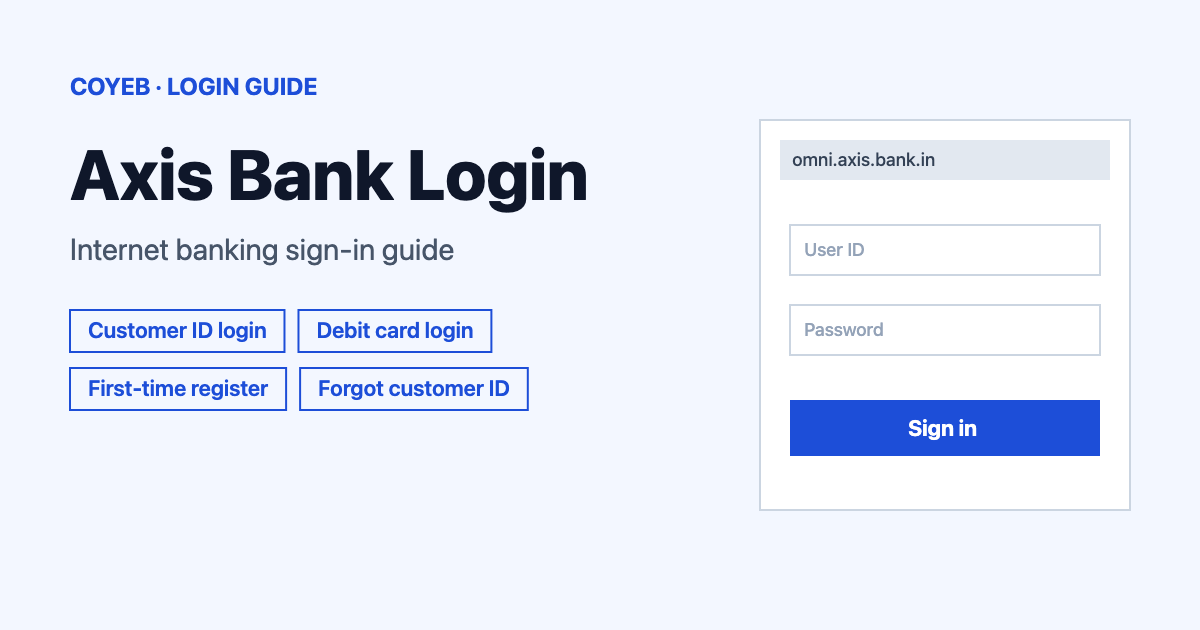
Axis Bank login starts at omni.axis.bank.in/axisretailbanking. Type your Login ID / Customer ID and Password, then click Login and confirm the SMS or mobile OTP. The catch: the Debit Card No. tab asks for your debit card number and ATM PIN, not your Customer ID.
Last verified: 17 November 2026
Official login page: omni.axis.bank.in/axisretailbanking (checked November 2026). The bank’s own page for it is axis.bank.in/bank-smart/internet-banking.
coyeb.com is not affiliated with Axis Bank. Never share your password or OTP with anyone.
What you will see on the login page
The page is titled “Login | AxisOmniChannel” and says “Welcome to Axis Bank Internet Banking”. The form says “Login using” with two tabs.
- Login ID / Customer ID tab with the Login ID / Customer ID and Password boxes
- Debit Card No. tab with the Debit card number and ATM PIN boxes
- A Login directly to dropdown, set to “Dashboard”
- The Login and Get OTP buttons
- Links for Forgot password, Forgot customer ID and Enable login ID
- “First time user? REGISTER HERE“
- A QR code and an option to open the page by the Axis Bank app
How to log in with Customer ID
Start from the Login button on the bank’s Internet Banking page. If the login address is opened directly in a fresh tab, it can show “Your Session has expired ,please go back to login again.” with a BACK button.
- Type your customer ID or your alphanumeric login ID in the Login ID / Customer ID box.
- Type your password in the Password box.
- Check the Login directly to dropdown. It is set to “Dashboard”.
- Click Login. Axis Bank then asks for a second check, which is an SMS or mobile OTP.
How to log in with debit card number
- Open the Debit Card No. tab.
- Enter your Debit card number and your ATM PIN.
- Check the Login directly to dropdown (set to “Dashboard”).
- Click Get OTP and use the OTP to finish.
First-time Axis Bank login and registration
The form says “First time user? REGISTER HERE”. It works for both retail and NRI customers.
- Click REGISTER HERE.
- Enter either your customer ID or the mobile number registered with the bank.
- Savings and current account holders are shown one or more ways to verify: debit card, OTP, email link or KYC. Pick one and fill in the details it asks for.
- Set your password.
On your first login after registering, you set three security questions and their answers. The bank also lists Netsecure registration with SMS, with a 1-Touch Device or with the Mobile App.
Once you are inside, you can create an alphanumeric login ID so you do not need to remember the customer ID. Go to My Profile and click “Personalise your login ID”. The bank says this can be done only once, so choose something you will remember.
Forgot password
Click Forgot password on the login screen. The bank’s Internet Banking page calls the same option “Reset Here”. The reset has three steps: Select method, Authentication and Set password.
- Type your ID in the Login ID/Customer ID box.
- Click Proceed.
- Verify yourself and set the new password.
Keep your debit card, mobile number, email address and KYC details handy before you start. NRI account holders can use a debit card, email link, OTP or KYC details such as Passport number, Date of Birth and Pin code.
The bank notes that after a successful reset, transfers to beneficiaries added in the last 15 days are limited to Rs 50,000 for 24 hours. Shopping Mall transactions are limited to Rs 30,000 in that period. Beneficiaries added more than 15 days ago are not affected.
Forgot customer ID
Click Forgot customer ID on the login screen. The page says “Enter the below details to view your Customer ID” and asks for your Registered Mobile Number and your PAN Number. Click Submit to continue.
Other ways to get your customer ID:
- Look on the welcome letter and the cheque book mailed after account opening.
- Savings account: send an SMS “CustID” to 56161600 or +919951860002 from your registered mobile number.
- Credit card customers: send an SMS “CUSTIDCC XXXX” with the last 4 digits of the card number to the same numbers.
Your mobile operator may charge for the SMS. If your mobile number is not registered with the bank, use the “Registration-Mobile Number Update” option at an Axis Bank ATM or visit a branch.
Locked login after wrong attempts
After several incorrect logins your access is blocked. Click Enable login ID on the login page. The bank says this section helps you enable Internet Banking access that was blocked by multiple incorrect login attempts. Type your ID in the Login ID/Customer ID box and click Proceed.
OTP and Mobile App Code
After your ID and password, Axis Bank uses an SMS or mobile OTP as the second step. The bank also offers Mobile App Code. These OTPs arrive inside the Axis Bank mobile app, so they do not depend on your telecom network. They work wherever SMS OTPs or Mobile Token OTPs are used. If SMS messages reach you late or not at all, the app is worth setting up.
Axis Bank login on mobile
You can use the same login page in your phone browser. The official app on Google Play is Axis Mobile: Pay, Invest & UPI by Axis Bank Ltd. The login page also shows a QR code and an option to open by the Axis Bank app. For quick help you can send “Hi” to the bank’s WhatsApp banking number, 7036165000.
Axis Bank login not working
The first row is a real message from the login page. The other rows are general suggestions to try.
| What you see | What it means | Fix |
|---|---|---|
| “Your Session has expired ,please go back to login again.” | The login address was opened without starting from the bank’s page or the session timed out. | Press BACK or begin again from the Login button on the Internet Banking page. |
| OTP does not arrive | It may be a network delay or a number that is not registered with the bank. | Check that your registered mobile number is the one in use. You can try Mobile App Code as well. |
| Access blocked after wrong attempts | Too many incorrect logins. | Click Enable login ID on the login page. |
| Password forgotten | You cannot sign in with the old password. | Use Forgot password (Reset Here). |
| Customer ID forgotten | You need your ID to start. | Use Forgot customer ID or send the CustID SMS to 56161600. |
After you log in
- Check account details: see your account details inside Internet Banking.
- Transfer funds: use the fund transfer option inside Internet Banking.
- Request services: view statements, order cheque books, order demand drafts or pay bills.
Other Axis Bank logins
The bank’s Internet Banking page has separate logins for personal banking, neo for corporates and GIFT City retail and corporate banking. They sit on different hosts, so use the matching link on that page instead of the retail form above. Credit card and FASTag logins are separate portals too.
Stay safe
Use only the official bank website or the Axis Bank app. The retail login runs on omni.axis.bank.in and is reached from axis.bank.in. The bank advises you to:
- Never share your OTP or login details with anyone.
- Avoid public Wi-Fi and shared computers.
- Not save your username or password in the browser.
- Log out when you finish.
- Ignore calls claiming to be from the bank that ask for your password or OTP.
Axis Bank helpline
- Phone (toll free): 1800 209 5577 or 1800 103 5577 (checked November 2026)
- WhatsApp banking: 7036165000 (checked November 2026)
Comparing bank sign-ins? See the Citizens Bank online login guide.