Angel Login: Angel One Sign-In and MPIN Reset
Angel login guide: sign in to Angel One with mobile number or Client ID, use your MPIN or OTP, reset a forgotten MPIN and reactivate a dormant account.
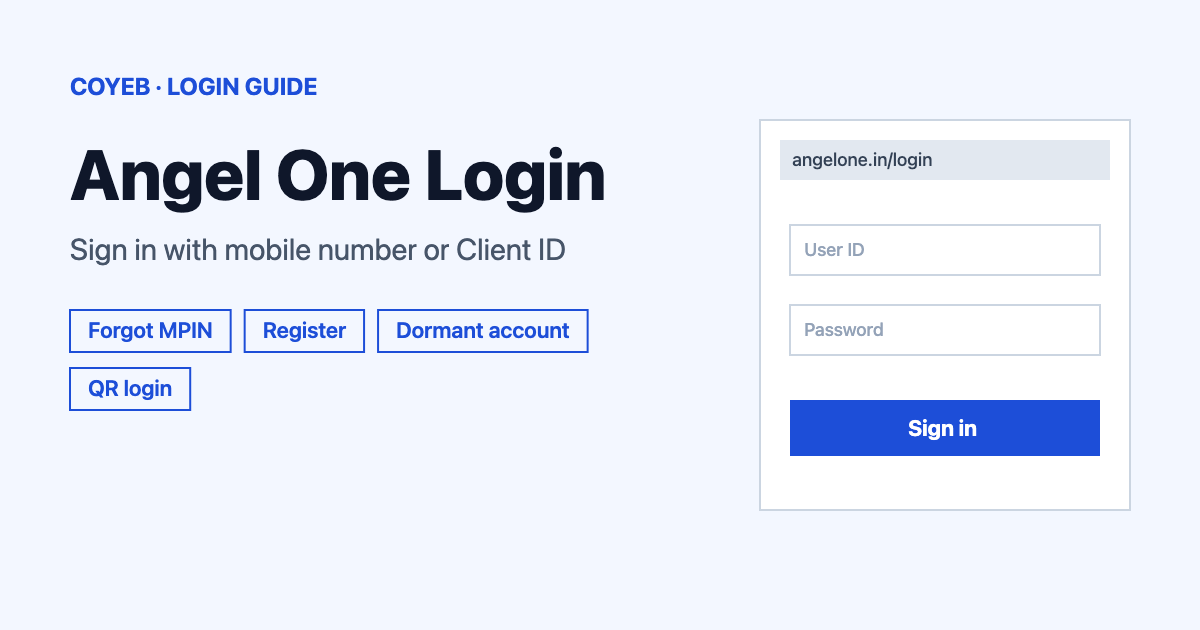
For an angel login, open angelone.in/login, choose Login with Mobile Number or Login with Client ID, enter your details and click PROCEED. Verify the OTP on a first login and use your 4-digit MPIN after that. The catch: an OTP you have used stays valid for 7 days, so you may be asked for the MPIN only.
Last verified: 17 November 2026
Official Angel One login page: www.angelone.in/login
coyeb.com is not affiliated with Angel One. Never share your password, MPIN or OTP with anyone.
What you will see on the angel login page
The page is headed “Log in to Angel One”. It has two options to pick from, Login with Mobile Number and Login with Client ID. Below them are a number field, a PROCEED button and a Register Now! link under “Don’t have an account?”.
Angel login on the web: step by step
Login with Mobile Number or Client ID
- Go to the official login page and read the heading “Log in to Angel One”.
- Choose Login with Mobile Number to use your registered phone number. Choose Login with Client ID to type your client code.
- Enter the number or Client ID and click PROCEED.
- Follow the next prompt. A first login asks for an OTP and later logins use your 4-digit MPIN. Angel One’s user manual calls the MPIN your trading password.
Login with a QR code
If you already have the app on your phone, click GENERATE QR on the login page. Then long-press the Angel One app icon, tap Login to Web and scan the QR code shown on your computer screen.
First-time login
On the first login, enter your Client ID. An OTP goes to the mobile number and email linked to that Client ID. After you verify it, you set up your MPIN and sign in with it from then on. You can also add biometric login such as Face ID if your phone supports it.
An OTP stays valid for 7 days after you use it. During that time you do not need another OTP when you log in.
Register for a new Angel One account
This is for people who do not have an account yet. Click Register Now! on the login page. The screen “Register with your Mobile Number” says “We will send an OTP to your mobile number”. Use a mobile number that has no Angel One account already.
- Type your mobile number and click NEXT.
- Enter the OTP sent to that number. You can add a referral code if you have one.
- Choose or type your email ID. If you type it yourself you must enter an email OTP within 30 minutes.
- Complete KYC. It is needed for equity trading. With Aadhaar linked to both your mobile number and PAN the journey goes through DigiLocker using your PAN, your father’s name, your Aadhaar number, an Aadhaar OTP valid for 10 minutes and a 6-digit DigiLocker PIN. If Aadhaar is linked to your mobile only you upload your PAN and e-sign with Aadhaar. If Aadhaar is not linked to your mobile you upload PAN and Aadhaar images and finish with a video verification. Without Aadhaar, online KYC is not possible.
- Add your bank account number and IFSC code. Angel One deposits Rs 1 to verify the account. If the account is invalid, use another account or upload a cancelled cheque.
- Take a selfie inside the circle and add your signature.
- Fill in your personal details and add nominees if you want (up to three, with shares totalling 100%).
- E-sign through NSDL using Aadhaar.
Uploads must be .jpg, .jpeg or .png files up to 5 MB each. The account is usually activated within three days. A bank account at least 6 months old is needed only if you want to activate derivatives during sign-up.
Forgot MPIN or want to change it
An MPIN is a 4-digit PIN used for two-factor authentication and for logging in. Keep it private.
Forgot your MPIN in the app
- On the MPIN screen tap Forgot MPIN?.
- Enter your registered mobile number, PAN and date of birth.
- Enter the OTP that arrives on your registered phone.
- Set a new MPIN. You do not need the old one, but you cannot reuse any of your last 5 MPINs.
Forgot your PIN on the web
- Log out of the web platform.
- Enter your mobile number or client code.
- Enter the OTP received on your email and mobile.
- Click Forgot PIN, verify the OTP and set a new PIN.
The web page says “Forgot PIN” and the app says “Forgot MPIN?”, so use whichever wording your screen shows.
Change the MPIN you already know
In the app go to Account, then Settings, then Change/Enable MPIN. Enter the old MPIN, confirm the new one and submit. An OTP goes to your registered mobile before the new MPIN is set. More detail is on the MPIN and fingerprint help page (checked November 2026).
Angel One account shows as dormant
An account can turn dormant after more than a year without a transaction such as trading or pay-in. Missing profile details (name, PAN, address, income range, mobile number or email ID) can also cause it. To reactivate it:
- Log in on the app or at angelone.in/login.
- Verify the login with the OTP sent to your registered mobile number or email.
- Check the dormant status and the reason shown.
- Click Reactivate Account, confirm your personal details and click proceed.
- Complete two-factor authentication using the PAN registered with your account.
The account is usually active within 1 to 2 working days.
Change your mobile number or email
- In the app open the Profile section on the Account screen and tap Personal Details.
- Tap the pencil icon next to your mobile number or Email ID and enter the new one.
- Verify the OTP and complete the eSign.
The update takes about 3 to 5 working days.
Angel login on mobile
Open the Angel One app and sign in with your MPIN. For fingerprint login go to Account, then Settings, then Fingerprint and confirm your fingerprint. Fingerprint login is available only on Android. On iOS use Face ID. You can also open angelone.in/login in your phone’s browser.
Angel login not working
The official pages do not list exact error messages for sign-in. The fixes below are general suggestions based on the official steps.
| What you see | What it means | Fix |
|---|---|---|
| You cannot remember your MPIN | The MPIN works as your password | Use Forgot MPIN? in the app or Forgot PIN on the web. Have your mobile number, PAN and date of birth ready. |
| A new MPIN is not accepted | You may be reusing one of your last 5 MPINs | Choose a 4-digit MPIN you have not used recently. |
| No OTP arrives | OTPs go to the mobile number and email linked to your Client ID | Check that you typed the right Client ID or number. If it still fails, use Create Ticket on the support page or call 18001020. |
| You were not asked for an OTP | An OTP you used stays valid for 7 days | Nothing is wrong. Continue with your MPIN. |
| The account is marked dormant | No transaction for over a year or missing profile details | Follow the reactivation steps above. |
After you log in
Activate a segment
Go to Accounts, open the Profile widget and choose Manage Segment. Select the segments and give financial proof. You can fetch six months of bank statements automatically or upload documents. E-sign with your own Aadhaar. The request takes 2 to 3 working days.
Equity and Mutual Funds are active by default. Futures and options, currency and commodities need activation. Online activation is only for individual accounts. Joint, HUF and corporate accounts must raise a support ticket. Minor and NRI accounts cannot activate segments. The full steps are in the Angel One user manual (checked November 2026).
Stay safe when you sign in
Only type your details on angelone.in. Angel One asks you to keep your MPIN confidential, so never read out your MPIN or OTP to a caller. Angel One also warns investors not to make payments through email links or WhatsApp or SMS messages and not to share personal or financial information without verification. For a cyber attack call +91-8045070444 or email cybersecurityissues@angelone.in (checked November 2026).
Angel One helpline
- Phone: 18001020 (checked November 2026)
- Email: support@angelone.in (checked November 2026)
- Hours: Equity, Currency and Mutual Funds 8:30 am to 5:30 pm Monday to Saturday. Commodity 8:30 am to 11:30 pm Monday to Friday and 8:30 am to 5:30 pm on Saturday (checked November 2026)
- Help page: angelone.in/contact-us (checked November 2026)