NetSuite Login: Account ID, 2FA and Role Access Explained
NetSuite login made simple: the official page, security questions, 2FA and backup codes, role switching, password and email changes and fixes for errors.
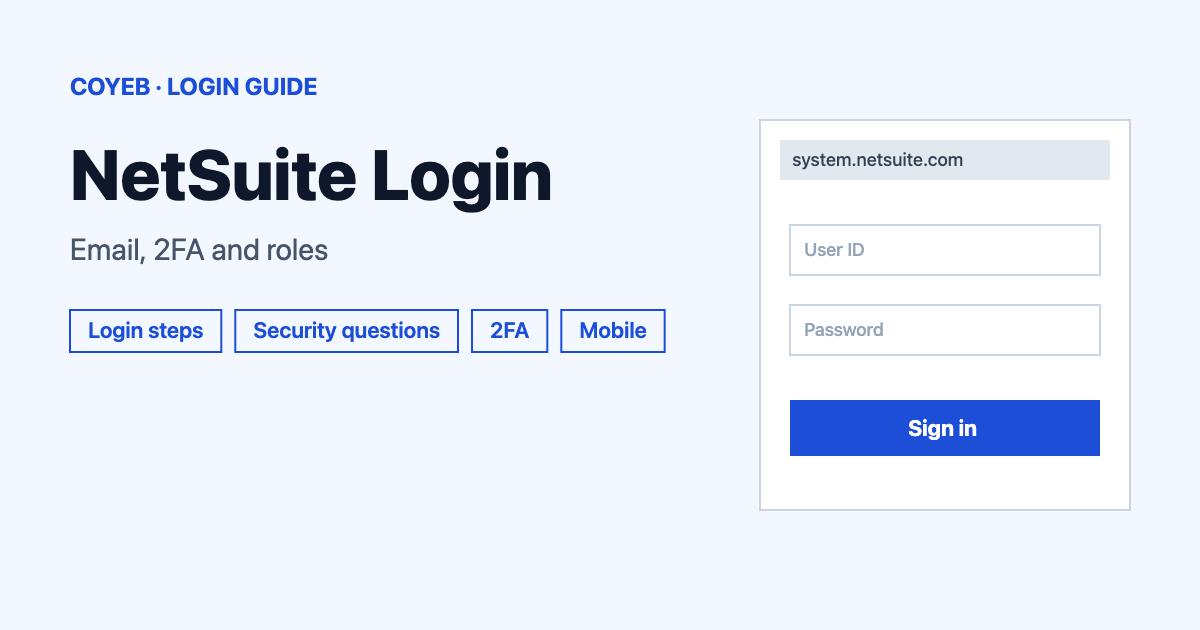
NetSuite login starts at system.netsuite.com/pages/customerlogin.jsp. Type your email address in Email address and your password in Password, then press Log In. There is no account ID box on that page. The catch many people miss: a role that needs 2FA asks for an authenticator code after that.
Last verified: 17 November 2026
Official NetSuite login page: https://system.netsuite.com/pages/customerlogin.jsp (checked November 2026)
coyeb.com is not affiliated with NetSuite. Never share your password or OTP with anyone.
What you see on the NetSuite login page
- Email address and Password boxes. The page expects an email in the format name@company.com.
- Remember Me box.
- Log In button and a Log In with Passkey option.
- Forgot your password? link.
- A link to the NetSuite status page in the footer.
NetSuite login steps: email, password and the account ID question
Your email address is your username in NetSuite. One username has one password across every account you can reach.
- Open system.netsuite.com/pages/customerlogin.jsp in Chrome, Edge, Firefox or Safari. NetSuite supports the two most recent stable major versions of each.
- Type your email address in Email address.
- Type your password in Password.
- Press Log In. If you have set up a passkey, you can press Log In with Passkey instead.
- If NetSuite asks a security question or a 2FA code, answer it on the next screen. See the sections below.
Browser extensions can cause problems with the NetSuite screens. If a page behaves strangely, try a private window with extensions off.
First-time NetSuite login: security questions
The first time you log in, NetSuite asks you to answer three security questions. You can press Remind Me Later up to five times. After that you must set them up before you can continue. If you dismissed the prompt and want to do it later, open the Settings portlet and click Update Security Questions.
- You must answer all three questions.
- Each answer must be different and at least three characters long.
- You cannot use your email address or your password as an answer.
- Answers are not case sensitive.
NetSuite emails you when you save them. The questions and answers are shared across all NetSuite accounts tied to the same production account.
If your role needs 2FA, the first login works differently. NetSuite emails you instructions and a verification code for your first login to that role. Then you set up your authenticator app (see the 2FA section).
Security question when you log in
NetSuite asks one security question before login when you sign in from a new browser or a new computer. It also asks after you clear your browser cache or use a private window. It asks when more than 90 days have passed since your last login and when you reset a forgotten password.
Five wrong answers in a row lock you out for 30 minutes. NetSuite emails you and your account administrator about the failure. Users of 2FA roles and roles with IP address restrictions are asked security questions only if they forget their password.
Where to find your NetSuite account ID
You only need the account ID for the account-specific login addresses and for the Customer Center page. Someone with administrator access can see it under Setup > Company > Setup Tasks > Company Information. The Account ID field sits there, while the Company URLs subtab shows the Customer Center login link. If you are not an administrator, ask the person who manages NetSuite at your company to send you the right link.
Anyone with a role other than Customer Center can use the standard page above. NetSuite lists three other standard addresses for those roles: system.netsuite.com/pages/login.jsp, an address that starts with your own account ID followed by .app.netsuite.com and a system.netsuite.com enterprise login address that carries your account ID at the end of the link.
Users with a Customer Center role cannot use the standard pages. NetSuite gives each account its own Customer Center login page, which looks like system.netsuite.com/app/login/secure/privatelogin.nl?c= followed by the account ID.
NetSuite login with 2FA and backup codes
Whether you see a 2FA step depends on the role your administrator gave you. If a role needs it, you must set it up the first time in the NetSuite website on a computer. The mobile app can log you in with 2FA later but cannot do the first setup. Once you are logged in, NetSuite does not ask for a code again while your session is valid, even when you switch roles in different companies.
- Install an authenticator app on your phone. NetSuite lists Oracle Mobile Authenticator, Google Authenticator, Microsoft Authenticator and OKTA Verify. Any app that supports OATH TOTP (RFC 6238) works. Do not put it on the same device you use to log in.
- Click Next, then scan the QR code or type the characters shown.
- Enter the code from the app. It changes about every 30 seconds.
- Click Next. NetSuite shows ten backup codes once. Press Print or store them safely, then click Next.
You can use Skip to NetSuite up to five times. On later logins the 2FA page asks for the authenticator code or a backup code. The page also has a “Trust this device” box. Your administrator decides how long a trusted device stays trusted, from hours to days for each 2FA role. You can review it under Manage Trusted Devices in the Settings portlet.
Backup codes are single use and they do not expire. Generating a new set cancels the old one. NetSuite emails you when a code is used. Treat them like a password.
If you lose your phone or change your authenticator app, open the Settings portlet and choose Reset 2FA Settings. Enter your password (and maybe a code), then click Reset. NetSuite emails a confirmation and sends a verification code by email at your next login so you can set up again. Do this before you switch apps. If you cannot reset it yourself, contact your administrator.
Passkeys are another option. In the Settings portlet, open Manage Passkeys and press Create New with a FIDO-certified (FIDO2) device. You still need your password for some actions such as a 2FA reset. From release 2026.2 a passkey can also serve as your second factor unless your administrator turns that off. In that case the app code is asked every three months.
How roles work at NetSuite login
One person can hold several roles. Hover over the upper right corner after login to see Change Roles, or choose View My Roles to open the My Roles page. If the other role belongs to a different account, switch the account from My Roles first. When two companies need separate credentials, log out and log in again with the other details.
On the 2FA screen NetSuite also lists your other roles with a Choose button. If you have no default role for that company and email, you get the “Login Failed” message in the table below. Ask your administrator to fix that.
Forgot your NetSuite login password
- On the login page click Forgot your password?.
- On the Reset Password page type your email address and click Continue.
- Open the email NetSuite sends. The link expires in 60 minutes. If it has expired, start the reset again from step 1.
- Answer your security questions. They are not case sensitive and you can tick Hide Answers. You get 20 attempts. Click Submit.
- Choose a new password on the Change Password page.
NetSuite sends a confirmation email to the address you used. If you have an Administrator role, the confirmation also goes to every Administrator in that account.
No email arrived? Check that the address shown on the screen is the one you use to log in. If it is correct and nothing comes, ask your administrator.
If you never set security questions or cannot remember the answers, ask your administrator to reset your password. An administrator reset erases your old security questions and you must set up new ones. If you reset the password yourself, your questions stay as they were.
Forgot your NetSuite security answers
Try the answers you most likely gave. You get five attempts at login and 20 during a password reset. Capital letters do not matter. If you still cannot get in, ask your administrator to reset your password.
Change your NetSuite login password or email
These steps work after you log in. Find the Settings portlet on the Home page. By default it is on the left side and you may need to scroll down.
- Click Change Password.
- Type your current password in Current Password. Five wrong passwords in a row lock you out for 30 minutes.
- Type the new one in New Password and again in Confirm New Password.
- Click Save. NetSuite emails you about the change.
If you do not see Change Password, your current role may lack the permission. Switch to another role or ask your administrator.
The default policy needs at least 10 characters with at least 3 of 4 types: uppercase letters, lowercase letters, numbers and symbols. It rejects non-ASCII characters and easy guesses. It must differ clearly from your latest password and cannot be one found in a list of leaked passwords. Your administrator can change these rules.
NetSuite warns you before a password expires: the first notice comes 14 days before expiry, the next 7 days before, then one each day for the last three days. The My Login Audit portlet shows the expiry date. Roles with the View Unencrypted Credit Cards permission must change the password at least every 90 days and use at least 12 characters. Single sign-on only roles do not get these notices because the identity provider manages their passwords.
To change your login email, click Change Email in the same portlet. Fill in Current Password, New Email Address and Confirm New Email. Tick Just This Account to change it only for the account you are in. Click Save, then click the validation link sent to the new address. Until you do, keep logging in with the old address.
NetSuite login on mobile
NetSuite for Mobile is free on the Apple App Store and Google Play. It needs iOS 18 or later or Android 11 or later. Log in with your email and password and press Log In. The first time, answer a security question and tap Submit. Use Change Role to switch roles. Biometric login is supported. Single sign-on users need their company Account ID the first time.
Your role must have the Mobile Device Access permission. The app does not support Customer Center, Vendor Center or the standard Partner Center. The Administrator role cannot get Mobile Device Access. You can also try the same login page in a phone browser.
NetSuite login not working: messages and fixes
| Error message | What it means | Fix |
|---|---|---|
| Valid email is required: name@company.com | The email format is wrong. | Type your full work email. |
| Password is required | The password box is empty. | Enter your password. |
| Maximum active sessions exceeded. Please wait 5 minutes and login again. | Too many sessions are open. | Wait 5 minutes and try again. |
| You have entered an invalid password on {1} consecutive attempts. Access to your account has been suspended for {2} minutes. If you have forgotten your password, please contact Customer Support. | Temporary lock after repeated wrong passwords. | Wait for the stated minutes or reset your password. |
| Your account is disabled for {1} more minutes due to {2} consecutive failed login attempts. | Temporary lock. | Wait and try again. |
| You have disabled cookies from being stored on your computer or turned off per-session cookies. Please enable this feature and try again | Browser cookies are blocked. | Allow cookies for the site. |
| Login Failed because you do not have a default role for the company and email entered. Please Try Again. | Your user has no default role there. | Ask your administrator. |
| Your account has been inactivated by an administrator. | Your user was deactivated. | Ask your administrator. |
| We are currently performing maintenance on our system. Please try again soon. | NetSuite is under maintenance. | Try later and check the NetSuite Status link in the page footer. |
| Invalid login. No such account. | The account is not recognised. | Check the login address and the account ID. |
| You do not have permission to log in using this role on a mobile device. Please contact your NetSuite administrator. | The role lacks Mobile Device Access. | Ask your administrator. |
If your 2FA code is refused, you may see an error that the code is expired. The usual cause is a phone clock out of sync. On iPhone open Settings > General > Date & Time and turn on Set Automatically. On Android open Settings > System > Date & time and turn on Automatic date & time and Automatic time zone. In Google Authenticator you can use Time correction for codes, or you can use a backup code. After five failed attempts you lock yourself out of NetSuite.
If your company uses a Login Notification, click Acknowledge to continue.
After you log in
Switch your role
- Hover over the upper right corner.
- Open Change Roles.
- Pick the role you need.
Manage your security settings
- Open the Settings portlet.
- Choose Manage Passkeys, Generate Backup Codes, Manage Trusted Devices, Update Security Questions or Reset 2FA Settings.
Use the mobile app
- Log in to NetSuite for Mobile.
- Use it for time, expenses and key business metrics.
Stay safe on the NetSuite login page
Check that the address belongs to netsuite.com. The official hosts are system.netsuite.com and, for account-specific links, your account ID followed by .app.netsuite.com. The login page does not show a warning about fake sites, so look at the address bar each time. Never share your password, OTP or backup codes. Keep backup codes away from the device you log in with. NetSuite emails you when your password or login email changes. If you get one you did not expect, tell your administrator.
NetSuite support and helpline
- Phone: 1-877-638-7848 (checked November 2026)
- Support plans: NetSuite Support has Basic and Premium offerings. Basic Support includes phone and online case access for critical issues (checked November 2026).
- Help page: NetSuite support services (checked November 2026)
- Login help articles: Getting Access When You Forget Your Password (checked November 2026)
For most login problems your own NetSuite administrator is the first person to ask.