Exxat Login: Student and Clinical Placement Portal Guide
Exxat login guide: sign in at login.exxat.com with your username or school email, handle SSO and two-factor codes, activate your account and fix errors.
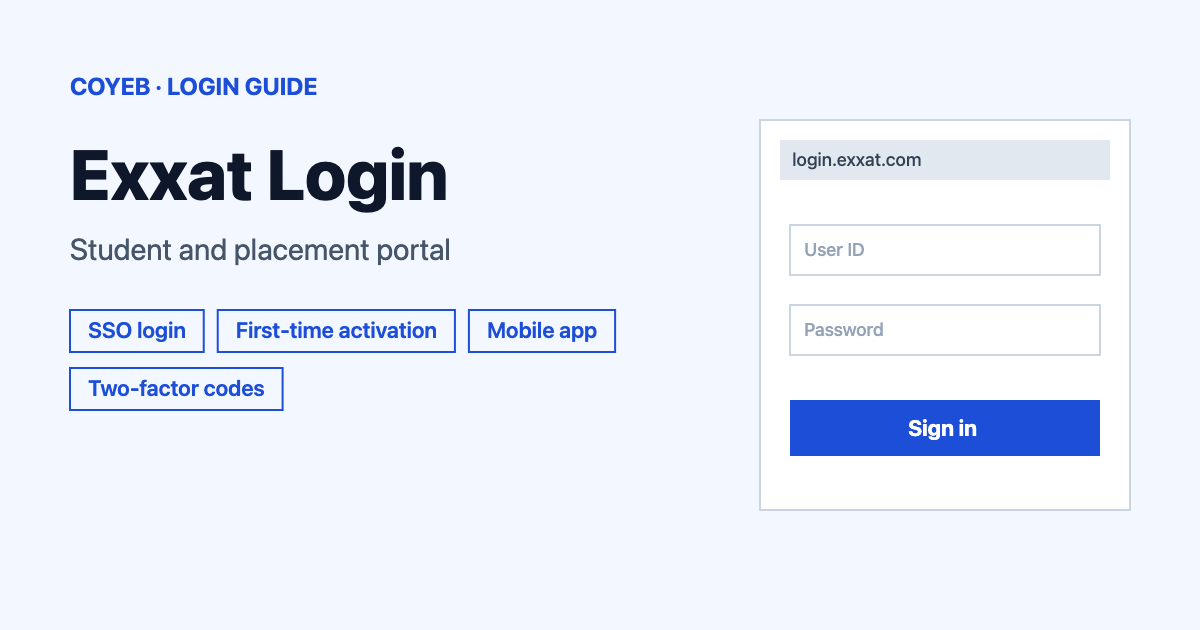
Your exxat login starts at login.exxat.com. Type your username or school email in Enter your username or email, click Continue, then enter your password and click Sign in. The catch: a school SSO account sends you to your school’s own login page. A code by text or email is also mandatory.
Last verified: 17 November 2026
Official Exxat login address: login.exxat.com (checked November 2026)
coyeb.com is not affiliated with Exxat. Never share your password or OTP with anyone.
What you will see on the Exxat login page
The page is headed “Access all your Exxat Applications”. It has one box marked Enter your username or email, a Continue button and a Forgot Email or Username? link. Below the button are Join Exxat One Network for new students and Contact Sales for new schools or sites. A Trouble signing in? link opens Exxat’s login and sign-up help article. There is no “Student” or “Admin” selector. Everyone starts in the same place.
How to do your Exxat login step by step
Exxat builds software for healthcare and clinical education programs, so most people arrive here because their school or placement site gave them access to Exxat Prism or Exxat One.
- Open login.exxat.com. You can also open exxat.com and use its Login button.
- Type your username or email in the box marked Enter your username or email. In most cases this is your school or university email address.
- Click Continue.
- Enter your password on the next page and click Sign in.
- Enter the two-factor code when Exxat asks for it (see the two-factor section below).
Exxat student login with a school single sign-on account
Students on Exxat Prism have one of two kinds of account. A standard account has its own Exxat password. An SSO account uses your school’s identity software, so there is no separate Exxat password to remember.
- Enter your school email in the username box and click Continue.
- Exxat redirects you to your university’s login page. Enter your SSO username and password there and click Login.
- You land back in Exxat Prism.
SSO access ends when your school email account expires.
Exxat login for school staff and the platform tiles
After you sign in, you may see tiles for Exxat Prism, Exxat One and V3. Only the products your account can use appear. The Prism and V3 tiles have a Continue button. The Exxat One tile has Continue as School, which opens one.exxat.com/school.
If your account has V3 as well as Prism and Exxat One, only the Prism and Exxat One tiles show on the login page. For V3 you open apps.exxat.com directly.
Schools that do not use Exxat Prism can fill out a form to request access to Exxat One. The Exxat team sends credentials once the school is verified.
First-time Exxat login and activation
Your school usually sets up your account first and sends an invitation. If you got an account activation message, it means your school sent that invitation.
- Look for the invitation email from notifications@exxat.com and click the link in it. If the link does not work, copy and paste the URL into a new tab.
- Click the activation link. For a standard account you then set a new password that follows the on-screen guidelines and click Submit. For an SSO account you click Activate and wait for the notification that your account is ready.
- Go to exxat.com and enter the email from your invitation. Standard accounts also enter the password and click Next. SSO accounts click Next and finish on the school login page.
- Before you get in, you must agree to Exxat’s Privacy Policy and Terms of Use and click Accept.
If you try to sign in before activating, the login screen asks you to check your inbox. It shows the email address and the date the link was sent. Click Resend Link if you cannot find the email. Exxat also says Internet Explorer is not a supported browser, so use a current one.
Join Exxat One as a student
Students who are not on Exxat Prism can join Exxat One themselves. Click Join Exxat One Network on the login page, which opens one.exxat.com/learners/signup.
- Type your email in the box marked Enter your email and click Continue.
- Choose to sign up with Exxat Prism (if that option shows) or create a new account with a different email.
- Give your name, discipline and graduation date and choose a password.
Sign up with Exxat Prism is for emails that already exist in Exxat Prism. It lets you import your personal information, professional summary, clinical and work experience, skills, education and certifications so you do not retype them. You do not need a new login if you already use Exxat Prism. If you already have an Exxat account you do not need to sign up again. Just log in with your existing details.
Exxat One is free for students. Add a secondary email during setup to keep access after you graduate or if you lose access to your school email. You can change your details later in the Profile section.
Forgot your Exxat username or password
Forgot username or email
Click Forgot Email or Username? under the box on the first screen. In most cases your username is your school or university email address. If you are not sure which address is registered, ask your school administrator or IT services team to confirm it. If that does not solve it, write to Exxat Support.
Forgot password
Click Forgot Password and follow the instructions. Exxat sends a reset link to your registered email. If your school uses SSO, you sign in with your school’s own identity system, so ask your school’s IT help desk about that password.
Exxat verification email or OTP not received
During sign-up, check your spam folder and wait a few minutes. Make sure the email or phone number you gave is correct. If the code still does not come, write to one-support@exxat.com. At sign-in, use Try another way as described in the next section.
Two-factor codes during your Exxat login
Two-factor authentication is mandatory. The “Remind me later” option is no longer offered because the grace period has ended. You cannot skip the code. A phone is recommended but you can choose an email code instead. If your phone is lost or the text does not arrive, click Try another way and pick email. Tick Remember this device for 30 days to see fewer prompts on your own computer. Once you are in, update your phone number in your account settings.
Exxat login on your phone
The Exxat Student app is available for Android and iOS from the App Store or Google Play. You can also scan the QR code on your Exxat Prism student dashboard. Search for “Exxat Student” and check that the app is the official one before you install it.
- Tap the Exxat Student icon.
- Enter your Username and tap Next.
- Enter your Password (your university credentials) and tap Sign in.
To use Touch ID or Face ID, open More, then Settings and turn on Biometric Authentication. Inside the app you will find Home, Compliance, Course Work, More and Ask Leo, an AI helper that works by text, voice or image. If you would rather not install anything, the browser steps above work on a phone too.
Exxat login not working
The first two rows are messages quoted from Exxat. The other rows are common situations from Exxat’s help center. The fixes are general suggestions.
| What you see | What it means | Fix |
|---|---|---|
| “Incorrect SSO Key provided by your school” | The SSO key your school shared with Exxat is wrong. | Contact your school’s IT support or help desk so they can correct the key. Then try again. |
| “Invalid Username or Password.” | The username, email or password does not match. | Check what you typed and use Forgot Password. For Prism, confirm your school actually invited you to Prism. |
| Account deactivated because of inactivity | Exxat turns off unused accounts for security. | Click Activate your account and follow the screen. |
| Account marked inactive | Your school administrator has deactivated it. | Ask your school’s IT team to reactivate it. |
| No invitation or activation email | The activation link may be missing or old. | Click Resend Link on the login screen or ask your school to resend the invitation. |
| No verification code arrives | The phone number may be old or the message delayed. | Choose Try another way and use email. Check spam and wait a few minutes during sign-up. |
The full list of answers is in the Exxat Login and Sign-Up FAQs on Exxat’s help center.
After you log in to Exxat
Check your requirements and placements.
- Open your Exxat Prism student dashboard.
- Look at your program requirements and placements.
- If you are in more than one program with the same email, click the Bento menu icon (the nine dots) and select the other program. Your profile is not synchronized across programs.
Finish compliance tasks.
- Open Compliance on the dashboard or in the app.
- Complete each task your program lists and upload any documents it asks for.
- If the dashboard shows Needs Attention, check Compliance for incomplete submissions, documents that need correction or expired records.
- If a document is marked Not Approved, open Compliance, read the reviewer’s comments and upload a corrected document.
Your school sets compliance due dates. If you miss one, ask your school or program administrator whether you can still submit.
Track coursework and logs.
- Open your coursework area.
- Check patient logs, timesheets and announcements.
What you see depends on how your program is set up.
Stay safe when you sign in
The address to check is login.exxat.com, or the Login option on exxat.com. The school dashboard for Exxat One is on one.exxat.com and V3 is on apps.exxat.com. Invitation emails from Exxat come from notifications@exxat.com. If an email, text or website asks for your password or OTP somewhere else, close it and go to login.exxat.com yourself. Report suspicious messages to your school’s IT team.
Exxat support contacts
- Exxat Prism email: prism-support@exxat.com (checked November 2026)
- Exxat One email: one-support@exxat.com (checked November 2026)
- Hours: email, live chat and AI-powered support run 24/7. Most inquiries are resolved within 24 to 72 hours (checked November 2026)
- Ticket inside Prism: after you log in, click the Resource center icon in the upper-right corner, then Support Services, then Submit a Ticket (checked November 2026)
For an SSO key problem or an inactive account, your school’s IT team is the right contact.