Pace Portal: How to Sign In to Pace University
Pace portal login at portal.pace.edu: activate a new account, reset your password, unlock it, fix Duo problems and reach the ITS Help Desk by phone.
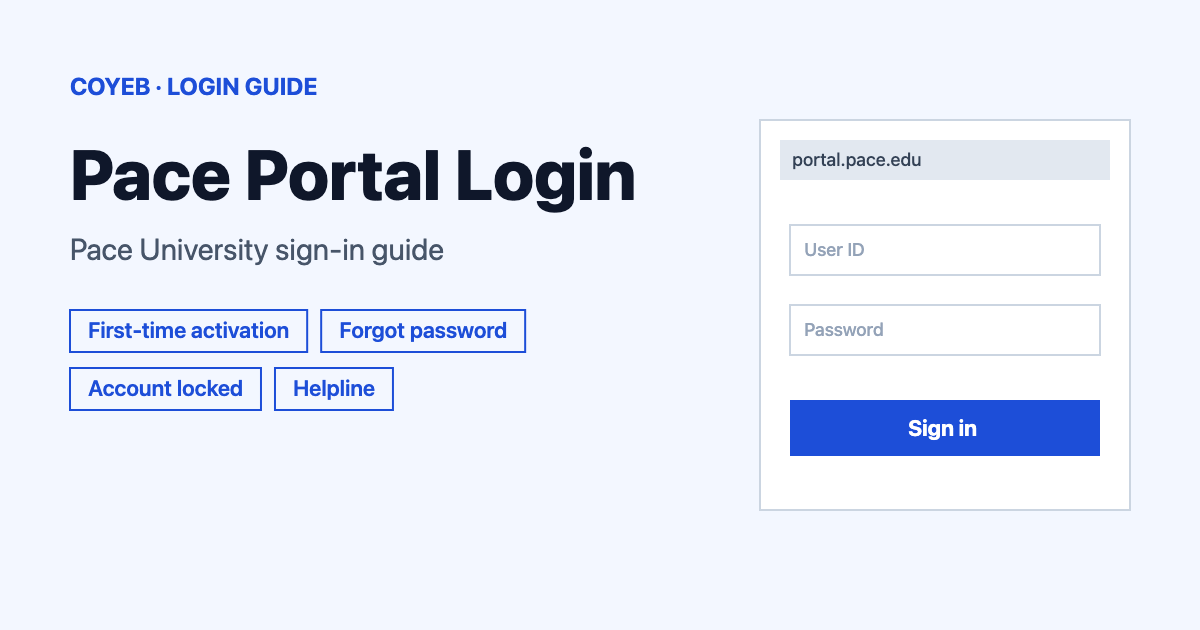
For the pace portal login, go to portal.pace.edu and type your Pace Username and Password, then press LOGIN. Your username is your Pace email name without @pace.edu. New users must choose New User? first, because the starting password expires after the first login and you must create a new one.
Last verified: 17 November 2026
Official address: https://portal.pace.edu/ (checked November 2026)
coyeb.com is not affiliated with Pace University. Never share your password or OTP with anyone.
What you will see on the Pace Portal login page
- The heading Pace Portal with the fields Username and Password and the button LOGIN.
- The links Forgot Password? and New User?.
- A warning when Caps Lock is on: “CAPSLOCK key is turned on!”
- A note that using the service means you agree to the IT Appropriate Use Policy and the Administrative System User Statement. Both are linked on the page.
- A Supported Browsers link that lists the browsers Pace supports.
How to log in to the pace portal
- Open portal.pace.edu in your browser. It takes you to the Pace University login page headed “Pace Portal”.
- Type your Pace username in Username. Leave out @pace.edu.
- Type your password in Password.
- Press LOGIN.
The same username and password work for the Pace Portal, Pace email, the Web File System and the ITS Help Desk. If you do not know your username or email address, look yourself up in the Pace Directory at directory.pace.edu.
First-time login: activate your Pace account
Pace creates the account for you. Student email accounts are created after course registration. Faculty and staff email accounts are created after hiring paperwork is processed. Every new user must activate the account once before using any Pace online system. If you have ever logged in to any website with your Pace account, you do not need to activate.
What to have ready: your initials, your date of birth and your 9-character University ID (U number).
- On the login page choose New User?. You can also go to the account page at adam.pace.edu and open Activate your account.
- Press Begin Activation. Pace asks you to log in.
- Use your Pace username and the initial password. The initial password is your first and last name initials in lower case, then a hyphen, then your date of birth as MM-DD-YYYY with hyphens. Example: John Doe, born January 3, 1998, uses jd-01-03-1998.
- If that password is rejected, your date of birth may be missing in the system or was added after the account was created. Replace the date of birth part with your University ID. Example: jd-U12345678.
- After you log in, your password expires. Create a new password when asked.
- Set up two security questions with answers. Pace uses them if you forget your password.
If activation does not work, call the ITS Help Desk (see the contact list below).
Forgot your Pace Portal password
You must have logged in to Pace at least once. If you never have, activate your account first.
- Choose Forgot Password? on the login page. It opens the Password Reset page.
- Type your Pace username in Username.
- Type the non-Pace email address saved in your Pace Portal in Non-Pace E-mail Address. Both fields are required.
- Press the continue button.
- Open your email and click the unique reset link.
- Answer your secret questions to confirm who you are.
If no non-Pace email address is saved on your account, contact the ITS Help Desk.
If you know your current password and only want a new one, use Password Change on adam.pace.edu. The same site has Security Questions to update your secret questions.
Forgot your Pace username
Your username is the part of your Pace email address before @pace.edu. Look up your name in the Pace Directory at directory.pace.edu to see your username and email address.
Pace Portal account locked
Too many wrong password tries lock the account. It unlocks by itself after some time. To unlock it sooner:
- Go to adam.pace.edu and open Account Unlock.
- Type your Pace username in Username.
- Press Continue.
- Answer your two secret questions. The account is then unlocked.
Lost your Duo device
If you cannot use your registered Duo device, open Create Duo Bypass Codes on adam.pace.edu and create bypass codes. You can also call the ITS Help Desk.
Pace email says the mailbox cannot be found
This usually means you are not yet registered for courses. After you register, email access works within 24 to 48 hours. Staff and faculty should ask Human Resources to confirm the account is activated. Student email access ends 12 months after your last class ends.
Pace Portal on your phone
No official Pace Portal app was found. Open portal.pace.edu in your phone’s browser. The steps are the same as on a computer.
Pace Portal login not working
Pace shows only a few exact messages. The other rows are common situations with fixes from Pace’s account help pages.
| What you see | What it means | Fix |
|---|---|---|
| “CAPSLOCK key is turned on!” | Caps Lock is active. | Turn off Caps Lock and type your password again. |
| The initial password is rejected | The format is wrong or your date of birth is missing in the system. | Use initials, a hyphen and MM-DD-YYYY. If that fails, use initials, a hyphen and your University ID. |
| Account locked after several wrong attempts | Pace locks accounts after too many incorrect logon attempts. | Use Account Unlock at adam.pace.edu or wait for the automatic unlock. |
| “Not valid” next to Non-Pace E-mail Address | The email address failed validation. | Check the spelling. If none is saved, contact the ITS Help Desk. |
| Classes.pace.edu will not accept your login | The username may include @pace.edu. | Type the username without @pace.edu and check that you are registered for classes. |
| You cannot remember your password | The password needs resetting. | Choose Forgot Password? and follow the steps above. |
| You have no access to your registered Duo device | Pace offers Duo bypass codes for this case. | Create Duo Bypass Codes at adam.pace.edu or call the ITS Help Desk. |
| The page loads badly | Your browser may not be supported. | Try a browser from the Supported Browsers list. Pace names Firefox, Chrome, Safari and Edge for Classes. |
After you log in to the pace portal
- Find links: the portal has a search bar.
- Check your details: the landing page shows your U number, Pace email and username. The profile page shows class rosters.
- Course schedule: open the Students tab then Registration & Scheduling. Choose Register for a Class then Register for Classes. Pick the term and press Continue. For the class list choose Schedule Explorer.
- Other tasks: students with active accounts can view an unofficial transcript and fill in the health insurance waiver. Personal details such as address and phone are updated in the portal too.
Stay safe on the Pace Portal
Check that the address ends in pace.edu before you type your password. Pace account tools are on adam.pace.edu. The site paceportal.pointnclick.com is not the same thing: it is a separate Point and Click portal and not the Pace University portal. If you get a suspicious message asking for your Pace password, do not reply to it. Tell the ITS Help Desk.
Pace Portal helpline
- ITS Help Desk phone: 914-773-3333 (checked November 2026)
- Toll free (U.S. only): 1 (855) 722-3487 (checked November 2026)
- Email: pacehelpdesk@pace.edu (checked November 2026)
- Hours: Monday to Thursday 8:00 a.m. to 7:00 p.m. Friday 8:00 a.m. to 6:00 p.m. Saturday 12:00 p.m. to 4:00 p.m. In summer sessions and breaks: Monday to Friday 9:00 a.m. to 5:00 p.m. (checked November 2026)
- Help page: pace.edu/helpdesk and online tickets at helpdesk.pace.edu (checked November 2026)
- General Information: 866-722-3338 (checked November 2026)