Supabase Login: Dashboard Sign-In With GitHub or Email
Supabase login steps for the dashboard: GitHub, email or SSO sign-in, reset code, MFA recovery codes and fixes when your sign-in will not load.
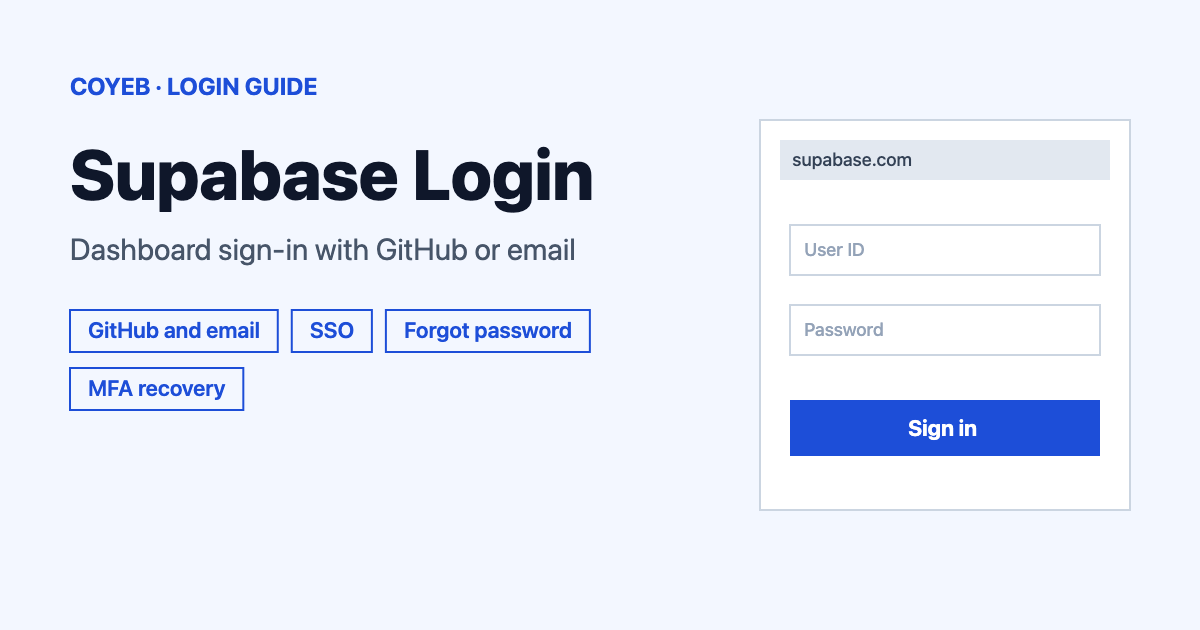
For a Supabase login, go to supabase.com/dashboard/sign-in and press Continue with GitHub, or type your Email and Password and press Sign in. Company teams use Continue with SSO. The catch: SSO and GitHub accounts with the same email are separate accounts, so use the one you created.
Last verified: 18 November 2026
Official Supabase login page: https://supabase.com/dashboard/sign-in
coyeb.com is not affiliated with Supabase. Never share your password or OTP with anyone.
What you will see on the Supabase login page
- Sign-in buttons: Continue with GitHub, one more button for an AI assistant account and Continue with SSO.
- Two boxes: Email and Password, with a Sign in button and a Forgot password? link.
- A Sign up link next to “Don’t have an account?”.
Pick the method you used when you created the account.
How to do a Supabase login
With GitHub
- Open the official sign-in page.
- Press Continue with GitHub.
- Follow the GitHub screens to approve the sign-in.
- If two-factor authentication is on for your Supabase account, enter the code from your authenticator app when asked.
With email and password
- Type your address in the Email box.
- Type your Password.
- Press Sign in.
- If two-factor authentication is on, enter the code from your authenticator app when asked.
With SSO (company sign-in)
- On the sign-in page, press Continue with SSO.
- The next screen says “Sign in to your enterprise account”. Type your work email in the Email box.
- Press Sign in. Supabase sends you on to your company’s identity provider to finish.
Your team may also start from the identity provider itself by clicking the Supabase tile or bookmark there. If your team has no SSO yet, the SSO page has an “Interested in SSO?” line with a “Let us know.” link. SAML SSO is offered on the Team and Enterprise plans.
First-time sign up
New here? On the sign-in page, press Sign up next to “Don’t have an account?”. The next page is headed “Get started” and “Create a new account”. It offers the same GitHub and SSO buttons, or an Email and Password form with a Sign up button. The page shows no password rules, so pick a strong password you do not use anywhere else. Under the buttons, a line says that by continuing you agree to Supabase’s Terms of Service and Privacy Policy and to receive periodic emails with updates.
Forgot password
Press Forgot password? under the password box, or open supabase.com/dashboard/forgot-password. The page is headed “Forgot your password?” and says Supabase will send you a code to reset the password.
- Type your address in the Email box.
- Press Send reset code.
- Look for the code in your inbox and use it to reset the password.
If you signed up with GitHub, you probably have no Supabase password at all, so go back and use Continue with GitHub. An SSO user cannot update or reset a password in Supabase, because the company administrator manages access through the identity provider.
Two-factor code at sign-in
If you turned on multi-factor authentication, Supabase asks for a second factor challenge code after your usual sign-in. The code comes from a time-based one-time password (TOTP) app such as 1Password, Authy, Google Authenticator or Apple’s Keychain.
Sign in with a recovery code
If you cannot use your authenticator app, sign in with a recovery code. You get 10 recovery codes and each one works once.
- Sign in with your usual method.
- On the two-factor authentication screen, under Unable to sign in?, click Authenticate using a recovery code.
- Enter one of your recovery codes.
After 5 incorrect codes, sign-in with a recovery code is locked for 15 minutes.
Lost your authenticator app
Sign in with a recovery code first, then go to Account → Security → Multi-factor authentication.
- With one authenticator registered: click Add MFA method and verify the new authenticator. Then click Remove MFA method for the lost one.
- With two authenticators registered: remove the lost one and keep your backup. Then click Add MFA method and verify its replacement.
- No recovery codes left: click Generate recovery codes. To replace your codes with a new set, click Regenerate. The old codes stop working at once.
Removing your last MFA method turns MFA off and deletes your recovery codes. Supabase cannot restore access to your account if you lose all your two-factor credentials, so register a backup factor.
Wrong account after signing in
An SSO account and a GitHub or password account with the same email are treated as separate accounts. SSO users only see the organizations and projects they were invited to or joined automatically. If your projects are missing, sign out and sign in again with the method you used for that account.
Supabase login not working
Only the first row is an official message. The fixes in the other rows are general suggestions to try.
| What you see | What it means | Fix |
|---|---|---|
| “Taking longer than expected? Try clearing your browser cookies and reloading the page.” | The page is slow to load. | Clear your browser cookies and reload. If the problem persists, write to support@supabase.io. |
| Email and password are not accepted | You may have signed up another way. | Try Continue with GitHub or use Forgot password?. SSO users sign in with Continue with SSO. |
| GitHub button does not finish | The GitHub step may be blocked or interrupted. | Try another browser or a private window. Also make sure you are signed in to the right GitHub account. |
| Recovery code stops working | After 5 incorrect codes, recovery code sign-in is locked for 15 minutes. | Wait 15 minutes and enter one of your unused codes. Each code works once. |
| Your projects are missing | You may be in a different account with the same email. | Sign in again with the method you used for the account that holds the projects. |
After you log in
- Create projects from the dashboard.
- Turn on multi-factor authentication in your account settings. This signs out all your other sessions, which must then sign in again with MFA.
Stay safe
Check that the address bar shows supabase.com before you type anything. The safest habit is to open the link above yourself. Never share your password or any code with someone who contacts you.
Supabase contact and support
- Email: support@supabase.io, shown on the sign-in help screens (checked November 2026)
- Support ticket: supabase.com/dashboard/support/new, you need to be signed in (checked November 2026). Reply times depend on your plan and how serious the issue is.
- Community: the Supabase Discord, for code questions (checked November 2026)
- Service status: status.supabase.com (checked November 2026)
- Phone and hours: no phone line or contact hours are listed (checked November 2026)