Sage Intacct Login: Company ID, User ID and Access
Sage intacct login at intacct.com: Company ID, User ID and password steps, forgot password, locked account, 2-step code fixes and the mobile app login.
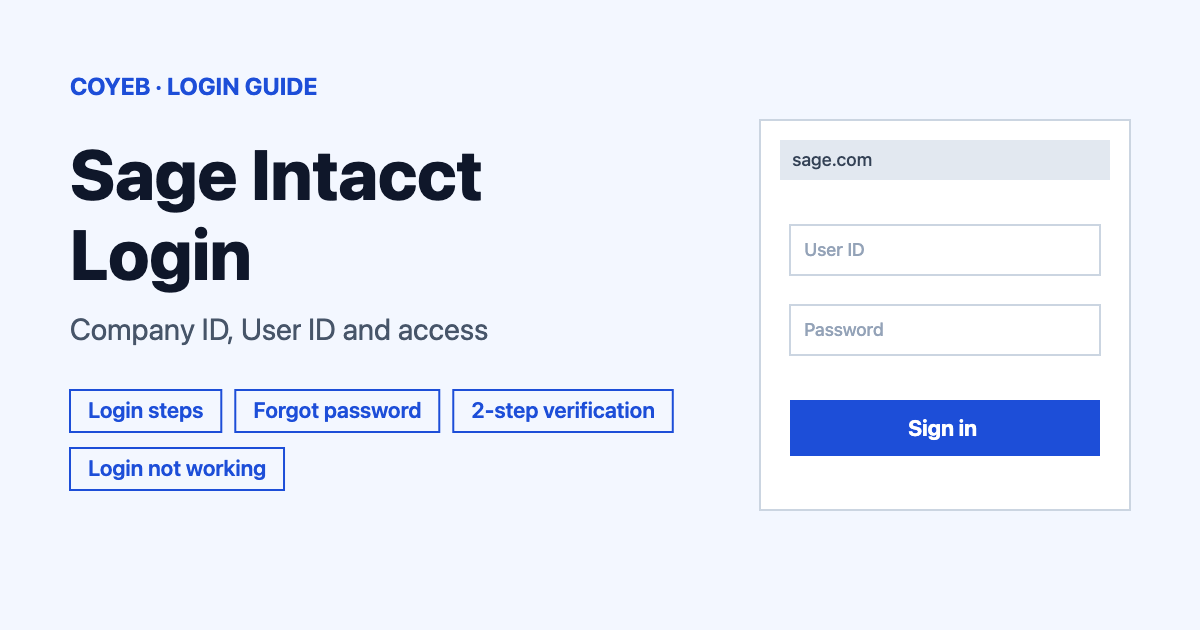
For your sage intacct login, go to intacct.com/ia/acct/login.phtml and type your Company ID, User ID and Password, then select Log in. All three are case sensitive. The catch people miss is the Company ID field, which web sign-in asks for before anything else.
Last verified: 18 November 2026
Sage Intacct sign-in page: https://www.intacct.com/ia/acct/login.phtml (checked November 2026)
Sage login page (lists Sage Intacct under Customers): https://www.sage.com/en-us/products/login/
coyeb.com is not affiliated with Sage Intacct. Never share your password or OTP with anyone.
What you will see on the Sage Intacct login page
- Company ID, User ID and Password fields.
- A Log in button.
- A Log in with passkey button, shown as an alternative to typing a password.
- A Use single sign-on link. It changes the form to only Company ID and User ID with a Log in button. Select Use basic login to go back.
- A Forgot your password? link.
- A System status link.
How to do the Sage Intacct login
- Open the Sage Intacct sign-in page from the official link above. You can also start at the Sage login page and choose Sage Intacct under Customers.
- Type your Company ID.
- Type your User ID.
- Type your Password and select Log in.
- If your company uses 2-step verification, type the verification code when asked.
Sage says Company ID, User ID and Password are case sensitive. Check that Caps Lock is off. If your company signs in through single sign-on, select Use single sign-on, type your Company ID and User ID and select Log in.
Intacct login: Company ID, User ID and Sage ID
The User ID is the user name you use to log in to Sage Intacct. The Company ID identifies your company. Your Sage ID is something different. It is the email address you use for Sage University. It does not replace your Company ID, User ID and password. A Customer ID starts with the letter C followed by digits and is only used as the Account Number when you join Sage University.
First-time access
Sage Intacct has no public sign-up on its login page. Your company’s administrator sets up your user. If you do not know your Company ID or User ID, ask your Intacct administrator. Once you can sign in, open the User menu and choose My preferences. Set your account email address and your password security question there. You will need both later if you forget your password.
Forgot your password for Sage Intacct login
- On the sign-in page, select Forgot your password?
- On the Verify your identity screen, type your Company ID and User ID and select Continue.
- Check the account email inbox. Sage Intacct sends the reset information there.
- Answer your security question when asked.
This only works if you already saved an account email and a security question in My preferences. If you did not, contact your designated support user or an Intacct administrator. Generally only a user with administrator rights can reset a password for someone else. If your company uses 2-step verification, you will be asked for a verification code the next time you log in after a reset.
To change a password you still know, go to My preferences, choose Change password, enter the current and new password and select Save.
Account locked after too many attempts
Sage Intacct emails you when you are locked out for too many failed attempts. The number of tries allowed is set by your administrator. Only an administrator can unlock you. The administrator opens Company > Admin > Users, selects Edit next to your name and changes the Status from Locked out or Inactive to Active. Then the administrator selects Save. Resetting your password does not unlock the account by itself. If you are the only administrator and are locked out, ask your designated support user to contact Customer Support.
2-step verification code not received
You can receive a code by text, phone call or authenticator app. An authenticator app is the most secure method. Intacct names Google Authenticator for iPhone and Android.
- If a text is late, use your backup method to get a code.
- If the number on file is wrong, ask your administrator to reset your primary or backup method. At your next login you choose how to get a code (authenticator app, phone call or text) and can enter a new number.
- If your work number has an extension, use your personal mobile number instead.
- Sage Intacct does not pass on charges for the verification calls or texts. If your phone plan charges you for them, choose the authenticator app.
To change your own method when you can still sign in, open the User menu and select My preferences. Scroll to Security preferences and find 2-step verification, which has Primary method, Backup and Trusted devices parts. Select Remove next to the primary method or backup, enter your password if asked and select Set up now. Follow the steps and select Save on My preferences. An administrator can do the same for a user under Company > Admin > Users by selecting Edit and then Remove on the 2-step verification tab.
Sage Intacct login on mobile
The Sage Intelligent Time and Expense app works with Intacct. Your company needs a subscription to an eligible Intacct application such as Time and Expenses or Project Costing. Sage lists the app as available in the United States only. Search for the app name in your phone’s app store, then:
- Open the app and tap Log in with Intacct.
- Type your company identifier in the Company ID field.
- Type your user name in the User ID field.
- Type your password in the Password field and tap Log in.
Sage Intacct login not working
The sign-in page shows no fixed error codes in Sage’s help pages. These are the problems the help pages describe with their fixes. If your case is not listed, treat them as general suggestions and ask your administrator. The Cannot log in page covers the same topics.
| What you see | What it means | Fix |
|---|---|---|
| Details look right but sign-in fails | Company ID, User ID and Password are case sensitive | Check that Caps Lock is off and type them again. |
| An email saying your account is locked | Too many failed login attempts | An administrator unlocks your user. Resetting the password alone does not unlock it. |
| Right user name and password but you still cannot get in | Often a new location. Your company may enforce IP address filters. | Ask an administrator to check Enforce IP address filters on the Security tab of Company Information and add your IP address. |
| 2-step verification code never arrives | The phone number or method on file may be wrong | Use your backup method or ask an administrator to reset your verification method. You set it up again at your next login. |
| Password reset option does not work | No account email or security question was saved | Contact your designated support user or an administrator. |
The Sage Intacct Community has its own separate login. Its user name usually looks like firstname.lastname@intacctcommunity.com and it differs from your Intacct user name. If its reset email does not arrive, look in spam and junk folders. If it still does not show up, your designated support resource can log a case with Support.
After you log in
Change your password or account email
- Open the User menu and select My preferences.
- Find Security preferences.
- Select Change password or Change account email address, fill in the fields and select Save.
Join Sage University for training
- Open the Help & Support menu and choose Sage University, or go to sageu.com/logon.
- Enter your Sage account email and select Continue.
- Log in with your password or sign up with an emailed code.
- In the Account Number field, enter your Customer ID. If you cannot find it, enter None.
Stay safe
Only enter your details on the sign-in address intacct.com or a page you reached from sage.com or from the address your administrator gave you. Check the address bar before you type. Do not share your password or verification code. If you get a suspicious message, forward it to your administrator.
Contact and support
- First contact: your designated support user or Intacct administrator (checked November 2026). Your designated support resource can log a case with Sage Intacct Support.
- Product support: the Contact product support link on the Sage login page (checked November 2026).
- Outages: the System status link on the Sage Intacct sign-in page (checked November 2026).
- Developers: can open a case through the Sage Intacct Community.
Also in business software: NetSuite login guide.