Drivers Ed Login: DriversEd.com Sign In and Course Access
Drivers ed login for DriversEd.com: the official sign-in page, password reset, parent accounts, course expiry and the support phone number and hours.
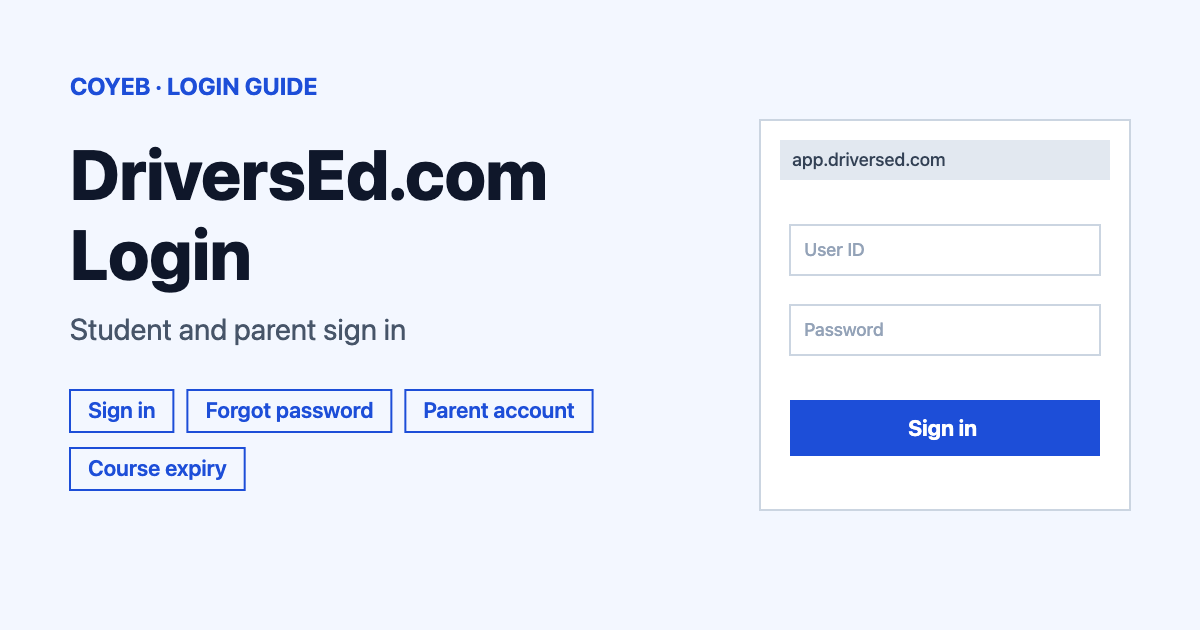
Your drivers ed login for DriversEd.com is at app.driversed.com/user/signin/. Open it, type the Email Address and Password you used when you bought the course, then click Sign In. If you forgot the password, use Forgot Password? on the same page. Parents sign in there too with their own email.
Last verified: 18 November 2026
Official sign-in page: https://app.driversed.com/user/signin/ (checked November 2026)
coyeb.com is not affiliated with DriversEd.com. Never share your password or OTP with anyone.
How to do your drivers ed login
The sign-in page is titled “Sign In” and works for students with a purchased course. You can also reach it from the “Log In” link on the main DriversEd.com website.
- Open app.driversed.com/user/signin/ in your browser.
- Type the email you used to buy the course in Email Address.
- Type your Password. Tap the “Show password” eye button if you want to check what you typed.
- Click Sign In to open your course.
Above the form you will also see a Google sign-in button (its label follows your browser language) and a Sign in with Apple button. They are separated from the email form by the word “OR”. Use whichever way you normally sign in to your course account.
Once you are in, the home screen of your course shows its expiry date.
If you do not have an account yet
You need to buy a course before you can sign in. The sign-in page has a “No account yet?” line with a link called Find a DriversEd.com course. that takes you to the main website. The site also has a “Select State” menu so you can pick the course for your state.
Forgot password or forgot which email you used
- On the sign-in page click Forgot Password? under the Sign In button.
- On the “Request Password Reset” screen type your Email Address. Use the email address you used to purchase your course.
- Click Request Reset and follow the steps in the email that arrives.
- Use Back to Sign In when you are done.
If you do not remember which email you used, try your other email addresses one by one. Also check your spam folder for the reset email.
Still locked out
The Help Center says support can help by phone or email or text. They verify the identity of the student first or speak with a parent listed on the account before unlocking it. If you are sure about your email but still cannot get in, they may ask for the credit card you used to sign up, so keep it handy.
Parent account login
A parent account is free while the student is enrolled. It has its own email and password. Parent emails and student emails must be different.
- A parent account is created at checkout when you choose “I am a Parent”. The other way is for the student to save the parent’s email in the profile so the parent gets an email invite. Customer service can also create it.
- Parents sign in on the same page with the parent email and password.
- If the page logs you into a student account automatically, the Help Center explains how to sign out of all accounts. After that you can try again with your parent details.
- To add a child, open the main page of your parent profile and click Link A Student. For a second child the button is Link Another Student. Enter the child’s email and you can then see progress and test scores.
- If the student email was entered but no password was created, the Help Center has a link where you enter the student’s email and reset the password.
Drivers ed login on mobile
There is an official app called “The DriversEd.com App” for iPhone and Android. You still need a purchased course before you can sign in to the app. Get it only from the official store pages:
The official apps page does not list sign-in steps for the app. In a mobile browser you can use the same sign-in address shown above.
Login not working
The Help Center does not publish exact on-screen error messages for sign-in. The table lists situations it does describe. The fixes are the ones it gives or general suggestions.
| What you see | What it means | Fix |
|---|---|---|
| You cannot remember your password | The password you typed is not the one on the account | Use Forgot Password? and request a reset with the email you used to buy the course. |
| You do not know which email you used | Reset emails go only to the email on the account | Try your other addresses and check the spam folder. |
| You are locked out | The account needs identity verification | Contact support. Be ready for an identity check and keep the card used at sign-up handy. |
| You land in a student account instead of the parent one | The student account is still signed in | Sign out of all accounts as the Help Center explains and sign in with the parent email. |
| A student account has no password | The student email was entered but no password was created | Reset the password using the student’s email through the link in the Parent Account help page. |
| A notice at the top left says the course expired | Your course reached its time limit | Click the notice to expand it then choose Start New Course. Contact support if you see no notice and are locked out. |
Course expiry and restarting
In many cases the course does not expire. You can see the expiry date on your course home screen and a banner appears as the date gets close. The Help Center lists these courses with a limit:
- Colorado Driver Education: 180 days
- Illinois Adult Driver Education: 30 days
- Michigan Basic Driver Improvement: due date set by the state and normally within 60 days
- Ohio Driver Education: 180 days
- Ohio Adult Driver Education: 90 days
- Wisconsin Driver Education: 180 days
When a course has expired, a notice shows at the top left of your student dashboard. Click it to expand it and use the bold blue Start New Course link. The Help Center says this resets the course free of charge.
After you log in
Continue your course
- Sign in and open your course.
- Check the expiry date on the course home screen.
- Carry on from where you stopped.
Restart an expired course
- Click the expired notice at the top left of the dashboard.
- Choose Start New Course.
Check a student as a parent
- Open your parent profile.
- Click Link A Student and enter your child’s email if the child is not linked yet.
- Review progress and test scores.
Stay safe
The sign-in page for DriversEd.com is on app.driversed.com and the main website is driversed.com. Other online drivers ed providers run their own sign-in pages, so it is a good idea to check that the address bar shows app.driversed.com before you type anything. Never give your password to anyone. Support may check who you are, but there is no reason to tell anyone your password.
Helpline and contact
Support is available by phone or text on 888-651-2886 and by email at info@driversed.com (checked November 2026). You can find more answers in the DriversEd.com Help Center.
- Phone: Monday to Friday 8:30 AM to 6:00 PM CST. Closed for lunch 11:30 AM to 12:30 PM CST and for a team break on Thursdays 3 to 4 PM. Closed on weekends.
- Text and email: weekdays 8:00 AM to 6:00 PM CST. Closed 12:00 to 1:00 PM. Closed on weekends.
- When you text include your name and email and your question. The Help Center says replies usually come within 1 to 2 hours and always within 24 hours.
- For a refund contact support with the name and email used at purchase.