Kite Educator Portal Login: Dynamic Learning Maps Access
Kite Educator Portal login for DLM teachers: sign in at educator.kiteaai.org, enter the emailed access code, reset a password and fix lockouts.
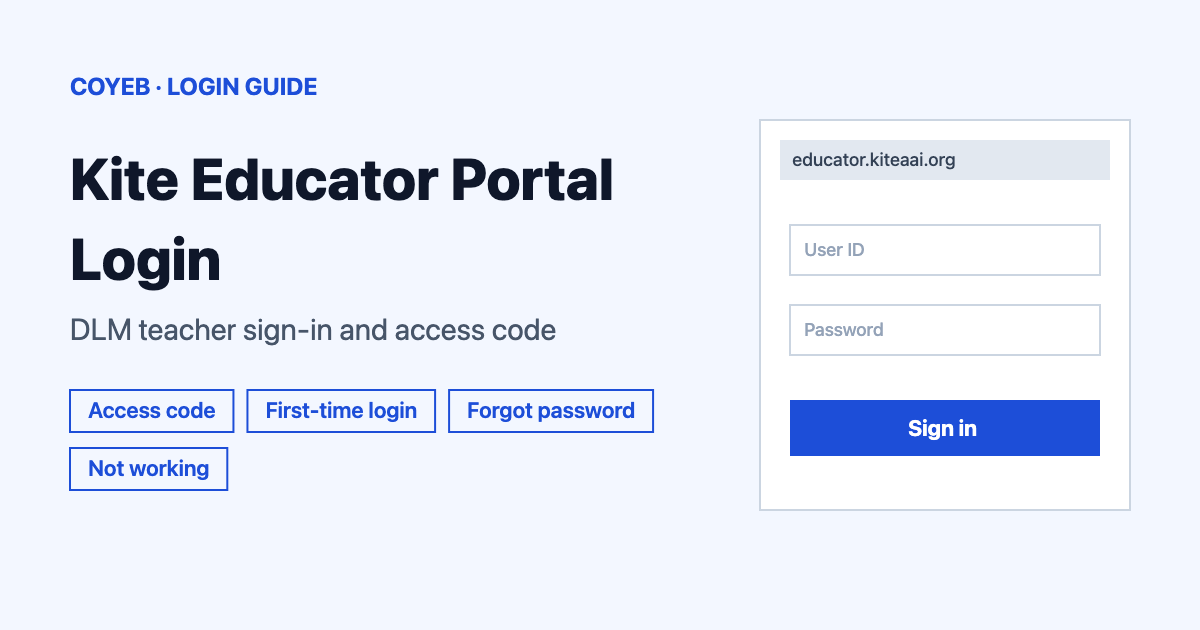
To open Kite Educator Portal, go to educator.kiteaai.org and enter your username (your email address in lowercase) and your password. Select Sign In and then type the access code that arrives by email. The portal only works once your data manager has set up your account.
Last verified: 18 November 2026
Official sign-in page: educator.kiteaai.org (checked November 2026)
coyeb.com is not affiliated with Kite Educator Portal or the University of Kansas. Never share your password or OTP with anyone.
This guide covers Kite Educator Portal as teachers use it for the Dynamic Learning Maps (DLM) alternate assessment. Some states run other programs on the same system with their own help desk details. Those differences are noted below.
How to log in to Kite Educator Portal
The login page is headed “Sign In To Educator Portal”. Teachers are called Test Administrators inside the portal. Follow these steps from a computer with a current browser.
- Open educator.kiteaai.org in Firefox, Chrome, Edge or Safari. Those are the supported browsers listed on the DLM Kite page.
- Type your email address in lowercase into the Username: box.
- Type your password into the Password: box.
- Select Sign In ».
- Check your email for the access code. The code is valid for 30 minutes.
- Enter the code on the next screen and select Submit.
The access code is a required step. The DLM Kite page states that multifactor authentication is required when logging in to Educator Portal. In some states the code can go to a mobile phone instead of email when the state allows it. If you sign out and sign back in within 30 minutes the same code still works. Choosing the remember-device option on the code screen skips the code for 30 days on that device.
Two-step sign-in is common across work systems. The NetSuite login guide shows a similar flow if you want to compare.
Security agreement and roles
After signing in you must accept the security agreement before you can go any further. It renews every year in the first week of August. The home screen then shows your default role, your organization and the assessment program. Other roles in the portal include District Test Coordinator, Building Test Coordinator and State Assessment Administrator. Your data manager assigns roles.
First-time Kite Educator Portal login
There is no public sign-up form. A new account is created when your data manager adds you or uploads your user information. After that the steps are:
- Open the activation email sent from kite-support@ku.edu.
- Select the link in the email to open the Activate User screen.
- Fill in the fields and select Activate.
- Select Back To Login and sign in. Enter the access code you receive.
If the email never arrives, check your junk or spam folder first. After that ask your data manager to resend the activation email or upload your user information again.
Forgot password for Kite Educator Portal
Your username is your email address, so a forgotten password is the usual problem. You can reset it yourself.
- On the sign-in page select Forgot Password?
- Enter your username and select Submit.
- Open the reset email from kite-support@ku.edu. It usually arrives within an hour.
- Select the link and enter your username and your new password twice.
- Select Submit and then Return to Kite Login Page.
To change a password while signed in select Change It Now or open My Profile. Go to the Password and Authentication tab and select Save.
Five wrong sign-in attempts lock the account. A Test Coordinator has to unlock it for you.
Kite Educator Portal app and mobile login
Educator Portal is a secure web-based platform and there is no separate Educator Portal app. The DLM Kite page lists Firefox, Chrome, Edge and Safari as the supported browsers and does not describe a separate mobile sign-in. The installers listed on the DLM Kite page are for Kite Student Portal. Students use that app to take DLM assessments and educators do not need it to sign in.
Kite Educator Portal login not working
Messages in quotation marks are the exact text shown by the portal. The other rows describe common situations with the fix that the official documents give.
| What you see | What it means | Fix |
|---|---|---|
| “To access Kite Educator Portal it is necessary to enable JavaScript.” | JavaScript is turned off in the browser. | Turn JavaScript on and reload the page. |
| “Your browser is not supported for Educator Portal access.” followed by “Please update your browser to a supported version before trying again.” | The browser is not one of the supported ones. | Update the browser or switch to Firefox, Chrome, Edge or Safari. |
| “Access to the Instruction and Assessment Planner (or Test Management) is restricted” “due to incomplete Required Test Administrator Training.” | Required training is not finished. | Complete all required modules and score 80% or higher on each post-test. |
| Sign-in stops working after several tries | Five wrong attempts lock the account. | Ask a Test Coordinator to unlock it. |
| Activation or reset email does not arrive | The email may be in junk or the account may not be set up yet. | Check spam. Reset emails usually come within an hour. For activation ask your data manager to resend it. |
| You cannot move past the security agreement | The agreement has not been accepted. | Accept the agreement. It is required each year. |
After you log in to Kite Educator Portal
Check student data and rosters
- Open the student data and confirm the state student identifier, name and grade.
- Look over your rosters.
- Report any problem to your data manager.
Complete student profiles
- Open each student and fill in the PNP Profile.
- Complete the First Contact Survey for the same student.
Plan and assign testlets
- Finish the required Test Administrator Training first.
- Open the Instruction and Assessment Planner to plan instruction and assessment.
- Use Test Management for spring science.
Stay safe when signing in
The address in the DLM user guide is educator.kiteaai.org. The login page itself reminds users not to give out, loan or share a password with anyone and notes that access to educational records is governed by federal and state law. Real account emails come from kite-support@ku.edu. Check the address bar before typing anything and never give out your access code. Help desk staff should not receive student personal information by email or Live Chat. Ask your assessment coordinator what your state allows.
Some states use their own address. The Montana testlet manual uses educator-testlet.kiteaai.org for example. DLM states should use educator.kiteaai.org unless the state says otherwise. More about the platform is on the DLM Kite page.
Kite Educator Portal helpline
- DLM Service Desk: 1-855-277-9751 or DLM-support@ku.edu. Open Monday to Friday 7:00 am to 5:00 pm CT (checked November 2026).
- Kansas assessments (KAP): 855-277-9752 or kap-support@ku.edu (checked November 2026).
- Montana: 855-277-9752 or kite-support@ku.edu (checked November 2026).
Use the number for your own state program. Kansas lists the DLM Service Desk separately from its own Kite Service Desk.