ESGI Login: Teacher Assessment Access
ESGI login for teachers: use app.esgisoftware.com/login with a username or Clever and ClassLink. Reset a password and find the Canadian login.
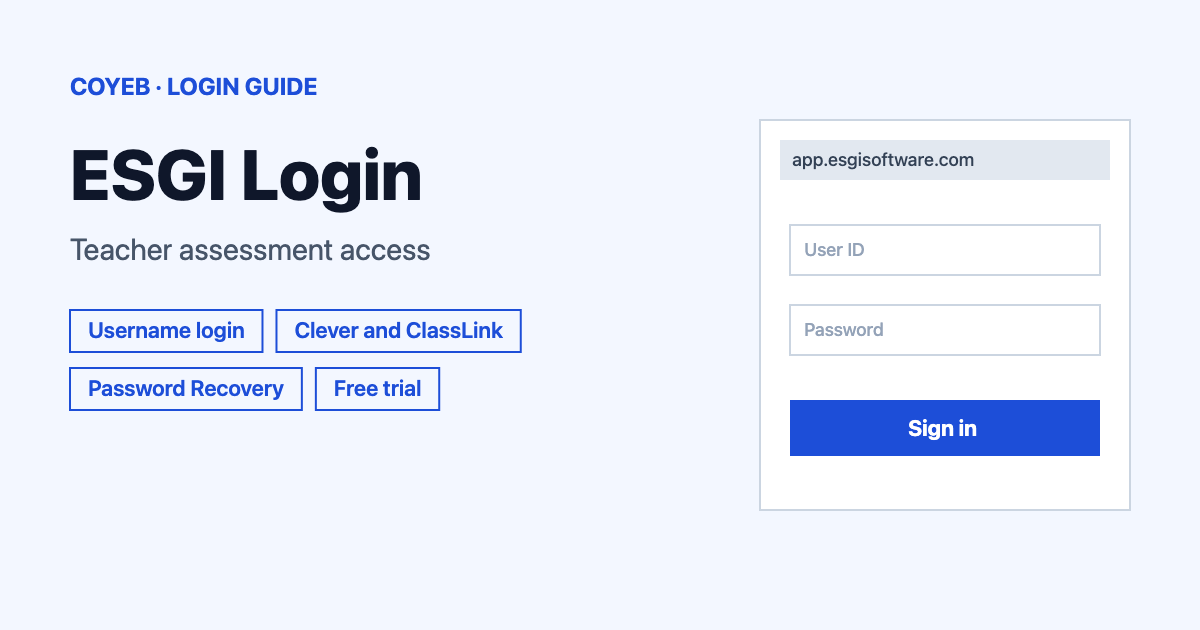
The ESGI login page is at app.esgisoftware.com/login. Open it, type your Username and Password, then click LOGIN. Teachers can also use the Clever, ClassLink or Google Classroom buttons on the same page. Canadian users sign in at app.ca.esgisoftware.com instead.
Last verified: 18 November 2026
Official ESGI login address: app.esgisoftware.com/login (checked November 2026)
coyeb.com is not affiliated with ESGI Software. Never share your password or OTP with anyone.
ESGI is assessment software for teachers of PreK to 2nd grade from Riverside Insights. Its login page is simple, but there are a few paths in: a username and password, a school single sign-on button, a separate Canadian site and a separate page for students. This guide covers each one.
ESGI login with your username and password
- Go to app.esgisoftware.com/login. The older address www.esgisoftware.com/login/ redirects to the same page.
- Under Login With Username & Password, type your Username in the first field.
- Type your Password in the second field.
- Click LOGIN.
If your browser shows a cookie banner on the page, it asks you to accept cookies. On a free trial account the username fills in as your email address by default unless you changed it at sign-up.
ESGI login with Clever, ClassLink or Google Classroom
Under Login With 3rd Party Provider the page has three buttons: Clever Log In, ClassLink Log In and Google Classroom Log In. Click the one your school uses.
Clever and ClassLink only work for districts that have already integrated with ESGI. A teacher who wants to use either one links the account first from inside ESGI:
- Clever: sign in to ESGI, open the Menu, go to Settings and link your Clever account. A message says “Your Clever account has been successfully linked.” After that you can click ESGI inside Clever. Linking trouble goes to importing@esgisoftware.com.
- ClassLink: sign in to ESGI, open the Menu, go to Settings and find the Single Sign On section. Click “Link to ClassLink account.” and wait for “Your ClassLink account has been successfully linked.” After that you can click ESGI inside ClassLink. If your district has not set up linking yet, write to importing@esgisoftware.com. If linking still fails, contact support@esgisoftware.com.
The Clever and ClassLink help articles are labelled as Classic version articles on the ESGI help site.
Canadian ESGI login
The login page has a link named Canadian Login Page that opens in a new tab. ESGI’s help site says Canadian users should use app.ca.esgisoftware.com. Canadian accounts also have their own sign-up addresses, listed in the sign-up section below.
Student ESGI login
Students do not use the teacher login form. Their page is app.esgisoftware.com/student/login and it is called the Assignment Center. It opens on Enter Your District ID, so a student needs their district ID ready.
First-time ESGI login and sign up
The top of the login page asks “Don’t have an account yet?” and has a SIGN UP link. ESGI’s help pages describe two ways to create a teacher account.
Free teacher trial
- On esgisoftware.com click Start Your Free Teacher Trial.
- Enter your email address. ESGI uses it for password resets, account updates and notifications.
- Your username fills in as your email by default. You can change it.
- Choose a password and add a promo code if you have one.
- Complete the reCAPTCHA and click Create Trial.
- Click Continue to enter your name, country, state, school, timezone and grade levels. You can pick Finish Later instead. If your school is missing from the list choose My School isn’t Listed.
- Click Done and you are logged in.
The trial is valid for 60 days once it is active. Canadian teachers sign up at app.ca.esgisoftware.com/sign-up/.
Account from an activation code
If your school gave you an activation code, open the activation link and type the code in the first field. Then enter your email and choose a username and password. Complete the reCAPTCHA and click Submit. A setup screen follows and you finish it with Done. Canadian teachers use app.ca.esgisoftware.com/sign-up?ActivationCode=true. To connect your school to its district, use the Contact Us form on the help site and choose “Account and Access Support” and then “Connecting My School to the District”.
Pre-Assess accounts
A teacher who pre-assesses students, usually incoming kindergartners, needs unique credentials for the Pre-Assess account. These accounts are not created inside an individual teacher account. Contact ESGI Support to get one. ESGI’s help site lists the account types as Teacher, Specialist, Pre-Assess, School and District Admin.
Forgot your ESGI login password or username
Reset a forgotten password
- On the login page click Password Recovery.
- In the Reset Your Password box, enter the email or username linked to your account. The box says ESGI will send you a link to reset your password.
- Click SEND RESET LINK. You can click CANCEL to go back.
- A confirmation message appears and an email from ESGI Support arrives.
- Click the blue RESET PASSWORD button in that email.
- Enter the new password twice and click Save.
If the email does not show up, check all inboxes and the spam folder.
Forgot your username
The reset box accepts an email address as well as a username, so your account email works there even when you cannot remember the username. A username or account email cannot be changed by the teacher. Only a District Admin or ESGI Support can change it. The support contact is support@esgisoftware.com.
Supported browsers for ESGI login
ESGI runs in a web browser on a PC, Mac or iPad. The help site lists these minimum versions: Safari 15.6 or later on Mac and iPad, Chrome 98 or later, Firefox 95 or later on Windows and Edge 98 or later on Windows. Internet Explorer is not supported. On an iPad the help site has its own troubleshooting guide.
ESGI login not working
ESGI’s help pages do not publish exact error messages for the login screen. The table describes common situations in plain words and the fixes are general suggestions based on ESGI’s troubleshooting steps.
| What you see | What it may mean | Fix |
|---|---|---|
| The login page loads badly or buttons do nothing | An old browser version or stored browser data | Clear the browser cache first as ESGI suggests. Then check your browser against the supported versions above and restart the computer. |
| Username and password are not accepted | A mistyped password or a different username than the one you set up | Use Password Recovery and enter your email or username. The username may be your email address. |
| No reset email arrives | The message is in another inbox or the spam folder | Check all inboxes and the spam folder. If it is still missing, email support@esgisoftware.com. |
| Works at one computer but not another | A problem with that computer or network | Try another computer and another website on the same one. You can also try from a computer outside school. |
| Clever or ClassLink does not open ESGI | The district is not integrated or the account was never linked | Link the account in ESGI Settings first. For district setup write to importing@esgisoftware.com. |
| You need to change the username or account email | Teachers cannot edit these themselves | Ask your District Admin or email support@esgisoftware.com. |
If nothing works, email support@esgisoftware.com. ESGI asks for your computer and browser details, the screen you were on, any error message and a screenshot. If the problem involves a test, add the student name and the subject tab.
After you log in
Change your password
- Go to My Account and click Change Password.
- Enter your current password.
- Enter the New Password twice.
- Click Set New Password.
Link Clever or ClassLink
- Open the Menu and go to Settings.
- Choose the Clever link or the Link to ClassLink account option in the Single Sign On section.
- Wait for the success message.
Contact support
- Email support@esgisoftware.com with the details listed above.
- Or use the Submit a Request form on the ESGI help site.
Stay safe on the ESGI login page
Check that the address belongs to esgisoftware.com before typing a password. The sign-in addresses used here are app.esgisoftware.com and app.ca.esgisoftware.com. Names that look similar such as esgi.fr, esgi.ma and esgi.ai are unrelated to ESGI Software. If an email asks for your password and the sender looks wrong, it is safer not to click anything inside it.
ESGI helpline
ESGI’s help pages list no phone number or support hours (checked November 2026). Support is by email at support@esgisoftware.com and through the Submit a Request form. The help site also points to a Self-Help Portal at info.riversideinsights.com/tickets-view. For Clever and ClassLink linking write to importing@esgisoftware.com. More guides: healow login and Exxat login.


