MobyMax Login: Student and Teacher Access
MobyMax login steps for students, teachers, parents and admins at mobymax.com/signin. Find the right tab, reset a password and get help if you are locked out.
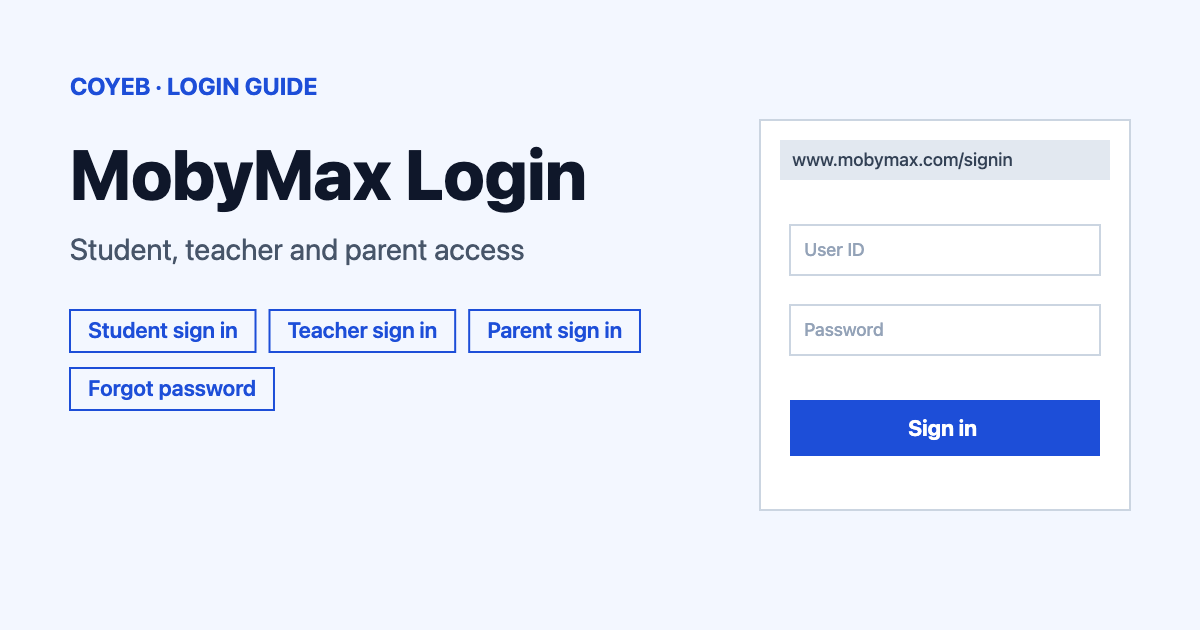
For a MobyMax login, go to www.mobymax.com/signin and choose your tab: student, teacher, parent, school admin or district admin. Teachers and parents type an email and password. Students first find their school by school code or by school name and state. Clever, ClassLink and Google Classroom are offered under every tab.
Last verified: 18 November 2026
Official sign-in page: www.mobymax.com/signin (checked November 2026)
coyeb.com is not affiliated with MobyMax. Never share your password or OTP with anyone.
How to do a MobyMax login
The sign-in page is titled “Sign In | MobyMax” and shows five tabs across the top: AS A STUDENT, AS A TEACHER, AS A PARENT, AS A SCHOOL ADMIN and AS A DISTRICT ADMIN. Pick the one that matches who you are. Signing in on the wrong tab is the easiest way to get stuck.
Teacher login
- Open www.mobymax.com/signin and select AS A TEACHER.
- Under “Sign in to MobyMax:” type your email in the Email field.
- Type your password in the Password field.
- Tick Remember me only on a device you own.
- Select Sign in.
School admin login
The AS A SCHOOL ADMIN tab has the same layout as the teacher tab. Use Email and Password, then select Sign in. District administrators have their own tab called AS A DISTRICT ADMIN.
New to MobyMax? Teachers and school admins can use the Register for MobyMax link under the sign-in button. On the parent tab the link is “I don’t have a MobyMax at Home account”. On the family page it is “Don’t have a MobyMax account yet?”.
Parent login
- Select AS A PARENT. The heading reads “Sign in to MobyMax at Home:”.
- Enter your Email and Password.
- Select Sign in.
The parent tab also has a link called “Sign in to classic dashboard with my child’s login info” for families who use the older dashboard.
Family sign-in page
There is also a separate family page at www.mobymax.com/familysignin. It starts with “Enter your Family Username.” and a GO button. After that you select who is signing in (the option for a parent is labelled Parent) and select SIGN IN. A “Remember me on this computer” box is there too.
Student login
The AS A STUDENT tab opens with “Let’s find your school first:”. You can type the School code and select Go. The other way is to type the School name, set the State (it starts on “All”) and select Go.
MobyMax lists four ways for students to reach their sign-in:
- Select School: choose the school from the list on the sign-in page.
- School Code: enter the school’s unique code on the sign-in page.
- Unique School URL: go straight to the school’s own address. Schools can bookmark it or post it on their website.
- Young Student Sign In: a simpler sign-in for early learners such as kindergarten or first grade. Teachers switch it on in their settings.
If you are not sure which method your class uses, ask your teacher. Teachers can see it themselves by signing in and opening the Manage tab, then Student Roster, then the How Your Students Sign In tab (see the MobyMax help article).
Clever, ClassLink and Google Classroom
Under every tab you will see “Other ways to sign into MobyMax:” with three buttons: Clever, ClassLink and Google Classroom. If your school signs in through one of these, use that button instead of typing an email.
Forgot password
Teachers and school admins can reset the password from the sign-in page:
- Select Forgot your password? under the sign-in button.
- A popup says “Enter your email address and we’ll send you password reset instructions.” Type your address in Email address *.
- Select Send.
- Look for the email within a few minutes. MobyMax says to check your spam filter if it does not arrive. The email comes from support@mobymax.com.
Parents have a Forgot your password? link on the parent tab. On the family page there are two links: Forgot your Family Username? and Forgot your password?. Both forms ask for “Your email address” and have a SEND button.
No password reset steps for students are shown on the sign-in page. Students should ask their teacher for help.
Login on mobile
On a phone or tablet you can try the same address in your browser. Open www.mobymax.com/signin and choose your tab. Typing the address yourself is safer than tapping a link from a search result.
MobyMax login not working
The fixes in this table are general suggestions, not official MobyMax error messages.
| What you see | What it means | Fix |
|---|---|---|
| Email and password do not work | You may be on the wrong tab | Check that you chose teacher or parent or admin correctly. Parent accounts and teacher accounts are separate tabs. |
| Student cannot find the class | The school was not picked yet | Try the school code or the school name with the right state. Ask the teacher which of the four methods the class uses. |
| No reset email | The message may be in spam | Check the spam folder for a message from support@mobymax.com. Then try the Send button again. |
| Still locked out | The account may need help from MobyMax | Call the number shown in the “Need help signing in?” popup (see the helpline section). |
After you log in
Teachers can open the Manage tab and select Student Roster. The How Your Students Sign In tab shows how each class signs in, which is handy to share with students who cannot get in.
Stay safe
The official address is mobymax.com. Check it in the address bar before typing a password. The reset email comes from support@mobymax.com. Never share your password with anyone.
Helpline
The “Need help signing in?” popup says “Need help logging in? Call us at 888-793-8331.” (checked November 2026). Opening hours are not shown on the popup.
More sign-in guides: Exxat login and NetSuite login.