OwnerRez Login: Vacation Rental Software Access
OwnerRez login at app.ownerrez.com: sign in with email or Google, handle the verification code, reset a password and log in as an owner or cleaner.
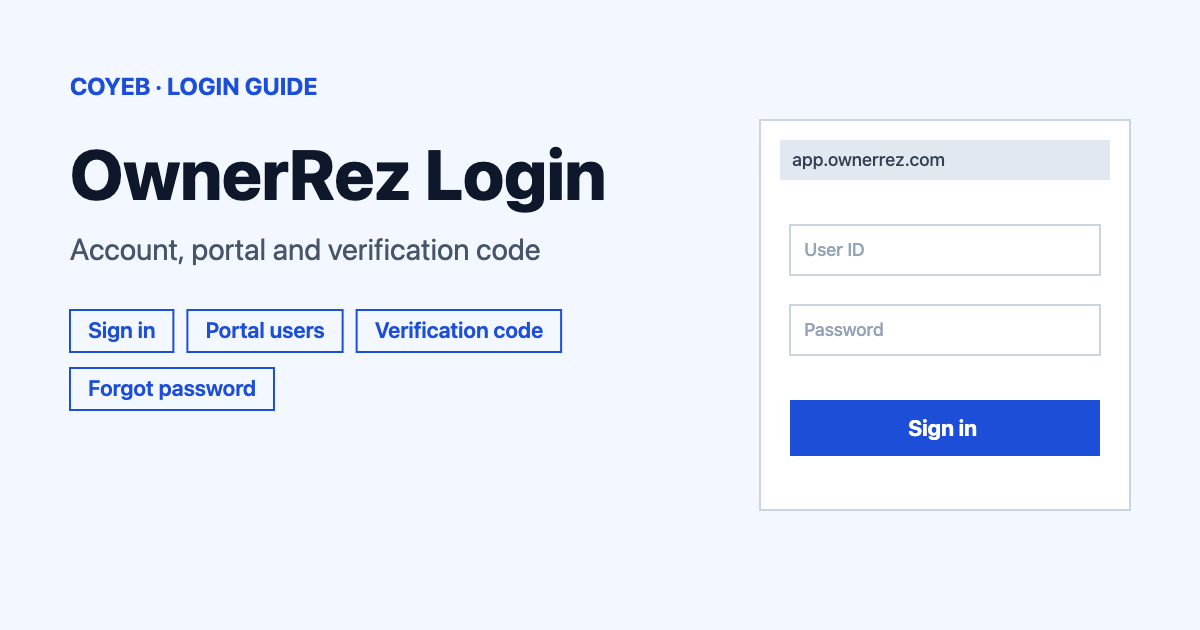
For the OwnerRez login, open app.ownerrez.com, type your Email and Password, then click Sign in. If a Verification Code screen appears, enter the code from your email and click Verify. Owners, cleaners and maintenance staff use the email and password they set when they accepted their invite.
Last verified: 18 November 2026
Official OwnerRez login link
The standard sign-in page is app.ownerrez.com (checked November 2026). The page is headed “Log in to your account”.
coyeb.com is not affiliated with OwnerRez. Never share your password or OTP with anyone.
Other companies also run owner portals for their own vacation rental clients. Quarterdeck, Robin Vacation Rentals and Propertyware are examples. Those portals are not the OwnerRez login.
How to complete the OwnerRez login
This works for anyone who has their own OwnerRez account, including the account holder.
- Go to app.ownerrez.com in your browser.
- Type your email address in the Email field and your password in the Password field.
- The page also has a Remember me checkbox that you can tick if you wish.
- Click Sign in.
- If OwnerRez asks for a code, finish the verification step described below.
Under the word “or” the page offers two other ways in: Sign in with Google and Sign in with a passkey. Google sign-in arrived with a redesigned login page in September 2024. OwnerRez described it then as totally optional and said people could keep logging in the usual way. The same announcement told users that the new look was no sign of a phishing page.
OwnerRez login for owners, cleaners and maintenance staff
Property owners, housekeepers and maintenance staff are portal users. An OwnerRez account holder adds them by entering a first name, a last name and an email address. OwnerRez then emails each person a link to log in and set a password.
- Open the invite email and click the link. The portal login page opens with your name and email already filled in.
- If this is your first portal account, choose Create my account. You can update your names and set a password there.
- If you already have a portal account through another OwnerRez user, choose the I already have an account option and click Link this account. One login can then view more than one account.
- Next time, sign in with that email and password at the portal address.
The portal address is either the branded Portal Site that the account holder set up or app.ownerrez.com. The branded address is not given on OwnerRez’s own pages. Ask the manager who sent your invite for it. The branded portal is only for portal users. Your own main OwnerRez account will not sign in there.
If the invite email never arrived or the link stopped working, ask the account holder to click Resend Invite in your portal user settings. The portal is also separate from the booking website that guests use. Guests never use it.
First-time OwnerRez login and sign-up
A new account starts from the line Don’t have an account? Sign up at the bottom of the sign-in page. Click the Sign up link and follow the screens that appear. Owners, cleaners and maintenance staff do not sign up this way. They wait for an invite from the account holder.
Verification code and two-factor step
OwnerRez’s two-factor article says every user account needs two-factor authentication. That covers main logins and team access staff logins. The article gives fake landing pages built to collect usernames and passwords as one reason for the rule. The default method is email. Switching to an authenticator app is possible, but only one method works at a time and the app method can only be set up after a first verification by email. The setting lives on the Safeguards page under My Account.
With email verification the steps run like this.
- After you sign in on a new device the Verification Code screen appears. A live countdown shows how long the code stays valid.
- Open the email from alerts@ownerrez.com and copy the code.
- Type it into the Verification Code field and click Verify.
- Need a fresh email? Click Send Verification Email Again.
The article says the code is asked for on a new device and after more than 28 days since the last verification on that device. Clearing cookies brings the question back. If cookies are switched off the code may be asked at every login. OwnerRez recommends turning cookies on.
Authenticator app users who cannot reach the app can use the Verify by email instead link at the bottom of the screen. Text message codes are not an option. Only email and an authenticator app are available. On an iPhone the code can land in the built-in Keychain instead of the authenticator app. The article points to Settings, then Passwords, then Password Options for that case. Portal users cannot reach these settings and the article says no two-factor option exists for portal logins at present. Team access staff who are viewing the main account as an impersonation cannot see Safeguards. The Unimpersonate button at the top right takes them back to their own account.
If you also use NetSuite, the NetSuite login guide explains how its second step works.
Forgot password or email for the OwnerRez login
- On the sign-in page click Forgot password. The page at app.ownerrez.com/Forgot opens with the heading “Forgot Password”.
- Enter the email address linked to your account and click Reset Password. OwnerRez says it will email instructions for resetting the password.
- Open the email and use the reset link to choose a new password.
OwnerRez’s forgot password article calls this button “Find My Password” while the live page shows “Reset Password”. Setting a new password signs you out of every browser and device that was logged in. OwnerRez cannot send you your old password because passwords are encrypted.
Portal users who forgot a password select I forgot my password on the portal login page and the system emails a reset link.
If you cannot remember which email address you used, there is no automatic way online. An older support article, last updated around 2020, says to message OwnerRez with your name and business details plus anything that identifies you. Support may ask for more proof before releasing the address.
Login on mobile
No official OwnerRez app listing in the Apple or Google stores is named on the pages OwnerRez publishes for sign-in. On a phone you can open app.ownerrez.com in the mobile browser and use the same Email and Password fields. Keep cookies on so the verification code is not requested every time.
OwnerRez login not working
OwnerRez publishes exact wording only for an expired code. The other rows describe situations and the fixes are the official suggestions.
| What you see | What it means | Fix |
|---|---|---|
| “This code has expired” | The verification code ran out of time. | Click the green Send New Code button. |
| No code email arrives | The message from alerts@ownerrez.com may be filtered. | Search the whole mailbox including Spam, Promotions, Updates and Archive. Check the spam filter of your registrar or web host if they host your mail. Then request a new code. |
| Code goes to the wrong place on an iPhone | The built-in Keychain may take the code instead of your authenticator app. | Open Settings, then Passwords, then Password Options. |
| A code is asked at every login | Cookies may be switched off. | Turn cookies on in your browser. |
| Authenticator app not available | The app method needs the app in your hand. | Click Verify by email instead. |
| Portal password forgotten | Portal logins have their own reset. | Select I forgot my password on the portal login page. |
| Invite link missing | The invite email was not delivered or has been lost. | Ask the account holder to click Resend Invite. |
After your OwnerRez login
What you see depends on your role.
Portal users
- View the availability calendars and Tasks.
- Block off time or add an owner booking where the portal allows it.
- Open your owner statements.
Account holders
- Open Team Access in the left menu and go to the Portal tab.
- Click + Invite Portal User to add an owner or staff member. Log In As lets you preview what that portal user sees.
- Visit Safeguards under My Account to manage two-factor settings.
Stay safe at the OwnerRez login
Check that the address bar shows app.ownerrez.com before you type anything. OwnerRez itself reports that attackers have built fake landing pages to collect usernames and passwords. A branded portal is the one exception to the app.ownerrez.com address. Confirm that address with the manager who invited you. Never share your password or a verification code with anyone.
OwnerRez helpline
OwnerRez lists help@ownerrez.com and (206) 651-4090 in its site footer (checked November 2026). No opening hours appear on the pages OwnerRez publishes for sign-in help. Its portal user article and two-factor article cover the steps above in more detail.