Credit Strong Login: Credit Builder Account Access
Credit strong login steps for apply.creditstrong.com: sign in with your email, reset a forgotten password, fix code or access problems and find the helpline.
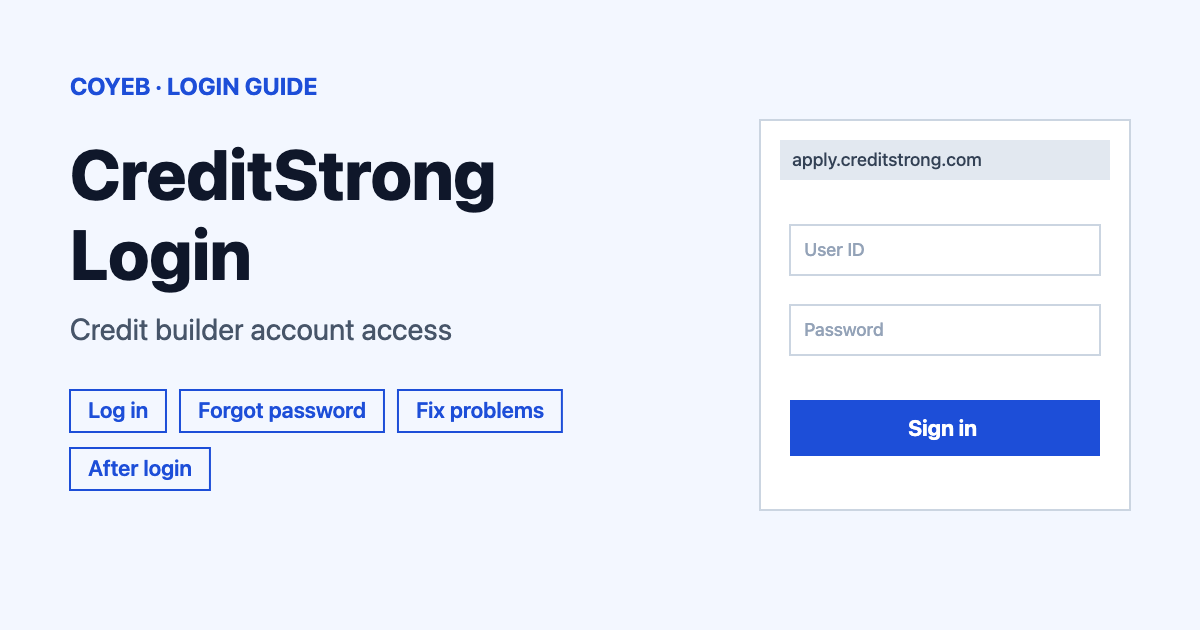
For the credit strong login, open apply.creditstrong.com/login and enter your email address and password, then select Next. Your email address is your username. On a new device you may be asked for a code. If the password slips your mind, use the “I forgot my password.” link on the same page.
Last verified: 18 November 2026
Official login page: apply.creditstrong.com/login (checked November 2026)
coyeb.com is not affiliated with CreditStrong. Never share your password or OTP with anyone.
What CreditStrong is and what the portal is for
CreditStrong is a credit builder service. The login page footer reads “© 2026 CreditStrong®, Austin Capital Bank SSB.” and the products named on the site are Revolv, MAGNUM, Instal and CS Business. The company says plainly that it is not a credit repair service and does not remove negative credit history from your credit profile. Once you have an account, the customer portal is where you manage it online.
How to do the credit strong login
The personal customer login is the one the “Log In” link on creditstrong.com opens. The page greets you with “Transform your life with stronger credit” and asks for two things.
- Go to apply.creditstrong.com/login in your browser. Typing the address yourself helps you avoid look-alike sites.
- Type your registered email address into Email Address. That email address is your username.
- Type your password into Password.
- Select the green Next button.
- If CreditStrong asks for a code because you are on a new device or have not logged in for a long time, enter the code it sends by email or text message to the details on file.
The official site header also has a “Business” link that leads to creditstrong.com/business/ for the CS Business product. The steps above cover the personal customer login only.
First-time login and applying
If you have no account yet, you apply first. On the login page, the top-right corner shows “Don’t have an account?” with an Apply button. The “Build Credit Fast” button on the main site leads to the same application. You set up a profile and a password, verify your identity, choose a product, sign the disclosures and link a payment method. The opening fee is paid at the final “Sign & Pay” step.
If you already applied and the application tells you an account exists, it shows a hint made of part of the email address on file. That email address is your username, so go back to the login page and sign in with it. The login page also carries a federal-law notice that banks must obtain, verify and record the name, address, tax ID and date of birth of each person who opens an account.
Forgot your password or email access
- Select I forgot my password. on the login page. It opens apply.creditstrong.com/password/reset.
- On the “Did you forget your password?” screen, enter your email or phone number in Email address or phone number and select Next. CreditStrong sends you a message so you can reset the password.
- Open the message and select the green reset button.
- Create a new password and confirm it by selecting Confirm.
Changed your mind? Cancel or “Did you remember your password? Login instead!” takes you back.
A new password needs at least 8 characters with a number and uppercase and lowercase letters. It also needs a special character such as # @ $ or ! and it cannot contain spaces. It cannot be the same as your username, which is your email address. If the reset message never arrives, call 833-850-0850 during business hours.
When you no longer have access to the old email address or phone number, contact Support and say you need help accessing an existing account. Support verifies your identity before updating the contact details.
Credit strong login on mobile
CreditStrong’s help pages do not mention a mobile app. On a phone you can use the mobile browser instead. Open apply.creditstrong.com/login and follow the same steps as on a computer. The portal has a mobile navigation menu where the “Make a Payment” option also appears.
Credit strong login not working
CreditStrong does not publish exact login error messages. The fixes below are general suggestions based on its official troubleshooting steps.
| What you see | What it means | Fix |
|---|---|---|
| Password not accepted | The password may be wrong or forgotten | Use “I forgot my password.” and set a new one that meets the rules above |
| No reset email or text | The message has not reached you | Check the address or phone number you entered. If nothing arrives call 833-850-0850 during business hours |
| No text message code | You may have declined SMS alerts earlier | Text START to 850-850 to resubscribe or ask Support to confirm your phone number. If texts still do not arrive contact your cell carrier |
| Page stuck or not loading | A browser problem is likely | Delete the stored cache and cookies. Try another device or browser and update your browser to the latest version. Reset your password if needed |
| Application page stalls with no message | The page may have frozen | Refresh once and check your connection. Close the browser and try later. If it continues contact Support with the step you were on and your device and browser |
| Old email or phone no longer yours | A code or reset message goes to details you cannot reach | Contact Support and ask for help accessing an existing account |
If those steps do not solve it, use the “Contact us” option on the CreditStrong help center.
After you log in
Check your score and documents
- Look for your monthly FICO 8 score in the portal. If it is missing, refresh or log in again the next day.
- Open Documents or Statements to view or download monthly statements.
- Revolv Plus and Pro members can also see Score Factors and the Experian credit report.
Make a payment or manage AutoPay
- Choose a Make a Payment option on the overview page or the Accounts page.
- For AutoPay, which is on by default, open the Accounts page or Account Details.
- Select Update AutoPay Settings.
Update your payment method or contact details
- Go to My Profile and select Payment Methods.
- Select Change Linked Payment Method.
- Your address, email, phone and password can also be changed in the portal under My Account.
If you hold more than one product you use the same login. The “Explore our Products” section in the portal shows what else is offered. An account cannot be suspended or deactivated online. To close it you contact chat or phone support.
Stay safe when you log in
The address to check is exactly apply.creditstrong.com. A site with a slightly different name is not the official portal. Type the address yourself or use the “Log In” link on creditstrong.com. Never share your password or a code with anyone and be careful with links in unexpected messages. For the main site go to creditstrong.com.
Another US account guide on coyeb.com: KeyBank login.
CreditStrong helpline
Call toll-free on 833-850-0850 from Monday to Friday between 8:00 AM and 5:00 PM Central Time. Support is closed on federal holidays (checked November 2026). While on hold you can press 1 for a callback. A support widget sits at the bottom of most pages. Outside business hours leave a message there and expect a reply within one business day.