Amazon KDP Login: Sign In to Kindle Direct Publishing
Amazon KDP login at kdp.amazon.com: sign in steps, Join KDP, forgot password, two-step verification codes, locked accounts and how to spot fake KDP sites.
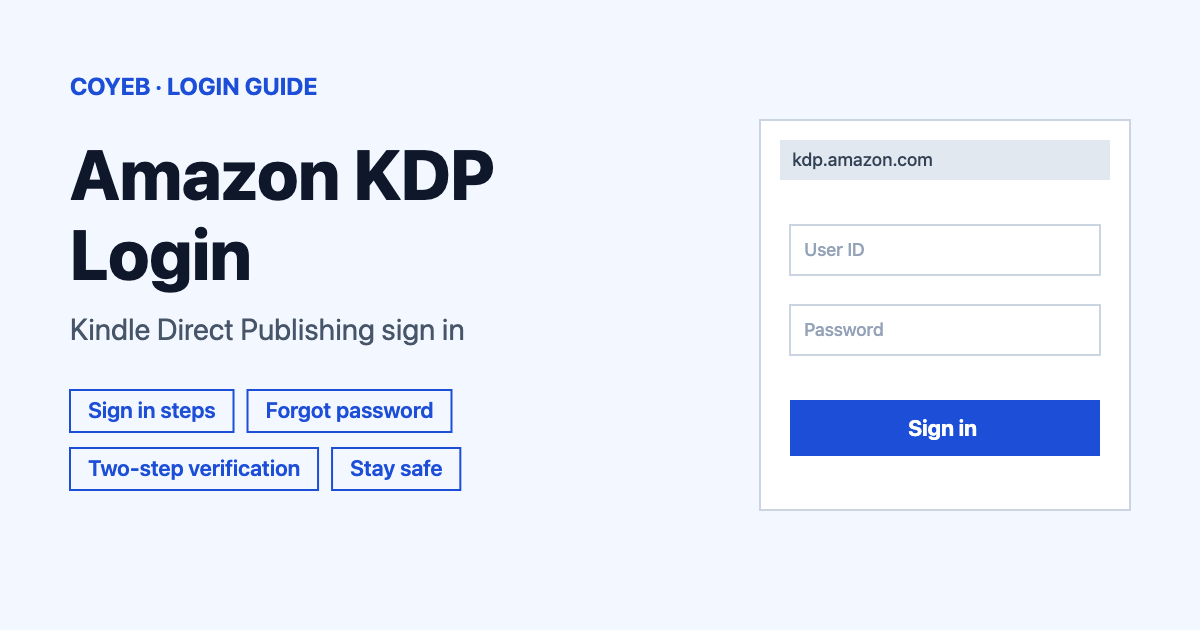
For the Amazon KDP login, go to kdp.amazon.com and click Sign in. Enter the email address or mobile number and password of your Amazon account to reach your Bookshelf. The catch: two-step verification is not part of this sign-in, but KDP asks for a code when you open Your Account.
Last verified: 18 November 2026
Official sign-in page: https://kdp.amazon.com/ (checked November 2026)
coyeb.com is not affiliated with Amazon or KDP. Never share your password or OTP with anyone.
What you will see on the Amazon KDP login page
The top menu of kdp.amazon.com has Sign in and Join KDP. The Sign in button opens an Amazon sign-in page because KDP uses the same email address and password as your Amazon account. Join KDP is for new authors. Help opens the KDP Help Center.
How to log in to KDP
- Open kdp.amazon.com in your browser.
- Click Sign in.
- Type the email address or mobile number of your Amazon account. If the account was created with a mobile number you must use that number to sign in. Include the country code.
- Type your password. Passwords are case-sensitive, so check Caps Lock and Num Lock.
- Click Sign in. You land on your Bookshelf.
To open your account details, click Your Account at the top of the page and finish two-step verification. The account page opens after that.
First-time login and Join KDP
If you already have an Amazon account, sign in with it. KDP uses the same credentials. If you have never used KDP and have no Amazon account, click Join KDP (kdp.amazon.com/signup) and then Create your KDP account. Enter your name, email address and a secure password.
After the account exists you must add author, payment and tax information:
- Account Details: choose a business type (individual or corporation). Enter your first and last name or your publishing company name. Do not enter a pen name or special characters such as & ! ? #. The name should be your legal name because payments and tax forms are issued under it. Enter a valid mailing address with no PO box and click Save.
- Getting Paid: KDP pays by direct deposit, wire transfer or check. Amazon Payments and PayPal are not available. To add a bank account you must complete two-step verification first. The account holder name must match your bank records.
- Tax information: go to Your Account, select Tax Information and click Complete Tax Profile. KDP must receive and validate your tax identity before you can update existing books or publish new books.
KDP may ask you to verify your identity after you add or change your account details. People who published with CreateSpace use the Link your existing account to KDP link on the home page.
Forgot your KDP password
- On kdp.amazon.com, click Sign in.
- Click Need help? and then Forgot your password?
- Enter the email address or phone number linked to the KDP account you published books with.
- Enter the one-time password (OTP) you receive. If no email arrives, check your Junk or Spam folder.
- If asked to verify account information, such as your zip code or credit card expiration date, enter it.
- Create a new password. It is active as soon as you save it.
If you know your password and only want to change it, open the Login & security page of your Amazon customer account. Sign in and click Edit under Password. Enter the new password and click Save changes. Then sign in to KDP again.
Two-step verification for your KDP login
Two-step verification cannot be turned off for Your Account. KDP sends a six digit one-time password (OTP) by text message or voice call. An authenticator app also works. The code is different from your account password.
- Sign in to KDP with your email address and password.
- Choose how to get the OTP. If the last three digits of the phone number shown are wrong, select Two-step Verification Account Recovery.
- Enter the code and click Sign in. The account page opens.
Choose text message the first time. If you choose voice call you will not see the text option next time and voice calls do not work on landlines. Adding a backup method such as a second phone number or an authenticator app is recommended.
OTP not received or not valid
- Check that you have a good cell or Wi-Fi signal and that the phone number on file is correct.
- Click Didn’t receive the OTP? to get a new code by a different phone number or method.
- Enter the code within 10 minutes. If you got several codes, use the newest one.
- With an authenticator app, wait for the code to change and enter the new one.
- If KDP cannot deliver the OTP by phone call after repeated tries, wait 10 minutes and try again. In some cases the wait is 12 hours.
- Ask your mobile provider if it blocks codes. No signal at all is a reason to use an authenticator app such as Google Authenticator or Microsoft Authenticator.
Change the phone number for two-step verification
Changing the phone number in Account Details does not change the two-step number. Open the Login & security page of your Amazon customer account and click Manage beside Two-Step Verification (2SV) Settings. Under Enrolled 2SV Authenticators you can change, remove or add a number (up to 2 phone numbers) or add an authenticator app.
Why you may be asked for a code on Amazon too
If your KDP and Amazon customer accounts share the same email address and password then two-step verification set up for KDP also applies when you sign in to Amazon to shop.
Change your email address
Open the Login & security page of your Amazon customer account and sign in. Click Edit under Email. Enter the new email address and the characters from the security challenge. Click Save changes.
Login on mobile
Open kdp.amazon.com in your phone browser and use the same Sign in button. Keep your phone close because the two-step code arrives by text or voice call. An authenticator app works without cell signal. Be careful with any app or site that claims to be official KDP and check the addresses under Stay safe.
Amazon KDP login not working
| Error message | What it means | Fix |
|---|---|---|
| Your session has expired. Please sign in to continue | Your sign-in timed out | Sign in again |
| An unexpected error occurred. Please try again later. | KDP gives no specific cause | Wait and try again |
| 404 Not Found | The page does not exist or no longer exists | Start again from kdp.amazon.com |
| 500 Internal Server Error | A technical problem with the web server. The site may be down for maintenance or overloaded | Wait about 10 to 15 minutes and retry |
- Wrong email or number: use the email address (in the form username@domain.com) or mobile number of the account you published under. People often sign in with the Amazon account they use for shopping.
- Wrong password: passwords are case-sensitive. Check Caps Lock and Num Lock or reset the password.
- Empty Bookshelf: you probably signed in with a different account. Sign out and sign in with the email and password tied to your KDP account.
- Second account by mistake: choosing new customer at sign-in creates another account with the same email and a different password. Sign out first and then sign in with the KDP details.
- Locked Amazon account: too many wrong passwords or a new device can lock it. Contact Amazon Customer Service to unlock it and then sign in to KDP again.
After you log in
Check your Bookshelf. This is where KDP sends you after sign-in and where your titles are.
Open your reports. Reports have their own official site, kdpreports.amazon.com.
Review Your Account. Your name, address, phone number, bank account and tax profile are stored here. Two-step verification is needed to open it. KDP may ask you to verify your identity again after you save changes.
Stay safe
The official KDP sites are kdp.amazon.com, kdp.amazon.co.jp, www.kdpcommunity.com and kdpreports.amazon.com. KDP does not ask you to reveal your Amazon password or full bank account details. Send that information only through your Amazon or KDP account.
- KDP is free. It does not sell editing or book design and does not ask for credit card numbers, PINs or card security codes to bill you for them.
- KDP does not use third-party phone numbers, personal email addresses or direct messages to offer paid services, promotions or rewards.
- KDP does not ask for account or banking details on social media and does not ask for passwords or banking information by email. Go to the site directly instead of clicking email links.
- Phone support is requested only through the Contact Us form on the KDP website. KDP will never ask for your password or full bank account details over the phone.
If you think someone else has accessed your account, change your password. Check your author or publisher information (address, email, phone), bank account, tax information and Bookshelf. Then report it to KDP through the Contact Us form.
Contact KDP
- Phone: request a call through the Contact Us form (checked November 2026). You sign in or create a free KDP account to open it.
- Contact form: kdp.amazon.com/contact-us (checked November 2026)
- Help page: kdp.amazon.com/help (checked November 2026)