Thrivent Login: Member Account Access and Reset
Thrivent login at login.apps.thrivent.com: sign in steps, verification code, register with your Thrivent ID, reset a username or password and helpline hours.
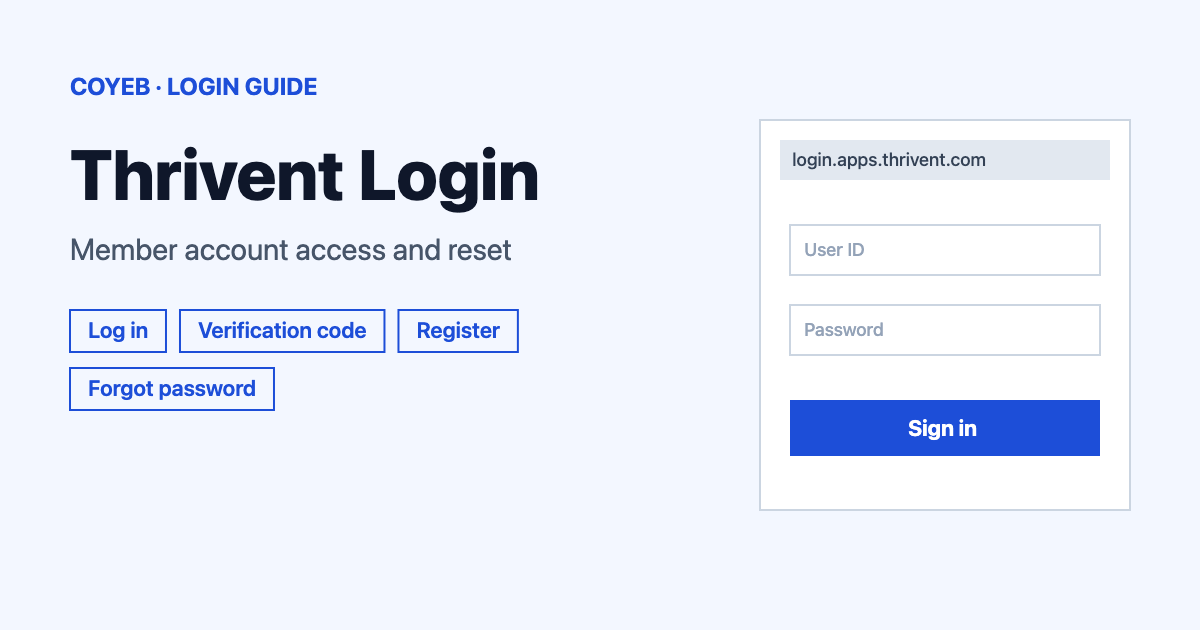
For a Thrivent login, go to login.apps.thrivent.com and type your username and password under Client login, then select Log in. New users choose Register now and need a Thrivent ID number. Bank and trust accounts use the separate Looking for something else? link on the same page.
Last verified: 18 November 2026
Official Thrivent login: https://login.apps.thrivent.com/ (checked November 2026)
coyeb.com is not affiliated with Thrivent. Never share your password or OTP with anyone.
What you will see on the Thrivent login page
- The page is headed Client login with a Username box and a Password box.
- The line Forgot your username or password? has two separate links: username and password.
- The Log in button. By logging in you agree to the Thrivent Terms of Use and Privacy Policy.
- Haven’t logged in yet? with the Register now link.
- Looking for something else? Bank, business, or trust accounts.
How to do a Thrivent login
- Open login.apps.thrivent.com.
- Type your username in the Username box. It is the one you created when you registered your account online. It only contains letters and numbers.
- Type your password in the Password box.
- Select Log in.
- If Thrivent asks for a verification code, follow the steps in the next section.
Access to trust and business mutual funds accounts is now combined with your personal account login. If you already have a Thrivent online account, your mutual funds are available automatically. Thrivent Bank is separate.
Thrivent login verification code
After your username and password, Thrivent can ask you to choose how to receive a verification code. Thrivent’s login guide (PDF) says the code arrives by voice call or text. Type it in and select Verify. Codes expire after 10 minutes. A remember this device box is there if you want to save the device, so leave it unticked on a shared one.
If you cannot use any of the verification options shown, call 800-847-4836 and say “Thrivent.com”.
Bank, business or trust accounts
Select Looking for something else? Bank, business, or trust accounts on the login page. The next screen is headed “Let’s get you to the right place” and has two choices:
- Thrivent Bank Account to view and manage accounts at Thrivent Bank.
- Trust Services (Fidelity) to view and manage trust-related Fidelity accounts.
First-time login and registration
Registration is for existing Thrivent clients. Select Register now under “Haven’t logged in yet?” or open identity.apps.thrivent.com/register.
Have ready: your Thrivent ID number and date of birth. The Thrivent ID is printed on your account statements and on your contracts or policies. Cookies must be enabled for thrivent.com as a trusted site.
- On the Let’s get started screen, type your Thrivent ID number and your Date of birth.
- Select Continue. Select Cancel to stop.
Thrivent’s registration guide (PDF) lists the remaining steps after Continue:
- Verify your mailing address, email address and phone numbers and create a username and a password.
- Review the Terms of Use and Privacy Policy and select I agree.
- Open the email sent to the address you used and select its verify link.
- Log in with your new username and password to complete registration.
Username rules
- 6 to 20 characters.
- No spaces and no special characters.
- Not case sensitive.
- It cannot be a nine-digit number.
Password rules
- 12 to 32 characters. The password is case sensitive.
- At least one uppercase letter and one lowercase letter.
- At least one number and one special character.
- It cannot contain your username.
- No more than two identical characters in a row.
- No sequential characters such as 12345 or abcde.
- No spaces and no common easy-to-guess word.
Forgot username
- On the login page, select the username link in “Forgot your username or password?”. The screen is headed Recover your username.
- Type the email address linked to your account in the Email box.
- Select Send email.
- Open that email. It contains your username.
- Select the continue to login link in the email and sign in as usual.
Forgot password
- On the login page, select the password link in “Forgot your username or password?”. The screen is headed Password Reset.
- Type the email address linked to your account in the Email box and your username in the Username box.
- Select Send email.
- Open the email and select the reset password link.
- Type a new password and type it again. It must follow the password rules above.
If you cannot reach the phone or email on file, call 800-847-4836 and say “Thrivent.com” (or “log in” as the login page says).
Change your password, username or login details
Change password
- Log in and click your name in the upper right of the Account overview page.
- Select Profile & settings.
- Choose Change password.
- Type your current password and then the new password.
- Click Save.
Change username
There is no online option. Call Member Care Services at 800-847-4836 and say “Thrivent.com”. They change usernames Monday to Friday from 7 a.m. to 6 p.m. Central time.
Change login security information
Log in and open the menu by your name at the top right of the Account Overview page. Select Profile and settings then Personal information. Click Edit, update your details and click Save.
Thrivent login on mobile
You can sign in from the browser on your phone using the same address, login.apps.thrivent.com. Thrivent supports Android 7 or newer with Chrome and iOS 14 or newer. On a computer it supports Mac Sierra or newer and Windows 10 or newer.
The supported browsers are Chrome, Edge, Firefox, Opera and Safari, each in the current version or the one before it. Cookies and JavaScript must be on and pop-ups must be allowed.
Thrivent login not working
| What you see | What it means | Fix |
|---|---|---|
| Login Failure | The username or password was not accepted. | Reset your password with the password link and follow the Forgot password steps above. |
| Locked out | Access to your account is blocked for now. | Try again later or call 800-847-4836 and say “Thrivent.com”. |
| No access to the phone or email for verification | You cannot complete the verification step. | Call 800-847-4836 and say “Thrivent.com”. |
| The page does not load properly | A browser setting may be blocking it. | Use a supported browser with cookies and JavaScript on and pop-ups allowed. |
The last fix is a general suggestion.
After you log in
- Make a payment: choose Make a payment from the Shortcuts list on the Account Overview page. A request made before 3:00 p.m. Central time on a Thrivent business day is applied that day. Payments can take up to two business days to post.
- View statements: select View documents for the account or contract. Use Document type and Year to filter.
- Go paperless: open the menu by your name, choose Profile and settings then Communication preferences. Choose Go paperless for all of your communications or a delivery method for each type, then click Save.
- Share account access: choose Share account access from Shortcuts to give another registered Thrivent client view-only access to your life insurance, disability insurance, long-term care insurance and annuity details.
Stay safe
Check that the address in your browser starts with login.apps.thrivent.com before you type anything. The registration page uses identity.apps.thrivent.com and the main site is thrivent.com. Do not share your password or OTP with anyone.
Thrivent helpline
- Phone: 800-847-4836. Say “log in” for help with online access or “Thrivent.com” when asked about your account. Other keywords on the same line are “Insurance”, “Brokerage”, “annuity” and “privacy” (checked November 2026).
- From outside the US: +1 920-734-5721 (checked November 2026).
- Hours: weekdays from 7 a.m. to 6 p.m. Central time (checked November 2026).
- Help page: the official Thrivent registration and login FAQ (checked November 2026).
- Mail: Operations Center, 4321 N. Ballard Rd., Appleton, WI 54919-0001, USA (checked November 2026).
Looking for a different US bank sign-in? See the KeyBank login guide and the Citizens Bank online login guide.