Carrier Point Login: CarrierPoint TMS Sign-In Help
Carrier point login steps for CarrierPoint TMS: the official IntelliTrans page, Login ID, product drop-down, carrier registration and password help.
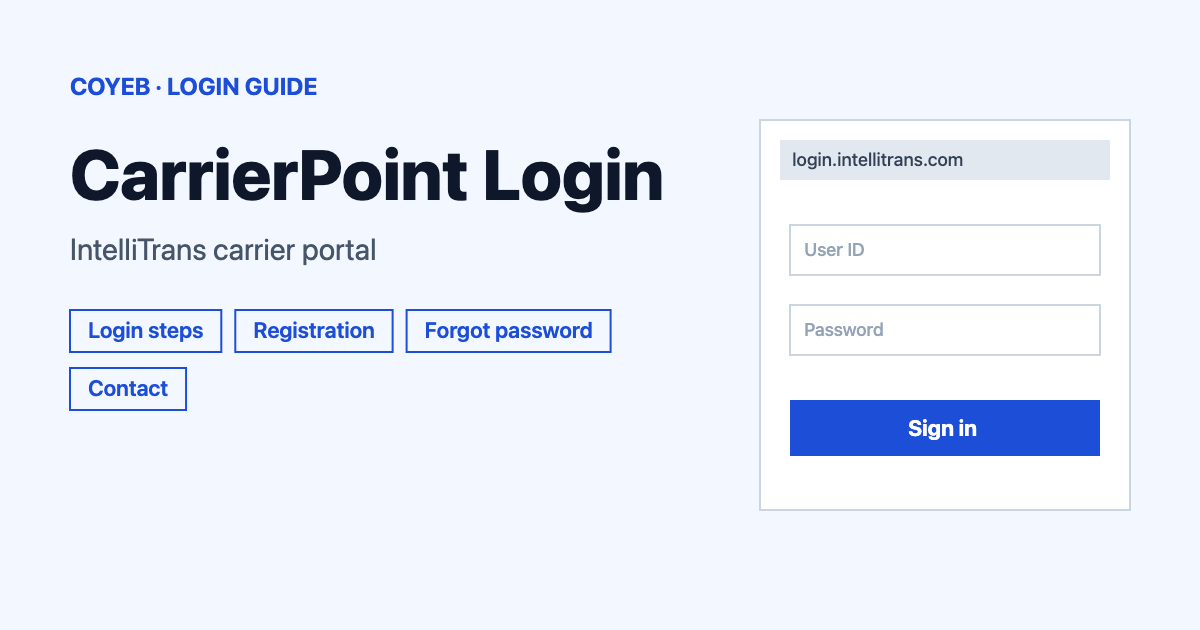
For the carrier point login, open login.intellitrans.com, keep CarrierPoint TMS selected in the drop-down, then type your Login ID and Password and click Login. The catch: the main page says Login ID while the direct CarrierPoint page calls the same box User ID.
Last verified: 16 November 2026
Official login page: login.intellitrans.com (checked November 2026)
coyeb.com is not affiliated with IntelliTrans or CarrierPoint. Never share your password with anyone.
Which carrier point login page do you need
| You are | Where to sign in | What you type |
|---|---|---|
| Signing in to CarrierPoint TMS | login.intellitrans.com (page title “Login | IntelliTrans”) | Product drop-down, Login ID, Password |
| Using the direct CarrierPoint page | market-atl.carrierpoint.com/core/jsp/CPLogin.jsp (page title “MarketPlace Login (JSP)”) | User ID, Password, Location |
| Using the IntelliTrans TMS sign-in page | tms.intellitrans.com/SSO/Public/Login.aspx (page title “Single Sign On: Login”) | Login ID, Password |
What you see on the carrier point login page
The page login.intellitrans.com has the heading INTELLITRANS TMS and a LOGIN box. The box has these parts.
- A drop-down with three options. They are CarrierPoint TMS first, then Global Visibility Platform℠ then Global Vendor Managed Inventory℠. CarrierPoint TMS is the first option.
- A field with the text Login ID.
- A field with the text Password.
- A Login button.
- A Forgot Password? link.
The top bar of the page has Carrier Registration, Support and Login links.
The IntelliTrans TMS sign-in page at tms.intellitrans.com is titled “Single Sign On: Login”. It has Login ID: and Password: boxes, Login and Reset buttons and a Forgot Password? link.
The direct CarrierPoint page looks different. It shows the CarrierPoint logo and these labels: User ID:, Password: and Location:, then a Submit button and a Mobile Login checkbox. Under the button are the links “Forgot User ID or Password? Click here.” and “For any other question click here to contact Customer Support.”
Carrier point login steps
On login.intellitrans.com:
- Open login.intellitrans.com in your browser.
- In the drop-down, choose CarrierPoint TMS.
- Type your Login ID in the Login ID field.
- Type your password in the Password field.
- Click Login.
On the direct CarrierPoint page:
- Type your User ID in the User ID box.
- Type your password in the Password box.
- Leave Location on “Use login default” or pick your country and language from the list.
- Click Submit.
The Location list has these choices: Use login default, Canada (French), Canada (English), Finland (Finnish), Germany (German), Sweden (Swedish), United Kingdom (English), United States (English), United States (Spanish).
First-time login and carrier registration
New carriers sign up on the IntelliTrans carrier registration page. You can open it from the Carrier Registration link at the top of the login page. Registration has three steps.
- Fill in the form: “Fill out this application form and click the Submit button.”
- Get approved: “Our training team will contact your associated customer to confirm relationship.”
- Try it out: “Log into the system and start using the product.”
Start here: IntelliTrans carrier registration (checked November 2026).
Forgot User ID
Click Forgot Password? on login.intellitrans.com. It opens a page headed “CarrierPoint User ID / Password Help”. The first option is Get my User ID: “Please enter your email and the system will send you your User ID.” Type your email in the email field and submit.
Direct page: CarrierPoint User ID / Password Help (checked November 2026).
Forgot password
On the same help page, the second option is Reset and email my password. Type your User ID in the User ID field and submit. IntelliTrans then emails you instructions to reset your password.
The direct CarrierPoint page sends you somewhere else. Its link “Forgot User ID or Password? Click here.” opens the IntelliTrans Log in assistance page (checked November 2026). That page asks: “Please enter either your email address or login ID:” and has a Submit button. It also has a button called I dont know either my email or login ID. If you no longer want a reset, the line “Don’t want to Reset Password?. Please click here to login.” links back to the TMS sign-in page.
Carrier point login on mobile
Open login.intellitrans.com in your phone browser and follow the same steps. The direct CarrierPoint page also has a Mobile Login checkbox under the Submit button. The login pages do not link to a CarrierPoint app.
Carrier point login not working
| What you see | What it means | Fix |
|---|---|---|
| Sign-in does not work | The Login ID or password may be wrong. | Use Forgot Password? to get your User ID or reset your password. |
| You typed an email in the ID box | The direct page asks for a User ID and the main page for a Login ID. | Use your ID. Use the email only on the help pages that ask for it. |
| No reset email arrives | The email may be in spam or tied to a different address. | Check spam and use the email you registered with. |
| You have no account yet | Carrier accounts are set up through registration. | Complete the carrier registration form first. |
These fixes are general suggestions, not official error messages.
Stay safe on the carrier point login
Check that the address shows login.intellitrans.com, market-atl.carrierpoint.com or tms.intellitrans.com before you type anything.
Contact and support
- Phone: 1-800-603-9175 (checked November 2026)
- Email: support@intellitrans.com (checked November 2026)
- Help Center: click Support at the top of the login page. The Help Center asks you to log in before you can open a request.
For technical support or account help, IntelliTrans points customers to the Help Center first. It does not publish support hours.