DGFT Login: Exporter Portal Sign-In With IEC
DGFT login steps: open dgft.gov.in, click Login, use your User Name and Password, register as a new user, reset a password and link your IEC.
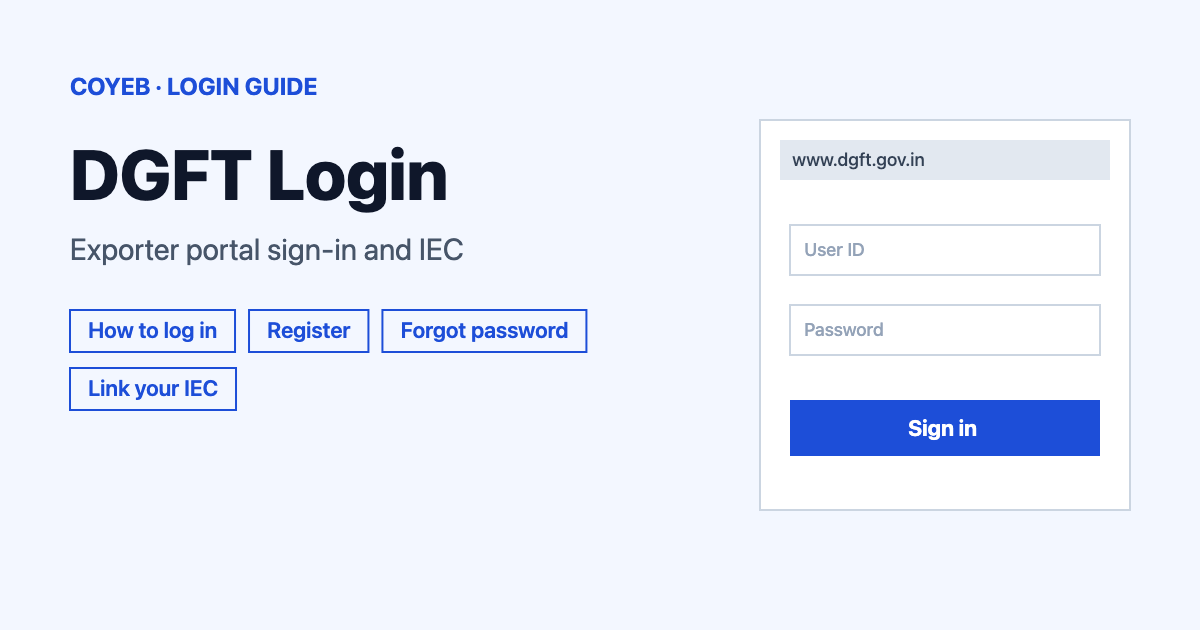
For a DGFT login, open www.dgft.gov.in, click Login in the top bar, type your User Name and Password, enter the CAPTCHA code and click Login. The catch: the User Name box is an email-style field. Your IEC is not typed here because it is linked to your account later.
Last verified: 16 November 2026
Official address: https://www.dgft.gov.in/CP/ (checked November 2026). coyeb.com is not affiliated with DGFT (Directorate General of Foreign Trade). Never share your password or OTP with anyone.
Which DGFT login you need
There is one Login window for every kind of user, so there is no separate exporter login page.
| You are | Where to sign in | What you type |
|---|---|---|
| A registered user on a computer or phone browser | Login in the top bar of the portal | User Name, Password and the CAPTCHA code |
| A new user | The REGISTER tab of the same window | Your details, then the OTPs sent to your email and mobile |
| An exporter or importer using the phone app | The DGFT App on Google Play | The same dgft.gov.in credentials |
What you will see on the DGFT login page
Click Login in the header and a window titled Glad to see you opens. It has two tabs, LOGIN and REGISTER. The LOGIN tab shows:
- User Name* (an email-type field)
- Password*
- Type the above CAPTCHA Code. * with a small image you can click to reload the code
- A Login button
- A Forgot Password link
- A Create a new user link
How to complete your DGFT login
- Open https://www.dgft.gov.in/CP/ in your browser. Typing dgft.gov.in also works because it goes to this page.
- Click Login in the header.
- Type your registered user name in User Name.
- Type your Password.
- Type the characters you see in Type the above CAPTCHA Code. *.
- Click Login.
After you click Login, the portal may ask for a one-time password. The login page includes a Two Factor Authentication box with a Please enter OTP field (6 digits), a Submit button and a Reset link next to “Want To Reset OTP ?”. Follow what the portal shows on your screen.
First-time DGFT login and registration
Click the REGISTER tab or Create a new user. DGFT says a valid email address and mobile number are required. The first field is Register User As. It offers seven choices:
- Importer/Exporter
- IMC/NC/EFC/IMWG Technical Authorities
- Foreign Importer/Exporter
- Export Promotion Council (EPC) / Commodity Board (CB)
- Certifying Authority – CA, CMA, CS, CE
- Pre-Shipment Inspection Agency
- Bank Officials
- Choose your type in Register User As. Exporters and importers choose Importer/Exporter.
- Fill in First Name, Last Name, Email ID, Mobile No., Pincode, District, State and City.
- Type the CAPTCHA code and tick By registering you are agreeing to our terms & conditions.
- Click Send OTP, then enter the OTPs sent to your email and mobile number.
- After the OTPs are checked, DGFT’s registration guide says you get a temporary password that you must change on first login.
The portal’s own message reads: “User has been registered successfully. Please refer your registered mail id for username and password”. If you choose Bank Officials, a message says: “Registering as bank user from this email domain is not allowed. Please use the official bank email address for registration.”
The one-page User Registration Process guide is on the Application Help & FAQs page.
Forgot username
The login window has no separate Forgot username link. The registration message above says to check your registered email for the username and password, so search that inbox first. If you cannot find it, DGFT’s helpline and helpdesk are listed below.
Forgot your DGFT login password
- Click Login in the header.
- Click Forgot Password. A window headed FORGOT PASSWORD opens.
- Type your User Name and the CAPTCHA code.
- Click Submit.
Back to Login Window? takes you back. The official pages do not describe the screen after Submit, so follow the instructions the portal shows you.
Link your IEC after logging in
An IEC is not typed in the login box. DGFT’s home page lists these steps: register on the website, log in, click the Link IEC button on the home page, then enter your IEC by authenticating through Aadhaar based OTP or Digital Signature.
The Link your IEC guide adds these details:
- You need your DGFT login and a Type 2 or Type 3 IEC-based digital signature certificate (DSC) or Aadhaar e-Sign, for the proprietor or a director or partner of the firm.
- Use Link IEC on the dashboard, or the menu My Dashboard > Importer Exporter Code (IEC) > Link your profile to IEC.
- Type the number in Importer Exporter Code and click Link IEC.
- In the signing pop-up choose DSC or Aadhaar e-Sign and click Proceed with Signing.
To register a USB token, the DSC guide points to My Dashboard > View and Register Digital Signature Token and then Register New DSC.
DGFT login on mobile
The footer of DGFT’s home page links the DGFT App on Google Play. Exporters log in to the app with their dgft.gov.in username and password. The IEC must be linked to your profile to see IEC details, track applications and view authorisations. DGFT’s home page links only this Android app. You can also use the website in your phone browser.
DGFT login not working
The official pages do not list login error messages, so the fixes below are general suggestions.
| What you see | What it means | Fix |
|---|---|---|
| The CAPTCHA does not match | The code may have been typed wrongly. | Click the code image to reload it and type it again. |
| Password not accepted | The user name or password may be wrong. | Use Forgot Password to reset it. |
| A notice about a PAN validation failure | DGFT says it affects the IEC Application form (checked November 2026). | Try the application again later. |
If you are still stuck, log a ticket through the DGFT Helpdesk Service or call the helpline.
After your DGFT login
The home page has buttons for Update IEC, Link Your IEC, Apply for IEC and IEC Help & FAQs. A home page notice says IECs not modified or updated as per Notification No. 58/2015-2020 dated 12.02.2021 shall be deactivated shortly. An IEC holder can submit a modification request for reactivation (checked November 2026). After linking, the Link your IEC guide says you can view and modify IEC details and view and print the IEC certificate.
Stay safe on the DGFT login page
Check that the address ends in dgft.gov.in before you type anything. DGFT warns about spurious websites that look like its site or use similar email addresses and collect money for DGFT services including IEC certificates. It also says applications go through the official site at dgft.gov.in. DGFT also tells traders to keep their DSCs safe and to contact their DSC vendor to make sure no DSC is issued against their IEC without authority. The official portal shows one Login window for all users.
DGFT helpline and helpdesk
Call 1800-572-1550 or 1800-111-550 from 9:00 am to 6:00 pm, Monday to Saturday (checked November 2026). The Helpdesk Service page is a ticket system: it issues a reference number for each request. Its manual says you log in, open My Dashboard and choose Helpdesk Service. The header also has an Ask VAHEI chatbot link.
IEC holders who file customs documents can also read the ICEGATE login guide.