erp.cmrit.ac.in Login: CMRIT Student ERP Portal Guide
Use the erp.cmrit.ac.in login for the CMRIT student ERP. See the official address, login steps, password reset and what you can open after you sign in.
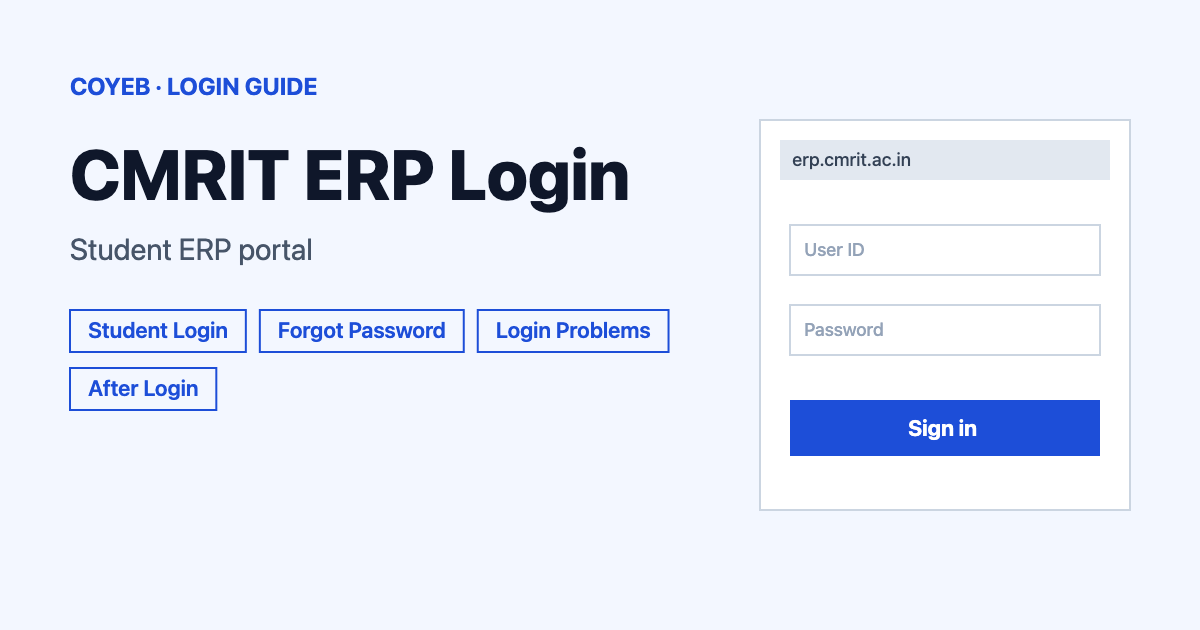
The erp.cmrit.ac.in login is the student ERP sign-in for CMR Institute of Technology in Bengaluru. Open erp.cmrit.ac.in/login.htm, type your username in “Enter username” and your password in “Enter password” and press Login. “Forgot password?” sits under the form.
Last verified: 18 November 2026
Official login address (checked November 2026): https://erp.cmrit.ac.in/login.htm
coyeb.com is not affiliated with CMR Institute of Technology. Never share your password or OTP with anyone.
Which CMRIT site is official
This guide is about CMR Institute of Technology (CMRIT) in Whitefield, Bengaluru. Its website is cmrit.ac.in and the ERP lives on the subdomain erp.cmrit.ac.in. CMR University is a different institution on a different domain (cmr.edu.in) with its own systems, so a login page from there is not the one you need.
The header of the college website has two login links. “Student Login” takes you to the ERP. “Email Login” opens the college Google mail for cmrit.ac.in accounts, which is a separate sign-in.
How to do the erp.cmrit.ac.in login
The ERP is built on JUNO Campus. The page footer says “Powered by JUNO Campus”. The login screen greets you with “Welcome! Please login to continue.” and has just one form. There is no user-type selector on it and no CAPTCHA was visible when the page was checked.
- Open erp.cmrit.ac.in/login.htm in your browser or click Student Login in the header of cmrit.ac.in.
- Type your username in the box marked Enter username.
- Type your password in the box marked Enter password.
- Press the Login button.
The username format and the starting password are not published on the college website. Use the details the college gave you. If you never received them or they do not work, ask the college office.
The ERP also has Faculty and HOD portals according to the college’s own ERP functionality document from 2022. Only one login box was seen on the page though, so the exact sign-in path for staff is not covered here.
First-time login
The college website does not describe a first-time login or registration process for the ERP. There is no sign-up button on the login screen either. If you are a new student and have no username yet, you can ask the college office using the details further down.
Forgot password
- On the login screen click Forgot password? under the form.
- Enter your username in the box on the next screen.
- Press Reset Password. The screen also has a Refresh control.
- To go back, click Go back to login.
What happens after you press Reset Password is not described on the official pages. If nothing arrives or you do not remember your username, the college office is the safest next step.
Login on mobile
No official CMRIT ERP mobile app is listed on the college website as of November 2026. You can try opening the same address, erp.cmrit.ac.in/login.htm, in the browser on your phone. Type the address yourself or use the “Student Login” link on the college site rather than tapping links from messages.
Login not working
The college has not published error messages for this login page. The fixes below are general suggestions rather than official instructions.
| What you see | What it may mean | Fix |
|---|---|---|
| The page does not open | Wrong address or a connection problem | Type erp.cmrit.ac.in/login.htm again or start from the Student Login link on cmrit.ac.in. Try another browser or network. |
| Username or password not accepted | A typo or an old password | Retype both slowly and check that Caps Lock is off. Then try Forgot password?. |
| You forgot the username | The reset screen asks for it | Ask the college office to confirm your username. |
| You landed on a CMR University page | A different institution | Go back and use the address from cmrit.ac.in. |
After you log in
The college’s ERP functionality document (2022) lists the student modules below. Modules may have changed since then.
Check attendance and timetable
- Open the Academics module.
- Look for timetables and attendance.
Fees and receipts
- Open the Finance module.
- Look for fees, receipts and payments.
Exams
- Open the Exams module.
- Look for exam timetables and transcripts.
The same document also lists Personal (profile and leave) and Communications (notices and messages). It adds Hostel Management and Office Documents (document requests and no-dues) as well as Placement. Course material and assignments sit under Academics.
Certificates and similar documents may be handled by a separate service. The college site links a Digital Document Service at cmrit.directverify.in for requests.
Stay safe
The ERP address is erp.cmrit.ac.in and it sits under the college domain cmrit.ac.in. Check the address bar before you type your password. The official pages do not list any reported fake sites. Never share your password or any OTP with anyone. If a message asks you to log in through a link from an unknown sender, open the college website yourself instead.
Helpline
No separate ERP helpline is published. The general college contacts are +91 80 28524466 / 77 and info@cmrit.ac.in (checked November 2026). These are the college’s main details and not a dedicated ERP support line.
Related guides: Brainware University Login and Exxat Login.