HumbleFax Login: Online Fax Account Access
HumbleFax login steps for app.humblefax.com: sign in with your email or fax number, reset a forgotten password, sign up and see the $10 monthly price.
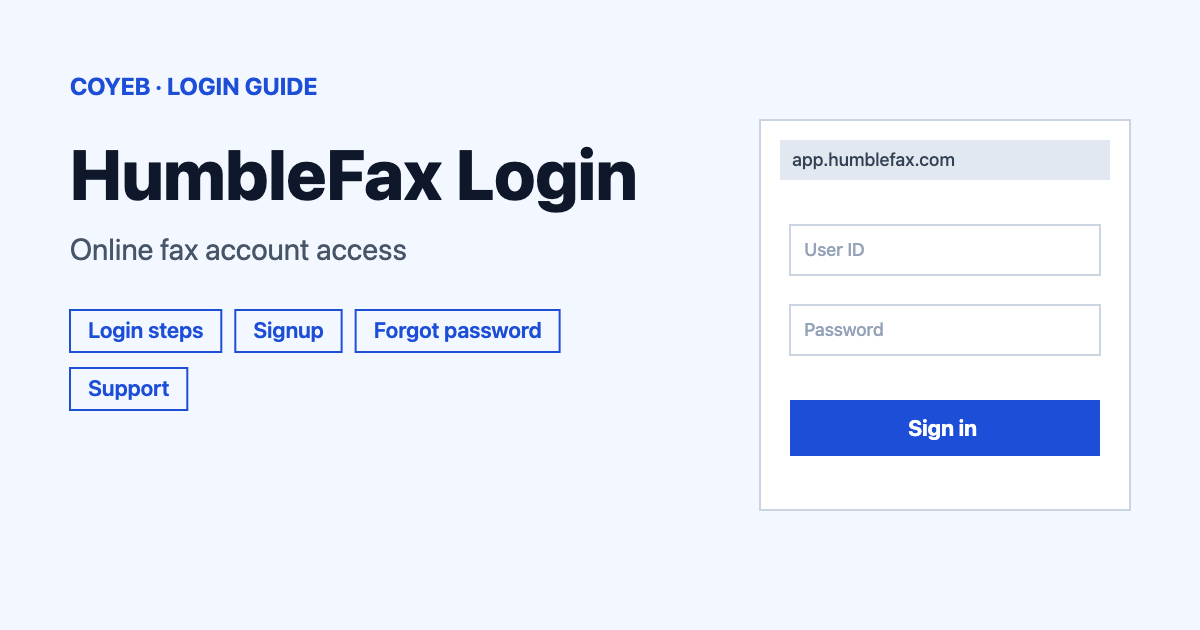
The humblefax login page is app.humblefax.com. Open it, type your email or fax number and your password, then press Log In. If you forgot the password, choose Forgot Password?, enter your email and press Send Password Reset Link. New users start with the 1 Minute Signup button on humblefax.com.
Last verified: 18 November 2026
Official login address: app.humblefax.com (checked November 2026). The main site humblefax.com is the marketing site with pricing and help pages. coyeb.com is not affiliated with HumbleFax. Never share your password or OTP with anyone.
HumbleFax login steps
HumbleFax has one kind of login screen for account holders. The page title reads “HumbleFax | Login” and the tagline underneath says “Online Faxing Made Simple.” There is no username field, so do not look for one.
- Go to app.humblefax.com. You can also open humblefax.com and press Log In in the top menu, which sends you to the same place.
- Make sure the Log In tab is selected. The other tab is Sign Up.
- In the Email or Fax Number field, type the email address on your account. You can type your HumbleFax fax number here instead.
- Type your password in the Password field.
- Press the Log In button.
The login screen only shows the two fields and the two buttons. No Google or other social sign-in option appeared there in November 2026 and there was no extra OTP or CAPTCHA step on the screen itself.
First-time login and signup
If you do not have an account yet, press Sign Up on the login screen or the 1 Minute Signup button on humblefax.com. A window called “One Minute Signup” opens with three steps: 1 Choose Fax Number, 2 Contact and Payment and 3 Confirmation.
In the first step you can take the Suggested Local Fax Number or choose Or Select Custom Number and search all area codes and numbers. Press Continue to move on.
Already have a fax number?
You can keep it. The first step has an Already Have a Fax Number? button. After signing up you fill in a more detailed form so HumbleFax can process the transfer with your current provider. The FAQ at humblefax.com/faq confirms this is possible.
How much does it cost and is it free?
The pricing shown on the official site in November 2026 is one plan: Unlimited Faxing at $10 per month. It has no monthly page limits and no overage fees and it includes a dedicated local fax number. The pages checked do not mention a free plan or a free trial.
Forgot password for your HumbleFax login
- On the login screen press Forgot Password?
- A form called “Reset Your Password” appears with one Email field.
- Enter your account email and press Send Password Reset Link.
- Check your inbox and follow the instructions in the reset email. If you change your mind, press Back to return to the login screen.
If the email does not arrive, you can try checking the spam folder and make sure you typed the same email address you signed up with.
HumbleFax login on mobile
You can use any phone, tablet, desktop computer or laptop as long as you log in at humblefax.com. HumbleFax describes its web app as optimized for mobile devices. Open app.humblefax.com in your phone browser and use the same two fields as on a computer.
No special software is required. You can send and receive faxes with any email software on your phone or computer. You can also send a fax from the email address you used when you signed up.
As for a store app, the official site describes the mobile web app and does not require anything to be installed. If you want an app icon on your home screen, you can try adding the web page to your home screen from your browser menu.
HumbleFax login not working
HumbleFax does not publish a list of login error messages. The table below shows general things that tend to cause trouble and what you can try. These are general suggestions and not official error texts.
| What you see | What it may mean | What to try |
|---|---|---|
| Login does not accept your details | The email or fax number or the password may be typed wrong | Check the field label says “Email or Fax Number” and retype both fields slowly. You can also try the other one of your email or fax number. |
| You cannot remember the password | The saved password is not the current one | Press Forgot Password? and request a reset link with your account email. |
| No reset email arrives | The email may be in spam or typed differently from your signup email | Check spam and promotions folders. Request the link again with the exact signup address. |
| Page will not load or looks broken | A browser or connection problem | Reload the page or try another browser. Make sure the address is app.humblefax.com. |
| Nothing helps | Possibly an account issue | Use the form on the Contact page and explain what you see. |
After you log in: how to use HumbleFax
HumbleFax offers three ways to fax: email faxing, a dashboard on a PC or Mac and the mobile web app.
Send a fax
- Log in on a computer or phone, or use the email address from your signup.
- Choose the way you want to fax: the dashboard or an email.
- Check the file type first. HumbleFax lists supported types on its Compatible File Formats page, which is linked in the footer of humblefax.com.
Check your fax history
According to the FAQ, all of your faxes are always available during the length of your account. Log in to look back at what you sent or received.
Get help
If something looks wrong in your account, use the Contact page described below.
Stay safe
- The login address is app.humblefax.com and the main site is humblefax.com. Check the address bar before you type a password.
- Open the login page from your own bookmark rather than from an ad or an email link.
- Never share your password with anyone.
HumbleFax support
The Contact page says “Our support team is available for assistance 24 / 7.” (checked November 2026). No phone number or support email is published there. You can fill in the web form with your name, email address, phone number, subject and message then press Send Message or use the Request Phone Call button. For questions about cancelling a fax or a subscription the official pages checked give no steps so the Contact page is the place to ask.
Looking for other sign-in guides? See the NetSuite login guide or the healow login guide.