K12 Login for Online School (OLS) Students and Parents
K12 login for the online school (OLS) at login.k12.com: sign in, reset your password, recover your username, unlock your account and get help.
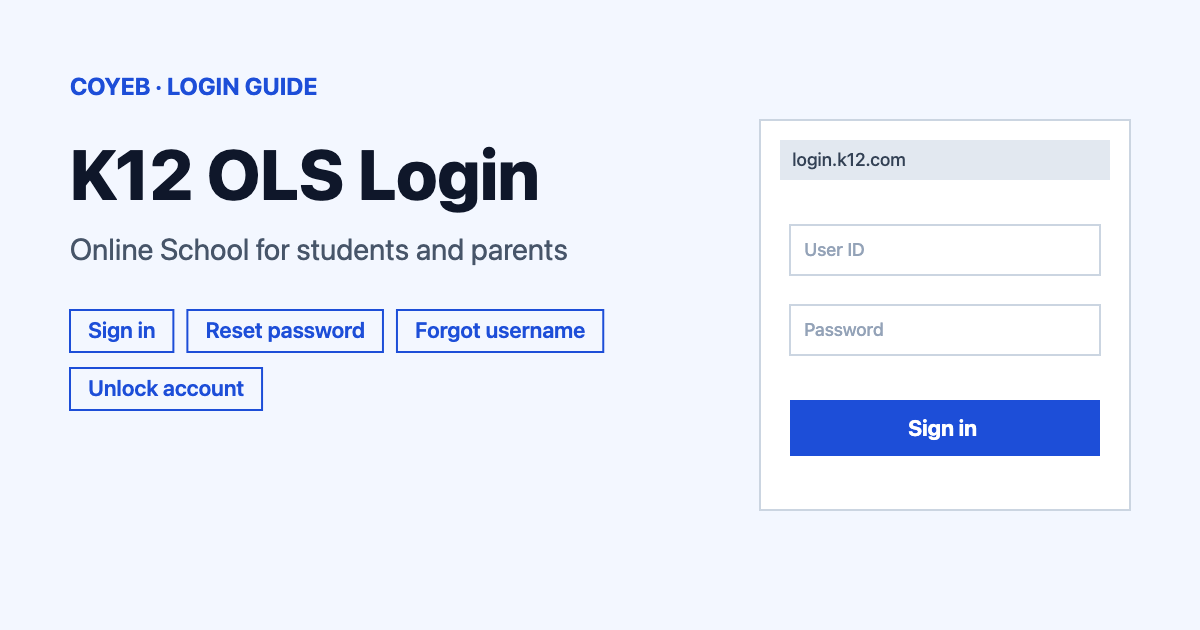
For a k12 login, open login.k12.com, type your Username and Password, then press LOG IN. Students and parents use the same page. The catch: there is no student or parent choice first. The reset and unlock screens ask for your Username only. Tap Need help logging in? if you are stuck.
Last verified: 17 November 2026
Official K12 OLS login page: https://login.k12.com/
coyeb.com is not affiliated with K12 or Stride, Inc. Never share your password or OTP with anyone.
What you will see on the login page
- A heading called Login
- A Username box and a Password box
- A LOG IN button
- A Need help logging in? link under the form
- A message that says “Ready to set up your K12 School account?” with a Get Started button
A school photo shows on the screen and changes from time to time. It has nothing to do with signing in.
How to log in
The page is one shared form. The steps are the same for students and parents.
- Go to login.k12.com in your browser.
- Under the heading Login, type your Username.
- Type your Password.
- Press LOG IN.
K12 student login and parent login
Searches like “k12 student login”, “k12ols login” and “k12 online school login” all lead to the same page: login.k12.com. The K12 help site has separate Student and Learning Coach sections. Learning Coach is the name K12 uses for the parent or guardian role in those sections.
Set up a new K12 School account
The Learning Coach (parent or guardian) sets up the account first. Students do not need a Registration ID and will not receive one.
What to have ready
- The Welcome email from K12-confirmation@k12.com. It arrives within 48 hours after the student’s enrollment is approved.
- The Registration ID from that email.
Create the Learning Coach account
- In the Welcome email, click Create Your Account.
- On the Account Sign Up page, enter the Registration ID from the email. Click Submit. Copy and paste the ID to avoid mistakes. If typing it, use all capital letters followed by a number.
- Fill out all the required fields. Click Sign Up.
A confirmation page shows that the Learning Coach account is created. A confirmation email also arrives from K12-confirmation@k12.com.
Create the student account
- On the confirmation page, click Sign Up Student Accounts. Then click Select Student.
- Fill out all the required fields. Click Sign Up.
A confirmation page shows that the student account is created. A confirmation email also arrives. Repeat these steps for each extra student.
A student can also be added later from the Welcome Site. Click Account along the top of the page to begin.
You can also start from the login page. Choose Get Started to open registration.k12.com. Its Account Set Up screen asks for the same Registration ID. If you do not have a Registration ID, open Need help logging in? on the login page and choose Request Registration ID.
Warning: Do not enable Multi-Factor Authentication (MFA) in Canvas. MFA is not recommended for student or Learning Coach accounts and may cause login or access issues.
Forgot your K12 password
- On the login page tap Need help logging in?
- Choose Forgot Password? to open the Reset Password screen.
- Type your Username.
- Press SEND RESET LINK.
Use Back to Login to return to the sign-in page.
Forgot your K12 username
Choose Forgot Username? from the Need help logging in? menu. It opens a Forgot My Username screen on registration.k12.com. Type your Personal Email Address and press SEND USERNAME. Back to Login takes you to the sign-in page.
Unlock your K12 account
Choose Unlock Account from the Need help logging in? menu. On the Unlock account screen type your Username and press SEND EMAIL.
K12 login on a phone
Use the same address, login.k12.com, in the browser on your phone. If you use a search result to find the page, check that the address says login.k12.com before you type anything.
K12 login not working
These fixes are general suggestions based on the options in the Need help logging in? menu.
| What you see | What it means | Fix |
|---|---|---|
| Password not accepted | The Username or Password may be typed wrong | Check spelling and caps lock. If it still fails use Forgot Password? and press SEND RESET LINK. |
| Account seems locked | Too many tries can be one cause | Open Need help logging in? and choose Unlock Account. |
| Username not remembered | You need it for reset and unlock | Choose Forgot Username? and enter your Personal Email Address. |
| Page loads slowly or looks odd | Old saved browser data can cause this | Try clearing cache and cookies. The K12 help site has an article with that title. |
| Still stuck | You need a person to look at your account | Call 855-488-0444 or use Submit a Ticket on help.k12.com. |
After you log in
The K12 help site has articles on these topics:
- “How to Access Class Connect in the K12 School (OLS)”
- “Find Your Student ID Number”
Stay safe on the K12 login page
The address to check is login.k12.com. It is a subdomain of k12.com and the page footer reads Copyright 2026 Stride, Inc. Never share your password with anyone who contacts you.
Some similar names belong to unrelated products. As a suggestion, do not enter your K12 school details on tedk12.com, k12smart.com, connectk12.ai, assessk12.com or involvedk12.org.
K12 support phone and help
- Phone: 855-488-0444 (checked November 2026)
- Live help: Zoom Support Rooms Monday-Friday 7 AM – 7 PM ET (checked November 2026)
- Help page: help.k12.com with System Status and Submit a Ticket links (checked November 2026)