ssc.gov.in Login: One Time Registration and Apply
ssc.gov.in login guide: Candidate and Admin tabs, Registration Number and password steps, captcha fixes, password reset and One Time Registration.
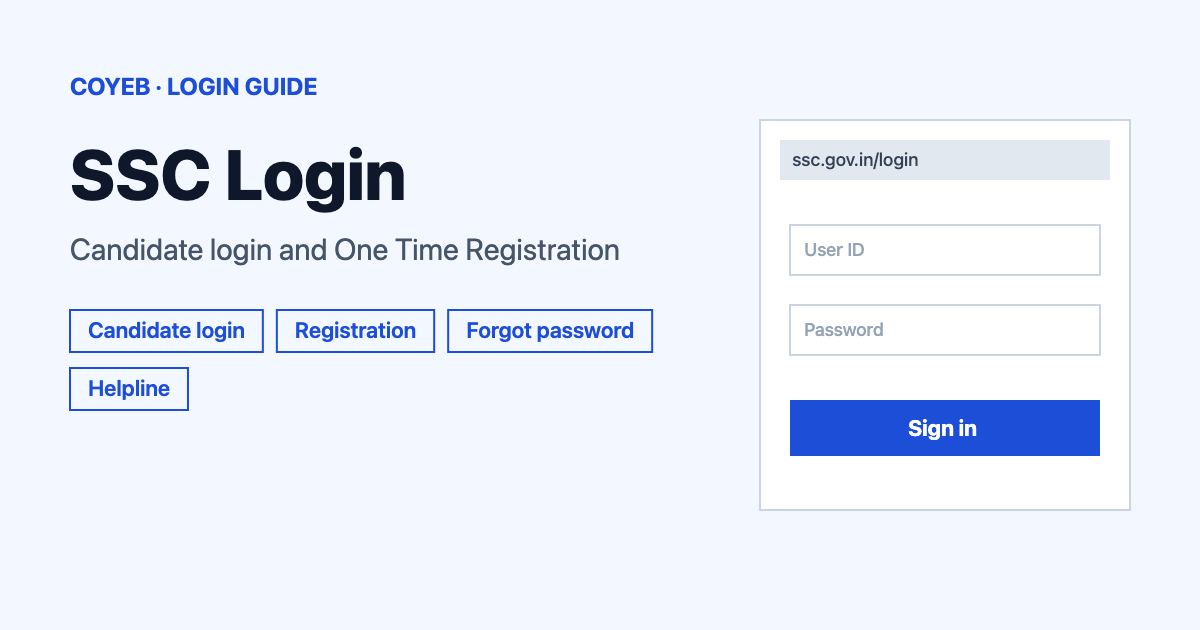
The ssc.gov.in login page is ssc.gov.in/login. Choose the Candidate tab, type your Username (Registration Number) and Password (SSC Registration Password), enter the captcha and press Login. The catch: SSC does not ask for a User ID or an email. New users must finish One Time Registration first.
Last verified: 17 November 2026
Official login page: https://ssc.gov.in/login (checked November 2026)
coyeb.com is not affiliated with the Staff Selection Commission. Never share your password or OTP with anyone.
What you will see on the ssc.gov.in login page
The page is headed “Login to your Account” and has two tabs, Candidate and Admin. Exam applicants use the Candidate tab. It has these items:
- Username (Registration Number) for the number you received after One Time Registration.
- Password (SSC Registration Password) for the password you created for your SSC account.
- Captcha with a Refresh link beside the code.
- Login button.
- Forgot Password under the form.
- Register Now next to “New User ?”.
How to log in
- Go to ssc.gov.in/login in your browser.
- Stay on the Candidate tab.
- In Username (Registration Number) type your registration number.
- In Password (SSC Registration Password) type your SSC password.
- Type the code you see into Captcha. If you cannot read it, press Refresh to get a new one.
- Press Login.
First-time login: One Time Registration
If you have no registration number yet, press Register Now next to “New User ?” on the login page. It opens the One Time Registration page at ssc.gov.in/candidate-portal/one-time-registration/home-page. SSC’s FAQ says One-Time Registration is a mandatory prerequisite, so once it is complete you can apply online for any examination of the Commission.
The page lists four stages for a “New Candidate”:
- Personal Details covers your name, identification and contact details.
- Password Creation is where you create your new password.
- Additional Details covers nationality, address and education.
- Declaration is where you review your details and confirm them.
Press Continue to begin. SSC warns that candidates must be very cautious while filling up the OTR details because your candidature may get cancelled if incorrect or wrong information is furnished.
What the Personal Details step asks for
- The first question is “Do you have a Aadhaar Card ?” with Yes or No. If you choose Yes you verify your Aadhaar (UID or VID) with Send OTP. SSC notes that you cannot modify or re-verify Aadhaar once it is verified.
- Candidate Name must be written as per your Matriculation Certificate and without a salutation such as Shri, Smt, Mr, Mrs, Ms, Dr or Prof.
- Date Of Birth is entered as DD-MM-YYYY. You also give your father’s name and mother’s name.
- For the Matriculation (10th class) details you choose the Education Board and type the Roll Number. Only the / and – characters are allowed in it. If a Roll Code is given, enter it as “Roll Code – Roll No.”.
- You enter your mobile number and email ID. Each key field has a “Verify” box where you type the value again.
Press Save & Next to move on. SSC states that at least one of the mobile or email OTP validations is required to proceed, so use a number or email address you can open right now.
If the email with your registration number and password never arrives, SSC’s FAQ says to check the Spam folder first. If it is not there, the likely cause is a wrong email ID entered during registration. SSC advises contacting the helpline of the concerned Regional Office by call or email.
Forgot password
Press Forgot Password under the login form. A box called “Reset Password Options” opens with two choices:
- Get a verification code on your email or mobile number, or use security questions.
- Provide identification card details, matriculation details and other details.
Pick one and press Confirm, or press Cancel to go back. Then follow the instructions SSC displays after you confirm.
Login on mobile
Open ssc.gov.in/login in your phone browser and follow the same steps as above. The login page shows no app link, so the website is the way in.
ssc.gov.in login not working
| What you see | What it means | Fix |
|---|---|---|
| Captcha code is hard to read or is not accepted | The code on screen may have changed or been misread | Press Refresh beside the code and type the new one. |
| You do not remember the password | The SSC Registration Password is needed with your Registration Number | Use Forgot Password and pick one of the options in the Reset Password Options box. |
| No OTP arrives during registration | The mobile number or email may have been typed wrongly | Check the number or email you entered. SSC needs at least one OTP validation to continue. |
| Registration number and password email not received | It may be in Spam or the email ID was entered wrongly | Check Spam. If it is not there, contact the helpline of the concerned Regional Office by call or email. |
| Login asks for an OTP and has no Login button | You may be on the Admin tab, which is for SSC officials | Switch to the Candidate tab and use your Registration Number. |
These fixes are general suggestions, apart from the registration email advice that comes from SSC’s FAQ.
After you log in
Once your One Time Registration is complete you can apply online for any examination of the Commission. The SSC home page has quick links for Apply, Admit Card, Answer Key, Result and Selection Post Marks. A notice there also says One Time Registration (OTR) for Scribe is live. Open the section you need from ssc.gov.in and follow what the page shows.
Stay safe
- The address to check is ssc.gov.in, so treat any look-alike address with suspicion.
- Never share your password or OTP. Try typing the address yourself instead of following a link from a message.
SSC candidate helpline
- Phone: 1800-309-3063 (checked November 2026)
- Email: helpdesk-ssc@ssc.nic.in (checked November 2026)
- Postal address: Block No-12, CGO Complex, Lodhi Road, New Delhi – 110003 (checked November 2026)
- Help pages: ssc.gov.in/home and the official FAQ (checked November 2026)
Handling other government portals too? See the Udyam login, ICEGATE login and TRACES login guides.