Nest Login: Google Home App and Nest Account Migration
Nest login steps for home.nest.com: sign in with Google or Nest, fix 2-step codes, reset a password, change your email and migrate to a Google Account.
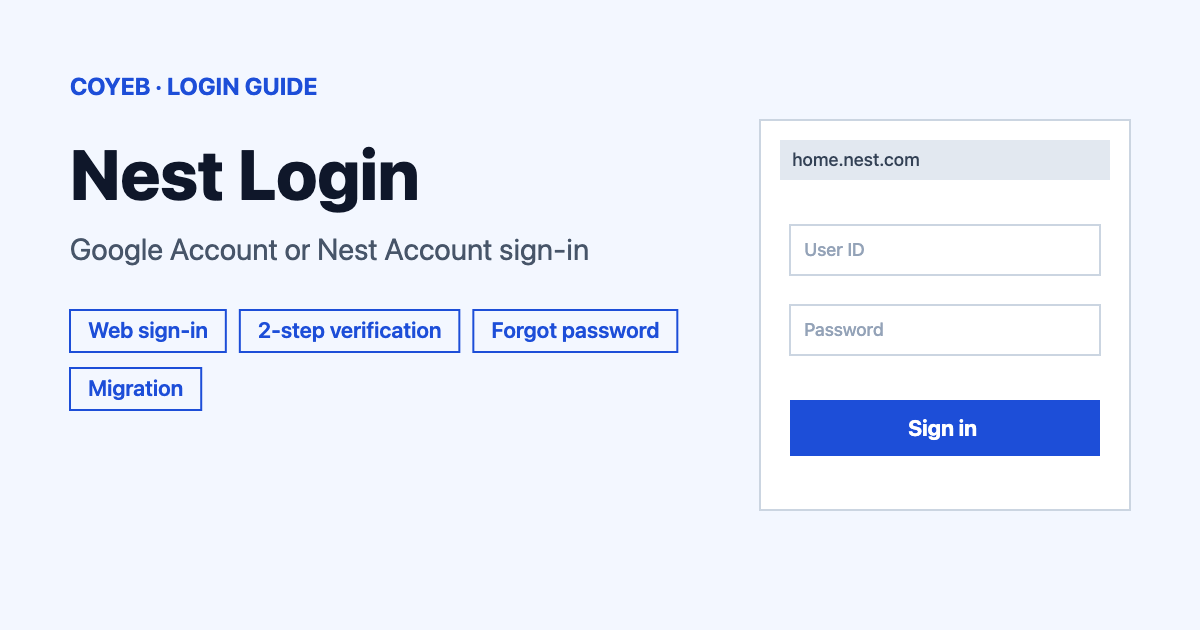
For a nest login, go to home.nest.com and select Sign in with Google. If your old Nest Account was never migrated, select Sign in with Nest and type your Email address and Password. The catch: a Gmail address can still belong to an old Nest Account. If one button fails, try the other.
Last verified: 17 November 2026
Official sign-in page: home.nest.com
coyeb.com is not affiliated with Google or Nest. Never share your password or OTP with anyone. This guide covers Google Nest only. Other sites with “Nest” in the name are unrelated.
Google Account or old Nest Account: which one do you have
If you started using the Nest app after 19 August 2019 you already use a Google Account and do not need to migrate. A Nest Account is the older kind. It was created before that date and not yet migrated. If you use a Gmail address to sign in to your Nest account you might still need to migrate.
To find out, start on the sign-in page and select Sign in with Nest. If your Nest email and password work, your account is not migrated. If they fail, select Sign in with Google. If that works, the account has already been migrated. If you are already signed in, open Settings in the Nest app. When the Migrate to a Google Account option is missing, the account is migrated. When it is shown you can still migrate.
Cannot sign in at all? Go to myaccount.google.com/permissions and sign in with your Google Account. If Nest appears under “Signing in with Google” you must use your Google Account for the Nest app. With several Google Accounts you may need to check each one.
What you will see on the nest login page
The page at home.nest.com opens with the heading Sign in. It shows a Sign in with Google button and the line “Haven’t migrated your Nest Account?” with a Sign in with Nest link. The page needs JavaScript turned on or it stays blank.
The Nest screen has two fields: Email address and Password. It also has a Forgot password? link and a Sign in button. Below them, “Did you migrate your account to Google?” leads to Sign in with Google. A Back link returns to the first screen.
How to do a nest login on the web
Google Account
- Open home.nest.com in your browser.
- Select Sign in with Google and pick the Google Account you use for Nest.
- Finish any Google 2-step verification prompt.
Nest Account that was never migrated
- Open home.nest.com and select Sign in with Nest.
- Type your Email address and Password.
- Select Sign in.
- Enter the verification code Nest sends you. All non-migrated accounts require 2-step verification.
Nest 2-step verification code
After your password, Nest sends a temporary code to your phone or to your email. The Nest app tells you which one. You need a code to sign in, change your password, reset a lost password or remove your phone number.
To turn it on, open Settings, then Account, Manage account and Account Security. Select 2-step verification and follow the prompts for your password, your phone number and the code sent to your phone. Turning it on signs you out of the Nest app on your other devices. Update the Nest app first because an older version might not sign in afterwards.
Code not received on your phone: check the last 4 digits of the number shown in the app and make sure the signal is good. Wait a few minutes and then request a new code. If the number is wrong contact Nest support.
Code not received by email: sign in to the email account linked to your Nest account and check the spam folder for messages from account@nest.com. If you cannot reach the phone or the email you may need to factory reset your device and set it up with a new phone or email.
New phone number: turn 2-step verification off before you close the old line. Go to Settings, Account, Manage account, Account security and select Phone number, then Remove. You must enter a code from the old number one last time. Then set it up again with the new number. Do not use temporary numbers or someone else’s email.
Forgot your Nest password
Only a Nest Account has a separate Nest password. If you sign in with Google use Google’s own password recovery. Your Nest email address is the sign-in name.
- On home.nest.com select Sign in with Nest.
- Select Forgot password?. The Forgot your password? screen opens.
- Type your Email address.
- Select Send email and follow the instructions in the email.
In the Nest app the same path is Sign in with Nest, then Forgot Password, then Reset Password. With 2-step verification on you must verify your identity before the reset.
No reset email? Check that you typed the address you used to sign up and that it belongs to a Nest Account and not a Google Account. Look in the spam folder and request the email again. If it still does not arrive contact support.
To change the password while signed in, open Settings in the Nest app and go to Account, Manage account, Account Security and then Account password. Enter your current and new password and select Save changes. The sign-in screen then asks for a code as usual. Use a unique password and do not reuse it elsewhere.
Change the email on a Nest Account
- Open the Nest app, select Sign in with Nest and sign in.
- Go to Settings, Account, Manage Account, Account Security and then Email address.
- Enter your current password and the new email address.
- Retype the new address to confirm and tap Save changes.
- Open the message from account@nest.com sent to the new address and use its link to verify it.
All Nest alerts and home reports then go to the new address. No message after a few moments usually means the new address has a typo. If the change fails you can create a new account. First remove and reset your Nest products and set them up again in the new account. Anyone who shares your home loses access and needs a new invitation.
Nest login on the Nest app and Google Home app
The Nest app is on Google Play as “Nest” from Nest Labs Inc and on the App Store. For migration iPhone users need iOS 12.0 or higher. A migrated account signs in with the Sign in with Google button and the Google Account details. An old Nest Account uses Sign in with Nest.
The Google Home app is the other place to manage your home. Sign in with the same Google Account you migrated to. Some newer cameras, doorbells and thermostats work only in the Google Home app. Nest Protect and Nest Tag still appear only in the Nest app after migration.
Nest account migration: move to a Google Account
Migration is optional and cannot be reversed. One Google Account can link to only one Nest account. A personal Google Account is recommended. With a Workspace account the admin can reach your home and you lose the home if you lose that account.
- Update the Nest app.
- Open it and go to Settings, then Account. Check you are signed in with the account you want to migrate or tap Sign out to switch.
- Tap Migrate to a Google Account.
- Select Continue with Google and choose your account or Use another account.
- Tap Allow to let the Nest app use the Google data it lists.
- Select the home members to keep and review Privacy and Terms.
- Tap Complete migration. If you are accepting an invitation to a home tap I agree.
- Choose the emails you want to receive and tap Next. Then tap Done.
Some accounts cannot migrate: a Google Account already linked to another Nest account, group and alias accounts, accounts for children under 13 (or the applicable age in your country) including Family Link accounts and unverified Google Accounts.
Things change after migrating. The Nest app stops working on Apple TV and Android TV. The owner manages members in the Google Home app and can only invite people with Google Accounts. If the owner migrates all other members must migrate and be reinvited. For Nest Secure and Nest x Yale Lock use Guest Access in the Nest app for people who cannot migrate. Before you migrate you can only invite people who have Nest Accounts. Nest Aware 1st gen subscriptions bought through the Google Store are lost, so contact support to cancel payment. Google sends all home email to the address on the Google Account you migrated with.
Nest login not working
Start with the basics: select Sign in with Google and use the Google Account you migrated to. Update the Nest app on every device and log out and back in. You can also uninstall and reinstall the app.
| Error message | What it means | Fix |
|---|---|---|
| Google Account is already linked with another Nest account | That Google Account is already used by a different Nest account. | Use a different eligible Google Account because one Google Account links to one Nest account. Or create a new Google Account and migrate to it. |
| Group and alias accounts can’t be migrated | You chose a group or alias address. | Use an individual Google Account. |
| Google Account is managed by a parent or guardian | Child and Family Link accounts cannot be migrated. | Use an eligible Google Account. |
| Google Account has not been verified | An unverified Google Account cannot be migrated. | Verify that account or use another eligible one. |
If homes or devices are missing after migration check myaccount.google.com/permissions for the right account and then force close and reopen both apps.
Delete a Nest Account
For a non-migrated account sign in and go to Settings, Account and then Manage Account. Tap Delete Account and confirm with the link in the email from account@nest.com. Video history is permanently erased and cameras and doorbells stop working until you add them to another account. Subscriptions might need to be cancelled separately.
After you log in
- Connect devices: add Nest Thermostats, Nest Cams, Nest Doorbell or other Nest devices and apply your subscription.
- Manage home members: after migration the owner does this in the Google Home app. Any member of the home can remove the owner there. The owner then loses the home and the devices added to it.
- Update account security: Nest Account users can change the password or email under Settings, Account, Manage account and Account Security.
Stay safe
The only address for the web sign-in is home.nest.com. Check the address bar before you type your password. Nest messages that verify an email change or a deletion come from account@nest.com. Do not share your account email and password with anyone. Invite family and friends to your home so each person has their own account. After migrating only invite people you trust because any member can change settings and manage devices.
Contact Nest support
- Help page: Google Home and Nest Help contact page with Get a call, Call us, Chat and Email options (checked November 2026)
- Account help: Nest app account security, password and email (checked November 2026)