Rula Provider Portal Login for Therapists
Log in to the Rula provider portal on a computer with your onboarding email, password and SMS code. Covers first-time setup, password reset and lockout fixes.
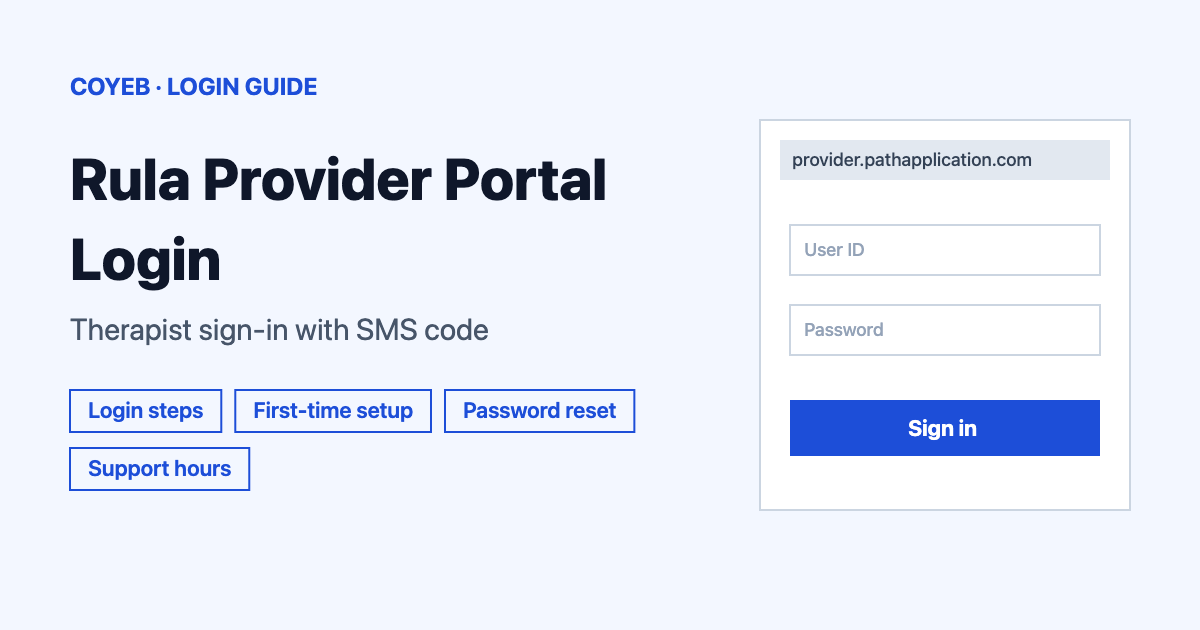
Log in to the Rula provider portal at provider.pathapplication.com/signin. Type the email you used during onboarding in the Email box and click Continue. Enter your password and click Login. Then type the 6-digit SMS code and click Continue. The catch: your login email stays the onboarding email even if your contact email changes later.
Last verified: 17 November 2026
Official sign-in: https://provider.pathapplication.com/signin (checked November 2026). You can also reach it from rula.com by clicking Login and choosing Provider.
coyeb.com is not affiliated with Rula. Never share your password or OTP with anyone.
What you will see on the Rula provider portal login page
The page is headed Provider sign in. It has one Email box and a Continue button. Under them is the line “Not yet a provider?” with a Sign up here link.
How to log in to the Rula provider portal
This is for therapists and other providers who finished onboarding with Rula. Patients use the separate Patient option in the same Login menu on rula.com, so make sure you pick Provider.
- Open www.rula.com and click Login in the top-right corner. Choose Provider from the dropdown. Or go straight to provider.pathapplication.com/signin.
- Enter the same personal email you used during onboarding and click Continue. Rula’s help article calls this button Sign-In.
- Enter your password and click Login.
- Rula texts a code to the phone number you set up for authentication. Enter it and click Continue.
- You arrive at your Rula provider portal dashboard.
The first box asks for your email rather than a username. If you changed your contact email later, keep using the onboarding email to sign in. Updating the email in your Rula profile does not change your login email.
First-time login for new Rula providers
Your account is created after you finish onboarding and receive a welcome email. If you are still onboarding, you do not have login details yet. Providers whose login was reset by Rula Support follow the same steps to create a new password and set up authentication again.
Have ready: a computer or laptop, access to the email address you used during onboarding and your 10-digit NPI.
- Go to the provider sign-in page and enter your onboarding email. If it matches Rula’s records you are asked to check your inbox. The welcome email can take a few minutes to arrive. Check spam or promotions if needed.
- Open the email from Rula with the subject “Welcome to the Rula provider portal” and click Sign in now.
- On the password page enter your email and the temporary password from the welcome email. Use the most recent temporary password and do not copy extra spaces before or after it. Then create a new secure password.
- Return to the sign-in page and enter your email and new password. Click Sign in.
- Enter your 10-digit NPI and click Verify.
- If parts of your application are unfinished, complete them before account security. These can include your provider profile (bio, headshot and preferences) and the Rula 101 onboarding courses. Click Get started next to a section. Use Save & Exit to continue later.
- When you reach the Set up extra security step, click it and enter your email and password. Click Continue. Enter the phone number for SMS codes and click Continue. Enter the 6-digit code and click Continue.
Choose a phone number you can always reach. You enter it only at setup and Rula sends every later code to that same number. If you skipped the email verification link at setup, the account stays inactive and your email is not recognized.
Joining Rula as a new provider
The login page links to Rula’s provider application page. The form asks for First name, Last name, Mobile phone number, Email and NPI. It also asks for your primary state licensed, license type, any other states and whether you are open to offering in-person services. After you submit, Rula asks you to schedule a time to speak with its team. Rula says it cannot partner with providers who appear on the Medicare Opt-Out list. Rula’s page says most therapists are credentialed and see their first client in 3 weeks or less. Apply on rula.com/provider-sign-up.
Forgot your Rula provider portal password
- Go to the provider sign-in page and click Forgot password?, which sits above the login button.
- Enter the email you use for the portal. This is the email from onboarding.
- Click Send reset code.
- Check your email for the code. Look in spam or junk if needed.
- Type the code into the Password reset code box.
- Create and confirm your new password (the requirements show on screen) and click Update password.
Resetting your password does not reset SMS authentication. You still need your code at the next sign-in. Rula describes the full recovery steps in its account recovery article.
Rula provider portal on mobile
Rula’s account setup guide says to use a computer or laptop and states that the portal does not work on phones or tablets. Keep your phone nearby for the 6-digit SMS code.
Rula provider portal login not working
Rula’s help articles describe these situations without giving exact on-screen messages. The fixes below come from those articles.
| What you see | What it means | Fix |
|---|---|---|
| The SMS code is rejected as invalid | Codes expire after 5 minutes. | Click Send again to get a new code and enter it within 5 minutes. |
| You are locked out | The portal locks you out temporarily after 10 incorrect attempts. | Wait 6 minutes for the security timer to reset and try again. |
| Your email is not recognized | You may be using a different email from the one used at onboarding. Or you did not finish account setup and email verification. | Use your onboarding email. If you never finished setup, find the original welcome email and click Sign in now. If you cannot find it, contact Rula Support through chat for a reset. |
| No code text arrives | You may have replied STOP to an earlier code text. | Reply START in the same text thread. If the thread is gone, Rula Support can opt you back in. |
| You have a new phone or lost the number | The code goes to the number you set up. | Contact Rula Support so they can reset your login. You then set up authentication with the new number. |
After you log in to the Rula provider portal
- Availability: open the Schedule tab and add new availability.
- Session notes: create and sign your notes for a session.
- Client roster: view your client roster. The portal is also where you message clients.
- Resources: click the Resources tab in the left menu for forms and documents such as consent forms, the release of information request form, the safety plan template and Rula letterhead.
Stay safe when signing in
Check the address before you type your password. Rula’s provider sign-in page is on provider.pathapplication.com and its main site is rula.com. If you are unsure about a sign-in page, go to rula.com and use the Login menu instead. Rula’s policy says to enter information only under your own username and password and forbids sharing logins. Never share your password or SMS code with anyone.
Rula provider support and contact hours
- Help center: therapistsupport.rula.com has a search bar on every page. You can then request a live Service Team member by chat or a support request (checked November 2026).
- Live chat hours: Monday to Friday 5:00am to 10:00pm PT. Saturday and Sunday 9:00am to 6:00pm PT. Outside these hours you can submit a support request (checked November 2026).
- Technical Support Office Hours: Mondays at 12:00pm PT (3:00pm ET), not held on holidays (checked November 2026).
Support can help with provider portal troubleshooting. Support agents are not licensed clinicians, so send clinical questions to the Clinical Quality team at quality@rula.com (checked November 2026).