Sharda Login: University Student ERP Portal
Sharda login for the student ERP and staff portal: Username and Password steps, forgot password reset, OTP help and IT Help Desk contact details.
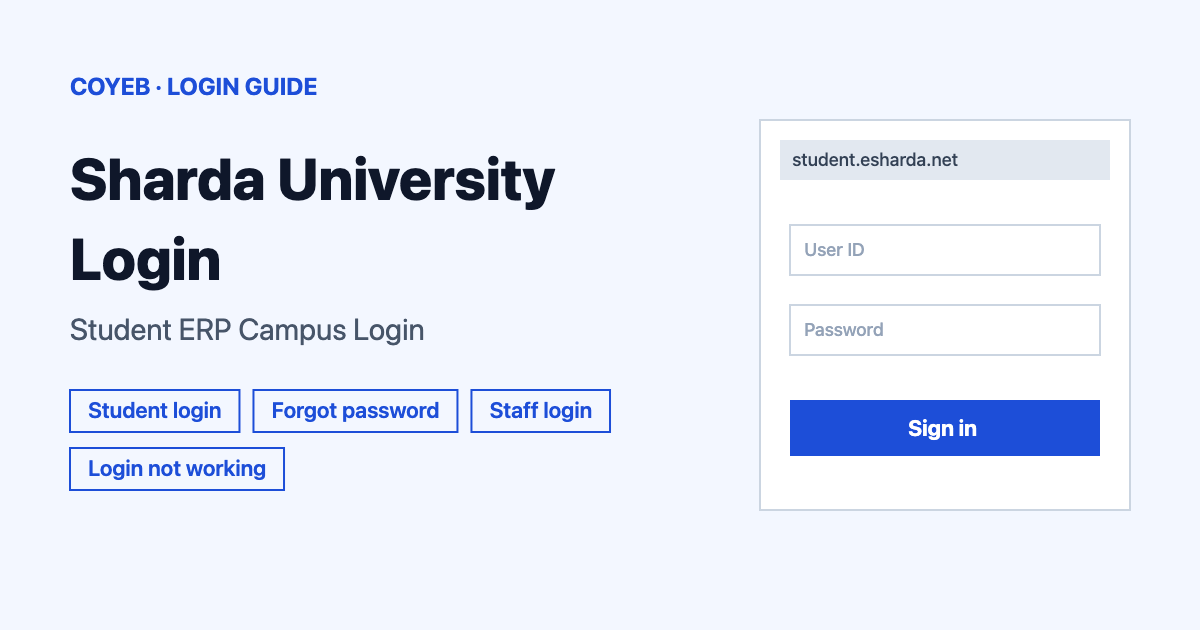
For a Sharda login as a student, open student.esharda.net and type your Username and Password on the Campus Login page, then press Sign In. Staff use a different address, academicportal.sharda.ac.in. Keep browser cookies switched on or the sign-in fails.
Last verified: 18 November 2026
Official links (checked November 2026): Student ERP https://student.esharda.net | Staff Academic Portal https://academicportal.sharda.ac.in
coyeb.com is not affiliated with Sharda University. Never share your password or OTP with anyone.
Which Sharda login do you need
| You are | Where to sign in | What you type |
|---|---|---|
| Student | student.esharda.net | Username and Password |
| Faculty or staff (Academic Portal) | academicportal.sharda.ac.in, then Employee Login | Employee ID and Password plus the captcha code |
What you will see on the Sharda login page
Opening student.esharda.net sends you on to the page titled “Sharda | Login Page” with the heading Campus Login. It has a Username box, a Password box, a Sign In button and a Forgot Password? link.
How to do the Sharda login for the student ERP
- Open student.esharda.net. You can also use the Student Login link on the Sharda University home page.
- Type your ID in the Username box.
- Type your password in the Password box.
- Press Sign In.
Sharda’s own cookie message refers to a PeopleSoft application, so keep cookies switched on in your browser.
Forgot your Sharda login password
- On the Campus Login page press Forgot Password?.
- The Forgot My Password screen says: “Enter your User ID below. This will be used to find your profile, in order to authenticate you.”
- Type your ID in the User ID box and press Continue.
- Follow the steps shown on the next screen.
If nothing arrives or the reset fails, ask your department or the university IT Help Desk (see contacts below).
Sharda Academic Portal login for staff
- Open academicportal.sharda.ac.in and press Employee Login.
- Type your ID in the EMPLOYEE ID box (the box shows the example 0000123).
- Type your PASSWORD.
- Type the code in the ENTER CAPTCHA box.
- Press LOGIN.
The help section on the Academic Portal home page describes the sign-in this way: use your employee ID and request an OTP sent to your registered official email. Then enter the OTP to log in.
Reset a staff password on the Academic Portal
- On the Employee Login page press Forgot Password?.
- Type your ID in the EMPLOYEE ID box and press Send OTP.
- Type the code in the OTP box.
- Type a NEW PASSWORD and repeat it in CONFIRM PASSWORD.
- Press CHANGE PASSWORD.
Academic Portal OTP not received
Check your registered official email for delays. If the code still does not arrive, click Resend OTP or contact Sharda Tech. If you keep getting login errors, confirm that the employee ID and OTP are correct and write to sap.support@shrda.ac.in.
Sharda login on mobile
Use the mobile browser. Open student.esharda.net and sign in the same way. If the page does not load, you can try a desktop view or another browser.
Sharda login not working
| What you see | What it means | Fix |
|---|---|---|
| “You must have cookies enabled in order to sign in to your PeopleSoft application.” | Your browser is blocking cookies | Turn cookies on, return to Sign In and try again. The page says to contact your System Administrator if it still fails. |
| Academic Portal code does not arrive | The OTP email is delayed or went to the wrong place | Check your registered official email then use Resend OTP. |
| Academic Portal sign-in is refused | The employee ID or OTP may be wrong | Check both and write to sap.support@shrda.ac.in if it continues. |
Apart from the cookie message the fixes above are general suggestions.
Stay safe
Check that the address ends in esharda.net or sharda.ac.in before you type anything. Open the student ERP from the Student Login link on the university site if you are unsure. Never share your password or OTP, even with someone who says they work at the university.
Help and contacts
- IT Help Desk email: ithelpdesk@sharda.ac.in (checked November 2026)
- IT Help Desk phone: extension 2856 or 2858, office hours only (checked November 2026)
- University main line: +91-120-4570000 (checked November 2026)
- Academic Portal technical issues: support.lms@sharda.ac.in (checked November 2026)
- Academic Portal login issues: sap.support@shrda.ac.in (spelled that way on the portal, checked November 2026)
Another Indian university sign-in guide: Brainware University login.