Procore Login: Project Access and Password Reset
Procore login at login.procore.com: sign in with your email, accept an invitation, reset your password, handle SSO or a locked account and reach support.
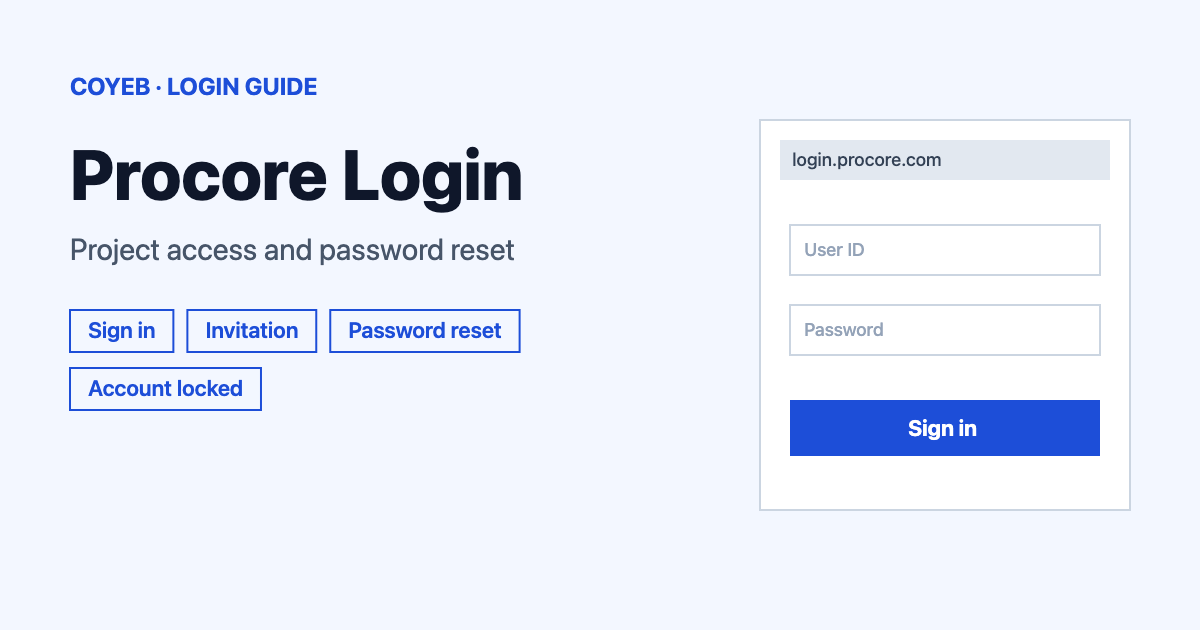
For a procore login, go to login.procore.com, type your work email in the Email field and click Continue. Then enter your password and click Continue again. The catch: you cannot sign up yourself. A Procore administrator at your company must invite you first.
Last verified: 17 November 2026
Official Procore login: login.procore.com (the web app also opens at app.procore.com, checked November 2026).
coyeb.com is not affiliated with Procore. Never share your password or OTP with anyone.
What you will see on the Procore login page
The Procore sign-in screen works in two steps. The first screen says “Log in to your account” and asks only for your Email.
- Email field and Continue button.
- Remember Email checkbox. It saves your address on that browser so you do not retype it next time. Skip it on a shared computer.
- Forgot your password? link, which opens the password reset page.
- Trouble logging in? link, which opens Procore’s help article “Why can’t I log in to Procore?”.
Passwords are case-sensitive. The page shows a “Caps Lock is ON” message if capitals are switched on while you type.
Procore login steps
- Open login.procore.com in your browser.
- Type your email in the Email field and click Continue. Your login is the email address your invitation was sent to.
- Enter your password and click Continue. If you forgot it or it has expired, use the forgot password steps below.
- If you have access to more than one company, choose the company you want to work in and click Continue.
Procore login for company single sign-on
Some companies use single sign-on (SSO). Procore describes two types.
- Started from Procore: you enter an email with your company’s SSO domain on the Procore login page and the password box disappears. Click Log In and Procore sends you to your company’s own sign-in system. After you sign in there it brings you back to Procore.
- Started from your identity provider: you open a Procore tile in a system such as Microsoft Azure or Okta. Other providers such as Entra ID or OneLogin work the same way. With this type you can also log in directly from the Procore login page with your username and password.
With the first type you cannot reset your password through Procore. Your company’s IT team handles password changes and forgotten passwords. If you are not sure whether your login uses SSO, ask your IT team or your Procore Administrator.
First-time login with an invitation
Procore access is given by a company or project administrator who invites you. You will not find a public sign-up button on the login screen.
- Open the email called “Welcome to Procore!”.
- Click Get Started.
- Enter your password and confirm it, then click Set Password.
- Click Log In on Your Browser, enter your email and new password and click Continue.
Your password must have at least eight characters with an uppercase letter, a lowercase letter, a number and one special character from !@#$%^&*. Both entries must match. Procore does not let you reuse your last four passwords. Your company’s administrator sets password expiry and idle timeout, so your company may have extra rules.
If you already have a Procore account and get added to another company or project, the email is titled “You’ve been invited to [Company Name or Project Name] in Procore”. Click Accept Invitation and the new company or project appears on your account. If you do not respond, Procore sends reminders automatically at 3, 7 and 14 days.
Procore forgot password
- On the login screen click Forgot your password?. The page “Reset your password” opens.
- Type your account’s email address in the Enter Email field and click Send Reset Link.
- Open the email called “Reset Your Procore Password”. It can take a few minutes to arrive.
- Click the Reset Password button in the email, enter a new password, re-enter it in the Confirm field and click Set Password. You are logged in automatically and a banner confirms the reset.
The same route works if you were invited but never set a password. If you still have the original invitation, search your inbox for “invited”, “invitation” or “invite”. Its password setup link also leads to the reset page.
If your new password is not accepted, check that it meets the rules above and that Caps Lock is off. A company that uses SSO manages passwords itself, so this reset will not apply to you.
Procore forgot email
The Procore login asks for the email address on your account. If you cannot remember it, the reset page shows “Forgot your email?” with the address support@procore.com.
- Ask your company’s Procore Administrator first. They can look up your account in the Company Directory tool and tell you the email address you used.
- If that is not possible, email support@procore.com with your full name, the name of the company that owns the Procore account and the names of the projects your account could access.
- Support asks extra questions to verify you. They can give you the email address only if your answers match their records.
- If you no longer have access to that email account, an administrator can create a new account under a new email and deactivate the old one.
Procore account locked
Three unsuccessful login attempts can lock your account when your company enforces a lockout. Reset your password with Forgot your password? or ask your company’s Procore administrator to unlock your account.
Two-step verification (MFA)
Multi-factor authentication is switched on only when your company’s Procore Administrator chooses to enable it. When it is on, you set up a second verification method during login. Authenticator apps are supported everywhere. Text message codes are available only in certain countries. If your company uses Procore Pay, MFA is required for every user.
Procore login on mobile
The official app is “Procore Construction Management”. You can get it from the App Store or Google Play. The app asks for your Procore credentials, the same login you use on the web. You can also open login.procore.com in a phone browser.
To log out of the app, tap your avatar circle to open the Sidebar and tap Log Out (Android shows Logout). Because the app saves your login, make sure you know your password before you sign out.
Procore login not working
| Error message | What it means | Fix |
|---|---|---|
| “The time on your device is different from our servers.” | Your device clock is off. | Turn on automatic date and time in Settings, refresh the app, then force close and reopen it. Returning to the login screen with no message can have the same cause. |
| “Enable cookies to log in” | Safari is blocking cookies. | On iPhone or iPad go to Settings, then Safari, then Advanced and turn off “Block all cookies”. Force close Safari, refresh the app and reopen it. Restart the device if it continues. |
| “Account Locked” | Three unsuccessful login attempts triggered a lockout. | Reset your password or ask your company’s Procore administrator to unlock the account. |
| “No user found with the given email address” | With SSO, the email set as your Procore login does not exactly match the primary email in your company’s identity provider. | Ask your IT team to run a SAML trace. If IT needs more help, they can email support@procore.com and attach the trace file. |
| “Permission Denied” | You do not have permission to view that page or file. | Contact the project’s Procore administrator, such as the Project Manager, for access. |
| “Website Under Heavy Load” | A server-side warning. | Wait 5 to 10 seconds, then refresh the page or click the link again. |
| “500 (Internal Server Error)” | An unexpected condition occurred on the server. | Refresh the tab, then clear the cache and cookies for app.procore.com. |
| “422 (Bad Request)” | The server sees a problem on your side. | Try a different browser such as Google Chrome or Firefox. |
| “Scheduled Maintenance” | Procore is unavailable for planned upgrades. | Wait and check status.procore.com for updates. Procore usually posts a warning in the app about 7 days ahead. |
Company or project missing after login
If you were invited to a project but cannot see it after you log in, the invitation may have gone to a different email than the one you logged in with. Ask an administrator to confirm the spelling of the email they invited. If you can log in but cannot see certain data or projects, you may need more permissions. Ask your company or project administrator to give you access.
Stay safe on the Procore login page
Check that the address in your browser is login.procore.com or app.procore.com before you type anything. Procore support will never ask for your password. Each person needs their own login and Procore prohibits sharing one login between people, so ask a Project or Company Administrator for an individual account instead. If an email asks you to confirm your login on a different site, do not enter your details there.
Procore helpline
- Phone: (833) 277-6267 (checked November 2026)
- Email: support@procore.com (checked November 2026)
- Hours (Central Time): Monday to Thursday 24 hours, Friday 12 AM to 11 PM, Saturday 9 AM to 8 PM and Sunday 9 AM to 12 AM (checked November 2026)
- Live chat: available only after you sign in (checked November 2026)
- Help page: the web form on the Procore contact support page has a “Login” category (checked November 2026)
- Service updates: status.procore.com (checked November 2026)
For another business software sign-in, see the NetSuite login guide.