TVS DMS Login: advantagetvs.com Dealer Portal Guide
TVS DMS login on advantagetvs.in and advantagetvs.com: Dealer Code, Role, Branch, OTP, LiteApp new employee ID, first-login password change and helpline.
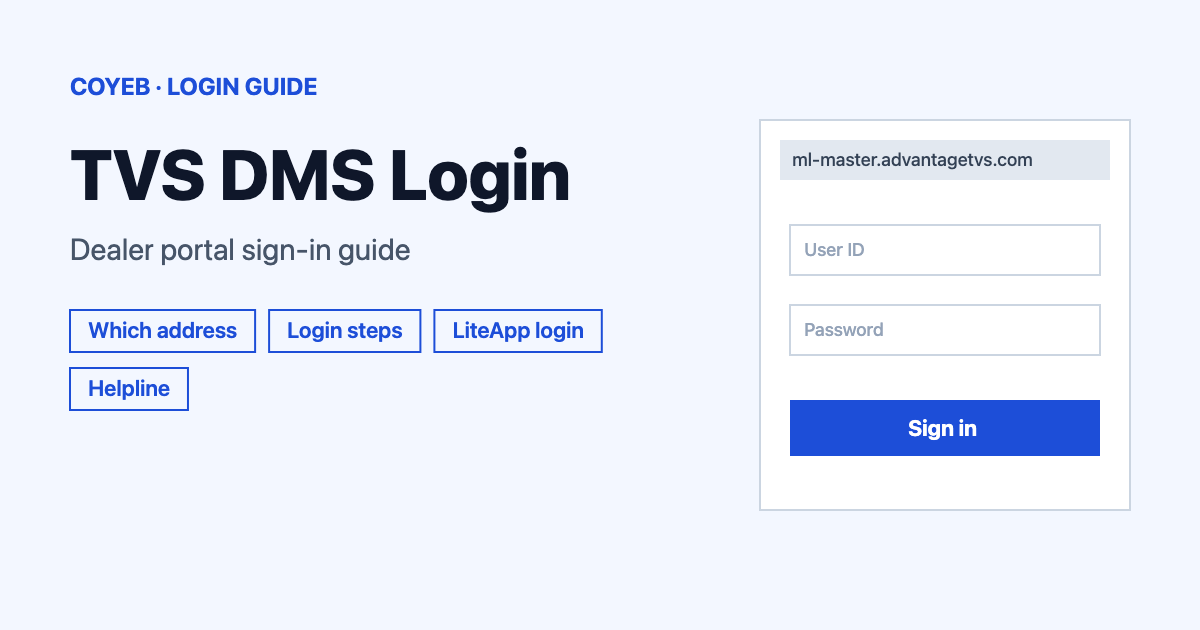
The TVS DMS login is on advantagetvs.in or on a regional advantagetvs.com address such as ml-master.advantagetvs.com. Enter your Dealer Code, choose Role and Branch, type your User ID and Password, then press LOGIN. The catch: there is no sign-up or Forgot Password link, so TVS support or your dealer admin must give you access.
Last verified: 17 November 2026
Official TVS Dealership Management login: https://advantagetvs.in/ or a regional address such as https://ml-master.advantagetvs.com/ (checked November 2026)
coyeb.com is not affiliated with TVS Motor Company. Never share your password or OTP with anyone.
Which TVS DMS login address do you need
TVS Dealership Management has more than one sign-in address. Your TVS area office or dealer admin can tell you which one your dealership uses. Use the address they give you.
| You are | Where to sign in | What you type |
|---|---|---|
| Dealer staff using the classic DMS screen on the .in site | advantagetvs.in | Dealer Code, Role, Branch, Language, User ID, Password and OTP |
| Dealer staff given a regional address by TVS | ml-master.advantagetvs.com, lk-master.advantagetvs.com, sl-master.advantagetvs.com or gn-master.advantagetvs.com | Dealer Code, Role, Branch, Language, User ID and Password (an OTP box shows only on lk-master) |
| Dealer employee with a new employee ID | advantagetvs.in/LiteApp | One of Face Recognition, Phone Number and OTP or Employee ID and Password |
The four regional addresses show the same form and the same support text. TVS does not say which one belongs to which dealer.
This portal is for TVS dealers and their staff. The TVS dealer app states that it is only for selected authorised dealers and not for general use. If you own a TVS vehicle and want your own account, this is not the place for it, because customers use a separate TVS website.
How to do the TVS DMS login step by step
- Open the address your dealership uses: advantagetvs.in or a regional advantagetvs.com address.
- Type your Dealer Code. This box is marked as required.
- Open the Role dropdown and choose the role that matches your work.
- Open the Branch dropdown and choose your branch.
- Open the Language dropdown. On advantagetvs.com the options are ENGLISH, FRENCH and SPANISH. On advantagetvs.in they are ENGLISH and BAHASA_INDONESIA.
- Type your User ID and Password.
- If your address shows an OTP box, type the OTP too.
- Press the LOGIN button below the form.
advantagetvs.in login with OTP
On advantagetvs.in the form has an OTP box under Password and a Resend OTP button below it. The lk-master.advantagetvs.com address shows the same box with a button called OTP. Ask your dealer admin or TVS support how OTPs are sent to your account if none arrives.
TVS DMS login with a new employee ID (LiteApp)
The advantagetvs.in login page has a banner with a Click Here link for the LiteApp version / Angular DMS screen. You can also open it directly.
- Open advantagetvs.in/LiteApp. The page says “Use your new employee id to login” and “Please reach out to branch manager to obtain your new employee id”.
- Press New Login. You move to a Dealer Employee Master login on auth-ums.tvsmotor.com.
- Choose one of the three options at the bottom: Face Recognition, Phone Number and OTP or Employee ID and Password. Face Recognition has a Capture Image button.
An Old Login button on the LiteApp page is for signing in with your old login. The page also links a user guide called help.pdf.
First time TVS DMS login and password change
There is no public sign-up. Your Dealer Code and user details come from TVS or from the admin at your dealership. For a new employee ID on LiteApp the page says to ask your branch manager.
When you sign in to the classic screen for the first time, the portal shows the message “Please change your password As Your Have Log in For First Time”. Fill in three fields: Old Password, New Password and Confirm Password, then press Change Password. Your old password is the one you were given. The three boxes take at most 15 characters, so keep your new password to 15 characters or fewer. After that you use the new password every time.
Forgot your TVS DMS login password or User ID
The login pages have no Forgot Password link and no Register link. For login problems the advantagetvs.com pages say to send an email to Onlinedms@tvsmotor.co.in. The advantagetvs.in and LiteApp pages say to write to onlinedms@tvsmotor.com. You can also call the support numbers in the helpline section. Your dealer admin may also be able to help with your user account.
TVS DMS login on mobile
TVS Motor Company offers an app called TVSDIGIDMS on Google Play: TVSDIGIDMS on Google Play. The listing says it is only for selected authorised dealers. It lists these jobs: Create Job Card, Post Service Feedback, Service Appointment and Enquiry. Ask your dealer admin if you need access.
You can also open the web login in a mobile browser. The pages say they are best viewed in Internet Explorer 8 and above, Mozilla Firefox and Google Chrome. That note is old wording, so a current Chrome or Firefox is the sensible choice.
TVS DMS login not working
TVS does not publish a list of error messages for this portal. The fixes below are general suggestions. For anything else, use the official email and phone numbers.
| What you see | What it may mean | Suggested fix |
|---|---|---|
| The page opens but your Role or Branch is not in the dropdown | Your account may not be set up for that role or branch | Ask your dealer admin to check your user setup |
| Login is refused after you enter your details | The Dealer Code, User ID or password may be wrong | Check each field carefully and retype the password. Then email the support address for your login page if it still fails |
| An OTP box shows and no OTP arrives | OTP delivery is set up by TVS for your account | Press Resend OTP on advantagetvs.in. Then ask TVS support or your dealer admin how OTPs are sent to you |
| “User denied the request for Geolocation.” at the bottom of the page | Your browser blocked the page’s request for your location | Allow location for the site in your browser settings and reload the page |
| The page looks broken or will not load | The address or your browser may be the problem | Try the address your area office gave you in an up-to-date Chrome or Firefox |
Stay safe on the TVS DMS login page
Check that the address bar shows advantagetvs.com or advantagetvs.in before you enter your Dealer Code or password. After you press New Login on LiteApp the address should show auth-ums.tvsmotor.com. Only use the support contacts printed on the official pages. Never share your password or OTP with anyone. This includes people who say they are from support.
TVS DMS login helpline
- Phone: toll free 18004255225 and 04344-270296, 270297, 270298, 270299 and 270048 (checked November 2026)
- Email for advantagetvs.com pages: Onlinedms@tvsmotor.co.in (checked November 2026)
- Email for advantagetvs.in and LiteApp: onlinedms@tvsmotor.com (checked November 2026)
- Hours: no calling hours are listed by TVS (checked November 2026)
- Support tickets: the advantagetvs.in and LiteApp pages link to tvsmotor.bolddesk.com/support, which asks you to sign in with a Microsoft account (checked November 2026)
- TVSDIGIDMS app contact on Google Play: digitalassets@tvsmotor.com and +91 74182 33374 (checked November 2026)