Jira Login: Atlassian Account Sign-In and Site URL
Jira login with your Atlassian account: email, passkey, Google or SSO sign-in, find your atlassian.net site URL, reset a password and fix a locked account.
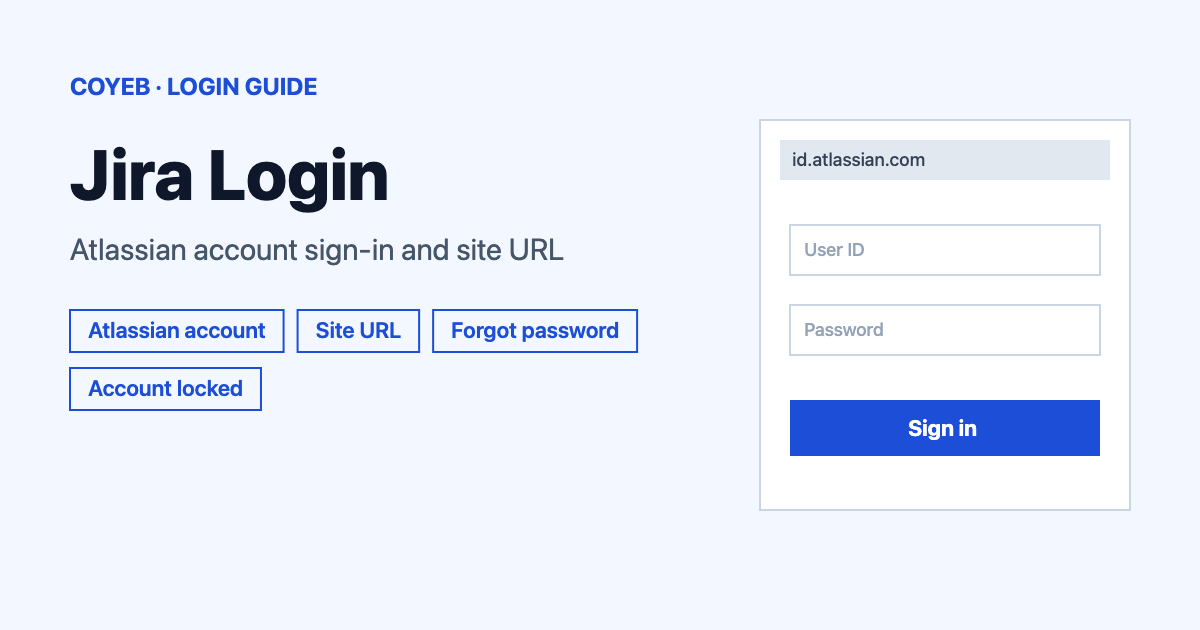
For a Jira login, open id.atlassian.com/login, type your email in the Email* box and select Continue. Then enter your password or choose Passkey, Google, Microsoft, Apple or Slack. The catch: Jira uses your Atlassian account email, not a separate username.
Last verified: 17 November 2026
Official sign-in page: https://id.atlassian.com/login (checked November 2026)
coyeb.com is not affiliated with Atlassian. Never share your password or OTP with anyone.
Which Jira login do you need
| You are | Where to sign in | What you type |
|---|---|---|
| Jira Cloud user | id.atlassian.com/login | Your Atlassian account email, then your password, passkey or a Google, Microsoft, Apple or Slack account |
| Jira Cloud user who knows the site address | yourcompany.atlassian.net | Your email address as the username |
| Atlassian Government user | id.atlassian-us-gov-mod.com/login | Your work email, then SAML single sign-on (required) |
If your company runs its own Jira, the address is not an atlassian.net one. Ask your IT team or Jira admin for the link.
What you will see on the Jira login page
The page is titled Log in to continue. It has an Email* box and a Remember me tick box. Under the email box are the Continue button and the Passkey, Google, Microsoft, Apple and Slack buttons. Two links sit below them: Can’t log in? and Create an account.
How to do a Jira login with your Atlassian account
Jira Cloud uses an Atlassian account. The same account signs you in to Jira, Confluence and the other Atlassian Cloud products.
- Open id.atlassian.com/login from the link above.
- Type your address in the Email* box and select Continue.
- Enter your password in the Enter password box.
- If Atlassian asks for an extra security step, enter the one-time passcode it emails to you.
Tick Remember me if you do not want to type your email each time. You will still need your password, two-step verification or SSO.
Jira login with Google, Microsoft, Apple or Slack
Choose the Google, Microsoft, Apple or Slack button and sign in with that account. The account links to your Atlassian account automatically. You can link more than one. This does not work if your admin enforces SAML single sign-on or blocks third-party logins.
Jira login with a passkey
- Open id.atlassian.com/login.
- Select Passkey.
- Pick a saved passkey for atlassian.com and follow the prompts.
Passkeys are only for accounts that are not managed by an organization. If your account is managed, the passkey option is not offered. Use your password or company SSO instead.
Jira login with company SSO
- Open id.atlassian.com/login.
- Enter your work email and select Continue.
- Sign in through your company’s identity provider if asked.
Atlassian Government users open id.atlassian-us-gov-mod.com/login instead and must use SAML single sign-on.
Find your Jira site URL
A Jira Cloud site address looks like yourcompany.atlassian.net, with your company name in front. Open that address and sign in with your email as the username. If that fails, select Can’t log in? to get a password reset link.
If you do not remember the address, search your email for the welcome message with the subject Get started on something amazing and check your spam folder too. It holds your site address or a link to your account. If you cannot find it, Atlassian says to contact its billing and licensing team.
Create an Atlassian account for Jira
On the login page select Create an account. The Sign up to continue page has an Email box with a Sign up button. You can also choose Google, Microsoft, Apple or Slack. Atlassian says you can sign up for free. If you already have an account, select Already have an Atlassian account? Log in.
If your company already added you to its Jira site, use the first-login article from Atlassian to find your site address and sign in.
Forgot your Jira login password
- On the login page select Can’t log in?.
- Enter your email in the box under We’ll send a recovery link to.
- Select Send recovery link.
- Open the email called Reset your Atlassian password and select Reset my password. Then set a new one.
If you signed up with Google or another third-party account and never set a password, use the same steps to create one.
Reset email not received
Atlassian says the email should arrive within 10 minutes. If it does not:
- Check that the email is spelled correctly and belongs to an existing Atlassian account.
- Check your spam folder for mail from noreply+XXXXXXXXX@id.atlassian.com.
- Select Resend recovery link.
- Ask your email administrator to allow mail from @id.atlassian.com.
If the Reset my password link will not open, your email app may be blocking links. Open the email in a web browser such as Chrome or Safari and select the link there. You can also copy the link and paste it into a browser window.
If your company signs you in with Google or Microsoft, the reset link may not work for you. Reset the password with that provider or ask your organization admin.
Jira account locked after failed logins
After several failed attempts in a short time a CAPTCHA appears. Complete it before you try again. If you still cannot log in, the account is locked for a short time. Wait a few minutes and try again.
Atlassian may also ask you to reset your password before you can log in when it suspects someone tried to get in or that your password is exposed. Your organization admin can ask for this too.
Identity verification code not received
Atlassian may email a six-digit code with the subject Verify your identity when your organization admin turns this on. If it does not arrive:
- Check your spam or junk folder.
- Select Didn’t get the code? Resend it.
- Check that your company is not blocking the email and that your inbox is not full.
If the code is rejected, enter all six digits with no space and make sure it is from the latest email and has not expired. Your device clock must also be correct.
Two-step verification problems
- Code not accepted: enter it as one string such as 111000 and not 111 000. Check that you are looking at the right account in your app. Make sure the time on the app and phone match.
- Security key not accepted: use a key registered to your account in a current version of Chrome, Firefox or Safari.
- No phone or app: enter your email and password and select Log in. Then select Can’t use your phone? and enter your emergency recovery key.
- Recovery key lost: on the recovery code screen select Use recovery key? and then Can’t find your recovery key?. Select Send recovery email. The email subject is Steps to recover your Atlassian account. After 24 hours a second email arrives with a one-time link to your two-step verification settings. If your account is managed by an organization, speak to your admin.
Jira login not working
| Error message | What it means | Fix |
|---|---|---|
| “We’re unable to log you in to [app name] with y@email.com. To continue, select Try again and use x@email.com.” | You used a different email or social account from the one Atlassian expects | Select Try again. Continue with Google, Microsoft, Apple or Slack or enter the password for your Atlassian account. If you never set a password, select Can’t log in?. With SSO, sign in with the email named in the message. |
| “We weren’t able to log you in, but trying again will probably work.” | SAML single sign-on was turned off for your account while you were logging in | Try again. If it repeats, ask your admin to check the SAML settings. |
| “The authenticated email address we were expecting was ‘xxx’, but we received ‘xxx’. Please ensure they match exactly, including case sensitivity. Contact your administrator to change your email to match.” | The email you used at your identity provider differs from your Atlassian account email | Sign in with the exact Atlassian account email. Email addresses are case sensitive. |
| “The signed in user xxx is not assigned to a role for the application […] (Atlassian Cloud).” | Your identity provider has not given you access to Atlassian | Contact your administrator or identity provider. |
If single sign-on fails for your whole company, the login page password can be a way in. Select Can’t log in? to set one. Atlassian also lists help for cookies, email verification and more in its login troubleshooting index.
Stay safe
Check that the address starts with id.atlassian.com or that your site ends in atlassian.net before typing a password. Atlassian Government accounts use id.atlassian-us-gov-mod.com. If a lockout email arrives when you did not cause it, Atlassian says an IP address was blocked. You can reset your password if you are worried.
Contact Atlassian for help
- Login help: the Login help link on the Can’t log in? screen (checked November 2026)
- Support: the Contact Support link on the same screen, or support.atlassian.com (checked November 2026)
- Managed accounts: your organization admin can help find your account email (checked November 2026)