Ameriprise Login: Client Account Access and Reset
Ameriprise login at ameriprise.com/client-login: sign in with 2-Step Verification, reset a User ID or password, register, add a passkey and use the app.
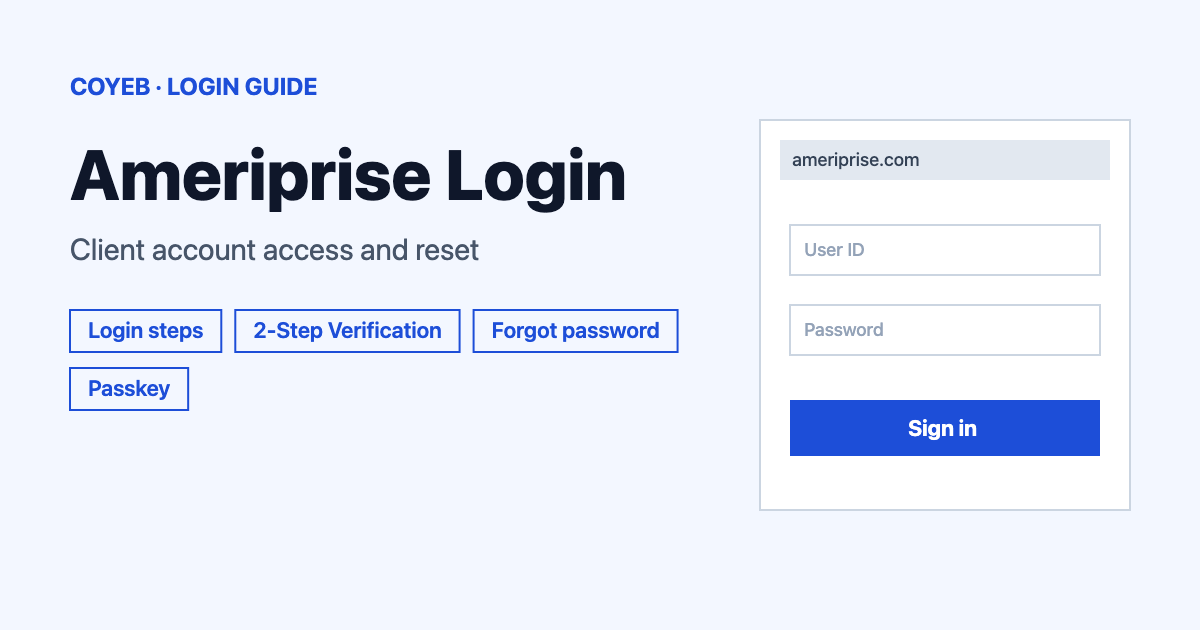
Your Ameriprise login is at ameriprise.com/client-login. Type your User ID and Password, then select Log in with password. 2-Step Verification is required, so you must also approve a push notification or enter a code before you get in. Forgot a detail? Select Forgot User ID or Password.
Last verified: 17 November 2026
Official address: https://www.ameriprise.com/client-login (checked November 2026)
coyeb.com is not affiliated with Ameriprise Financial. Never share your password or OTP with anyone.
This guide is for clients who see their own accounts online. Advisors and employees use different sign-in pages, which are not covered here.
What you will see on the Ameriprise login page
- User ID box with a Remember User ID tick box
- Password box
- Log in with password button
- Log in and create passkey button for passwordless sign-in
- Forgot User ID or Password link
- New User link for first-time registration
- Learn More About Passkeys link
Ameriprise login steps
- Open ameriprise.com/client-login in Safari, Chrome, Edge or Firefox.
- Type your User ID in the User ID box. Tick Remember User ID only on a device that is yours.
- Type your password in the Password box.
- Select Log in with password.
- Complete 2-Step Verification with the method you chose: approve the push notification in the Ameriprise Financial app, enter the code from an authenticator app, or enter the 6-digit code sent by text or voice call.
To sign in without a password, select Log in and create passkey instead. Passkeys are explained below.
2-Step Verification
Ameriprise requires a second step to open your online accounts. You pick one of three methods in Profile, under Security Settings.
- Ameriprise Financial app: a push notification goes to your enrolled phone or tablet. Accepting it is required. It stays active for 5 minutes. After that you need a new request.
- Third-party authenticator app: a code is generated on your device and works without mobile service. The code usually refreshes every 30 seconds. Examples named by Ameriprise are Twilio Authy, Duo Mobile, Google Authenticator and Microsoft Authenticator.
- Text or call: a 6-digit one-time code goes to the phone number you enrolled by text message or automated voice call.
You can change the method any time in Profile under Security Settings. If the device you use for this step is lost or stolen, an account number or Client ID can be used to get in. Customer Service can also block that device from receiving notifications.
First-time login and registration
Register for online access on ameriprise.com or in the Ameriprise Financial app. Use the link your advisor gave you or select New User in the log in box (New User? in the app). The register page has 3 steps: Contact Information, Identity Verification and Login Security.
- On step 1 type the Social Security number – last 4 digits.
- Type your Date of Birth as MM/DD/YYYY.
- Type your Last Name as shown on your account statement.
- Select Continue and follow the next two steps on screen. Select Cancel to leave the page.
Corporations and trusts cannot register on this page. A company representative must call Customer Service at 800.862.7919 so that eligibility can be verified.
If you see “User ID already in use”, another user has that User ID. Add numbers or letters to the beginning or end of the one you want.
User ID and password rules
User ID: 5 to 20 characters. At least 1 letter. No spaces.
Password:
- At least 8 characters with upper and lower case letters
- At least 1 number and 1 special character such as !, &, #, $ or @
- No spaces
- No back slash (\) or quotation mark (“)
- Not your name or more than 3 characters in a row from your User ID
- No more than 3 repeating characters such as 1111 or aaaa
- Not the word “password” or any variation of it
- Not an email address or anything formatted like one
Forgot User ID or password
Select Forgot User ID or Password on the login page. This opens Login Help, which handles both a lost User ID and a lost password. It has 3 steps: Personal Information, Identity Verification and User ID and Password. Step 1 asks for three things.
- Your Last Name, as shown on your account statement.
- The Last 4 digits of SSN (a tax ID number also works here).
- Your Date of Birth in MM/DD/YYYY format.
Then select Verify. If the information is rejected, check how your name is printed in the upper left corner of your account statements. Spaces and hyphens count, so type them exactly as they appear. The same screen has a Need Help? button and a Cancel button.
If your User ID is locked, use the same Forgot User ID or Password option to reset your password. In the app, tap it on the login screen.
To change your User ID while logged in, go to Profile and then Security Settings. If you have more than one User ID and want to merge them, call Customer Service.
Account suspended or access revoked
For your protection, online access is suspended if any of these happens several times:
- A one-time security code from a text or voice call is entered wrongly.
- A push code from the Ameriprise app is denied.
- A code from a third-party authenticator app is entered wrongly.
To get access back, call Customer Service at 800.862.7919.
Push notification not arriving
For 2-Step Verification push notifications you need a phone or tablet with mobile data or Wi-Fi and the latest version of the Ameriprise Financial app. You must also have logged in to the app on that device. In the app open the More menu, then Settings, then select Troubleshoot and confirm notifications are allowed. Select Cancel on that screen and try logging in again. If it still fails, call Customer Service.
Passkey sign-in
A passkey replaces your password. It unlocks with your fingerprint or face or with your device screen lock PIN. To add one, log in and select Log in and create passkey, or open Profile and choose Security Settings after you sign in. In the app, use Login & Security in the More menu.
- You can keep up to three passkeys. Delete one if you want to add a fourth.
- Passkeys can be created on Windows 10, macOS Ventura or ChromeOS 109 or newer, on iOS 16 or Android 9 or newer, or on a hardware security key that supports FIDO2 (USB or NFC).
- Signing in with a passkey works in Edge and Chrome on Windows, in Edge, Safari and Chrome on macOS and on ChromeOS. The first step is usually to scan a QR code shown for the account.
- To remove one, go to Profile, then Security Settings, then the Login Security card and select Remove. In the app, go to Login & Security in the More menu, then Passkey and Remove. If it was your only passkey, you will need your password from then on.
- With a passkey, 2-Step Verification is only asked at login if Ameriprise sees a security risk.
- If a device with your passkey is lost or stolen, log in with your password and the second security step, then delete that passkey in your Profile.
Ameriprise employees, advisors and support teams will never add or manage a passkey for you. Add one only after you log in to ameriprise.com or the app.
Ameriprise login on mobile
The Ameriprise Financial app is available for iOS and Android. On the iPhone you can find it on the Apple App Store. The app login screen has the same New User? and Forgot User ID or Password options, so you can register or reset without a computer. You can also use Safari or Chrome on your phone and open ameriprise.com/client-login.
The app does not store your password. You can choose to store your User ID on the device. It logs you out after 5 minutes of inactivity. Tap Log Out when you finish.
Ameriprise login not working
The “User ID already in use” message is quoted from Ameriprise. The other fixes are general suggestions.
| What you see | What it means | Fix |
|---|---|---|
| Personal information error on Login Help | One of the details did not match the account | Check each entry. Type your last name exactly as on your statement, including spaces and hyphens. |
| “User ID already in use” while registering | Another user already has that User ID | Add numbers or letters to the beginning or end. |
| Password not accepted | The password may be wrong or the User ID may be locked | Select Forgot User ID or Password to reset it. |
| No push notification or code | The app, the settings or the phone may be the problem | See the push notification section above. A suspended account needs a call to Customer Service. |
| Page loads but does not work | JavaScript may be off, or the browser may hold old data | Turn on JavaScript. Cookies are not required to see the page but are required once you are logged in. Use the latest Safari, Chrome, Edge or Firefox. Clear the browser cache. Check that your device date and time are correct. Set browser privacy to medium. |
| Works at home but not at work | A company firewall may block the site | Ask your network administrator to lift the restriction for ameriprise.com. |
| Passkey cannot be added | You may already have three, or the device is too old | Delete an old passkey in Profile or check the device versions listed above. |
If a saved bookmark fails, edit it. Ameriprise recommends bookmarking only ameriprise.com, which has the login box.
After you log in
- Open Profile and then Security Settings to change your User ID or manage 2-Step Verification and passkeys.
- In the app, most active accounts can be viewed. Legacy bank accounts and $0 balance brokerage accounts are not shown. Inactive and closed accounts are not shown either. Use ameriprise.com for the full list.
- The app has a Message Center for secure messages with your advisor.
Stay safe
- The only address for client login in this guide is ameriprise.com. Check the address bar before you type your User ID.
- To report fraud, call 800.862.7919 and ask for a representative. Forward suspicious emails that look like they come from Ameriprise to the fraud address on the official contact page.
- If your Ameriprise ONE debit card is lost, call 888.356.1006 (open 24 hours).
Contact Ameriprise
- Phone (website support, fraud reports and registration): 800.862.7919 (checked November 2026)
- Hours: Monday to Friday 7 a.m. to 9 p.m. CT. Weekends 7 a.m. to 7 p.m. CT (checked November 2026)
- Outside the U.S.: call collect 612-671-3131, Monday to Friday 8 a.m. to 5 p.m. CT (checked November 2026)
- Email: use the contact forms on the contact page. Banking account questions cannot be answered by email (checked November 2026)
Other US banking logins: KeyBank login and Citizens Bank online login.