myPay Login (DFAS): Password Reset and Two-Factor Help
Mypay login at mypay.dfas.mil: Login ID, password and one-time PIN steps, first-time profile, forgot Login ID or password, PIN fixes and helpline hours.
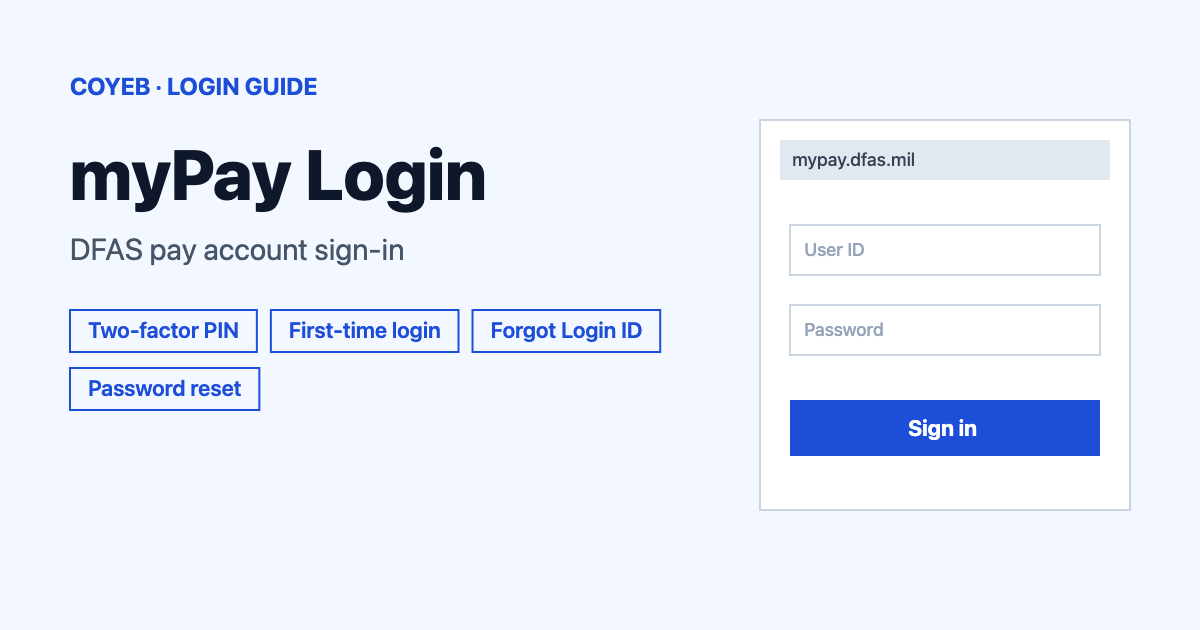
The mypay login is at mypay.dfas.mil. Enter your Login ID and password, then the one-time PIN that DFAS sends by email or text or that your authenticator app shows. The catch most people miss: only the newest PIN works, so start the login again if a PIN is late or expired.
Last verified: 17 November 2026
Official myPay address (checked November 2026): https://mypay.dfas.mil/
coyeb.com is not affiliated with DFAS or myPay. Never share your password or OTP with anyone.
What you will see on the myPay home page
- Fields for your Login ID and password.
- A Forgot Login ID link for a lost Login ID.
- A Forgot or Need a Password link for a lost or first password.
- A New User section with a Create Your myPay Profile link.
- A Contact Us link and a System Availability section that lists maintenance periods.
How to use the mypay login
- Type mypay.dfas.mil into your browser yourself. You can also go to dfas.mil and click myPay.
- Enter your Login ID and your password.
- Request the one-time PIN and enter it. DFAS says every login needs this PIN on top of your Login ID and password. It goes to your registered email address or mobile number. If you use an authenticator app you enter the PIN shown in the app instead.
- If you use a CAC or PIV smart card, you are not asked for an extra PIN after the first two-factor setup.
Two-factor authentication is mandatory for all users. You set it up at your first login: pick a contact method (text, email or an authenticator app) and prove it works by entering a PIN. Later you can check or change your methods under Personal Settings, then “Two-Factor Authentication”. DFAS recommends choosing an alternate method too.
First-time login and new accounts
myPay accounts are for active and reserve military members (Army, Air Force, Space Force, Navy and Marine Corps) and JROTC instructors. They are also for civilian employees of DoD and some other agencies, military retirees, future retirees, annuitants and former spouses. Annuitants and former spouses have their own myPay account separate from the retiree.
What to have ready: your Social Security Number and your initial temporary password. DFAS generates this password automatically after your pay is established.
- On the myPay home page find the New User section.
- Select Create Your myPay Profile.
- Enter your Social Security Number and the temporary password.
- Follow the prompts to create your Login ID and a custom password.
After that you sign in with the Login ID and password you created. A retiree can keep using the password from active duty.
If 30 days have passed since you started receiving pay and you have no initial password, select Forgot or Need a Password to request one. For survivor annuitants the April 2025 DFAS newsletter says the password is mailed to the address DFAS has on file and domestic mail takes about 10 business days.
Forgot Login ID
- Select the Forgot Login ID link on the home page.
- Enter your Social Security Number and your password to see your Login ID.
- If you do not know your password, enter your Social Security Number and your registered email address instead. The Login ID is emailed to you.
A Login ID is 6 to 129 characters long. It can have letters, numbers and certain special characters.
Forgot password
- Select Forgot or Need a Password on the home page.
- Fill in any two of the three sections: Login ID, Social Security Number or registered email address.
- If you set up security questions they are shown to you. Answer them correctly to create your own new password.
- If you cannot answer them, choose a method to get a temporary password: government or agency email, text message or mail.
myPay only sends a temporary password to contact methods registered in advance. If your details are out of date, call the Customer Care Center to update them. A temporary password lets you log in and reactivate your account.
Password rules and temporary passwords
- A password has 9 to 30 characters with at least one uppercase letter, one lowercase letter, one number and one of these symbols: # @ $ ^ ! * + = _ %
- It cannot have spaces and cannot match one of your 5 previous passwords.
- It expires after 150 days.
- A temporary password has 9 characters and is case sensitive: one uppercase letter, one lowercase letter, one symbol and six numbers (example format: Aa@123456).
If a temporary password sent by text fails, check that no character is missing. Some messaging apps or carriers remove the symbol or change the formatting. Type it exactly as sent and avoid copy and paste. You can also try another messaging app or request a new temporary password by government email or mail.
One-time PIN not received or not working
- Email PIN missing: check your junk or spam folder first. Then ask your email provider about delivery problems. Add dfas-smartdocs@mail.mil to your safe senders list.
- Text PIN missing: check your signal and add 57951 to your phone contacts. Look in spam or blocked texts and make sure your carrier does not block that number. Confirm you have not turned off texts under Turn On/Off Alert Settings in Personal Settings.
- PIN rejected: only the most recent PIN works. Begin the login again to get a new one. If you leave the PIN screen you must also log in again.
- PIN arrived too late: it cannot be used. Begin the login again. Automatic email forwarding between addresses can cause delays.
- Webmail PIN: open a new browser tab or window to read the email.
- Authenticator app PIN: enter it within 30 seconds. If you did not choose time-based when you set it up, remove the app in Personal Settings and set it up again.
Change where your PIN is sent
Open Personal Settings and select Two-Factor Authentication. Review your preferred method there. Your other email addresses and mobile number on record become the alternate methods. Select the Email Address or Mobile Phone option to update them. To remove invalid contact details you can also call a Customer Care agent.
You can add an international mobile number only if your country is listed. If your carrier is not listed, select Other and you can still receive PINs and temporary passwords. If your country is not listed, use email or an authenticator app.
Set up an authenticator app
The app makes a new PIN every 30 seconds and does not depend on a text or email arriving. If you are already enrolled, you can add one yourself:
- Sign in to myPay and open Personal Settings, then “Two-Factor Authentication”.
- Under Authenticator App, click “Set Up”.
- Scan the QR code in your app or type in the secret key. Use the account name “myPay” and choose the time-based option.
- Type the 6-digit code from the app into myPay.
- Choose “Submit and Do Not Make Preferred Method” or “Submit and Make Preferred Method” and then click “Finish”.
Give a family member limited access
A limited access user can view your leave and earnings statement and tax statement but cannot make pay changes. Log in to myPay and select Personal Settings. Choose Limited Access Account from the left menu and create a new Limited Access Login ID and password. That password expires every 150 days. To remove access, select the Delete Your Limited Access Account button on the same page.
Login on mobile
myPay opens from a computer or a mobile device with an internet connection. Use the same address and the same steps. A text PIN needs phone signal. The authenticator app works without one.
Mypay login not working
| What you see | What it means | Fix |
|---|---|---|
| An error that myPay cannot be reached | The address, browser or connection may be at fault or maintenance may be running | Check you typed https://mypay.dfas.mil. Check your connection and use a supported browser. Look at the System Availability section on the home page. |
| A message about your smart card identification when you use a CAC | DFAS lists this as a CAC login error | Close all browser sessions, restart the browser and try the login again. |
| You do not know your Login ID | The Login ID is separate from your password | Use the Forgot Login ID steps above. |
| You cannot sign in with your password | The password is forgotten or needs replacing | Use Forgot or Need a Password to reset it or ask for a temporary password. |
| You cannot answer your security questions | DFAS offers a temporary password as the other route | Request a temporary password by text or mail or government email. |
| No PIN or a PIN that fails | Only the newest PIN works and delivery can be late | Follow the PIN section above. |
DFAS does not publish exact error texts on its help pages, so these fixes follow its help steps and are general suggestions.
After you log in
myPay is available 24/7. You can view, print and save your LES and tax statements and other pay documents. You can also manage tax withholdings and bank account details and change your address.
To switch to paperless statements, log in and select Turn on/off hard copy statements. If you have more than one account (military, retiree or civilian) pick it first with the Select an Account link at the top of the page. Slide the button left for electronic-only delivery or right for hard copy. The pay system takes 3 to 7 business days to apply the change.
Stay safe
- Check the address before you log in. The official site is mypay.dfas.mil (see the DFAS account protection page) with the .mil domain and the “An official website of the United States government” banner.
- Only enter your Social Security Number on mypay.dfas.mil.
- DFAS will never ask for your login ID or password by text, email or phone. It does not call about payroll mistakes or debts.
- DFAS warns that “Real DFAS SmartDocs don’t ask for information and won’t provide active links.” Do not click links in unexpected messages. A link to a site outside myPay and dfas.mil is a warning sign.
- Do not give your myPay login to third-party apps or websites that promise early pay.
- Avoid public computers and public WiFi when you use myPay.
- If you think your account was exposed, call 888-332-7411 right away. Change any revealed passwords and review Account Access History and Pay Changes inside myPay.
Contact and helpline
- Phone: 888-332-7411 or 1-888-DFAS411 (checked November 2026). Choose the option for your group: option 2 for retirees, annuitants and former spouses, option 3 for Army, Navy and Marines, option 4 for civilian employees.
- Other numbers: 317-212-0550 (commercial) and 312-699-0550 (DSN), as listed for the Customer Care Center (checked November 2026). Air Force members call the Total Force Service Center at 800-525-0102 (24/7) or submit a MyFSS ticket.
- Hours: Monday to Friday 8:30 a.m. to 4:30 p.m. ET (checked November 2026).
- Online help: Ask myPay answers technical website questions and takes a support ticket (checked November 2026).
- Customer service page: DFAS Customer Service lists every phone line and its hours (checked November 2026).
Trusted Agents can also help with myPay login and password needs in person.