KW Command Login: Keller Williams Agent Sign-In
KW Command login for Keller Williams agents: sign in at agent.kw.com, handle the security code, reset a password or username and fix common errors.
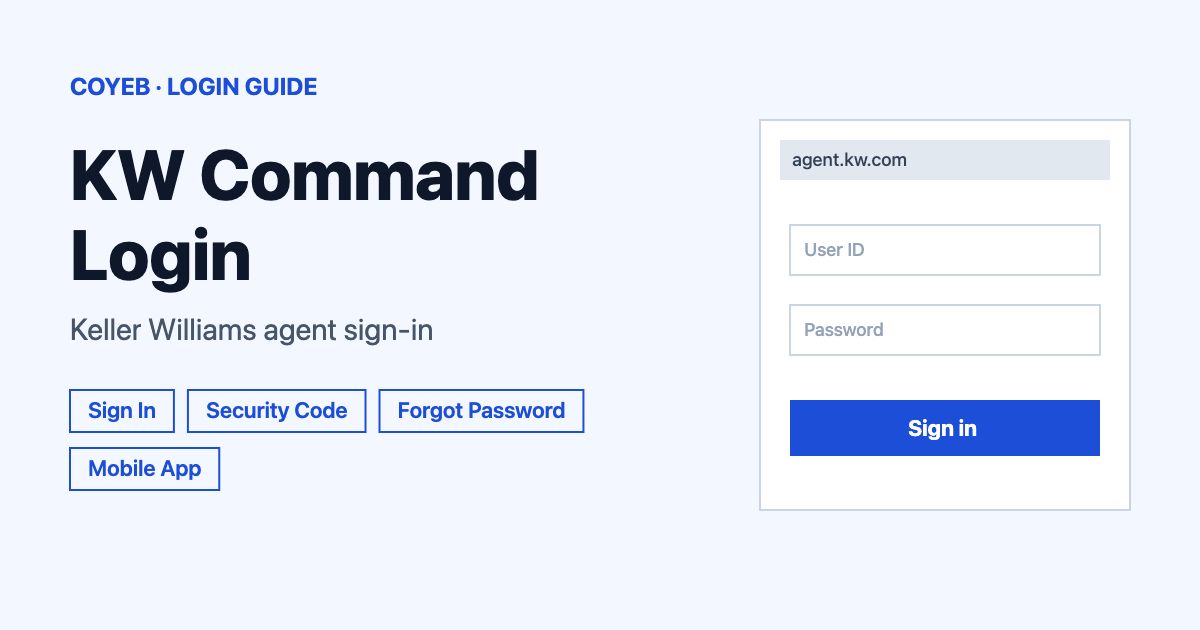
For a KW Command login, go to agent.kw.com, type your KW username in User Name and your password in Password, then click Sign In. KW may then ask for a security code. The catch is that the code goes to your KW Password Recovery Email, so you need access to that inbox.
Last verified: 17 November 2026
Official KW Command login: https://agent.kw.com (checked November 2026)
coyeb.com is not affiliated with Keller Williams. Never share your password or OTP with anyone.
What you will see on the KW Command login page
The Sign In screen has a User Name field and a Password field. Below them are the Sign In button and the Forgot Password button. Keller Williams uses one set of credentials for Command, MyKW and KWConnect.
How to do the KW Command login
The username is not an email address by default. It is usually your first and last name joined together, such as paul.polansky or ppolansky1.
- Open agent.kw.com in your browser. You will see a short “Checking your browser” screen and then the Sign In page.
- Type your KW username in the User Name field.
- Type your password in the Password field.
- Click Sign In.
- If KW asks for a security code, copy it from the email sent to your Password Recovery Email and click Validate.
Once the check is done, you go straight into the Command dashboard.
KW Command login security code
The code is sent to the Password Recovery Email in your KW Profile. The email comes from authn@verify.kw.com with the subject “KW Authentication Code Verification”. Check your spam and trash folders if you cannot see it.
- The code is valid for 15 minutes and it is case sensitive. Copy and paste it.
- If it took longer than 15 minutes, click Resend Code or Need a new code? on the code screen.
- Some code screens show Continue or Confirm instead of Validate.
Command remembers your browser. It asks for a code again when you sign in from a new device or browser or when more than 8 days have passed since your last login. It also asks when 30 days have passed since the last code you entered. In the Command app, the 30-day limit is 6 months.
You can also receive the code by text message or from an authentication app. To set this up, sign in to Command and click your account name at the top right. Choose My Profile and then Account Access and find Two Factor Authentication. Click + Add next to Text Message or Authentication App. The app shows a six digit code that refreshes every 30 seconds.
If you lose your phone or authentication app, click Try Another Way on the code screen and choose another method. Your recovery email is always on that list and cannot be removed.
First-time login to KW Command
There is no separate sign-up screen for Command. You use the KW credentials you already have for MyKW. If you do not know your username, ask your Market Center leadership (MCA, Team Leader, Tech Coordinator, Assistant MCA or Assistant Team Leader) to look you up in White Pages. Leadership can also look up or update your recovery email there. If your profile cannot be found, you must be ACTIVE in WinMORE and your MCA may need to re-save your roles.
Forgot username for KW Command login
- On the Sign In page, click Forgot Password below the Sign In button.
- On the Account Recovery screen, click Trouble With Username? below Send Request.
- On the Username Recovery screen, type your Password Recovery Email in the Email Address field and click Send Request.
- KW sends you an email that shows your username.
Vested Retiree (VR) associates must contact Technical Support to look up a username.
Forgot password for KW Command login
- On the Sign In page, click Forgot Password below the Sign In button. The Account Recovery screen says: “Enter your username to reset your password or unlock your account.”
- Type your KW username in the User Name field and click Send Request.
- Enter the security code sent to your Password Recovery Email and click Validate.
- Enter your new password twice and click Reset.
- Click Return to Login Page and sign in with the new password.
KW Command password rules
A password that does not meet these rules is rejected. Your new password must:
- Be at least 12 characters and under 255
- Contain one uppercase letter
- Contain one lowercase letter
- Contain one number
- Contain one symbol such as ~!@#%$
- Not be the same as or too similar to your last 4 passwords
- Not use common phrases or information
Change your KW username or recovery email
Sign in, click your name at the top right and choose My Profile. Open the Account Access or My KW section and click Edit in the Login Credentials section. Enter the code sent to your current recovery email. Then edit your username or recovery email and click Save Changes.
- A username can have letters (a-z and A-Z) and numbers 0-9. The only special characters allowed are – . _ and @. Spaces are not allowed.
- The recovery email cannot be your @kw.com address. It must be a personal email that no other associate has saved.
- A new recovery email takes effect right away. The next code goes to it.
KW Command login on mobile
The official app is called KW: Command. Search for that name in the Apple App Store or Google Play Store. It uses the same KW credentials as Command.
- Open the app and tap Sign In. The app opens a sign-in page in a browser.
- Enter your KW Username and Password and tap Sign In.
- On the KW Email Verification screen, paste the security code and tap Continue. This screen appears the first time and now and then after that.
To reset a password in the app, tap Forgot Password, enter your KW Username and tap Submit. Paste the security code from your recovery email and enter your new password twice. Then tap Reset.
KW Command login not working
| What you see | What it means | Fix |
|---|---|---|
| There was an error validating the security code | The code was wrong or has expired. | Click Cancel and close the window. Open a new Chrome Incognito window and go to agent.kw.com. Click Forgot Password and request a new code. Do not refresh or click Back. Paste the new code right away. |
| Blank window or a generic error | An old session may be getting in the way. | Log out and close all browsers linked to Command, MyKW or KWConnect on every device (desktop, laptop, phone and tablet). Rebooting may help. Then repeat the steps in a new Chrome Incognito window. If that fails, clear the cache and cookies in regular Chrome or try Firefox or Safari. |
| The code never arrives | The recovery email on your profile may be wrong or you cannot open it. | Check spam and trash. Ask your Market Center leadership to confirm or change your recovery email. |
| Asked for a code again and again | A new browser counts as a new device. | Stay on one browser and one computer where you can. |
| Password does not meet guidelines | The new password breaks the rules listed above. | Change it until it meets the guidelines shown on screen. |
| Profile not found or no access | Your White Pages profile may not show an ACTIVE role. | Ask your Market Center leadership to confirm you are ACTIVE in WinMORE. |
Stay safe
Start at agent.kw.com. The sign-in page itself sits on authn.kw.com and KW support articles live at answers.kw.com. Real code emails come from authn@verify.kw.com. If you receive a code by email or text that you did not ask for, KW recommends resetting your password. Never share your security code.
KW Command help and contact
- Phone: no phone number is listed on the official login help pages (checked November 2026).
- Market Center leadership: contact your MCA for username and recovery email problems (checked November 2026).
- Technical Support: for Vested Retiree associates (checked November 2026).
- Help page: the KW login and password reset article has a Submit a request link at the bottom (checked November 2026).