Mastery Connect Student Login: Access Your Assessments
Mastery Connect student login steps for app.masteryconnect.com and the Test ID page, with teacher password reset, Canvas tips and fixes when sign-in fails.
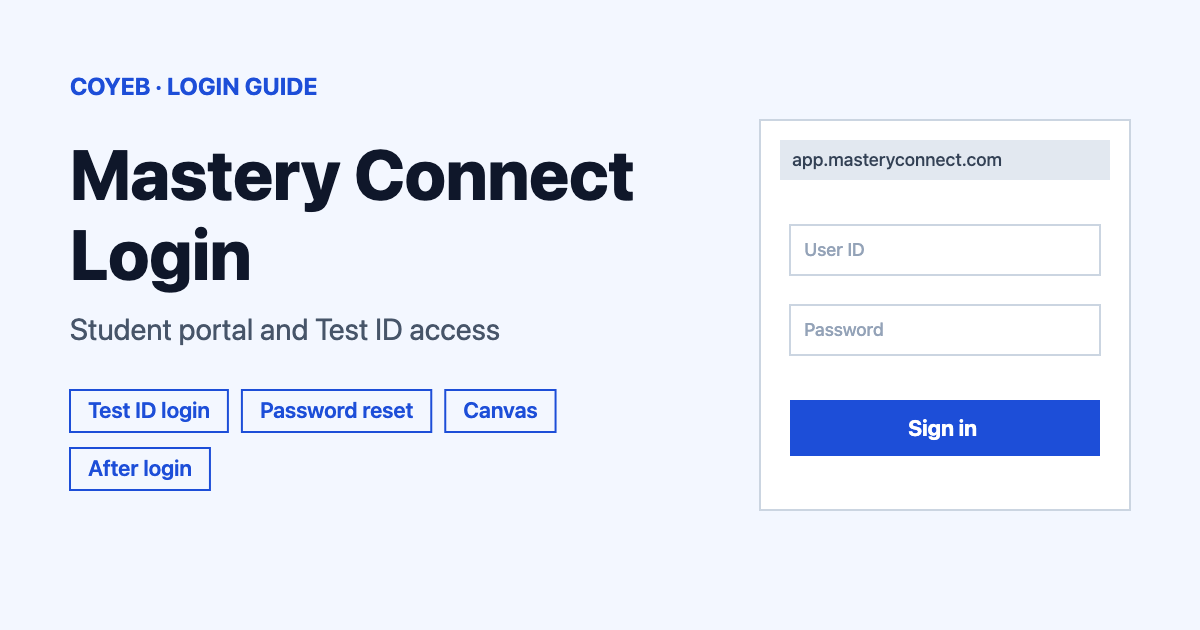
For the mastery connect student login, go to app.masteryconnect.com/login. Type your username or email in Email Address and your password in Password, then click Log In. With only a Test ID from your teacher, use student.masteryconnect.com. The catch: students cannot reset their own password, so ask your teacher.
Last verified: 18 November 2026
Official links: app.masteryconnect.com/login for your account or student.masteryconnect.com for a Test ID.
coyeb.com is not affiliated with Mastery Connect or Instructure. Never share your password or OTP with anyone except your teacher or school.
How to do the Mastery Connect student login
Mastery Connect gives students two ways in. Pick the one your teacher told you to use.
With your username and password
- Go to app.masteryconnect.com. You can also open masteryconnect.com, click Log In and then choose the Mastery Connect link.
- Type your username or email in Email Address.
- Type your password in Password.
- Click Log In.
Students who sign in this way land in the Mastery Connect Student Portal.
With Google, Clever or Classlink
If your school uses one of these, click Log in with Google, Log in with Clever or Log in with Classlink instead of typing a password.
- Google: on the Google page, enter your email address or phone number and click Next. Then enter your password and click Next.
- Clever: search for your school or district and select it. Then enter your Clever username and password and click Log in. Clever sign-in works only when your district has set up Clever Instant Login.
With a Test ID
- Open student.masteryconnect.com.
- Type the code from your teacher or test coordinator in Enter Test ID and click Next.
- Type your student ID in Enter Student ID and click Next. Ask your teacher if you do not know it.
If you are already logged in to the full portal, the same Test ID box and Next button are there. Without a code, pick the assessment from your list and click Start Assessment.
First-time login
Students do not sign up on their own. Your school activates the account. Your teacher can send an activation email to the email address on your account. Your teacher can also give you a username and a temporary password. Once you activate the account you change the password. Your teacher can no longer see it. If your first login fails, ask your teacher whether your account is activated. If your school uses Google, Clever or Classlink, start from that button instead.
Forgot your Mastery Connect student login password
Students cannot fix this alone. Tell your teacher. The teacher enters a temporary password of at least eight characters for you. This works only after your account was activated. If it was not activated yet, the teacher sends activation details instead. The teacher can reset a password only when the school or district system is connected to Mastery Connect.
The Forgot password? link on the login page is for accounts that reset by email. Instructure writes these steps for staff. Type your email in Email Address and click Next. Open the email with the subject “Forgot Password” and click Reset Password. Then fill in New Password and Confirm Password and click Save Changes. See the official reset article (checked November 2026).
Forgot your Mastery Connect username
Ask your teacher. Teachers can print a student’s username and password to hand out for first-time activation.
Test ID expired or not accepted
A Test ID stops working after its expiry. By default it expires seven days after it was set at 12:00 PM in the time zone of your district. A teacher can choose another date or time. If the code is expired or empty the teacher can generate a new one. Ask your teacher for the new code.
Mastery Connect student login in Canvas and the Canvas Student app
You must be signed in to Mastery Connect to take a Mastery Connect assignment from Canvas.
- Sign in to Canvas.
- Click Mastery in the Global Navigation menu. Or click Courses and your course name (choose All Courses first if it is not listed). Then click Assignments and the assignment name.
- For a standard assignment, complete it in Canvas and click Submit Answers. A raw score assignment shows a blank page.
In the Canvas Student app, tap Launch External Tool, take the assessment in the Mastery Connect student portal and tap Done. This submits it and returns you to the Canvas app.
Mastery Connect student login not working
Instructure does not publish exact error messages for this login, so these are general suggestions.
| What you see | What it means | Fix |
|---|---|---|
| Username or password is rejected | Wrong details or an account that is not activated | Check spelling and capital letters. Ask your teacher to confirm the account is activated or to reset your password. |
| Google, Clever or Classlink button does nothing | Browser or school sign-in problem | Restart your device and try again. Use a private or incognito window or another browser. |
| Test ID is not accepted | The code may be mistyped or expired | Ask your teacher for the code again. You can also find the assessment in your list and click Start Assessment. |
| Page is slow or questions appear out of order | Browser cache or cookies | Restart your device and clear cache and cookies. If it still happens in a second browser, contact your teacher or Mastery Connect support. |
After you log in
Take an assessment
- Enter the Test ID and click Next, or click Start Assessment.
- Answer each question. On a bubble-style test click the bubble for your answer (it turns shaded when saved) and use the Forward and Back arrows to move.
- Click Pause if you need to log out. It saves your work.
- Click Finished, then Submit My Answers. Click Go Back to return to the test instead. After you submit you cannot reopen it.
- A scoring window or a green checkmark window appears. Click Done to close it.
Check your classes and progress
- Open the Classes drop-down and click a class.
- Click Assessments or Progress.
Download a progress report
- Click the Progress Reports tab.
- Find the term and click Download Progress Report.
To change your profile settings, click your username and then Profile Settings. Click Save Changes when you finish.
Stay safe
Check that the address ends in masteryconnect.com before you type anything, or that you are on your school’s own Google, Clever or Classlink page. Never share your password with classmates. If a message asks for your password, tell your teacher.
Help
- Teacher: ask first. Teachers activate accounts and reset student passwords.
- Phone: Instructure lists no student phone number (checked November 2026).
- Help page: the Help link on the login page opens the Mastery help community (checked November 2026).
Need another school sign-in? See the K12 Login for Online School (OLS) Students and Parents guide.