Shutterfly Login: Sign In and Find Your Photos
Shutterfly login at accounts.shutterfly.com: sign in with email, code or Google, reset a forgotten password and fix sign-in problems on phone or web.
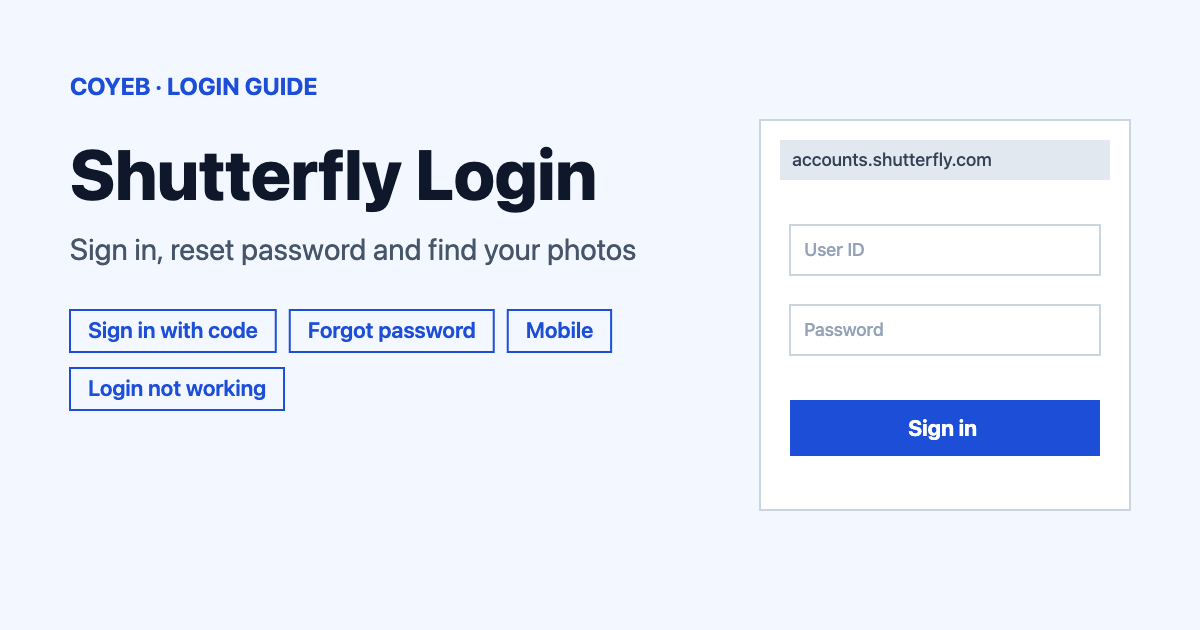
For the Shutterfly login, go to accounts.shutterfly.com, type your Email address and Password and click Sign in. If you use Google, the email on your Google account must match your Shutterfly email. Otherwise you land in a new, empty account without your photos.
Last verified: 18 November 2026
Official sign-in page: https://accounts.shutterfly.com/ (checked November 2026)
coyeb.com is not affiliated with Shutterfly. Never share your password or OTP with anyone.
What you will see on the Shutterfly login page
The page is called Sign into your account. It has these items:
- Email address and Password fields
- A Forgot password? link
- A Sign in with code link
- A Keep me signed in box
- Apple, Facebook, Google and Amazon buttons under Or continue with
- A Sign up link for new customers
How to do the Shutterfly login
- Open the Shutterfly homepage, click Sign in at the top right, then click Sign In. Or go straight to the sign-in page above.
- Under Sign into your account, type your Email address and Password.
- Tick Keep me signed in only on your own device. Sensitive areas such as Billing Information still ask you to sign in.
- Click Sign in.
Shutterfly sign in with a one-time passcode
Click Sign in with code under the password field. The screen Sign in with a one-time passcode opens. Enter your Email address and click Continue. Shutterfly sends a one-time passcode to that email address.
Some Shutterfly help pages describe a similar option as Use Email Instead, where you click the Sign In button in the email you receive.
Shutterfly sign in with Google, Apple, Facebook or Amazon
Use the button for the method you picked when you made the account.
- Click Google on the sign-in page.
- Select your Google account or choose Use another account and enter your email or phone number.
- Enter your Google password and click Next.
The email on the Google account has to match the email on your Shutterfly account. If it does not, you land in a new, separate account without your saved photos or projects.
To stop using Google, sign in to Shutterfly, click your name and then Account & Settings. Scroll to Linked Accounts, click Unlink Google account and then Unlink & sign out.
New to Shutterfly: create an account
Click Sign in and then Sign Up at the top of any Shutterfly page. You can also open accounts.shutterfly.com/signup. On the Create an account screen, enter your First name, Last name, Email address and Password, then click Sign up. A Welcome page opens when the account is ready. New users get offers and promotions by email and mail.
You can also sign up with Apple, Facebook, Google or Amazon. For Google, click Sign in then Sign Up, click the Google icon, choose your Google account and confirm.
Keep one account for yourself. Shutterfly says accounts are for individual use and cannot be merged. To combine two accounts, download the photos from one and upload them to the other. Corporate accounts are not available.
Forgot your Shutterfly login password
Shutterfly signs you in with your email address, so there is no separate username to recover. Open the Forgot your password? screen from the Forgot password? link on the sign-in page.
- Enter your Email address and click Send. Shutterfly sends you a link to create a new password. It goes only to the email registered to your account.
- Click Return to sign in.
- Open the email and click Reset Password. Look in Spam or Junk if you cannot find it.
- Type the new password twice and click Reset Password, then sign in with it.
The new password needs at least 8 characters, with upper and lowercase letters, a number and a special character. Avoid simple dictionary words and sequences. Do not make it the same as your email address. Your old password keeps working until you reset it. Passwords are case sensitive.
The screen also has a Use Another Method button. If you gave friends or family access to your account, ask them whether they changed any account details.
If you signed up through Facebook, reset the password through Facebook. If you no longer have the email you registered with, you need to contact Shutterfly Customer Care.
Shutterfly reset email not arriving
If nothing arrives after 60 minutes, check Spam or Junk and add customersupport@service.shutterfly.com to your allowed senders. Make sure you used the registered address. An older Shutterfly email in your inbox can confirm which address that is. Your email provider can also cause delays.
Change the email address on your Shutterfly account
Sign in on the website, click your name at the top and choose Account & Settings. Changing your email, password, mobile number or account recovery email needs your current password.
Each email address can be linked to only one account. If the new address is already taken, sign in to that other account and change its email first. Use your existing account for this instead of making a new one.
Shutterfly login on your phone
You can use the official Shutterfly app from the App Store or Google Play. Shutterfly notes that you cannot log in to the iPhone app with Google. You cannot use Apple on Android. If you signed up with one of those, use your email and password or open the sign-in page in your phone browser instead.
To reset a password in the app, tap Forgot Password, enter your email address and tap Send Reset Email. Then open the link in the email. The app does not support account updates, so use a mobile browser such as Chrome or Safari to change account details.
If the app will not load, switch between Wi-Fi and mobile data. Then force close and reopen the app, restart your device and check for updates. Clearing the app cache and data or restarting your router can also help.
Shutterfly login not working
The fixes below are general suggestions based on Shutterfly’s help pages.
| What you see | What it means | Fix |
|---|---|---|
| Account Already Exists | The email was used to sign up before, another customer mistyped a similar address, or an email provider reused an old address. | Use the Forgot password steps above. |
| Password not accepted | Wrong email, wrong capital letters or a space before or after the email. | Try other email addresses you use, check upper and lowercase and remove extra spaces. |
| Page keeps reloading or asking again | Old cookies or internet filtering software (Shutterfly names Norton and BlackIce) can get in the way. | Clear your cache and cookies, or try turning the filtering software off. |
| reCAPTCHA problem | The characters were not entered as shown. | Type them exactly as displayed. They are case sensitive. |
| Signed in with Google but your photos are missing | The Google email does not match your Shutterfly email. | Sign in with the email and password of the original account. |
After you log in
Check an order. Open Order Status, which goes to the orders tab in your account settings.
Update your details. Open Account & Settings to change account information. Linked sign-in methods such as Google appear under Linked Accounts.
Stay safe
Before you type your password, check that the address starts with accounts.shutterfly.com or shutterfly.com. Do not share your login details. Shutterfly says others could see your saved card details and place orders. Use the Share images or Share Projects features instead.
Shutterfly helpline
- Phone: (877) 846-5515, best for project creation, photo book design and personalization (checked November 2026)
- Hours: weekdays 6:00 am to 7:00 pm PST and weekends 7:00 am to 4:00 pm PST (checked November 2026)
- Chat: available 24/7, best for order status, promotions, general questions and order issues (checked November 2026)
- Help page: Shutterfly Help Center (checked November 2026)