PSIT Login: ERP Student and Parent Portal Guide
PSIT login for students and parents at erp.psit.ac.in: User ID / Roll Number sign-in, expired password reset with captcha and parent login steps.
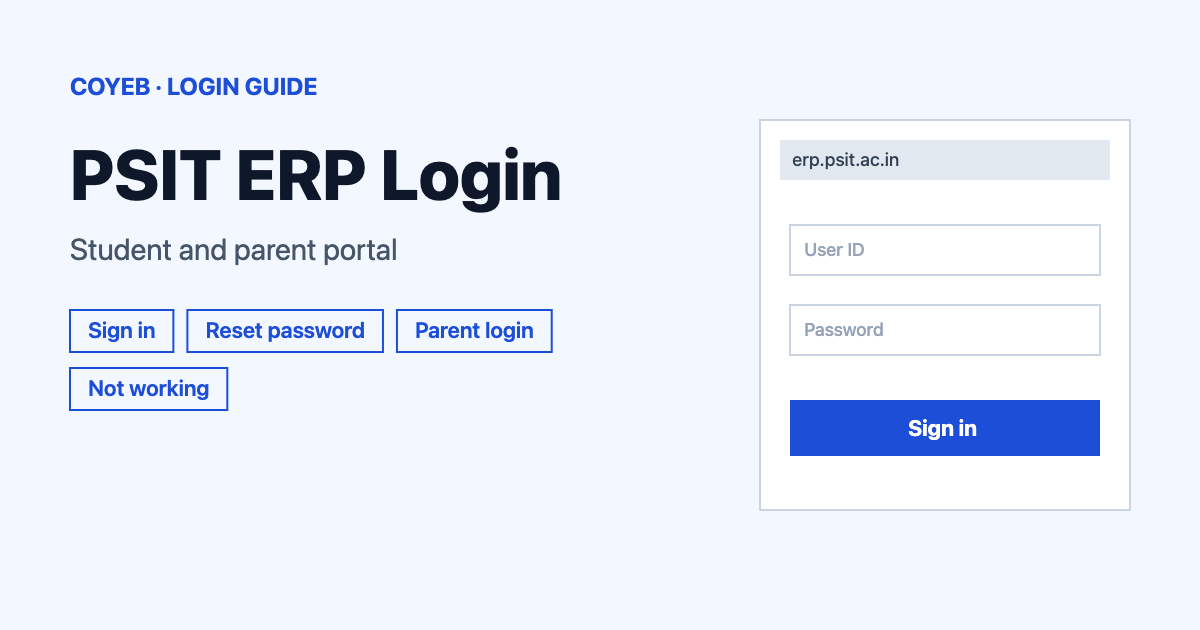
The PSIT login for students is on one page: erp.psit.ac.in. Open it, type your User ID / Roll Number and your password, then press Sign in. If the password has expired or is forgotten, use the Forgot/ Change Password link under the form and reset it with your registered mobile number.
Last verified: 18 November 2026
Official PSIT ERP login address: https://erp.psit.ac.in/ (checked November 2026)
coyeb.com is not affiliated with Pranveer Singh Institute of Technology (PSIT). Never share your password or captcha with anyone.
How to do the PSIT login
The login page is headed with the PSIT name and “Kanpur” underneath, followed by “Pranveer Singh Institute of Technology”. There is a single form for everyone, so you do not pick a user type first. Here is the full path for a student.
- Open erp.psit.ac.in in your browser.
- In the box labelled User ID / Roll Number, type your User ID or your roll number.
- In the box labelled Password, type your ERP password.
- Press the Sign in button.
If the page shows the line “All user passwords have expired. Please change your password to continue to your account.” you need to change your password before you can continue. Press the Click Here link in that notice (it opens the same page as Forgot/ Change Password) and set a new one first. The steps are in the next sections.
First-time PSIT ERP login and new registration
Under the Sign in button there are three links: Forgot/ Change Password, Create New User ( New Registration ) and Create Parent Login. All three open one page, https://erp.psit.ac.in/Erp/ForgetPassword, so a new user does not get a separate sign-up form. That page is headed “Welcome to PSIT Kanpur” and has a section called “Forgot & Change” with the text “Change or reset your password”.
The page asks for your User-ID / Student-ID / Roll Number and your registered mobile number and its button reads Reset / Create Password, so the same form is used to create a first password. The college does not list any extra steps for new users on these pages.
Parent login for PSIT ERP
Parents start from the Create Parent Login link. It leads to the same reset page. The second field there accepts a Parent Mobile Number as well as the student’s registered number. The first field asks for the User-ID / Student-ID / Roll Number.
The “Remember Password Click here to login.” link takes you back to the sign-in page. The college does not publish any extra parent steps on these pages. You can try asking the college office if the parent mobile number is not accepted.
Forgot or expired password on the PSIT login
- On the login page press Forgot/ Change Password (or the Click Here link in the expired-password notice).
- Type your User-ID / Student-ID / Roll Number.
- Type your Registered Mobile Number / Parent Mobile Number.
- Read the Captcha image and type it in. The small refresh icon next to it loads a new image if you cannot read it.
- Press Reset / Create Password. Pressing it means you accept the Terms and have read the Data Policy, including Cookie Use, as the page says.
- Use “Remember Password Click here to login.” to return to the sign-in page.
The page asks for a mobile number and a captcha only. It does not show an email field, so the reset does not start from an email address. As a suggestion, use the mobile number registered with the college or your parent’s number, since the page asks for one of those.
PSIT login on mobile
The login and reset pages do not point to any PSIT ERP mobile app. On a phone you simply open erp.psit.ac.in in your mobile browser and follow the same steps as above. Type the address yourself rather than tapping a link from a message.
PSIT login not working
The public pages show no error codes beyond the expired-password notice. The other rows below are general suggestions only and are not official messages.
| What you see | What it means | Fix |
|---|---|---|
| “All user passwords have expired. Please change your password to continue to your account. Click Here.” | The old password is no longer accepted. | Press Click Here or Forgot/ Change Password and set a new password with your roll number and registered mobile number. |
| Sign in does not accept your User ID | The ID may not match the format the college gave you. | Use the roll number exactly as the college issued it in the User ID / Roll Number box. |
| Captcha is not readable or not accepted | The image may be unclear or may have timed out. | Press the refresh icon beside the captcha and type the new image. |
| Mobile number is not accepted on the reset page | It may differ from the number the college holds. | Try the registered mobile number or the parent mobile number. If both fail, ask the college office to check the record. |
| Page does not load or looks wrong | You may be on a different address. | Type erp.psit.ac.in again by hand and check the spelling. |
Stay safe on the PSIT ERP login
The address used in this guide is erp.psit.ac.in. Check it in the address bar before you type a password. The pages say that access is limited to the institute management, faculty and students only. Visitors are sent to psit.ac.in for information about the institute.
As a safe habit you can avoid any other site that asks for your PSIT ERP password, including sites that call themselves unofficial ERP tools. Never share your password or captcha.
For other PSIT campuses such as the College of Higher Education or the pharmacy school, ask your college for the address that applies to you, because this guide covers erp.psit.ac.in only. No helpline number is shown on the ERP pages or the main site, so you can ask the college office or a faculty member if you are stuck (checked November 2026).
Looking at a login guide for another college? See the Brainware University login guide.