RUAS Portal Login: Ramaiah University Student Access
RUAS portal login explained: the sign-in page at msruas.online, the Email address and Password fields, Forgot password steps and what to do during maintenance.
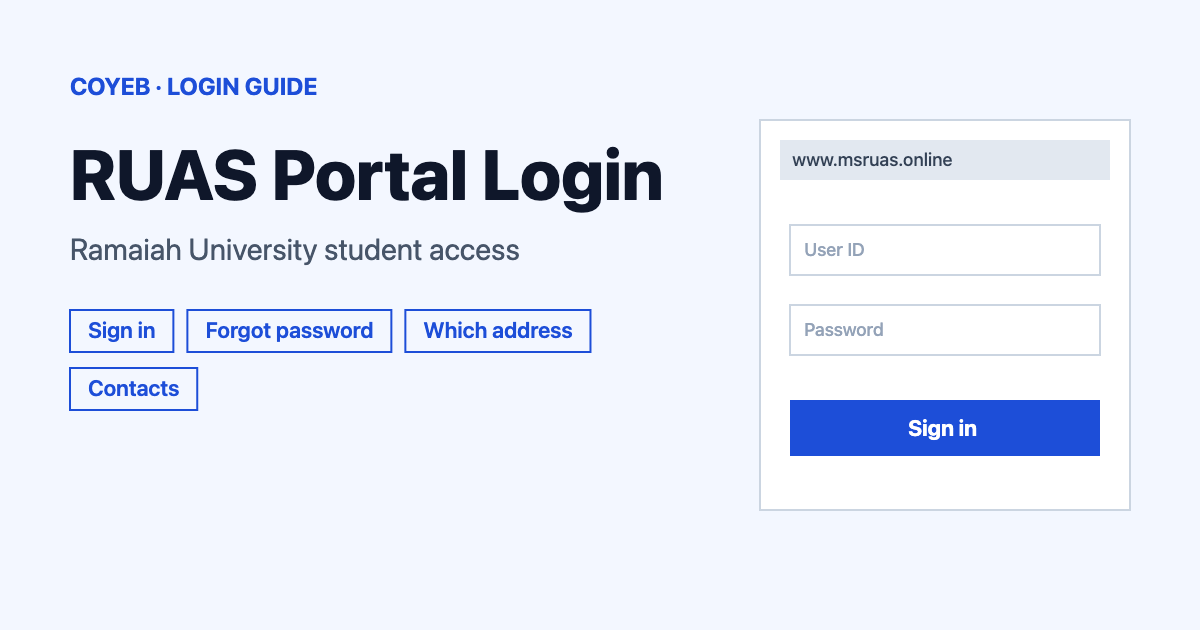
The RUAS portal login page is at www.msruas.online. Open it, type your email address and password in the two fields, then select Sign in. If the password does not work, use the Forgot password? link on the same page and enter your email address to recover it by email.
Last verified: 18 November 2026
Official sign-in page: www.msruas.online/Account/Login (checked November 2026)
coyeb.com is not affiliated with Ramaiah University of Applied Sciences. Never share your password or OTP with anyone.
How to Use the RUAS Portal Login
The sign-in page opens on the address /Account/Login and carries the Ramaiah University of Applied Sciences logo. Its heading is “Sign in”. There is one form for everyone, so the page does not ask you to pick a student or staff option. It also shows no OTP box and no CAPTCHA field.
- Open www.msruas.online in your browser.
- Type your email address in the box labelled Email address. Because the box asks for an email address, use that rather than a student ID.
- Type your password in the box labelled Password.
- Select the Sign in button.
At the bottom of the page the footer reads “© Ramaiah University Of Applied Sciences 2023-24” with a “Powered By” Upswing logo. The footer year is simply what the page shows.
Which Address Is the Real RUAS Portal Login
Two addresses cause most of the confusion. The sign-in page Google lists for RUAS is www.msruas.online. The university’s main website is www.msruas.ac.in. Its top menu has a link called “RUAS-Portal” that points to ruasportal.msruas.ac.in/login.htm. The same link is also used for “Alumni”. The main-site pages read in November 2026 do not mention msruas.online, so the two addresses are not shown as connected on the university website.
The main site also has a separate admissions link called “Apply/Login Now” that goes to admissions.msruas.ac.in. That one is for applying to the university and is not the same as the sign-in page above.
Forgot Your Password
Under the Sign in button there is a link labelled “Forgot password?”. It opens a page headed “Forgot Password” at /Account/ForgotPassword. The page says: “Seems you forgot your password. Please enter your email and recover your password by email.”
- Select Forgot password? below the Sign in button.
- Enter the email address linked to your account.
- Select Reset My Password.
- Check that mailbox for the message. You can also look in the spam folder if it does not show up.
The page does not say what the email contains or how long it takes to arrive. Waiting a little and trying again is a reasonable first step.
RUAS Portal Login Not Working
Only one real message was seen on the official pages. It appeared on the RUAS-Portal link from the main site. The other rows are general suggestions and not official error texts.
| What you see | What it means | Fix |
|---|---|---|
| “Site is temporarily unavailable. Server maintenance is currently in progress. Please check back after some time.” | The RUAS-Portal address (ruasportal.msruas.ac.in) showed this on 18 November 2026. The msruas.online sign-in loaded normally the same day. | Wait and try again later. You can also try the sign-in page at www.msruas.online. |
| The password is not accepted | The email address or password may have a typing mistake. | Check the email address spelling and the password. If it still fails, use Forgot password? and Reset My Password. |
| The page does not load | This can be a browser or network problem. | Check that the address bar shows msruas.online. Then try another browser or another network. |
| The reset email does not arrive | The email address entered may differ from the one on the account. | Look in the spam folder and try again with the correct address. If it still does not arrive, contact the registrar office. |
Using the Sign-In Page on a Phone
No official RUAS app was found on the pages read in November 2026. The sign-in page is a website, so a phone browser is the route to use. Check the address bar before typing anything.
What the University Says About Its Systems
The university’s ICT page says campus applications are integrated with Office 365 for single sign-on (SSO). It also says the centralized ERP application has an automated online fee payment system. That page is undated and does not say these systems use the msruas.online sign-in. It also does not describe what appears after you sign in.
Stay Safe on the RUAS Portal Login
Before typing a password, check that the address bar shows msruas.online for the sign-in page or msruas.ac.in for the main website. No officially reported fake RUAS sites were found. Never share your password with anyone. If a message or website asks for it in an unusual way, you can tell the registrar office.
Contact Numbers
No IT helpdesk number was found on the pages read. These are general university contacts (checked November 2026):
- Registrar office: 080 4536 6666 or office.reg@msruas.ac.in
- Admissions: +91 80 1000 4444 or admissions@msruas.ac.in
- Technology Campus (Peenya): 080 4906 5555
These are general lines and not a dedicated sign-in helpdesk. The registrar office is the most sensible place to start with an account problem. Another university sign-in is covered in the Brainware University Login guide.