apna Employer Login: Post Jobs and Find Candidates
apna employer login at employer.apna.co: sign in with a mobile number and OTP or Enterprise email, fix OTP problems, post jobs and reach apna support.
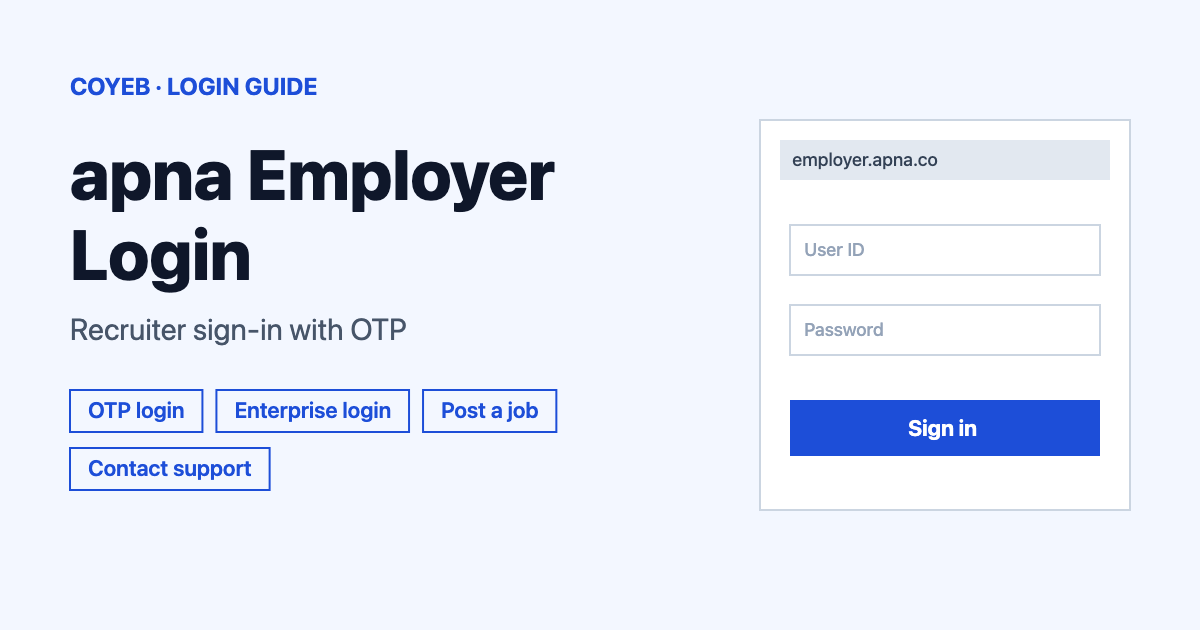
The apna employer login is at employer.apna.co/signin. Type your registered number in Mobile number, tap Send OTP and enter the OTP you receive. There is no password box on this screen. Company accounts use Click here for Enterprise login with a work email once an admin has added you.
Last verified: 18 November 2026
Official link: https://employer.apna.co/signin/ (checked November 2026)
coyeb.com is not affiliated with apna. Never share your password or OTP with anyone.
Which apna employer login do you need
| You are | Where to sign in | What you type |
|---|---|---|
| A recruiter or small business | employer.apna.co/signin | Your registered mobile number, then the OTP |
| A team member of a large company with an Enterprise account | employer.apna.co/enterprise/signin | Your Enterprise email address |
What you will see on the apna employer login page
- Mobile number field with +91 already filled in plus a Send OTP button.
- Click here for Enterprise login below it, which opens the work email screen.
- Looking for a job? link at the top for job seekers.
How to do the apna employer login
- Open employer.apna.co/signin in your phone or computer browser.
- Type your number in the Mobile number field. The +91 code is already there.
- Tap Send OTP.
- Enter the OTP you receive to finish signing in.
Enterprise login for company accounts
Select Click here for Enterprise login on the sign-in page. The next screen is called Sign in with your Enterprise email. The Help centre says an admin must add you to the Enterprise account first. After that you can sign in with your email address and password or with your phone number if you signed up using your email.
- Type your work address in the Enterprise Email field.
- Tap Continue and follow the steps that appear.
- To use your phone instead, tap Continue with mobile to go back to the OTP screen.
Next to Want to register your Enterprise email? there is a Contact us link. The Help centre describes an Enterprise account as made for large organisations. It says the account management team contacts you after you send your details.
First time on apna as an employer
The Login/Sign up buttons on employer.apna.co open the same Mobile number screen. A new recruiter starts there.
For a company Enterprise account an admin invites each member. The Help centre explains that “An invitation email allows users to sign up for the Enterprise account.” Check your work inbox for that email before you try the Enterprise screen.
Apna login for job seekers is a different page
People often search for apna login, apna job login or apna recruiter login and end up in the wrong place. This page is only for employers and recruiters. If you want a job rather than to hire, tap the Looking for a job? link at the top of the page. The Help centre points job seekers to a separate app called Apna for Candidates on Google Play.
You cannot sign in to another recruiter’s account
The Help centre says accessing another recruiter or team member’s account is not possible. To see applicants, ask that recruiter to download the file and share it with you. To see all activity, ask apna about an Enterprise account.
Enterprise and personal workspaces
After you sign in to an Enterprise account you can switch between Enterprise workspaces and personal workspaces. From a non-enterprise account you can only post jobs for companies that are not registered as an Enterprise account.
Apna employer login on mobile
You can sign in from any phone browser at the same address. There is also an Android app called Apna Recruiter app – post job from APNATIME TECH PRIVATE LIMITED (checked November 2026). Its store page lists these features:
- Post or repost a job in under two minutes with optional AI job description templates.
- A candidate database with profile verification.
- Real-time notifications plus calling, chat and WhatsApp contact with applicants.
- Applicants sorted into matched and non-matched profiles.
Apna employer login not working
The official pages do not list error messages for this sign-in, so the fixes below are general suggestions. Since sign-in depends on a one-time code, most problems come down to the phone number or the code.
| What you see | What it means | Fix |
|---|---|---|
| No OTP arrives | The SMS may be delayed or sent to a different number | Check the number has no typo, wait a minute and tap Send OTP again. Make sure your phone has network signal. |
| OTP does not work | The code may be old or mistyped | Use the newest SMS only and type it again carefully. |
| Enterprise email is not accepted | An admin may not have added you yet | Ask your company admin to add you. You can also tap Contact us on the Enterprise screen or use Continue with mobile. |
| The page looks empty or stuck | The browser may be holding old data | Reload the page or try another browser. |
After you log in
The Help centre gives these steps to post a job with credits. Sign in with your mobile number or company email first.
- Under the Jobs menu click Post a Job. Choose Start with New post to enter every detail yourself or Use a template to get the details pre-filled.
- On the Job Details page choose the job role, department, category and type of job. You can also set the location, compensation, salary range and perks. Click Continue.
- On the Candidate Requirements page choose the minimum education level, total experience, job titles and English level. Under Additional Requirements you can add age, gender, distance, skills, regional language, assets, industry and a job description. Click Continue.
- On the Interviewer information page choose the interviewer details, interview method, interview address and how you want to contact candidates.
- Preview the job. Applicants see these details before they apply.
- Select a plan, agree to the employer code of conduct and click proceed to pay.
If your wallet has too few coins you may be asked to buy more credits.
Stay safe on apna employer login
Only type your number or work email at employer.apna.co. Look at the address bar before you tap Send OTP. Never read an OTP out to a caller, even one who says they are from apna.
Contact and helpline for apna employers
- Phone: apna has no helpline number to call (checked November 2026).
- WhatsApp: +91 87922 01301, 9 am to 7 pm every day (checked November 2026).
- Email: employersupport@apna.co or support@apna.co (checked November 2026).
- Escalations: apna_escalations@apna.co. Write the issue details and your registered phone number. A reply comes within 24 to 48 business hours (checked November 2026).
- Inside the dashboard: sign in, click the Help & Support icon at the bottom left, then choose Chat with us or Chat on WhatsApp (checked November 2026).
- Help pages: apna Help centre and apna contact page (checked November 2026).