ICEGATE Login: Customs Portal Access for IEC Holders
ICEGATE login steps for the 2.0 portal: pick User Type, enter ICEGATE ID, password and mobile OTP, plus Forgot ID/Password help, error fixes and helpdesk.
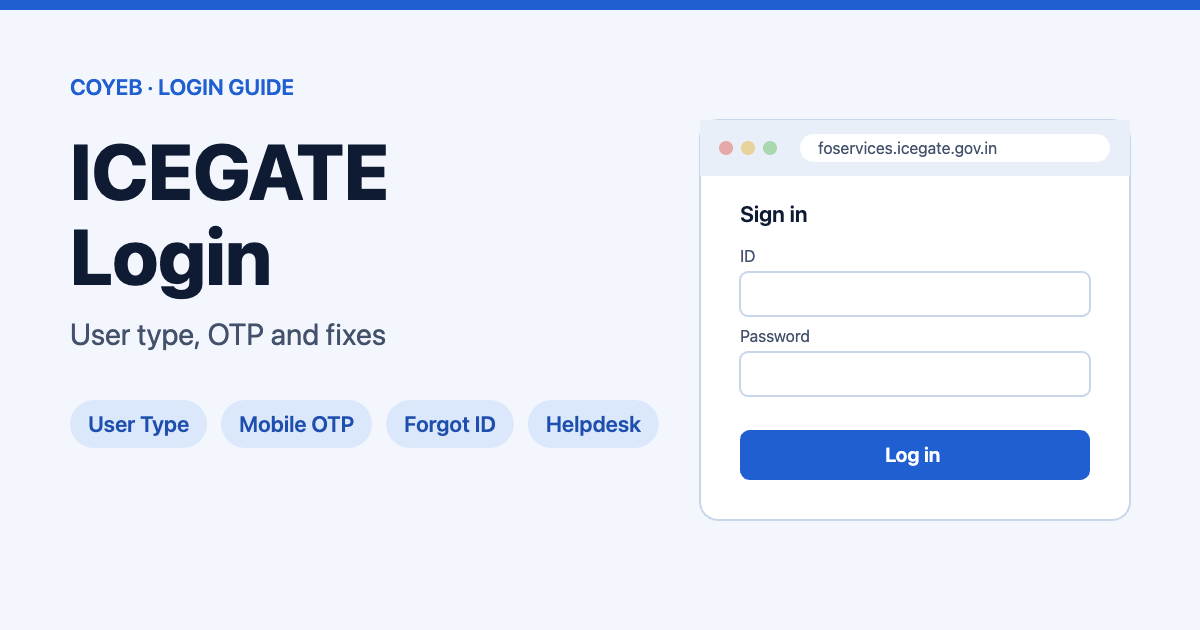
Quick answer: The official ICEGATE 2.0 login page is foservices.icegate.gov.in/#/login, opened from Login / Sign Up on icegate.gov.in. For ICEGATE login, choose User Type → ICEGATE User, enter your ICEGATE ID and Password, click LOGIN, then type the OTP sent to your registered mobile number. Lost your password? Use Forgot ICEGATE ID/ Password? and verify with your mobile or email.
Last verified: 13 November 2026. Portal screens may change; check icegate.gov.in for the latest steps.
Official ICEGATE login page: https://foservices.icegate.gov.in/#/login
coyeb.com is not affiliated with ICEGATE or CBIC. Never share your password or OTP with anyone.
What ICEGATE is and who logs in
ICEGATE is the Indian Customs online portal. The site now calls itself the Indian Customs National Trade Portal 2.0. Its official user manual (Login & Dashboard, version 1.04, dated 16 January 2026) splits users into two groups:
- Officers Only: CBIC officials.
- ICEGATE User: all trade users, including partner government agencies (PGAs).
If you are a business, a broker or an agent, you always pick ICEGATE User. It is already selected when the page opens.
How to log in to ICEGATE (ICEGATE User)
- Go to icegate.gov.in and click Login / Sign Up, or open foservices.icegate.gov.in/#/login directly.
- In the Welcome to ICEGATE box, check that User Type is set to ICEGATE User.
- Type your ID in the ICEGATE ID field (placeholder: “Enter ICEGATE ID”).
- Type your password in Password. Tick Show if you want to check what you typed.
- Click LOGIN.
- Enter the OTP sent to your registered mobile number. The manual says this two-factor step is on by default for ICEGATE Users, and you reach your dashboard only after the OTP is verified.
Want the OTP by email too? After logging in, go to Dashboard → My Profile → Alert Management and tick Email. The mobile OTP stays on and cannot be switched off.
New to ICEGATE? Register first
There is no ICEGATE ID until you register. On the login page, under New to ICEGATE?, click Register Now. The manual says registration is only for ICEGATE Users (not CBIC officers) and that your ICEGATE ID and password are approved when registration is complete. The detailed registration steps are in a separate official user manual.
Forgot ICEGATE ID or password
- On the login page, click Forgot ICEGATE ID/ Password?.
- The Forgot Password page asks: “Enter Your Mobile Number or email used during registration, for verification.”
- Under Verify Using, pick Mobile (with +91) or Email, enter the one you registered with, and click Continue.
- Follow the steps shown on screen. We did not go past this point, because the next screens need a real account.
Some online answers mention an emailed reset link. The official page instead starts the reset by verifying your registered mobile number or email.
Changed your mobile number or email?
The login page also has a Forgot Email/Mobile? link. It opens Update Contact Details, which asks for your ICEGATE ID and then Proceed. The screens after that need a real account, so we can’t describe them. If you get stuck, contact the helpdesk below.
ICEGATE login on mobile
The login page is a web page, so you can try it in a phone browser; we checked it on desktop only. The fields are the same: ICEGATE User → ICEGATE ID → Password → LOGIN → OTP. We found no Android app listed on icegate.gov.in. An iPhone app named “ICEGATE” shows up in search results, but we could not confirm who publishes it, so we don’t link it. Use the website.
ICEGATE login not working? Errors and fixes
| Error message | What it means | Fix |
|---|---|---|
| “OTP verification attempts exceeded, please try again after 1 hour” | You entered a wrong OTP 3 times in a row (user manual). | Wait 1 hour, then try again (user manual). |
| “session expired” (on the e-SANCHIT link) | The session timed out. The FAQ says the session timeout is ideally 10 minutes. | If it times out sooner, the FAQ says to clear browser cache and history and try again. |
| “unauthorized access please login by Icegate” | e-SANCHIT can be accessed only through the ICEGATE website (FAQ). | Log in on the ICEGATE website first, then open e-SANCHIT from there. |
| Invalid digital signature (FAQ wording, while uploading a document) | Your DSC is not registered on ICEGATE, or the document is not signed (FAQ). | The FAQ advises using the same DSC registered at the time of ICEGATE Registration. |
| “This functionality is available post login” | You clicked a service on icegate.gov.in that needs an account. | Click Login, or Register Now if you don’t have an ICEGATE ID. |
Other things you can try (general suggestions, not official ICEGATE steps): check that ICEGATE User is selected and not Officers Only; use Show to check the password; make sure your phone can receive SMS; try another browser or a private window.
After you log in: dashboard widgets
The ICEGATE dashboard is made of widgets, and the ones you see depend on your role. For an Importer/Exporter, the manual lists widgets including Challans Generated, Bill of Entry – Job Status, Shipping Bill – Job Status, IGST Refund, Drawback, License Details and Ticket Management.
The Customs Broker list in the manual also includes My IEC. Need other tax portals? See our TRACES login guide for TDS.
Stay safe
- Log in only on icegate.gov.in addresses. The ICEGATE 2.0 login page is https://foservices.icegate.gov.in/#/login, opened from icegate.gov.in. Check the address bar before you type anything.
- Never share your password or the login OTP with anyone. That includes callers who say they are from customs or from a broker.
- ICEGATE publishes its own helpdesk contacts (below). Phone numbers on third-party guide pages may belong to private agencies or software vendors.
ICEGATE helpdesk
- Toll-free: 1800-3010-1000 (shown on icegate.gov.in as “24×7 Helpdesk”)
- Email: icegatehelpdesk@icegate.gov.in
- Helpdesk numbers for individual customs locations are published in the public notices of each Commissionerate.
Source: icegate.gov.in Contact Information page, checked November 2026.
FAQ
What is the ICEGATE login URL?
The login page is https://foservices.icegate.gov.in/#/login. You can also reach it from the Login / Sign Up button on icegate.gov.in.
Does ICEGATE login need an OTP?
Yes. According to the official user manual, ICEGATE Users verify login with an OTP sent to the registered mobile number by default. You can add email OTP under My Profile → Alert Management.
Which user type should I choose?
Choose ICEGATE User if you are a trade user, for example an importer, exporter or broker. Officers Only is for CBIC officials.
How do I recover my ICEGATE ID or password?
Click Forgot ICEGATE ID/ Password? and verify with the mobile number or email you used when registering, then follow the on-screen steps.
Is the old ICEGATE login still used?
The current site is ICEGATE 2.0 (“Indian Customs National Trade Portal 2.0”). Its Login button opens foservices.icegate.gov.in. The ICEGATE FAQ says a link to the old application is available on the new website.
What is the ICEGATE helpline number?
The toll-free number on icegate.gov.in is 1800-3010-1000, and the helpdesk email is icegatehelpdesk@icegate.gov.in.