Filevine Login: Case Management Access
Filevine login steps for identity.filevine.com: enter your work email, sign in on your organization page, handle MFA codes and fix lockouts and resets.
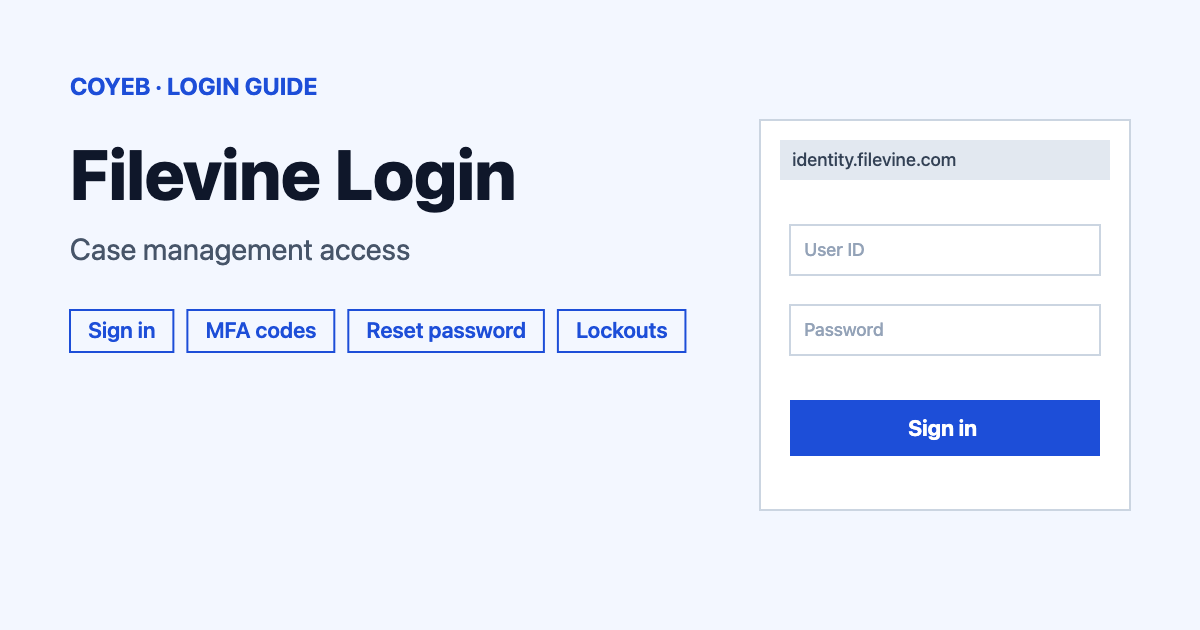
Filevine login starts at identity.filevine.com/discovery. Type your work email into the Email address box and click Continue. Filevine then sends you to your own organization’s sign-in page. Enter your email and password there and click Sign In. If a verification code is requested, enter it quickly because it expires fast.
Last verified: 18 November 2026
Official Filevine login link
The Account Manager login page for the US region is https://identity.filevine.com/discovery. Accounts in the Canadian region use https://identity.filevine.ca/discovery. Filevine’s own help article, checked November 2026, points people to these two pages. The organization address you may have bookmarked looks like sample-law-firm.filevineapp.com, so filevineapp.com is also a genuine Filevine domain.
coyeb.com is not affiliated with Filevine. Never share your password or OTP with anyone.
How to complete the Filevine login
The sign-in happens on two screens. The first one only finds your organization. The second one is where you enter your password.
- Open identity.filevine.com/discovery. The page is titled “Log in | Filevine” and the heading reads “Log in to your account”.
- Type your work email into the Email address field. Tick Keep me logged in only on a device that is yours.
- Click Continue. Filevine’s help article calls this button Sign In, but the live page shows Continue.
- You are taken to a secondary login page for your organization. Enter your email and password and click Sign In.
- If your account asks for it, enter the verification code from your email, text messages or authenticator app.
Your Filevine organization also has its own unique web address. Filevine says it is typically formatted like https://sample-law-firm.filevineapp.com/ and it is worth bookmarking once Filevine is open.
If your organization uses single sign-on
When your administrator has set up single sign-on (SSO), the secondary page offers a second option. Use that option to sign in through your SSO provider instead of typing a Filevine password.
Verification codes and Try another method
Filevine requires multi-factor authentication for all users. The code can arrive by email or text message or come from an authenticator app. Codes only last 20-30 seconds, so open the message and type the code straight away. On a device you trust you can choose Remember this device so the prompt is dismissed temporarily. If the code never reaches you, click Try another method to have it sent somewhere else.
Moving from Account Manager to Filevine
If you land in Account Manager and want your cases, click your profile picture in the top right corner and pick Filevine from the dropdown. Once Filevine is open it is worth bookmarking the page.
First-time Filevine login
New users receive an email from reminders@filevine.com with the subject “Welcome to Filevine”. It contains a temporary password. To get started:
- Click Sign in to Filevine in that email.
- Enter your email address and the temporary password.
- When prompted to change your password click Change Password and set a new one.
- Set up multi-factor authentication. Filevine lists this as required for all users.
If the welcome email never turns up, check your spam folder first. Ask your Account Admin to send a new temporary password. This works like resending the invite.
Forgot password on the Filevine login page
- Click Forgot password? under the Sign In button.
- If you cannot see that link, enter your email and click Sign In to reach the secondary page and then click Reset Password?
- Enter your email and click Send Code.
- Look for an email from reminders@filevine.com with the subject “Your Filevine verification code”.
- On the Change Password page paste the code and enter your new password twice. Click Change Password.
- Go back to the sign-in page and log in with the new password.
When you remember your current password and just want a new one, sign in to Account Manager and open Security. Click Edit and verify your identity. Then fill in the Previous Password field and click Save Password.
Filevine login on mobile
No core Filevine app was confirmed for this guide. On a phone you can try opening identity.filevine.com/discovery in Chrome or Safari and follow the same two screens. It can help to keep the verification code message open in a second app so it is easy to copy before the 20-30 seconds are up.
Filevine login not working
| Error message | What it means | Fix |
|---|---|---|
| Let’s locate your account | Filevine could not match your email to an organization. | Try a different email address. You can also enter your tenant key, which is the first part of your organization web address (for example sample-law-firm) and click Locate Account. The link Sign in with a different email address is also on that screen. |
| Code does not match | The code is old or has expired. | Use the most recent code only. Codes last 20-30 seconds. If several codes arrived check the timestamps. Gmail conversation grouping can hide the newest email. |
| Invalid Token | The reset link has expired. | Start the password reset again to get a fresh link. |
Locked out after wrong passwords
After four incorrect password attempts you are locked out of your Filevine account for 90 seconds. Each further wrong attempt brings a progressively longer lockout. You can wait it out or ask your Account Admin to clear the lockout. A password change is then required.
No verification or invite email
Check spam first. Allowlist reminders@filevine.com in your email system. An email address created after a message was sent is blocked from receiving it. If nothing helps, use Submit a request in the Filevine Help Center.
Lost access to your MFA method
If you changed your phone, click Try another method to receive the code by email. After you are in, update your methods in Account Manager under Security. Email is the automatic backup. Text message and authenticator app (such as Google Authenticator, Authy or Microsoft Authenticator) are the other methods. Your Account Admin can also reset your MFA. If both your MFA method and your email are lost, the Account Admin creates a new user and transfers tasks and cases.
Not sure which email your organization has on file
Your Account Admin can find your email in the Users section of Account Manager.
After you log in
Change your password
- Open Account Manager and go to Security.
- Click Edit and verify your identity.
- Enter your previous password and a new one then click Save Password.
Set up or update MFA
- Go to Account Manager and open Security.
- Pick Email, Text Message or Authenticator App. Standard texting fees can apply to text messages.
- For an authenticator app scan the QR code and then click Verify.
Switch from Account Manager to Filevine
- Click your profile picture in the top right corner.
- Select Filevine from the dropdown.
- Bookmark the page for next time.
Stay safe
Check that the address belongs to filevine.com or filevine.ca or filevineapp.com before typing your password. Filevine’s emails come from reminders@filevine.com. A Filevine verification code is only useful for 20-30 seconds and should never be given to anyone else.
Filevine help and contact
No helpline number or opening hours appeared on the Filevine sign-in pages checked in November 2026. The routes shown there are your Account Admin and the Help Center form at support.filevine.com. The full sign-in walkthrough lives in the Sign In to Filevine help article.