HTTP //likhitha.softmed.in Login for Likhitha SLIMS
http //likhitha.softmed.in login explained: official address, patient login with UMR number, registration, forgot password, error messages and Healthline.
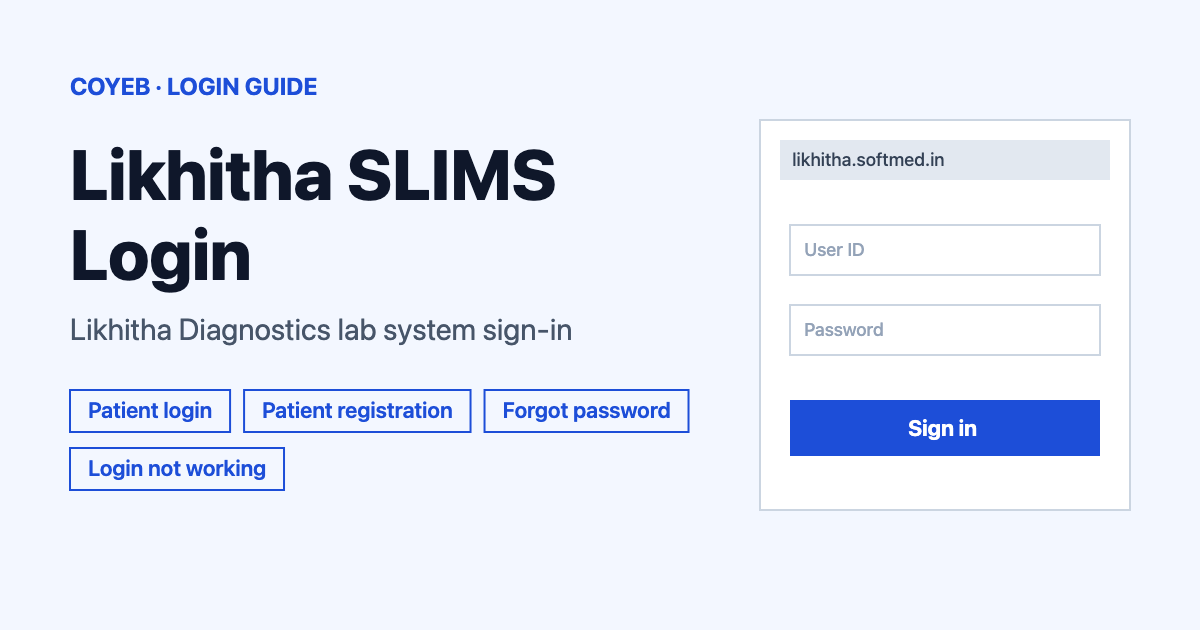
To use http //likhitha.softmed.in login, open https://likhitha.softmed.in/ (the colon after “http” is missing in that spelling) and type your User Name and Password. Patients choose Patient Login and use their UMR number as the user name. Staff use the details the lab gave them.
Last verified: 18 November 2026
Official address (checked November 2026): https://likhitha.softmed.in/
coyeb.com is not affiliated with Likhitha Diagnostics or Suvarna Technosoft. Never share your password or OTP with anyone.
What you will see on the login page
The sign-in box carries the heading Sign in to access to your SLIMS with the boxes User Name and Password, a Remember switch and a Sign In button. The page says: “Please log in using the user name and password which we have provided”. Staff therefore sign in with details issued by the lab. The lab system is called EzHIS by its maker Suvarna Technosoft.
A Patient panel lists Patient Login, Book Appointments, Patient Registration, Patient Forgot Password and Appointment Cancellation. The top bar also names Patient login, Book a test, Phlebotomist App, Ad Hoc Reports and Histopathology. For patient tasks use the Patient panel links.
How to use http //likhitha.softmed.in login
Staff and lab users
- Open https://likhitha.softmed.in/ in your browser.
- Find the heading Sign in to access to your SLIMS.
- Type the user name and password issued by the lab in User Name and Password.
- Switch on Remember only on your own device.
- Select Sign In.
Patients
- Open https://likhitha.softmed.in/ and choose Patient Login in the Patient panel. The patient sign-in page is at https://likhitha.softmed.in/His/Public/View/PatientLogin.aspx.
- Type your UMR number in User Name. The page says: “For Patient Login Enter Your UMR No as User Name”.
- Type your password in Password.
- Select SIGN IN.
Patient registration for first-time login
Patient registration is for patients who already have a UMR number from the lab. Have your UMR number and the mobile number registered with the lab ready.
- On the sign-in page choose Patient Registration. The page is called New Registration for Patients and fields marked with a star are mandatory.
- Enter Patient UMR Number (example: UMR0000001).
- Enter Registered Mobile Number (example: 9988665678).
- Select Continue.
- Enter the verification code sent to your mobile number. The code has 5 characters. Do not type your own mobile number or the number the text message came from in that box.
- Choose a password of at least 6 characters. Do not reuse a password from another site or pick something obvious like a pet’s name. The form also asks you to select a Hint Question and answer it.
The page shows Registration Completed Successfully when registration ends.
If you cannot use your UMR number and mobile number, choose Go for another Process. This form asks for Patient Type (IP or OP) and Patient UMR Number (the page says this is also your Login Id). It also has Consultation No, Admission No and Bill No. Select any one of them and enter its value, then select Check UMR Number to open your details. Value formats shown on the page:
- Consultation No: OCN0000001
- Admission No: IP0000001
- Bill No: OBN0000001 or FBN0000001
The lab issues staff accounts and the page tells staff to contact the lab for help with the EzHIS application.
Forgot password
Patients: choose Patient Forgot Password on the sign-in page or Forgot Password on the patient sign-in page. The Forgot Password page asks for Patient UMR # (example: A1234) and has a Submit button. The patient help note says to use the forgot password link to regenerate your password.
Main sign-in page: the Forgot Password form there has three items: Your User Name, Hint Question (pick one from the drop-down) and Hint Answer. If you cannot complete it, ask the lab for help.
First-time password for patient reports
The patient help note says your first-time password is sent to the mobile number and email ID registered with the lab. You must change it when you first log in. Use the changed password for every later login.
Patient reports not opening
- Use Google Chrome. The help note says reports are best viewed in it.
- Allow pop-ups in your browser so the reports can open.
- Only completed reports can be viewed online.
- ECG, X-ray, Stress test, Sonography and BMD reports must be picked up from the centre.
Login on mobile
On a phone, type https://likhitha.softmed.in/ in your mobile browser. Chrome is recommended for reports and pop-ups must be allowed. The top bar mentions a Phlebotomist App but gives no store link. Ask the lab which app to install before downloading anything.
Login not working
| Error message | What it means | Fix |
|---|---|---|
| Please Enter UserName | The User Name box is empty. | Type your user name. Patients type their UMR number. |
| Please Enter Password | The Password box is empty. | Type your password. |
| UMR Number should not be empty. | The UMR number box is empty on the registration or password reset page. | Type your UMR number (example: UMR0000001). |
| Mobile Number should not be empty. | The registered mobile number box is empty. | Enter the mobile number registered with the lab (example: 9988665678). |
| Verification Code should not be empty. | The code box is empty. | Enter the 5-character code sent to your mobile number. |
| Your Confirm Password is wrong. | The confirm password does not match the password. | Type the same password in both boxes. |
| Select a Question! Answer the Hint Question. |
The hint question or hint answer is missing. | Select a Hint Question and type your answer. |
After you log in
- Book or cancel an appointment: use Book Appointments and Appointment Cancellation in the Patient panel. The patient sign-in page also has Make Appointment and Cancel Appointment.
- View reports: patients can view completed reports online.
- Lab tools: Ad Hoc Reports and Histopathology are listed in the top bar.
Stay safe
Check that the address bar shows likhitha.softmed.in before you type anything. Do not share your password or hint answer with anyone. Never share an OTP or the verification code sent to your phone.
Contact and helpline
- Healthline: 022 27792281 (checked November 2026). The patient help note lists this number. The same note names Suburban Diagnostics, so confirm the number with your lab before relying on it.
- Staff: contact the lab that issued your account (checked November 2026).
- Hours: no opening hours are listed on the pages.