Sreedhar’s CCE Login: Online Student Portal
Sreedhar's CCE login for classroom and online students: sign in at lms.sreedharscce.com, reset a password, register and call or email support.
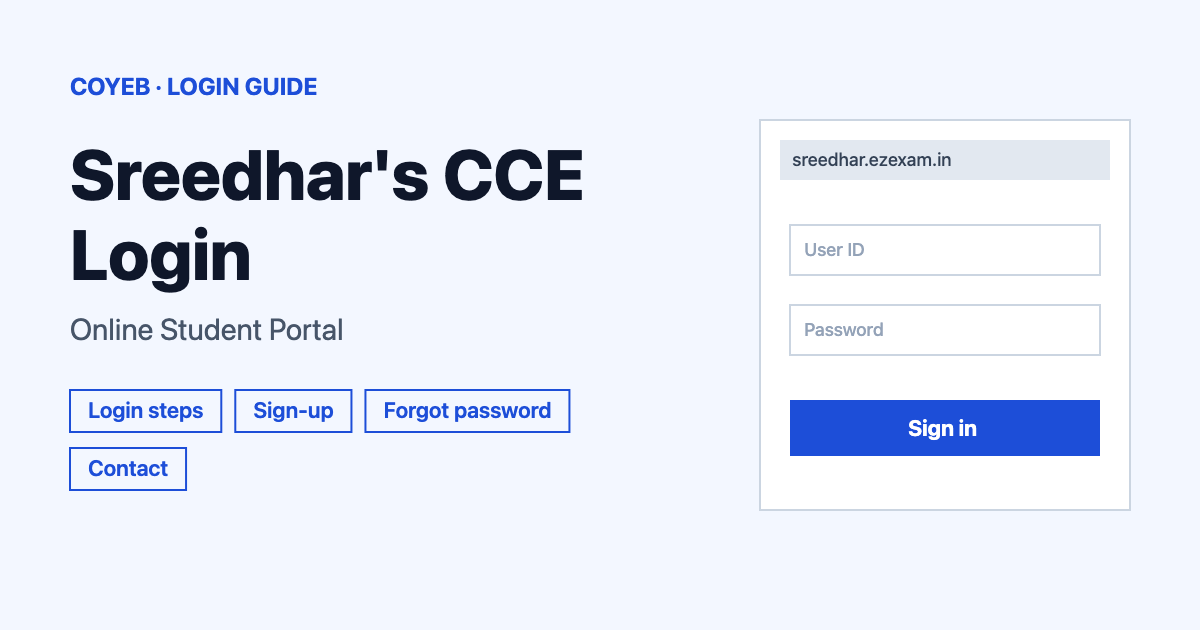
For the Sreedhar’s CCE login, open lms.sreedharscce.com/authenticate, choose Classroom Student or Online Student, then enter your Mobile Number and Password and press Login. The online exam portal uses sreedhar.ezexam.in instead. The catch: classroom students must also choose their branch.
Last verified: 18 November 2026
Official login pages: https://lms.sreedharscce.com/authenticate and https://sreedhar.ezexam.in/ (checked November 2026)
coyeb.com is not affiliated with Sreedhar’s CCE. Never share your password or OTP with anyone.
Which Sreedhar’s CCE login do you need
| You are | Where to sign in | What you type |
|---|---|---|
| Classroom student | lms.sreedharscce.com/authenticate, option Classroom Student | Mobile Number, Password and Select Branch |
| Online student | lms.sreedharscce.com/authenticate, option Online Student | Mobile Number and Password |
| Student taking online exams | sreedhar.ezexam.in | Phone, email or Student ID and Password |
Sreedhar’s CCE login steps
Classroom and online students
- Open
lms.sreedharscce.com/authenticatein your browser. - Under I AM, choose Classroom Student or Online Student.
- Type your number in Mobile Number.
- Type your password in Password.
- Classroom students only: choose your branch under Select Branch. The Online Student form has no branch box.
- Press Login.
- If the page asks for an OTP, enter the 6 digit code sent to your registered mobile number and press Validate OTP.
Online exam portal
The login page is titled “Login – Sreedhar”. It has one sign-in form, so you do not pick a user type. Below the form are the links Sign Up and Forgot Password.
- Open
sreedhar.ezexam.inin your browser. - In the box labelled Phone / Email / Student ID, enter any one of the three.
- In the Password box, enter your password.
- Press Login.
First-time login and sign-up
Online students on lms.sreedharscce.com
Press Register Here under “Not having an account yet?”. The screen is the “Online Student Registration Form”. Have these ready: your name as written on your SSC certificate, a password you choose, your date of birth, your mobile number and your email.
- Type your name in Student Name as per SSC and choose a Password.
- Choose Male or Female.
- Enter Date of Birth (DD/MM/YYYY).
- Enter Mobile Number and Email ID.
- Choose your state and district. Then fill Place – Pincode.
- Choose an answer under “How did you hear about us?”.
- Tick the box that accepts the Terms and Conditions and the Privacy Policy. It lets Sreedhar’s CCE contact you by email, SMS, WhatsApp, RCS and voice call. It also overrides DND/NDNC registration.
- Press Register. Enter the 6 digit OTP sent to your registered mobile number and press Validate OTP.
The page then shows “Account Registration Successful” with a “Click Here to Login…!” link. The official site also says that after you enrol in an online course and pay online, the login details and course access details are shared to your registered mobile number or email.
Student exam portal on sreedhar.ezexam.in
If you do not have an account yet, press Sign Up. The screen is called “Create your Student Account”. Enter your full name under Your Name, then your Phone Number and your Your Email. Press Get OTP and enter the code you receive. The page says “Use Email if NOT in India”, so if you are outside India, use your email address. Press Back to Login to return to the sign-in form.
Forgot password
On lms.sreedharscce.com
Press Forgot Password under the login form.
- Classroom Student: enter your Mobile Number, choose your branch under Select Branch and press Send Password.
- Online Student: enter your Mobile Number and press Send Password.
Login here takes you back to the sign-in page.
On sreedhar.ezexam.in
Press Forgot Password under the login form. The next screen is “Reset Password for …” and shows two choices, Student and Admin. Students choose Student. Enter your email or phone number in Email / Phone Number and press Get OTP. Back to Login returns you to the sign-in form.
After you enter the OTP, type a new password in New Password and again in Repeat Password, then press Set Password. The password needs 6 letters or more. Cancel takes you back to the login page.
If the OTP does not arrive, wait for the countdown that shows “Resend in 15”. When it ends, the link changes to Resend OTP. Press it to ask for a new code.
Login on mobile
Open the same address in your phone’s browser and follow the same steps. Check that the address in the bar is exactly lms.sreedharscce.com or sreedhar.ezexam.in before you type anything.
Sreedhar’s CCE login not working
These messages appear under the boxes on sreedhar.ezexam.in. The fixes are general suggestions.
| Error message | What it means | Fix |
|---|---|---|
| Enter a Valid Phone or Email or Student ID | The first box needs a phone number, email or Student ID. | Check for spaces or typing mistakes. |
| Enter Valid Password | The password box needs a password. | Retype it carefully or use Forgot Password. |
| Enter Valid Email or Number | The reset box needs an email address or phone number. | Enter the email or phone number linked to your account. |
| Enter 6 Letters or More | The new password is too short. | Use at least 6 characters. |
| Enter Your Full Name | The name box on Sign Up is empty or incomplete. | Type your full name. |
| Enter Valid Email | The email on Sign Up is not valid. | Check the address for typing mistakes. |
| Login or ‘Sign Up’ below to take Exam! | You opened an online exam link without signing in. | Log in or sign up on that page and then start the exam. |
Stay safe
The official addresses are lms.sreedharscce.com, sreedhar.ezexam.in and the main site sreedharscce.com. The sign-up and reset screens ask for an OTP, so never read your OTP out to anyone who calls or messages you. The institute’s policy says to keep your login details private and not share them or test IDs with anyone. If you think someone used your account without permission, tell the institute at once.
Contact and helpline
- Online students phone: +91 7680887718 (checked November 2026)
- Online students email: online@sreedharscce.com (checked November 2026)
- Classroom students phone: +91 9392668899 (checked November 2026)
- Classroom students email: contact@sreedharscce.com (checked November 2026)
- WhatsApp: +91 7799779539 (checked November 2026)
- Hours: Monday to Sunday, 6:00 AM to 9:00 PM (checked November 2026)
- Help page: sreedharscce.com/contact-us (checked November 2026)
Looking for another student portal in India? See the Brainware University login guide.